Customizable dashboards — build the view your business runs on
Your home dashboard used to be one fixed layout — the same handful of cards for everyone, whether you live in sales, purchasing, or the warehouse. Now it's yours to shape. Customizable dashboards let you add any of 100+ widgets — KPIs, trend charts, gauges, leaderboards and live activity — then drag, resize and arrange them exactly how you want. Keep separate dashboards for different jobs (an Overview, a Sales view, an Operations view) and switch between them with one click. Everything is drawn from your live data, so the moment a widget lands on your board it's already showing real numbers.
✨ What this means for you:
- A dashboard per job. Build an Overview, a Sales board, an Operations board — as many as you need — and flip between them instantly.
- 100+ widgets, one picker. Browse by category or search, and drop in exactly the metrics you care about.
- See it before you add it. A live preview renders each widget with your data, so you never add a card and hope.
- Arrange it your way. Drag widgets to reorder, resize them from a third of the row up to full width, and reorder your dashboards themselves.
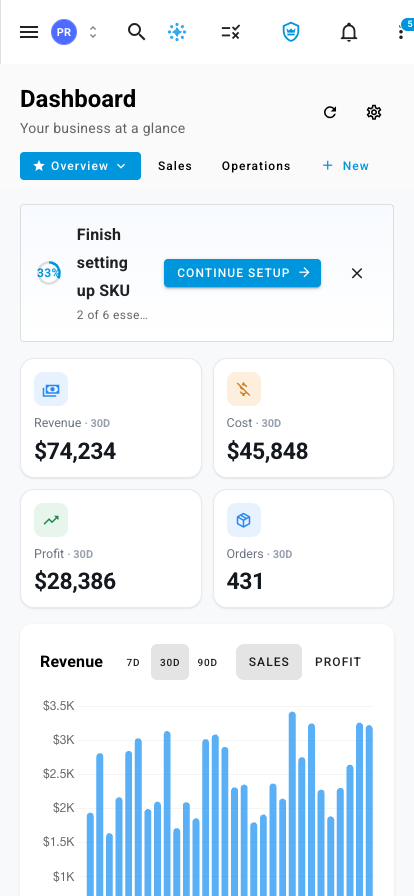
- Works on your phone. Your dashboards follow you to mobile in a clean single-column view.
Add exactly the widgets you want
Click Customize, then Add widget, and the widget picker opens. On the left, widgets are grouped by area — Sales & Orders, Inventory & Stock, Financials & Profitability, Forecasting & Demand, and more — or you can search all 100+ at once. Pick a card and the panel on the right shows a live preview built from your real data, so you know precisely what you're getting before it goes on the board.
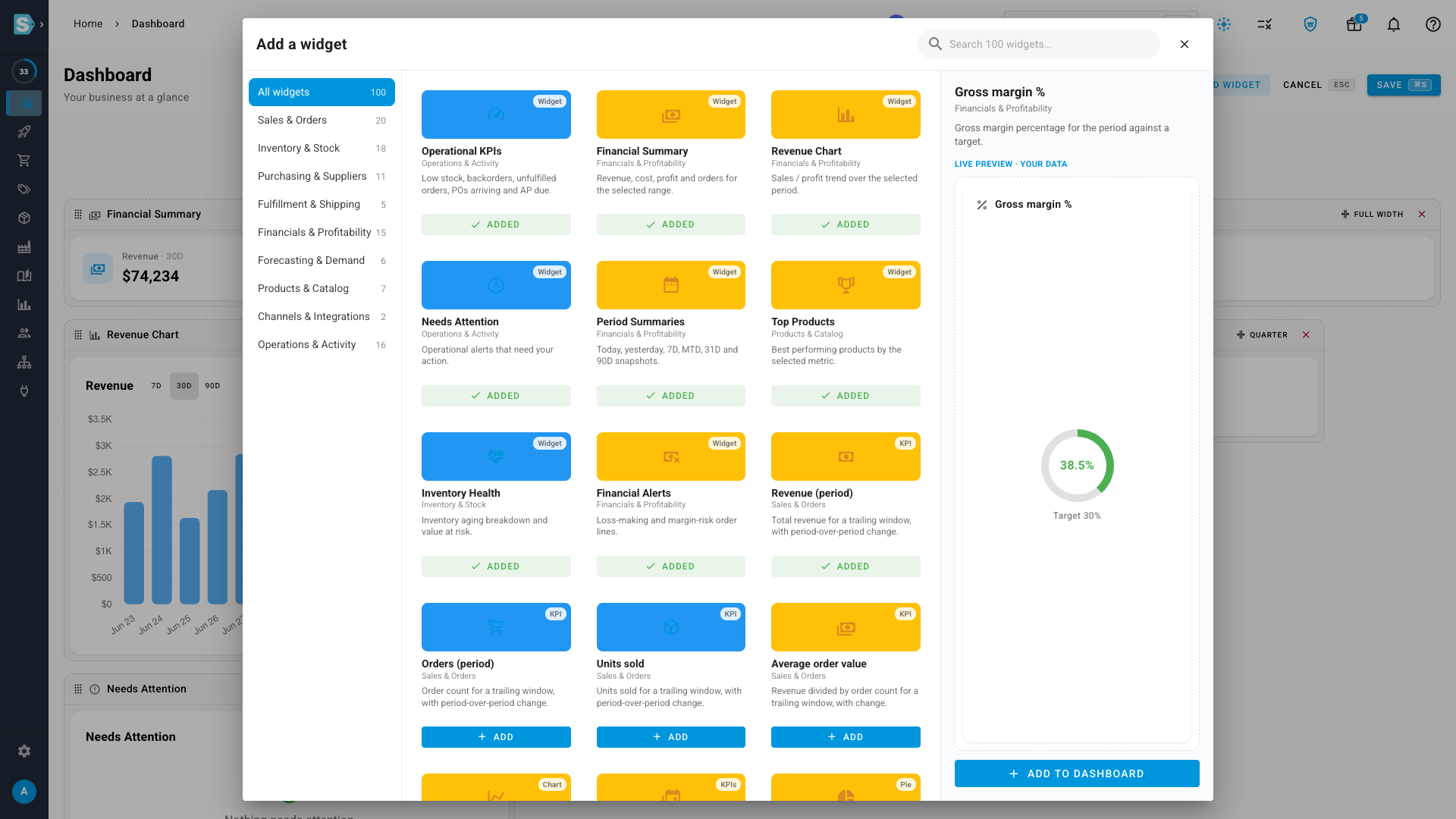
Add a widget and it drops onto your dashboard and scrolls into view. In edit mode you can drag any widget to reorder it, set its width, or remove it — then Save (or just press ⌘/Ctrl+S). Changed your mind? Cancel (or Esc) backs out, and you'll be asked before anything is discarded.
Keep several dashboards and switch in a click
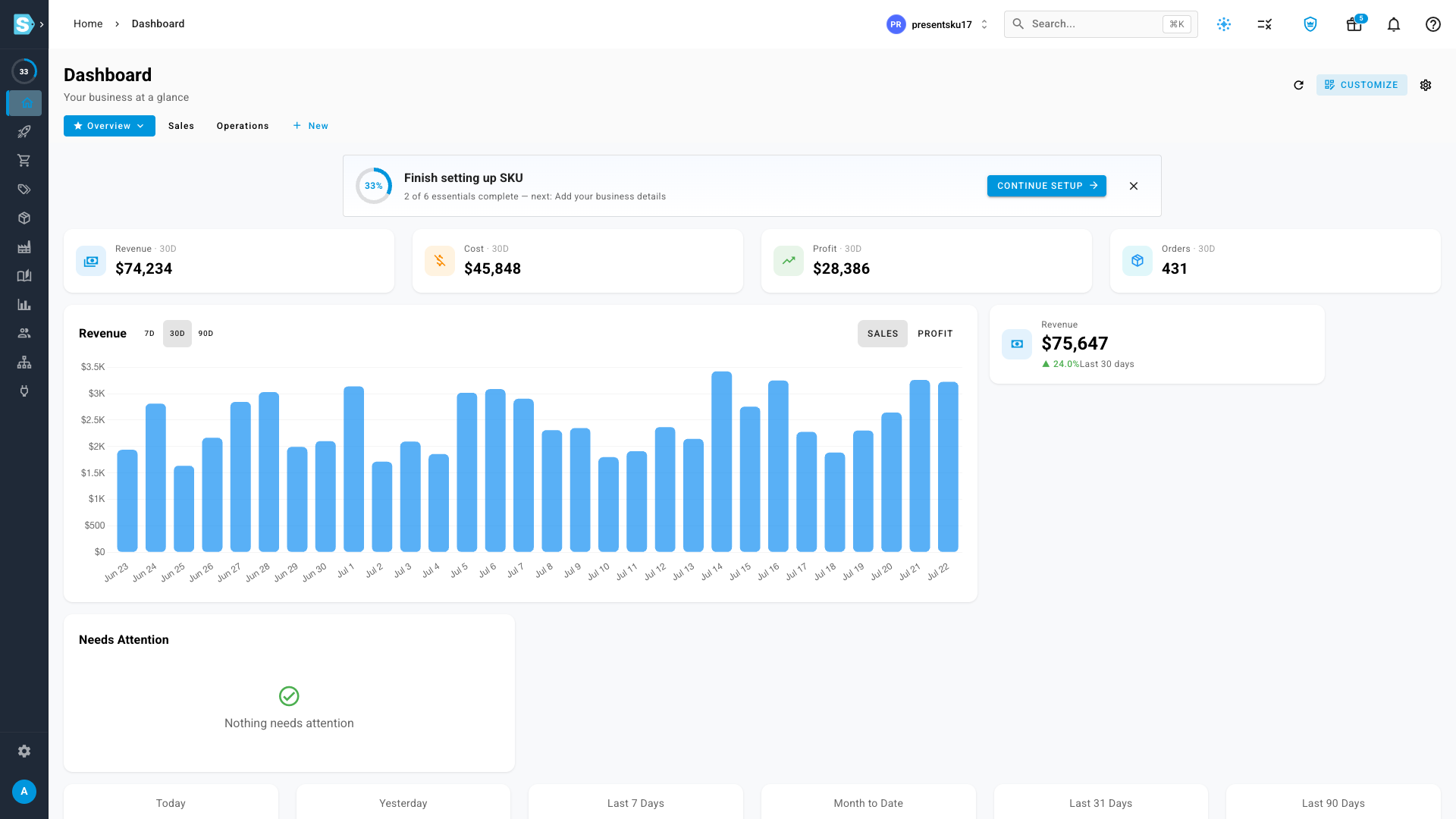
One board rarely fits every role. Create as many named dashboards as you like and switch between them from the tabs at the top — each remembers its own set of widgets and layout. Rename them, set a default that opens when you sign in, drag the tabs to reorder them, and delete the ones you no longer need.
Take it with you
Your dashboards aren't just a desktop thing. On a phone, the same board you built stacks into a clean single column, and the tab switcher comes along so you can jump between your Overview, Sales and Operations views on the go.
Where to find it
It's your home screen. Open Dashboard from the main menu, then click Customize in the top-right to add, arrange and resize widgets, and use the tabs beneath the title to create and switch between dashboards.
Full guide: Customize your dashboard