Trend-aware forecasting — your baseline keeps up with growth, and promotions scale with it
Your demand-planning forecast has always turned recent sales into a reorder quantity — but it treated every product as if it sold at one steady pace. A SKU that has tripled over the last quarter was still planned off its flat average, so you under-bought your fastest movers and over-bought the ones winding down. And when you wanted to plan for a promotion you'd run before, you had to eyeball last year's numbers and mentally scale them up. Trend-aware forecasting changes both: the baseline can now follow a product's trend instead of a flat mean, every recommendation shows exactly how it was built, and a promotion you measured once becomes a reusable lift that automatically scales with how much your business has grown.
✨ What this means for you:
- Choose how each baseline is calculated — a flat average, a recency-weighted average, or a damped trend that projects recent growth forward without overshooting.
- A growing product is planned closer to its current pace, not a stale average; a declining one winds down instead of over-ordering.
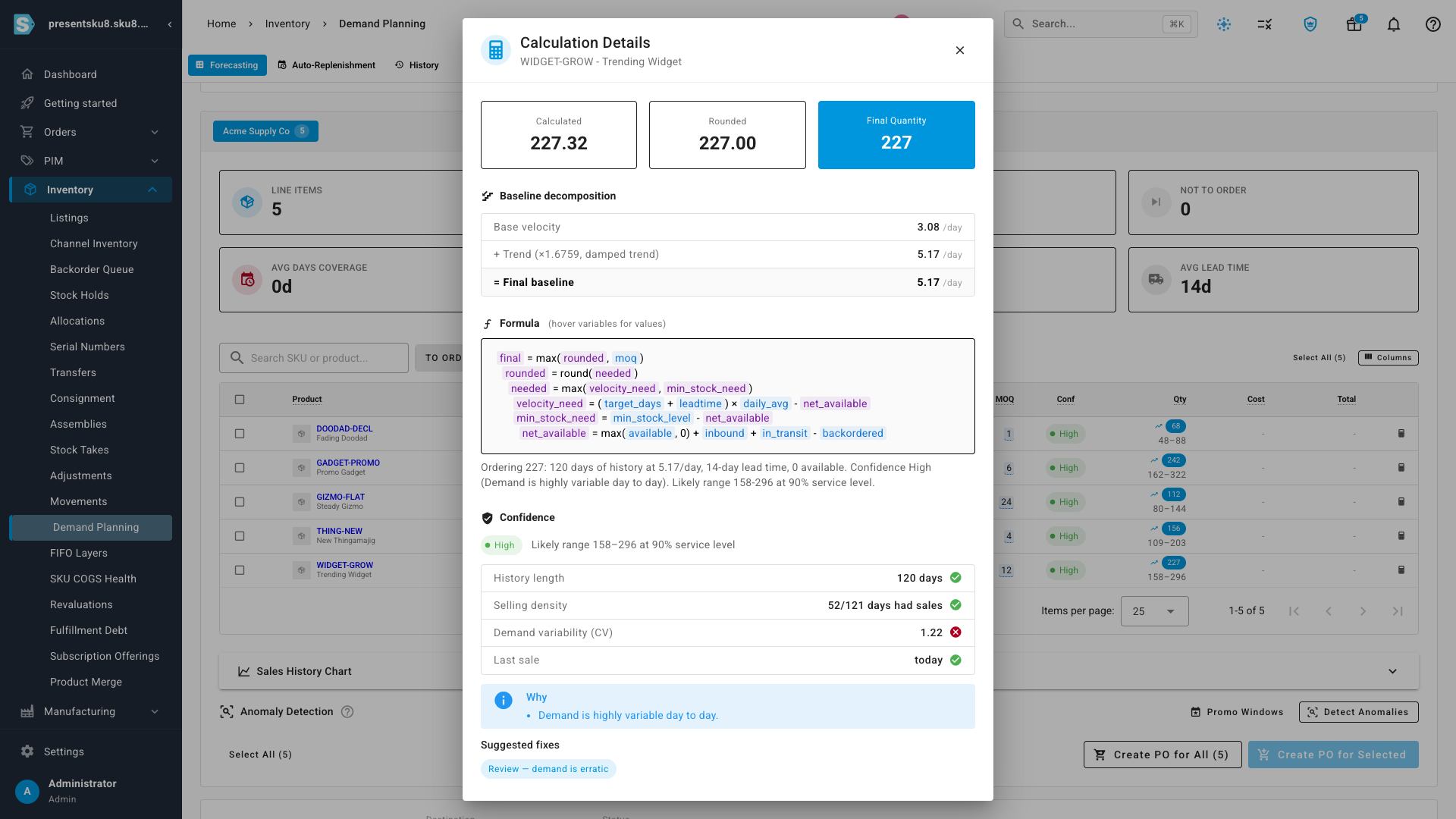
- Every recommendation now shows its decomposition — base velocity, the trend applied, and the final daily rate — so you can see exactly why the number moved.
- One-off spikes — a past promotion, a data glitch — can be excluded from the baseline automatically, so they don't inflate your everyday demand.
- Turn a past promotion into a reusable lift: measure it once, and it re-applies at today's volume — a promo that lifted you 2.5× still lifts 2.5× after you've doubled.
- Promo windows are suggested for you from detected sales spikes, so you confirm a date range instead of typing one.
- The full decomposition downloads with your export, alongside the confidence and rationale you already get.
Pick how your baseline is calculated
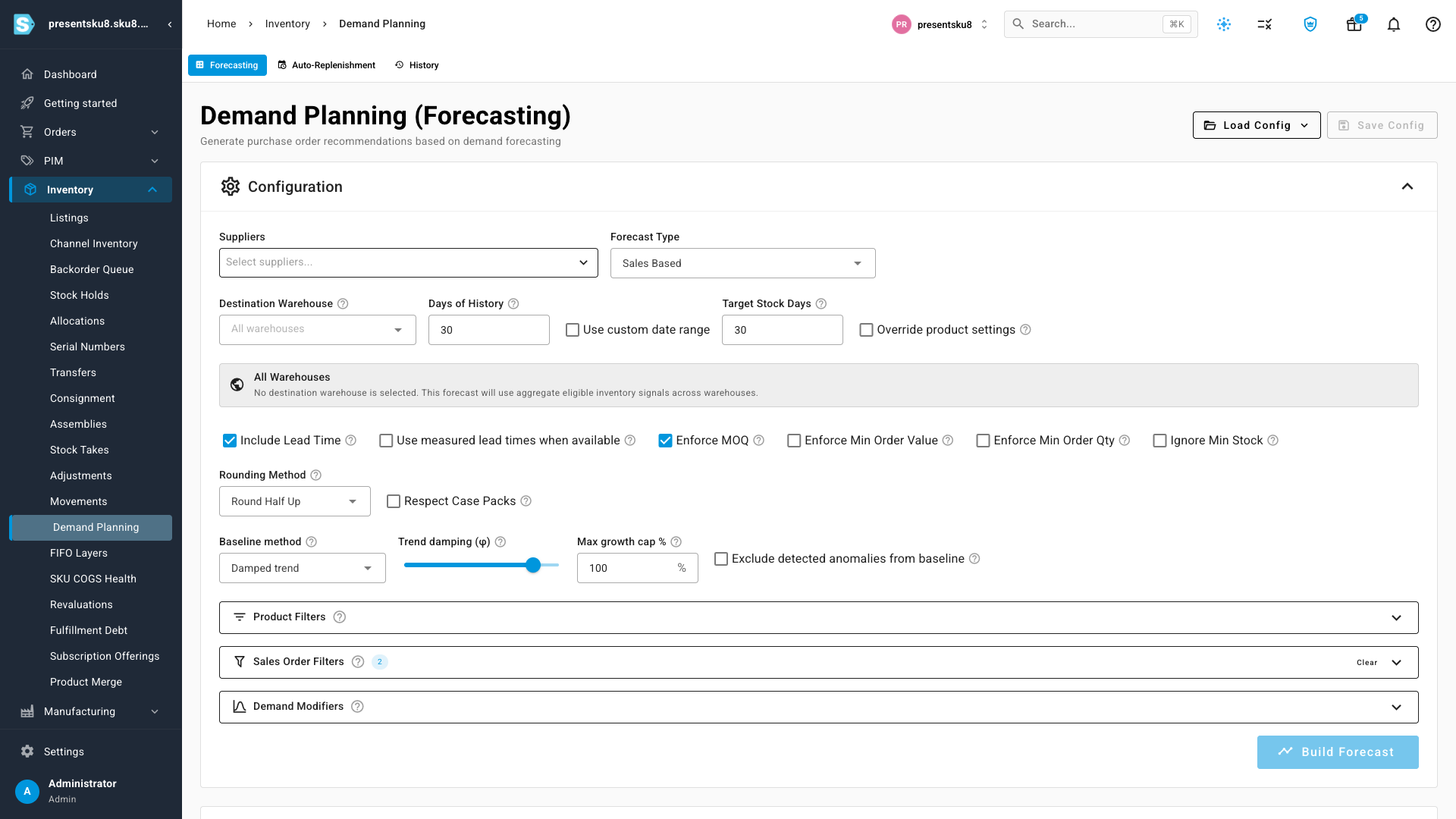
Open Inventory → Demand Planning and you'll find a new Baseline method control in the forecast configuration. Leave it on Flat mean for the classic behavior, or switch to Recency-weighted to lean on your most recent sales, or Damped trend to project a product's recent growth forward. Choosing Damped trend reveals two dials — Trend damping, which controls how strongly the trend carries forward, and a Max growth cap so a short-term surge can't run away with your order. There's also an Exclude detected anomalies from baseline option that keeps one-off spikes out of your everyday demand.
See the number build, step by step
Build the forecast and each line's daily rate now reflects its trend — a fast-growing product reads noticeably higher than its flat average, a fading one reads lower. Click the calculator icon on any row and the calculation detail opens with a new Baseline decomposition: it shows the base velocity the product would sell at flat, the trend that was applied (and whether the growth cap kicked in), and the final baseline the order is built from — so the reason behind every recommendation is right there, not hidden in an average.
Re-use a promotion — and let it grow with you
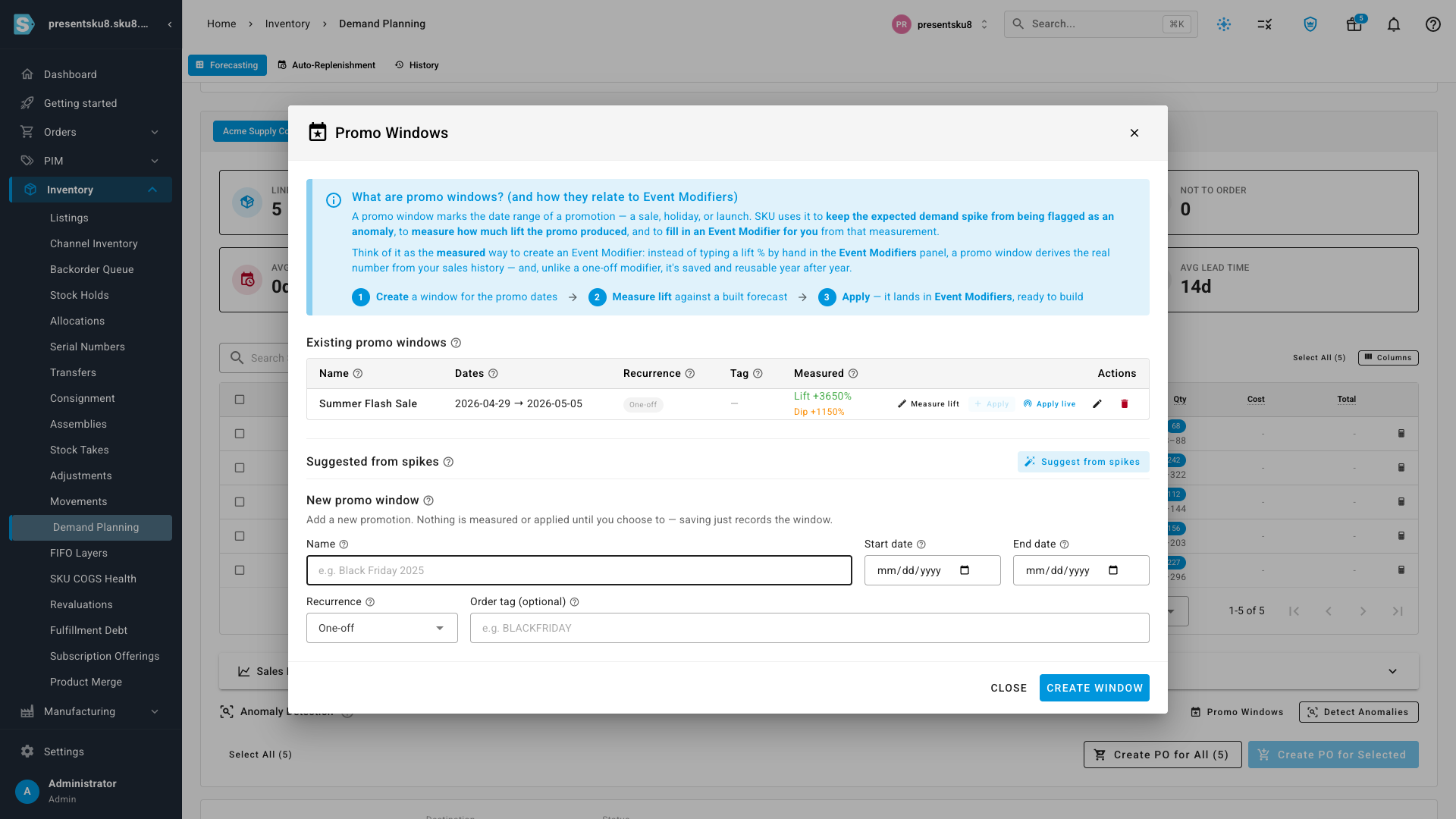
Ran a sale last year and want to plan for it again? Open Promo Windows, mark the promotion's dates, and measure the lift it produced against your real sales history. From there you can apply that lift to your forecast — and because it's stored as a multiplier rather than a fixed number of units, it re-applies at today's volume automatically. A promotion that lifted demand 2.5× still lifts it 2.5× after your baseline has doubled, with nothing to recalculate. To make setup easier, Suggest from spikes scans your sales history and proposes the promotion's date range for you.
Where to find it
- Choose your baseline: open Inventory → Demand Planning, and in the Configuration panel set the Baseline method (and, for Damped trend, the damping and growth cap).
- See the decomposition: after you Build Forecast, click the calculator icon on any line and read the Baseline decomposition at the top of the calculation detail.
- Re-use a promotion: open Promo Windows from the forecast results, create or Suggest a window, Measure lift, then Apply it — it lands as a demand modifier ready to build.
- Take it with you: click Export and keep Include calculation details switched on to download the full baseline and promo breakdown for every line.