Amazon FBA Storage Fees in Your Product Margins
If you sell on Amazon FBA, storage fees quietly eat into your margins — and until now they were invisible at the product level. Amazon charges them per product, per month, but the only way to see what each product was really costing you was to download a TSV, aggregate hundreds of FNSKUs across fulfillment centers, map them to your products, and hand-enter the totals. Every month. So in practice, nobody did. Amazon storage fee cost allocation changes that: SKU.io now pulls Amazon's two storage fee reports automatically and turns them into per-product cost entries — no spreadsheets, no manual entry.
✨ What this means for you:
- Storage costs in your real margins. Monthly storage fees and aged-inventory surcharges are attributed to the exact products — and the exact months — that incurred them, then flow straight into your Contribution Margin report.
- Zero manual work. Both reports are requested and synced for you. Flip one switch and each month's fees become a cost entry with per-product allocations automatically.
- Aging penalties tracked separately. Long-term storage surcharges — which often dwarf base fees on slow movers — get their own cost type, so you can see exactly what aging inventory is costing you.
- Honest, not smeared. Fees for products SKU.io can't yet match to an FNSKU are surfaced for you to map — never silently spread across your other products.
Two reports, synced automatically
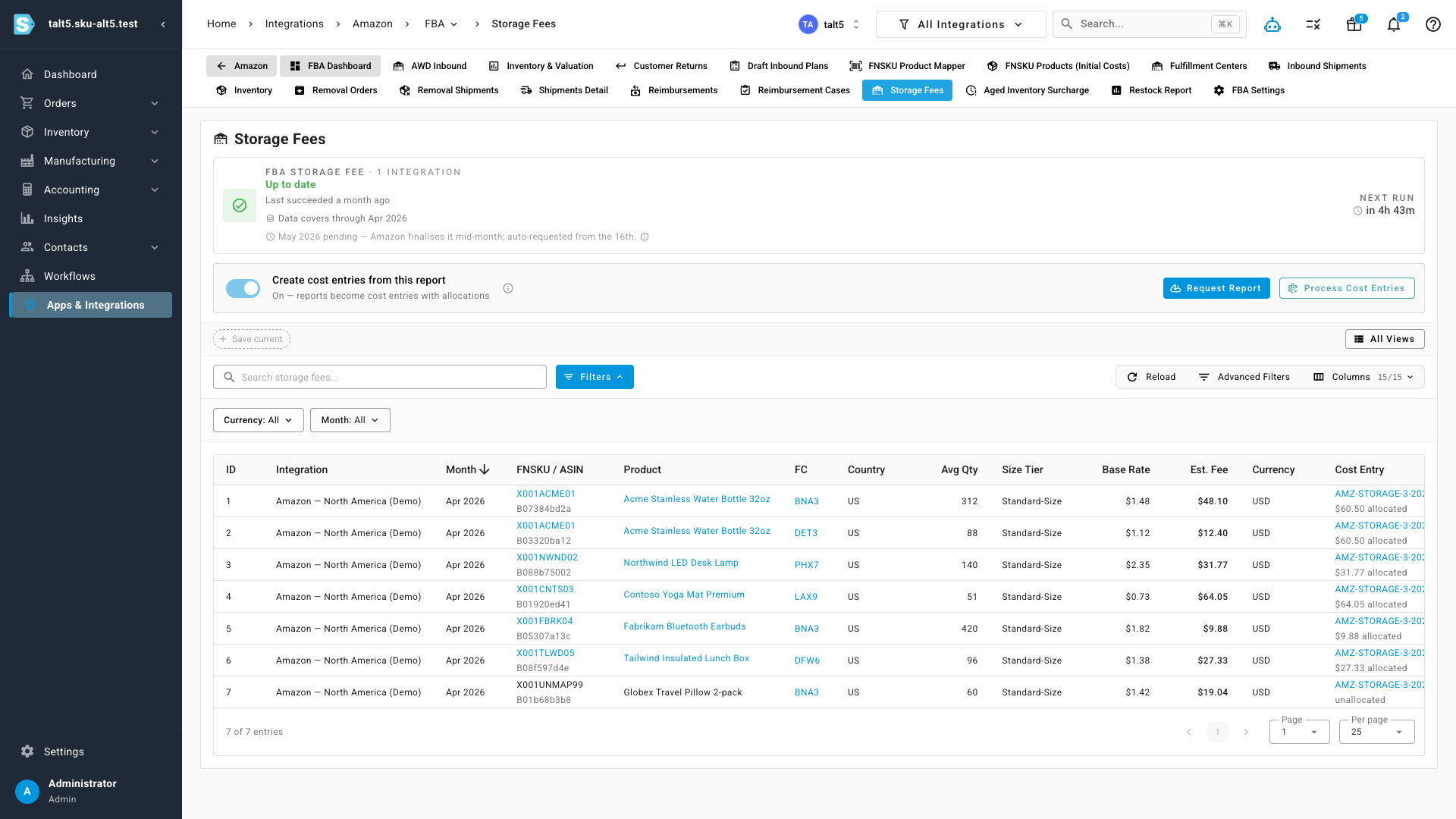
SKU.io now treats the monthly storage fee report and the aged-inventory surcharge report as first-class Amazon reports. They're requested for you each month and land on their own pages under the FBA section, with every charge broken out per product, per fulfillment center — including Amazon's fee-per-product, size tier, and base rate.
The aged-inventory surcharge report works the same way, with the surcharge age tier (how long the inventory has been sitting) on every row.
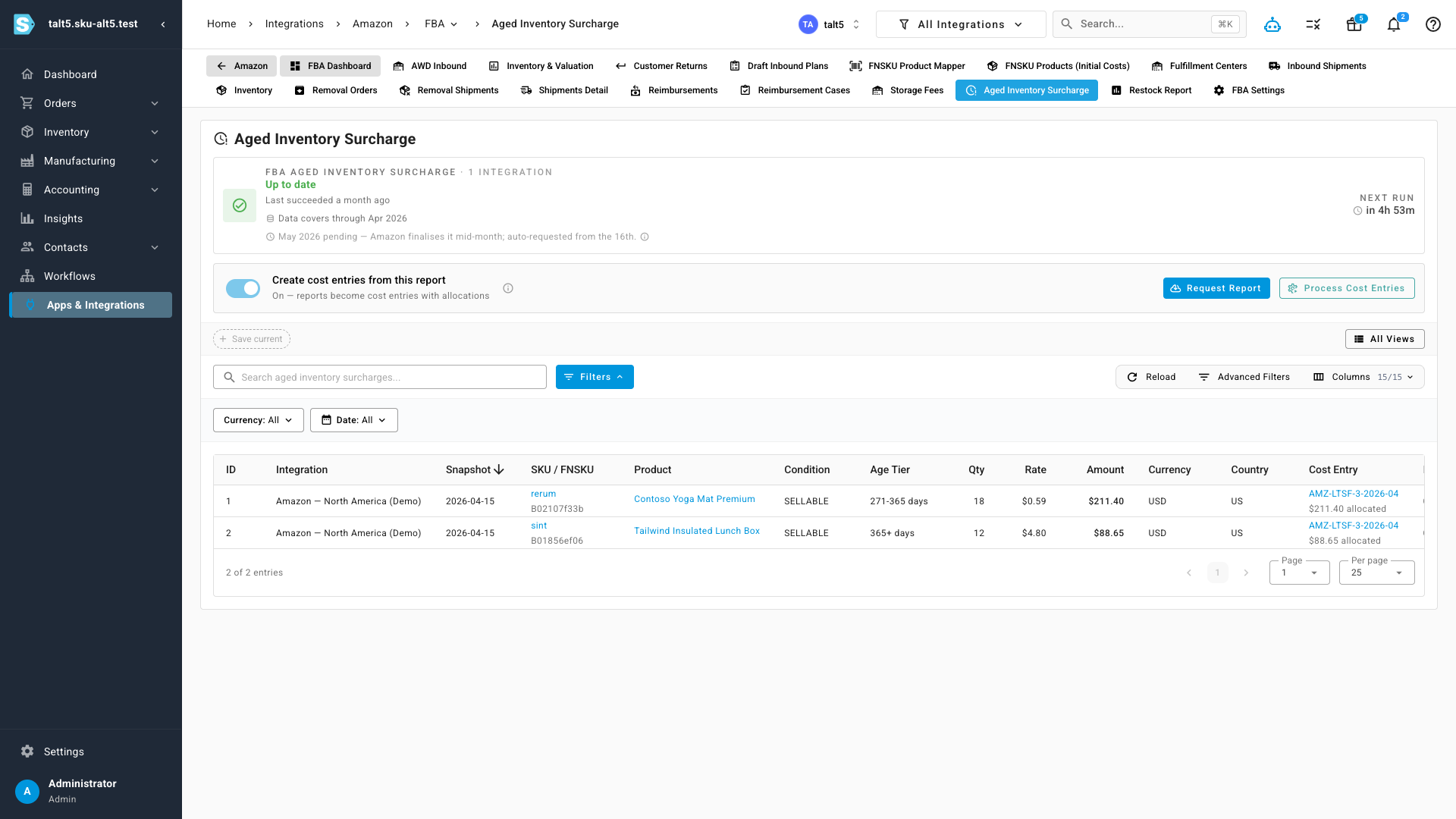
A status strip at the top of each page tells you at a glance whether the data is up to date, and — because Amazon only finalizes a month's fees mid-way through the following month — clearly flags when the latest month is still pending on Amazon's side rather than making you wonder if something's broken.
One switch turns fees into costs
The reports always sync (the data is useful on its own), but turning them into cost entries is opt-in. Enable "Create cost entries from this report" — right on the report page or in your Amazon FBA settings — and from then on, each month's fees are converted into cost entries with product-level allocations as the report syncs.
Costs land on the right products, for the right month
Once enabled, every storage month produces one cost entry per report, named for the month and clearly marked as auto-created from the Amazon report it came from.
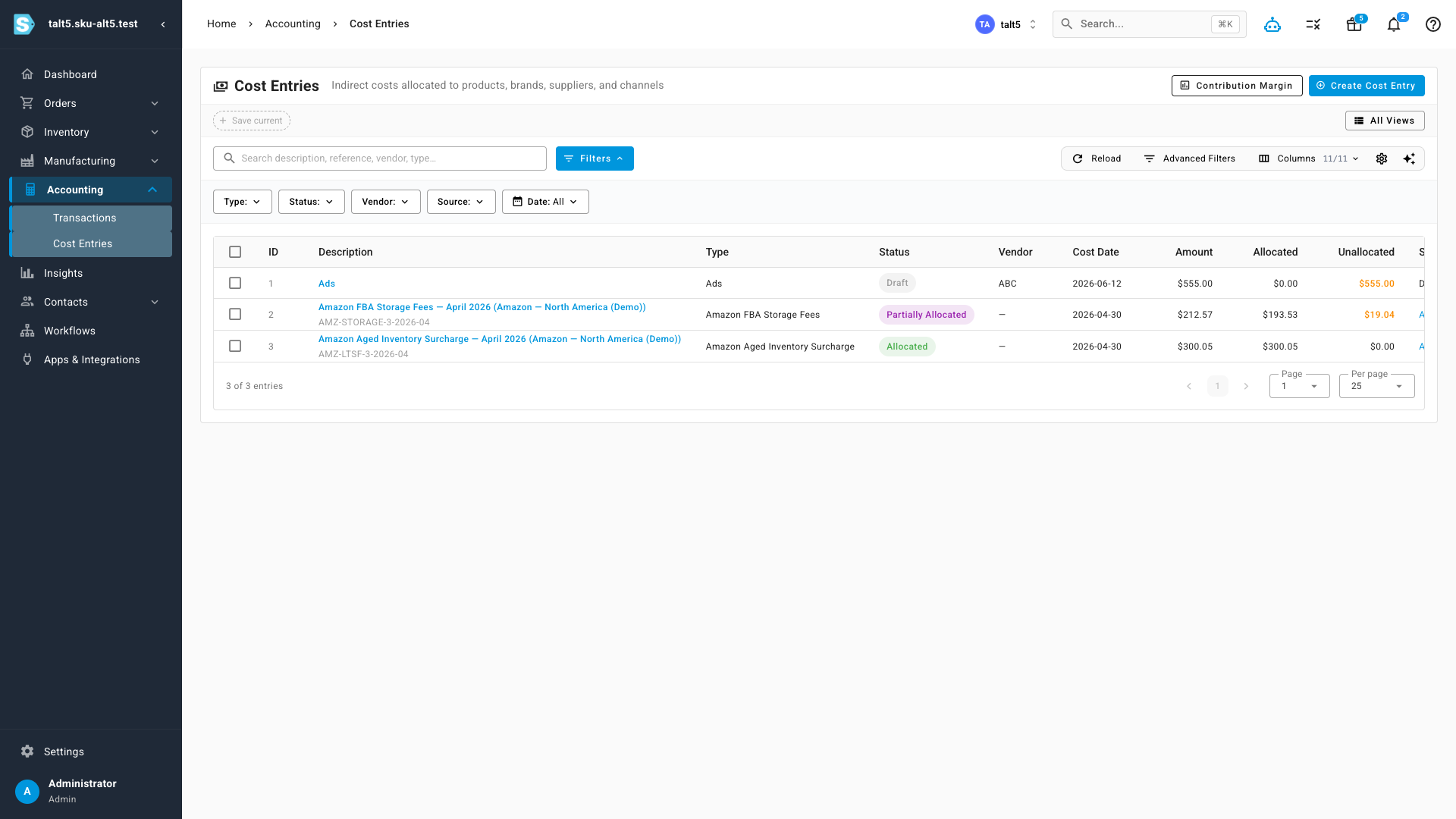
Open an entry and you'll see the full picture: each matched product gets its own allocation for the exact fee Amazon charged, with the period set to the storage month — so your margin reports attribute the cost to the period that caused it. A product split across multiple fulfillment centers is summed into a single, clean allocation.
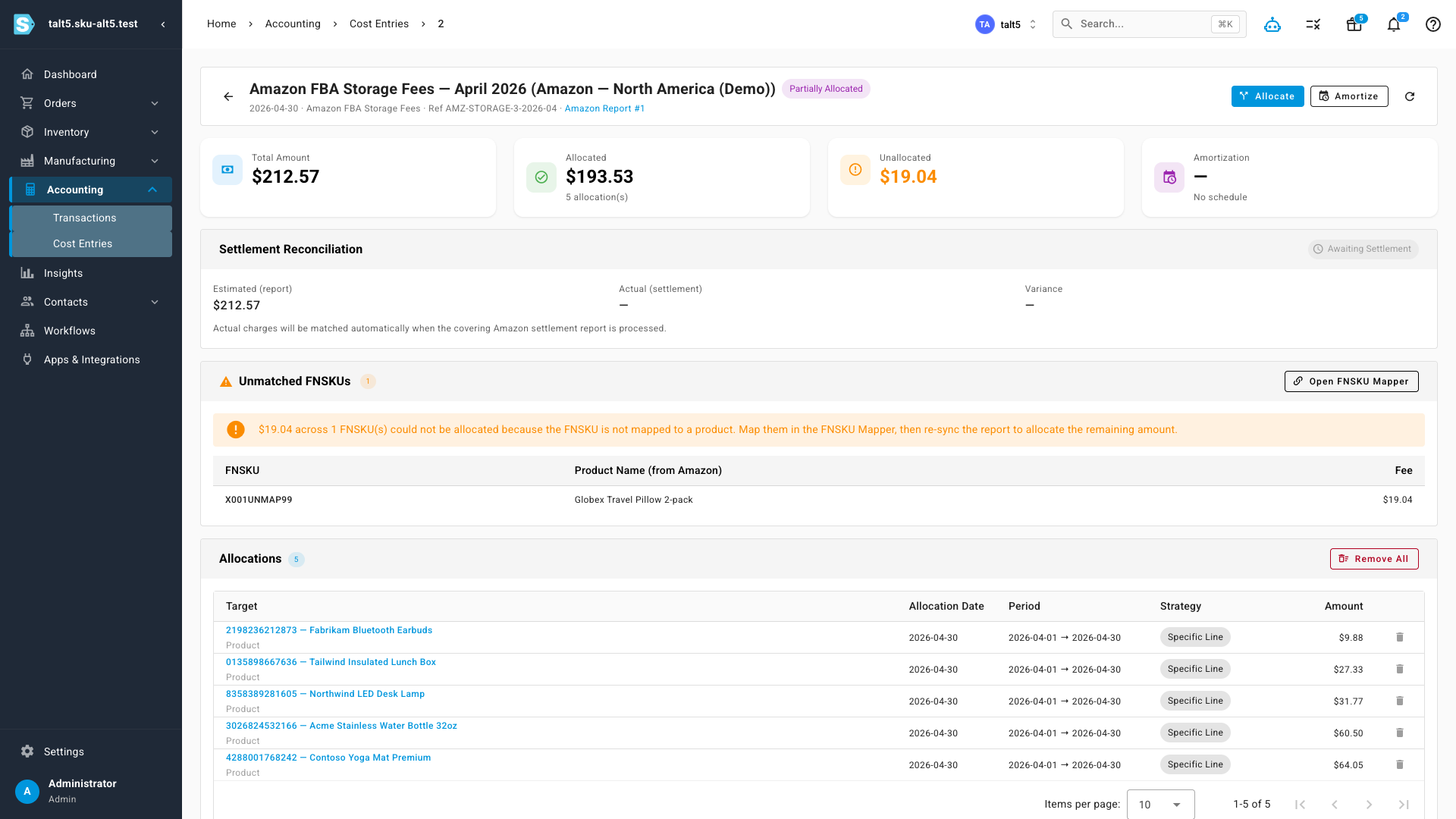
Two extra touches make the numbers trustworthy:
- Unmatched products are called out, not hidden. If a fee belongs to an FNSKU that isn't mapped to one of your products yet, the entry stays Partially Allocated and lists the unmatched items with a one-click link to the FNSKU Mapper. Map it, re-run, and the remaining amount allocates — no duplicates.
- Estimated vs. actual reconciliation. The storage fee report is Amazon's estimate; the real charge arrives later in your settlement. Each entry shows an "Awaiting settlement" state and automatically reconciles to the actual amount — with the variance — once the covering settlement report is processed.
From there, the allocations roll straight into your Contribution Margin report, so storage and aging costs sit right next to every other indirect cost, attributed to the right products and months.
Where to find it
- The reports: Apps & Integrations → Amazon → FBA → Storage Fees and Aged Inventory Surcharge.
- The switch: the "Create cost entries from this report" toggle on either report page (or in your Amazon FBA settings).
- The results: Accounting → Cost Entries (and your Contribution Margin report).