eBay Payout Accounting — reconcile every eBay payout to your books in one entry
If you sell on eBay, you know the pain of month-end reconciliation. An eBay Managed Payments payout is a single net deposit that quietly bundles your gross sales, refunds, final value fees, ad fees, shipping-label costs, and adjustments — so the number that lands in your bank is none of your revenue figures. Matching it back to your books by hand takes hours, and coding the whole deposit to one income account quietly misstates your revenue, fees, and tax.
eBay Payout Accounting fixes that. SKU now pulls your eBay Managed Payments payouts, breaks each one into its real components, and posts a single deposit-matched summary to your accounting — one entry that reconciles to your bank deposit to the cent.
✨ What this means for you:
- One summary per payout, not thousands of lines. Each eBay deposit becomes a single clean accounting entry that matches your bank feed exactly — reconcile in one click instead of rebuilding it from hundreds of orders.
- Every component on the right account. Sales, refunds, final value fees, ad fees, shipping labels, and charges are each split onto the account you choose — no more lumping the deposit into one bucket.
- Sync on your terms. Pull just the new payouts, a custom date range, or run a full re-sync — whatever you need.
- Full drill-down. See exactly what makes up any payout, right down to the individual transaction lines, all searchable.
Sync your eBay payouts
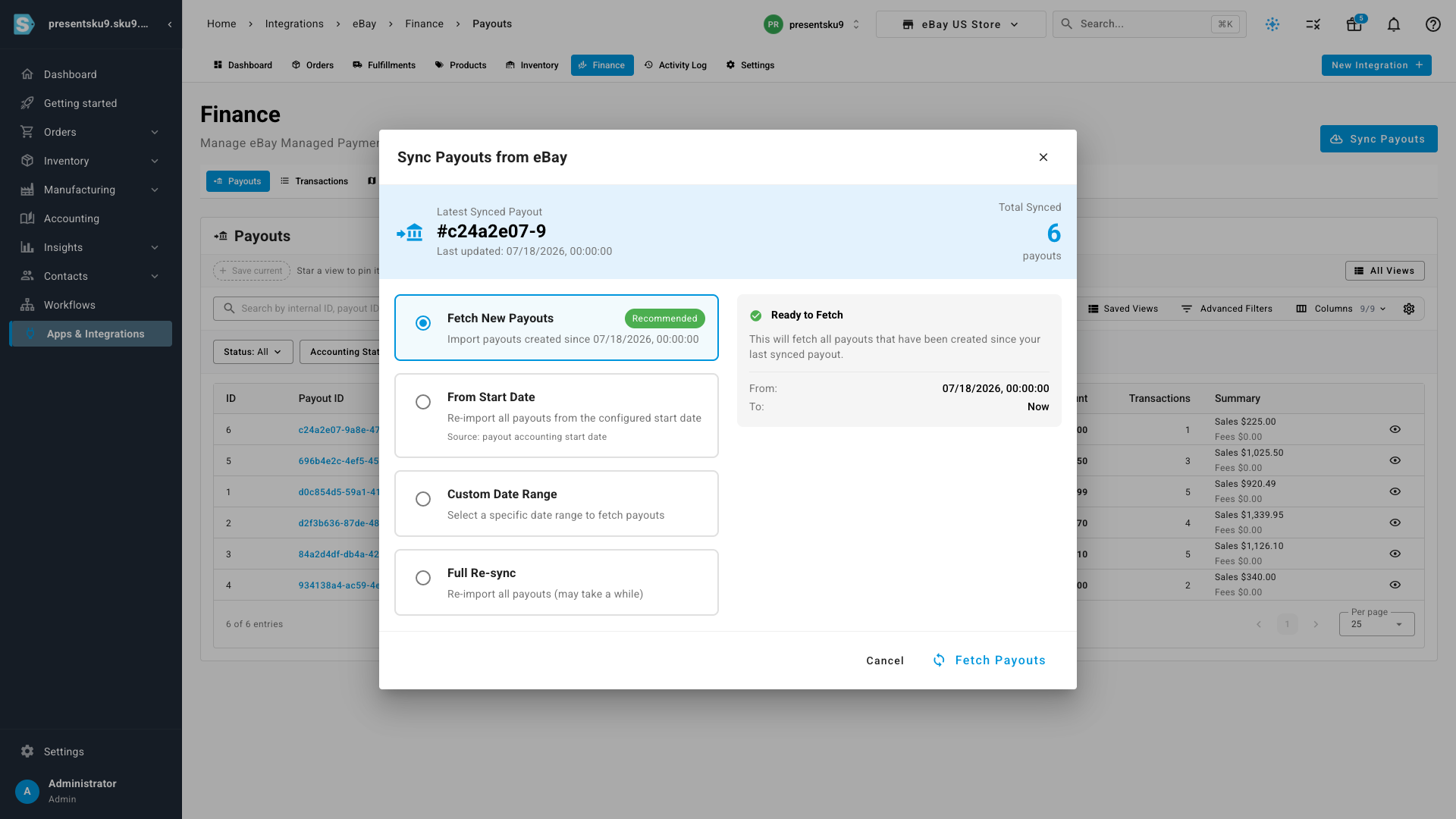
Head to the eBay Finance area and hit Sync Payouts. You choose how much to pull — fetch just what's new since your last sync, re-import from a start date, grab a custom date range, or run a full re-sync. SKU pulls each payout together with its underlying transactions.
See exactly what each payout is made of
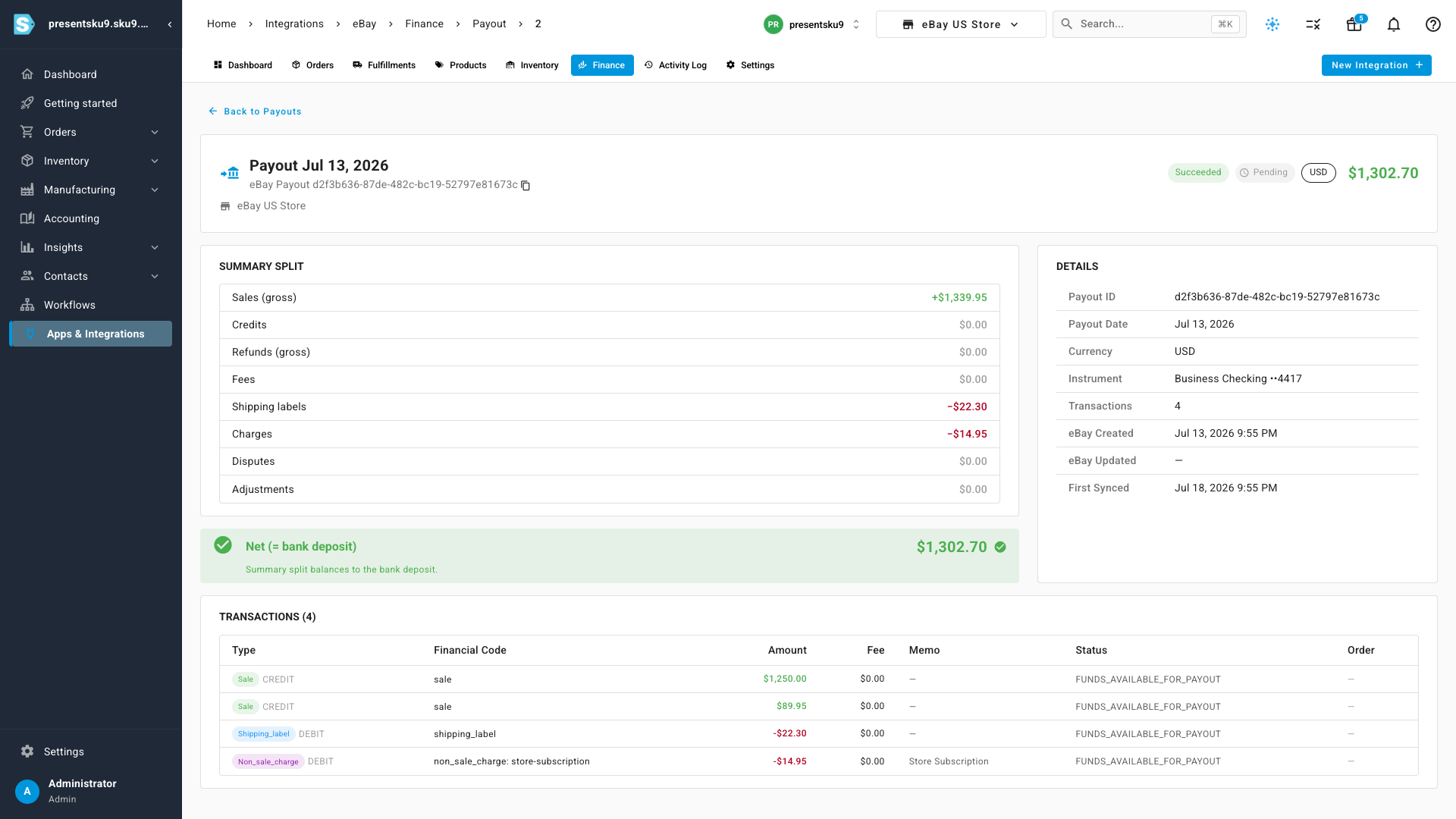
Open any payout to see its full breakdown — gross sales, refunds, fees, and any charges — alongside the line-level transactions behind it. The summary always ties out to the net deposit, so you can trust the number that hit your bank.
Map each component to your accounts
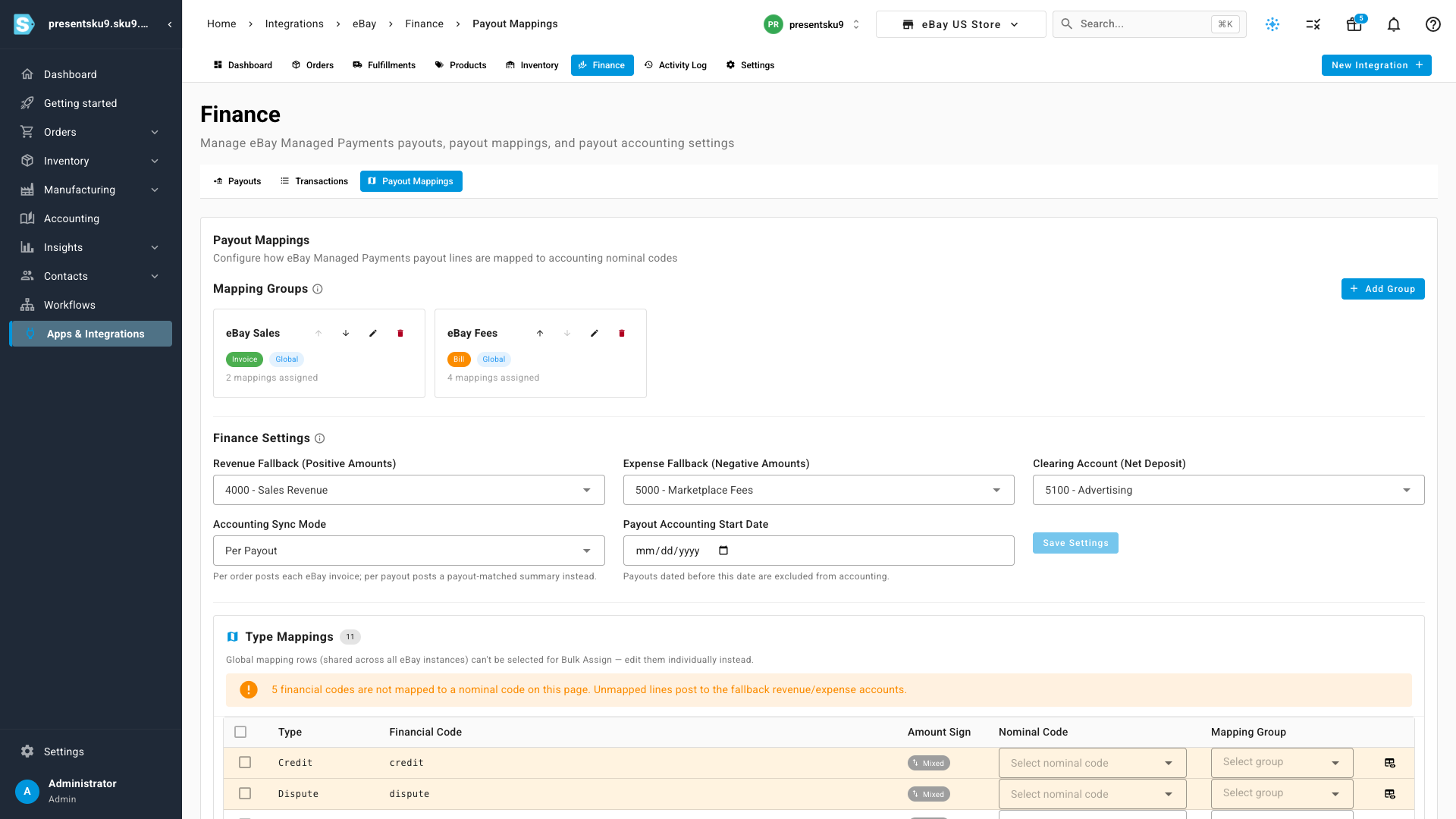
Decide once where every part of a payout should land in your chart of accounts. Map sales, refunds, and each fee type to the right nominal codes, set fallback accounts, and choose whether to book eBay revenue per order or as a payout-matched summary. From then on, every payout posts itself correctly.
Browse every payout and line
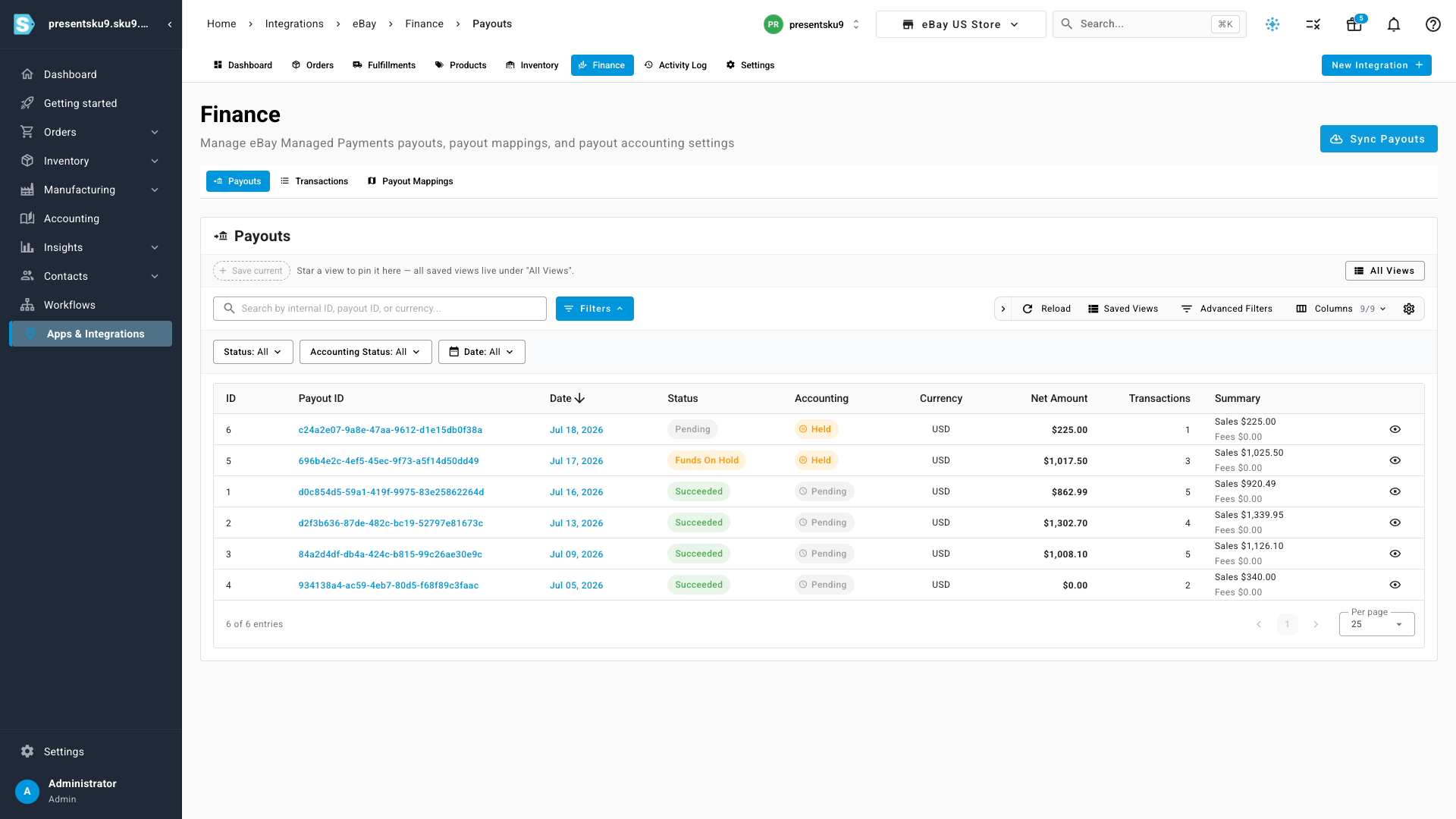
The Payouts list gives you every eBay deposit at a glance — status, accounting state, net amount, and a quick summary — all filterable and searchable. A dedicated Transactions view lets you drill into the individual lines across payouts whenever you need the detail.
Where to find it
Open Integrations → eBay → Finance. The Payouts and Payout Mappings tabs are right there — start with Sync Payouts to pull your history, then set your mappings once and let every future payout reconcile itself.