Accounting Lock Dates — close your books and keep them closed
You close the books for a month, reconcile everything to QuickBooks or Xero, and move on — and then a customer return, a late supplier bill, or a marketplace settlement shows up dated back in that closed period. Do you let it silently change a month you've already reported? Block it and lose the transaction entirely? Neither is a good answer. SKU.io now has first-class accounting lock dates — set the date your books are closed through, and any activity that arrives afterward dated on or before it is automatically posted to the first open day instead, with its original date preserved and clearly flagged. Your closed periods stay closed, and nothing falls through the cracks.
✨ What this means for you:
- Your closed months stay closed — SKU.io won't rewrite accounting entries dated on or before your lock date.
- Nothing gets dropped — late returns, bills, and settlements still land on your books; they just post to the first open day.
- In sync with QuickBooks & Xero — SKU.io reads your accounting platform's own lock date and offers it as a one-click suggestion.
- Full visibility — every displaced entry is badged, explains itself, and rolls up into a dedicated exceptions report.
Set your books' lock date
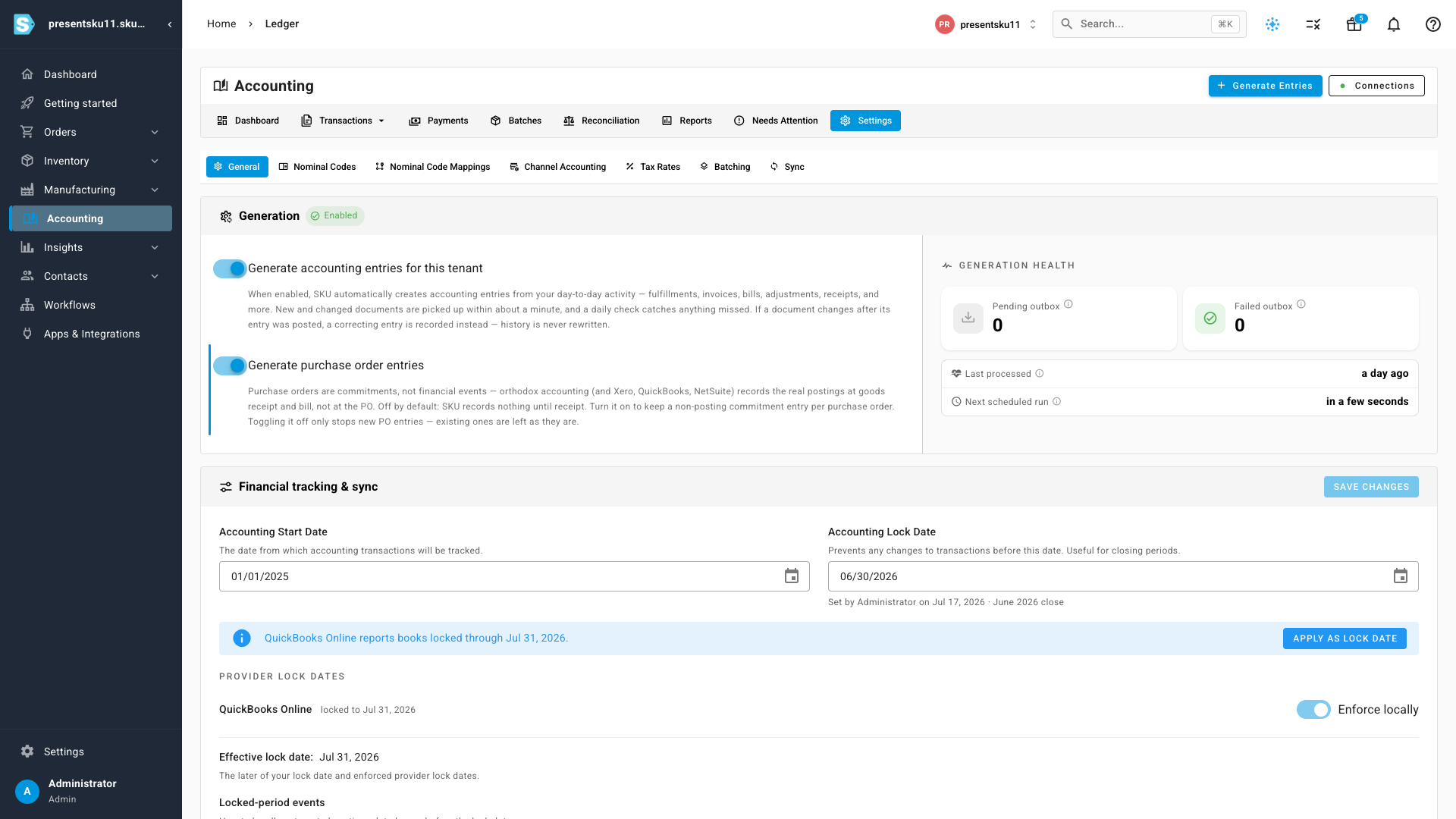
In Accounting → Settings → General you'll find a new Financial tracking & sync card. Set your Accounting Lock Date — the date your books are closed through — and SKU.io stops rewriting anything before it. The card shows who set the lock and when, so there's always a clear trail.
If you have QuickBooks Online or Xero connected, SKU.io imports the lock date from your accounting platform and shows it as a suggestion you can apply in one click — you stay in control of your own lock date, with the provider's simply offered as a starting point. The Effective lock date line always tells you exactly what's in force: the later of your own date and any provider lock you've chosen to enforce.
Late activity keeps flowing
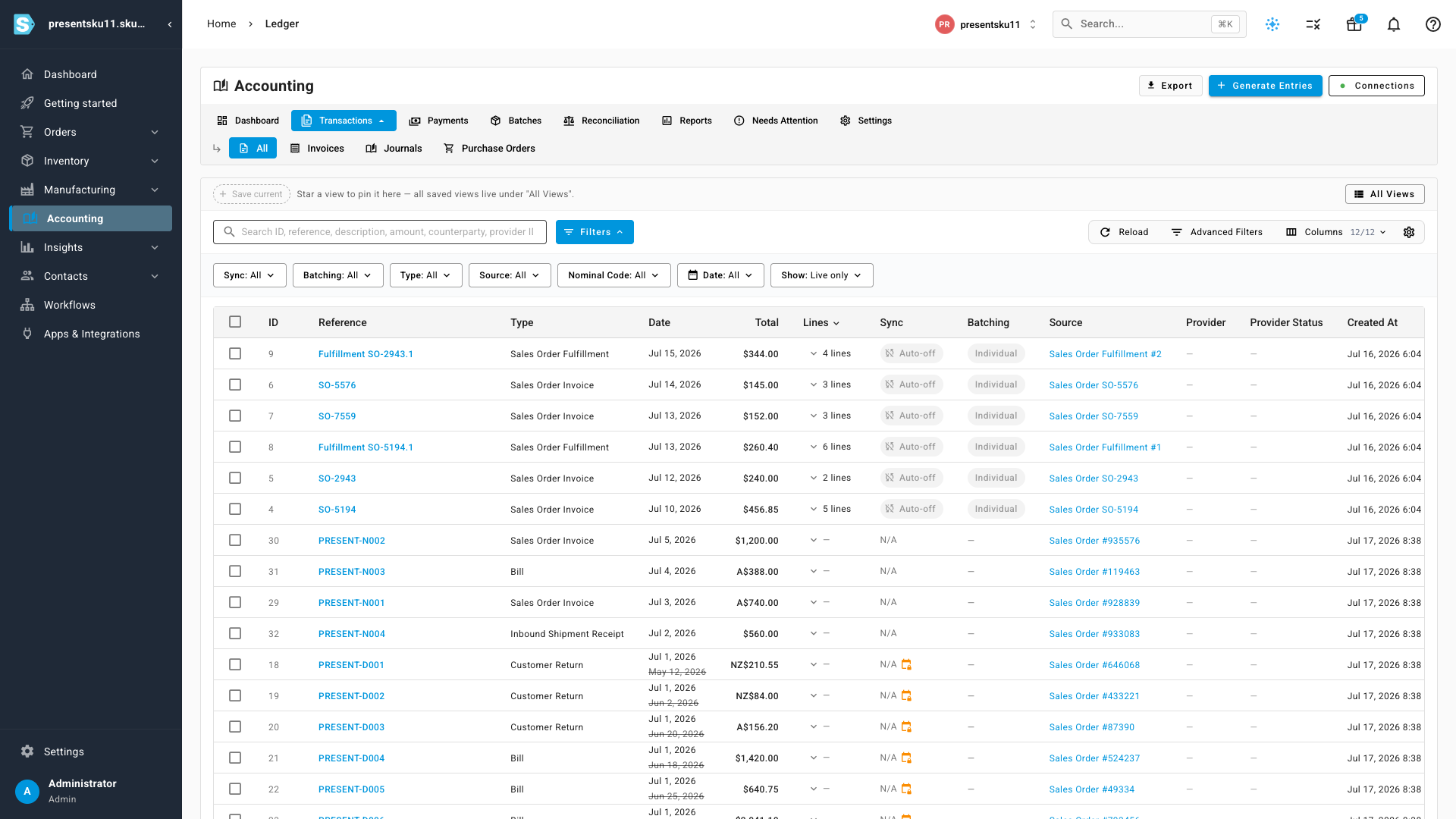
When something dated in a locked period arrives — a return against an old order, a supplier bill for goods received last month, an Amazon settlement — SKU.io books it on the first open day rather than refusing it or quietly editing a closed month. The entry keeps a record of the date it should have had, and it's marked with a lock badge and a struck-through original date right in your ledger, so it's obvious at a glance which entries were moved and why.
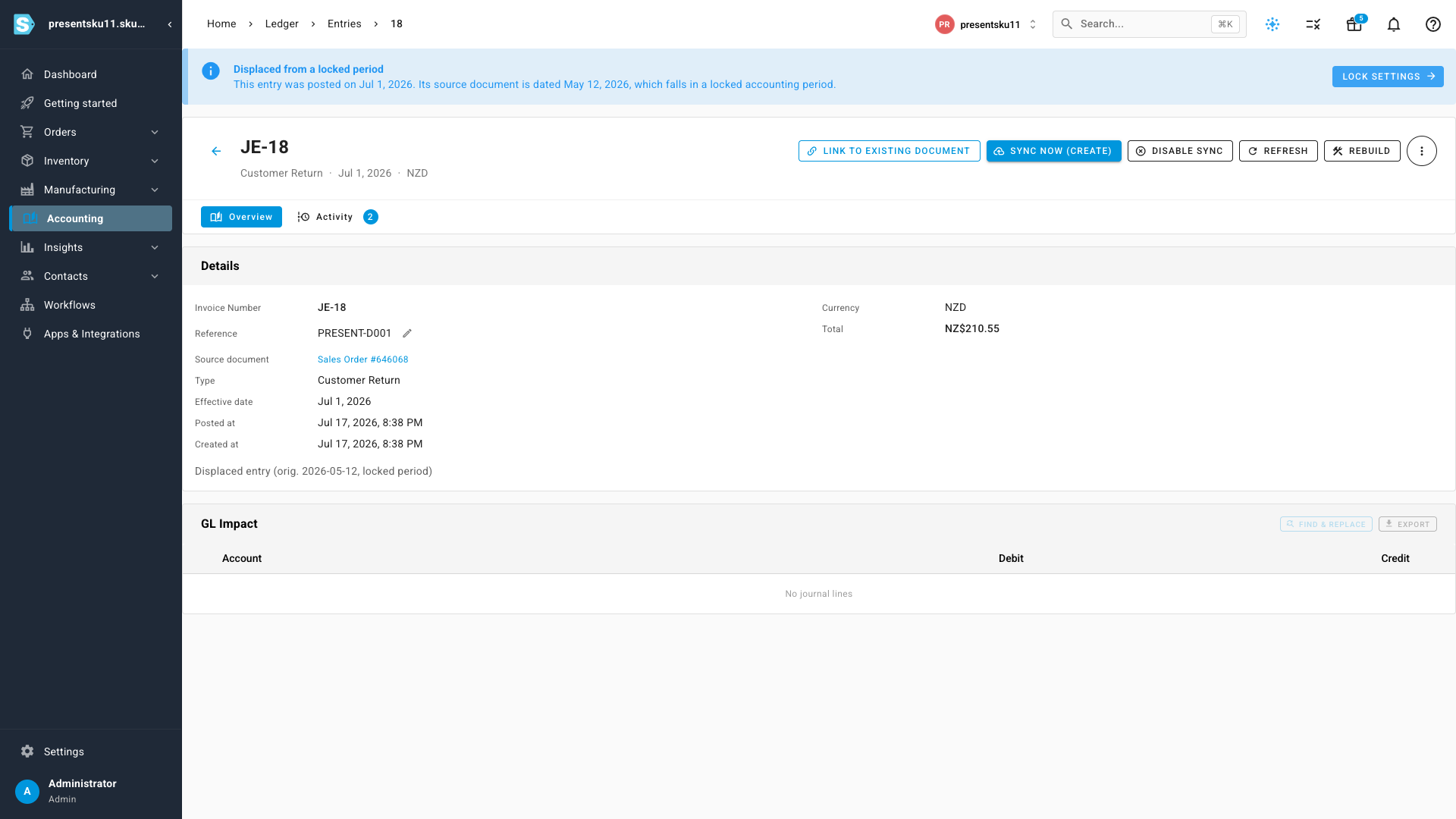
Open any moved entry and it explains itself in plain language — the date it was posted, the date its source document carried, and that it fell in a locked period.
A clear record of everything that moved
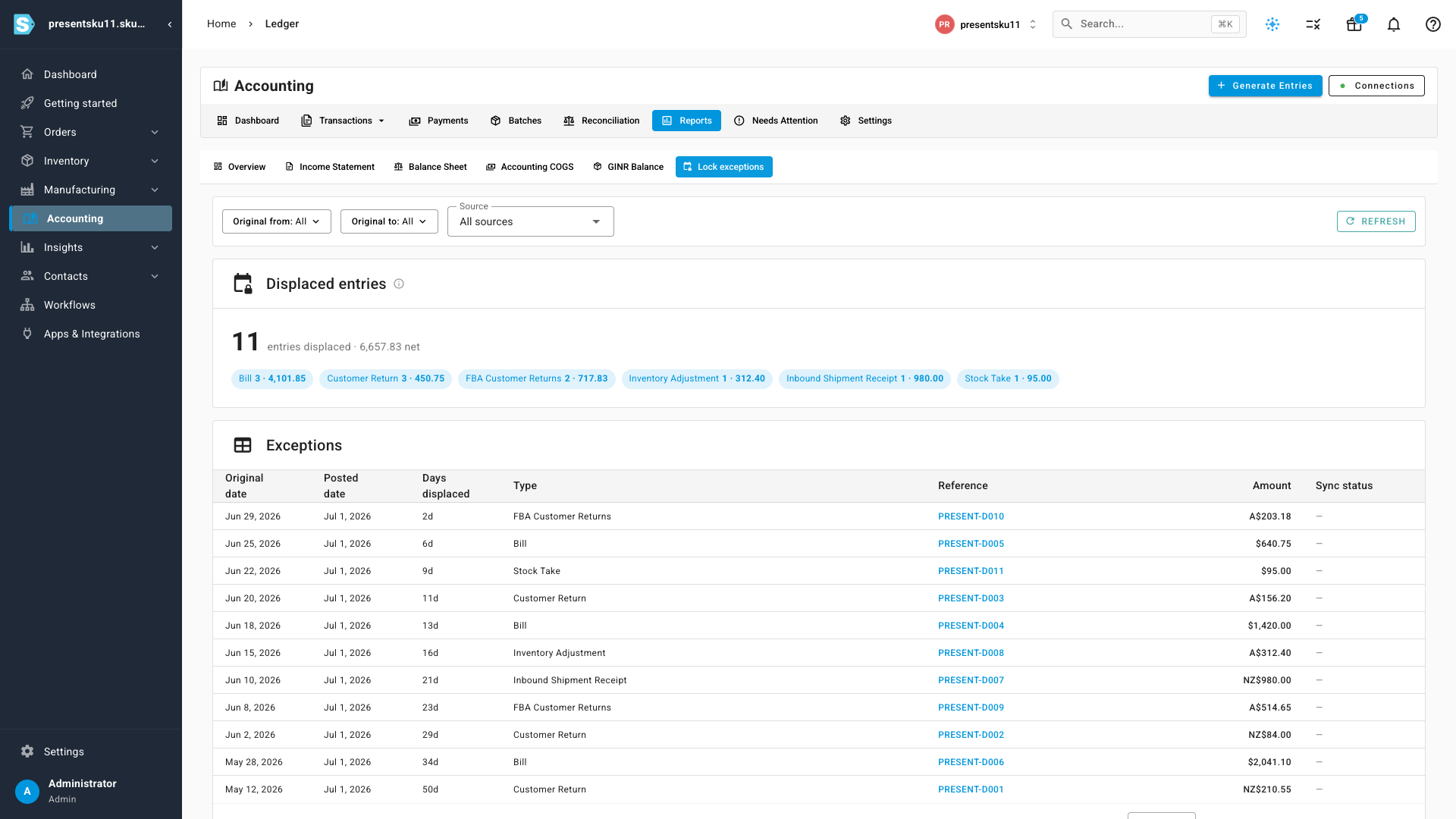
At month-end you need to answer one question: what changed after I closed? The new Lock Date Exceptions report answers it directly. It lists every displaced entry with its original date, its posted date, and how many days it moved — grouped by type, with net totals and a running count — so you can see the full picture and reconcile with confidence.
Where to find it
- Set your lock date: Accounting → Settings → General → the Financial tracking & sync card.
- See what moved: Accounting → Reports → the Lock exceptions tab. Displaced entries are also badged throughout the Transactions list, and explained on each entry's detail page.