FBM Backup Mode — keep your Amazon offer alive through FBA stockouts
When your FBA inventory hits zero, the ASIN goes dark: the Buy Box disappears, rankings decay, and sales stop until your next shipment checks in — often weeks later. The standard workaround is a "backup" merchant-fulfilled offer on the same ASIN, but keeping it live all the time means it can steal the Buy Box while FBA still has stock, and zeroing it in and out by hand doesn't scale past a handful of SKUs. FBM Backup Mode automates the whole dance: SKU.io publishes 0 to your merchant-fulfilled (FBM) listing while a linked FBA offer still has sellable stock, then publishes the real quantity the moment FBA runs out — and re-suppresses it automatically when FBA is replenished. Your offer never flips fulfillment type and never leaves the ASIN; it just waits its turn.
✨ What this means for you:
- FBA stockouts no longer take your ASIN offline — the FBM backup goes live within one sync cycle (about 15 minutes) of FBA showing empty.
- While FBA has stock, the backup sits safely at quantity 0, so it can't win the Buy Box away from your FBA offer.
- Restocks are handled too: when FBA inventory comes back, the backup is pushed back to 0 automatically.
- A stock threshold lets the backup go live slightly early — useful because FBA "available" often lags reserved and inbound units.
- The gate's state is always visible on the listing, so there's never any mystery about why a listing is showing 0.
See exactly what's being pushed, and why
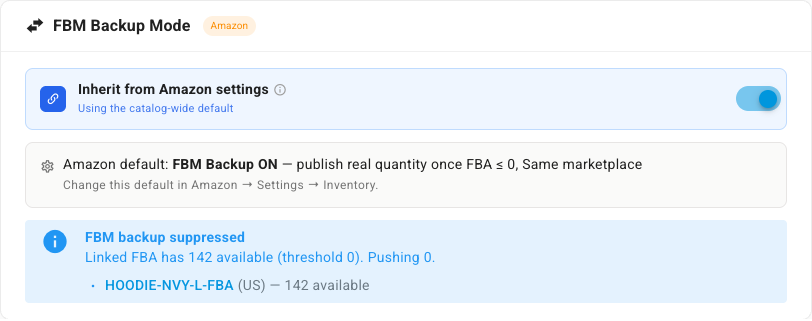
Every enrolled merchant-fulfilled listing shows its live gate status right on the listing detail page. While a linked FBA offer has stock above your threshold, the listing shows FBM backup suppressed with the exact FBA availability it found — including a link to each FBA sibling it's watching.
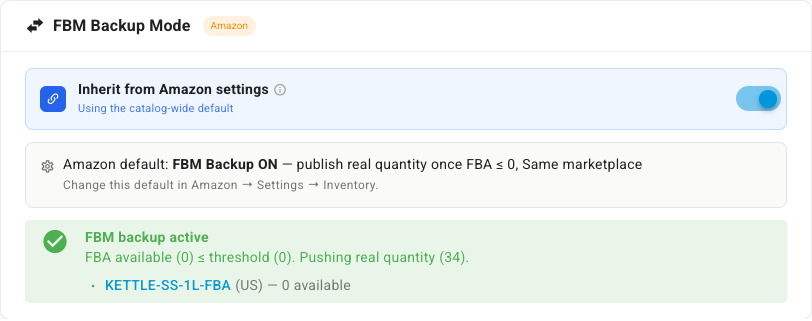
The moment FBA availability falls to (or below) the threshold, the gate releases and the card flips to FBM backup active — showing the real quantity now being published to Amazon.
One switch for the whole catalog, overrides where you need them
You don't have to enroll listings one by one. A catalog-wide default in your Amazon settings arms every eligible merchant-fulfilled listing at once, with two knobs:
- FBA stock threshold — publish the real quantity once linked FBA availability is at or below this number (0 means "wait for a true stockout").
- FBA scope — count FBA stock from the same marketplace only, or across all marketplaces.
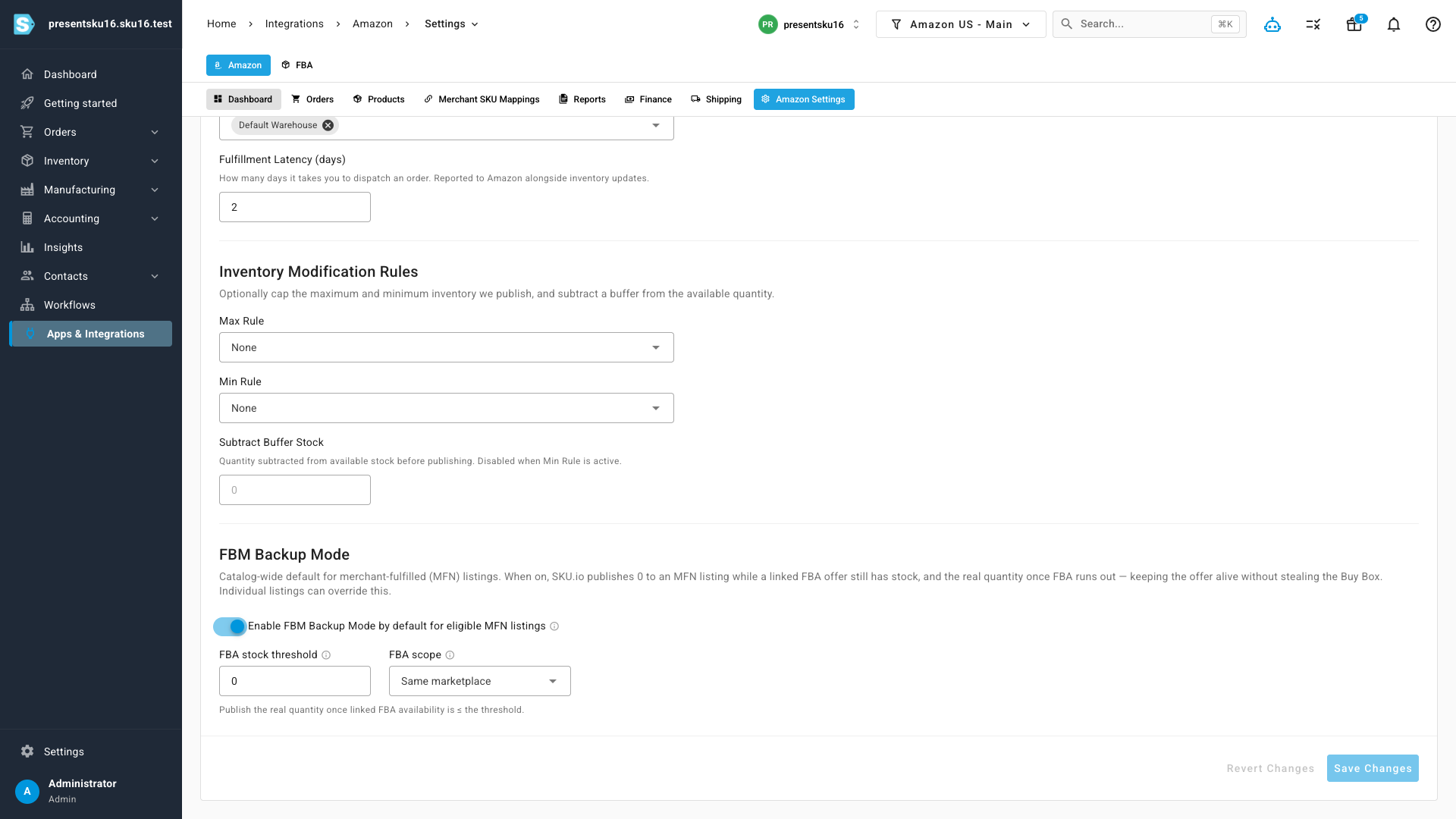
Individual listings inherit that default and can override it — their own threshold and scope, or a full opt-out — from the same card on the listing detail page. Listings with no linked FBA offer fail open: they keep publishing normally and the card tells you no FBA sibling was found.
Safer than flipping fulfillment types
Some platforms handle FBA stockouts by converting the listing between FBA and FBM and back. That approach is fragile — re-conversions can demand extra listing data and have a history of creating ghost listings. FBM Backup Mode never touches the listing's fulfillment type: it only gates the quantity SKU.io publishes, so the worst case is an offer sitting harmlessly at 0.
Where to find it
- Catalog default: Apps & Integrations → Amazon → Amazon Settings → Inventory Sync tab → FBM Backup Mode.
- Per-listing control and live gate status: any Amazon merchant-fulfilled listing's detail page → the FBM Backup Mode card (under Pricing Settings).
FBM Backup Mode is off by default — flip the catalog switch or enable it on a single listing to start protecting your ASINs today.