Walmart Fulfillment Services (WFS) — run your WFS business inside SKU
If you fulfill through Walmart Fulfillment Services (WFS), the stock Walmart holds for you has always been a blind spot in SKU — you had to jump back into Seller Center to see quantities, plan replenishment, and put together an inbound shipment. Walmart Fulfillment Services support closes that gap: turn it on for your Walmart integration and SKU gives you a live view of your WFS inventory, a guided workflow to build and send inbound shipments, and end-to-end tracking of those shipments into Walmart's fulfillment centers.
✨ What this means for you:
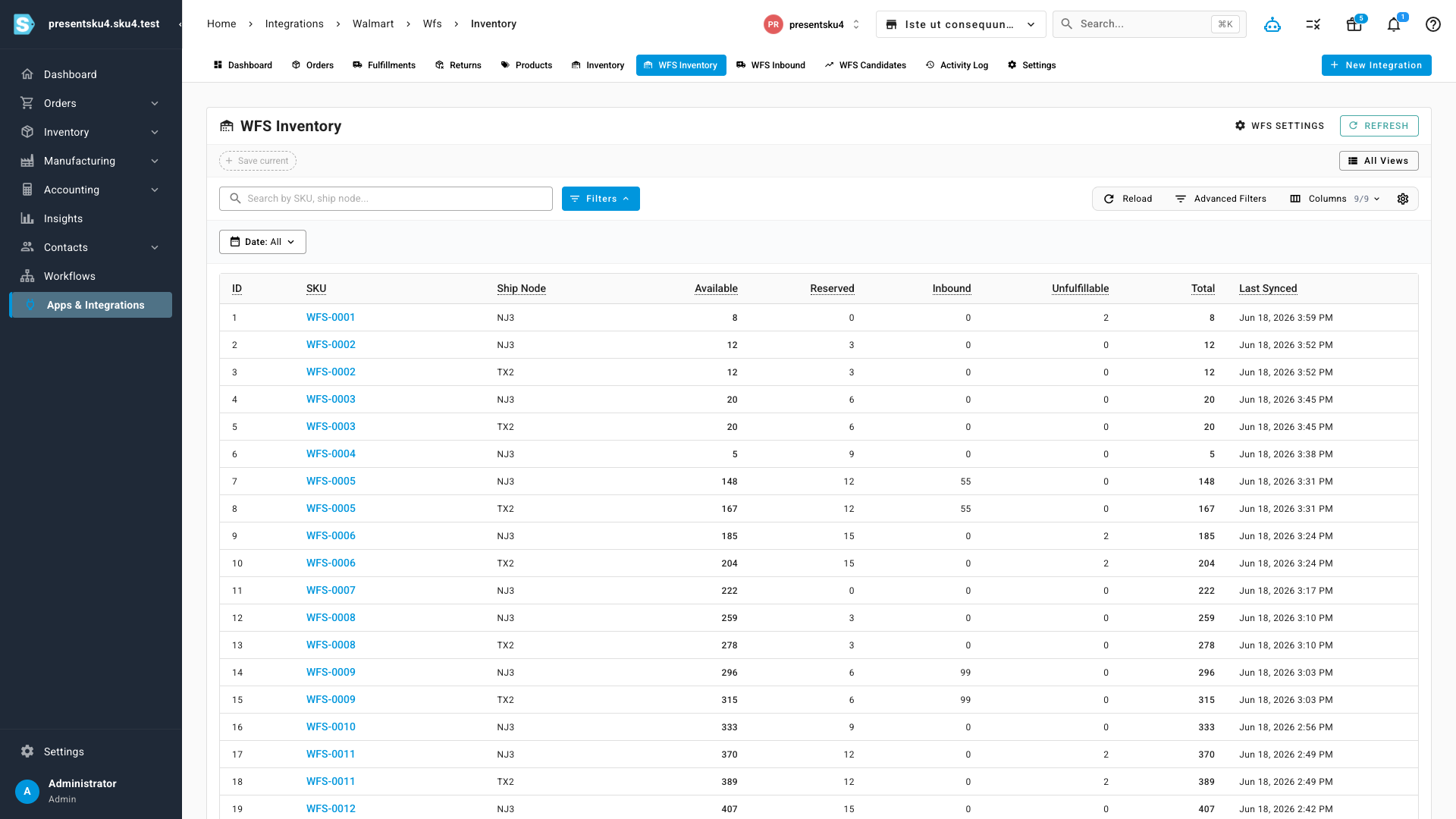
- Your WFS stock is finally visible in SKU — available, reserved, inbound, and unfulfillable quantities per SKU, kept fresh automatically.
- Build an inbound shipment without leaving SKU — a step-by-step workflow takes you from source warehouse to a ready-to-send shipment.
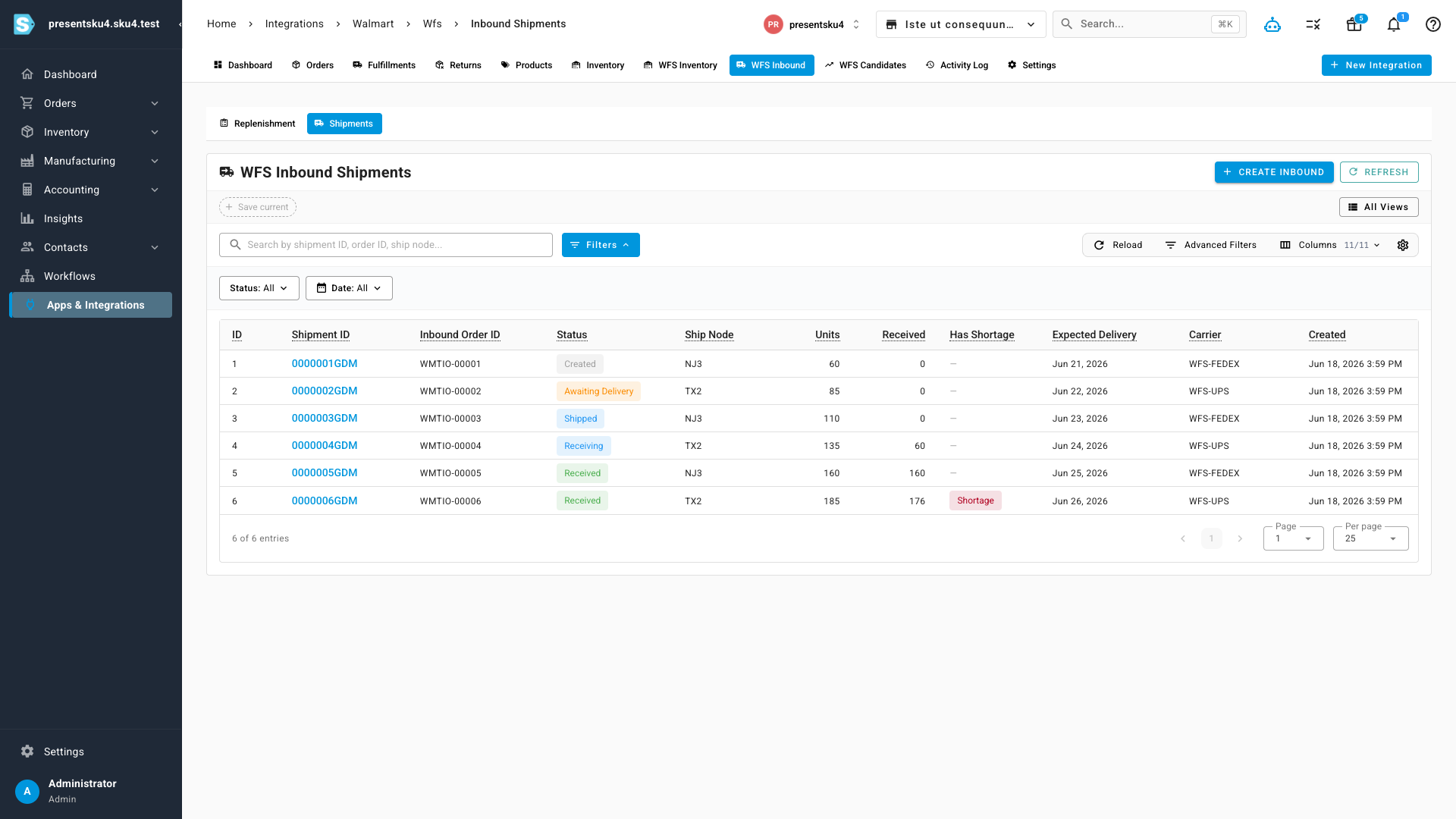
- Track every inbound to the fulfillment center — watch each shipment move from created to received, with received-vs-shipped reconciliation and automatic shortage flags.
- Stay current in real time — Walmart pushes status changes to SKU as they happen, backed by a regular sync so nothing is missed.
See your Walmart-held stock
A dedicated WFS Inventory view shows exactly what Walmart is holding for each SKU — available, reserved, inbound, and unfulfillable units, plus a running total and when each line was last synced. SKU keeps it up to date for you, so you always know what's really in the network without opening Seller Center.
Build and send an inbound shipment
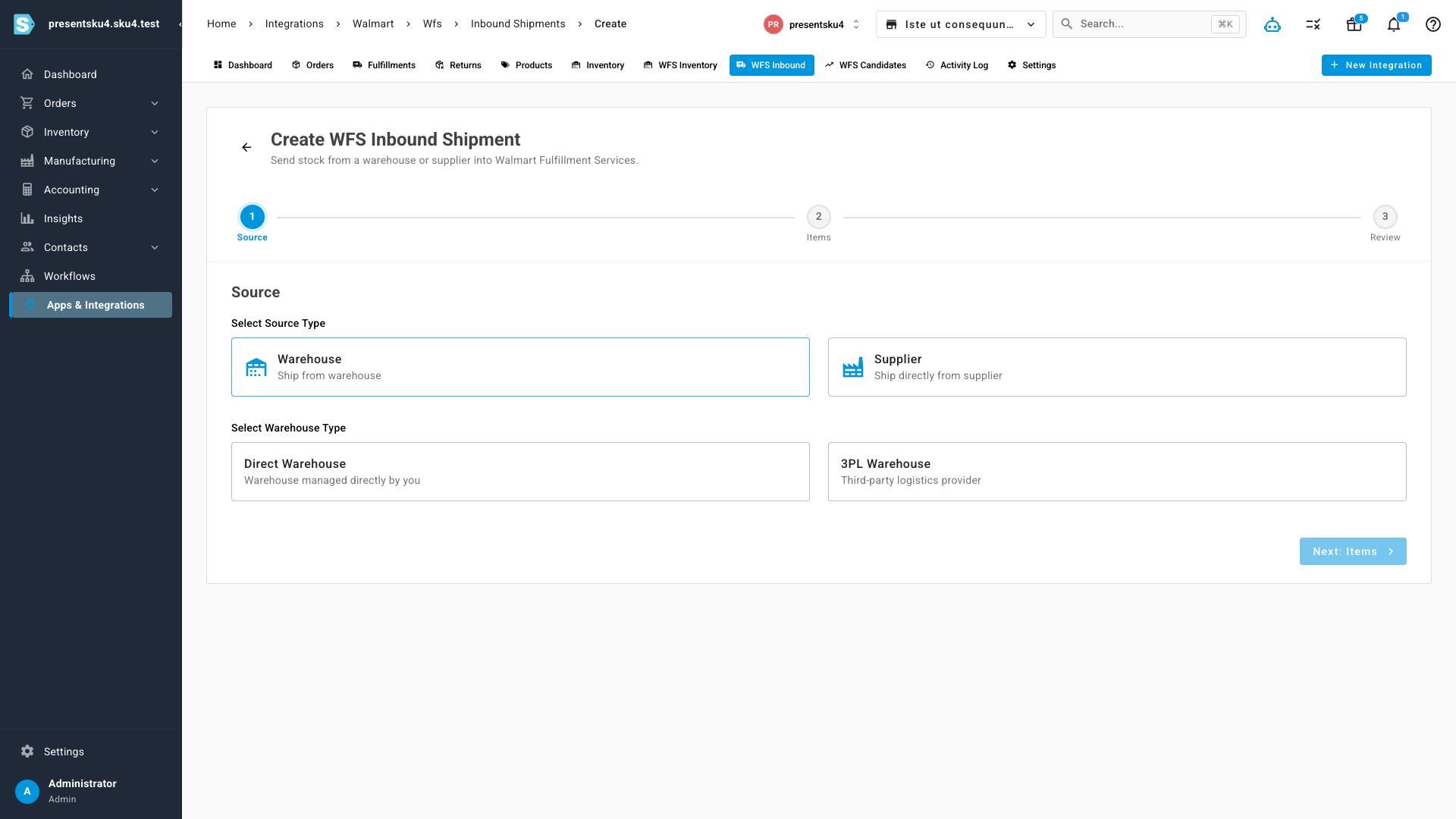
When it's time to replenish, Create Inbound Shipment walks you through it: choose where the stock is coming from (a warehouse you run directly or a 3PL), add the items you're sending, and review before it goes to Walmart. It's the same guided, full-page experience you already know from Amazon FBA inbounds — adapted to how WFS works.
Track it all the way in
Every inbound you send shows up in WFS Inbound Shipments, where you can follow each one from Created through Shipped, Receiving, and Received. SKU compares what Walmart received against what you shipped and flags any shortage automatically — so a short receipt never slips by unnoticed.
Turning it on
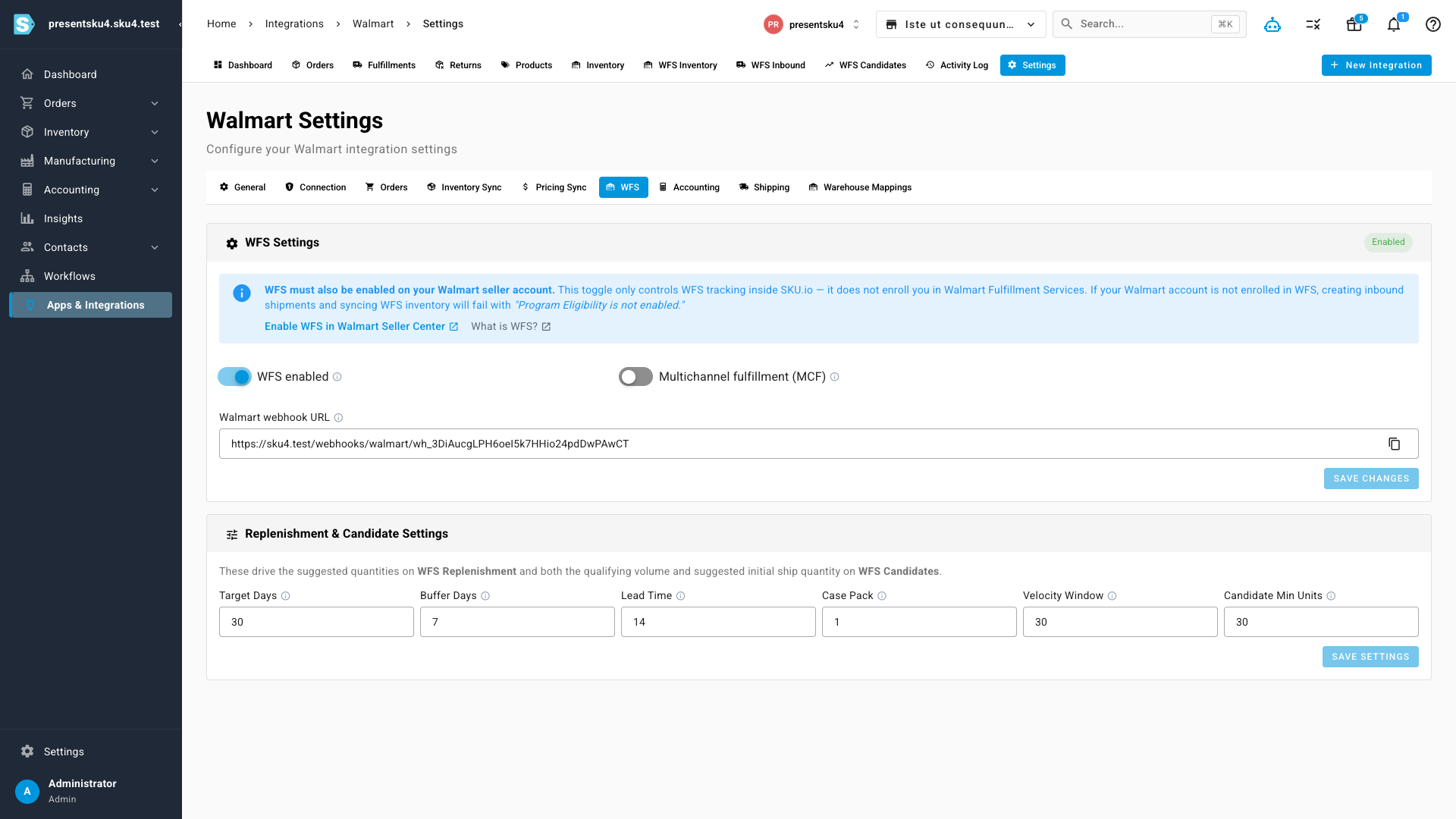
WFS lives in your Walmart integration's Settings → WFS tab. Flip WFS enabled on and SKU sets up a dedicated WFS location and starts syncing. Because WFS also has to be enabled on your Walmart seller account itself, the settings panel links you straight to Walmart's WFS onboarding if you're not enrolled yet. From here you can also copy your real-time webhook URL and turn on Multichannel Fulfillment, so WFS stock can fulfill orders from your other sales channels.
Where to find it
Open Apps & Integrations → Walmart, then use the WFS Inventory, WFS Inbound, and WFS Candidates tabs across the top. To switch it on, head to the Settings tab and open the WFS panel.