Vendor Credit OCR & Document Attachments — scan a credit memo, get a vendor credit
When a supplier issues a credit memo — a short shipment, transit damage, a price adjustment — someone has to key it into SKU line by line, and the PDF itself ends up buried in an inbox or a shared drive. Vendor Credit OCR & Document Attachments ends both problems: attach the credit memo straight to the vendor credit for a permanent audit trail, or upload it and let AI read it for you. SKU extracts the supplier, credit number, date, line items, and totals, matches each line to your products, and pre-fills a vendor credit you review and confirm — turning five to ten minutes of data entry into under two. And credit memos that arrive by email need no upload at all: the Document Inbox now recognizes them automatically and routes them straight to the credit memo review queue.
✨ What this means for you:
- Scan a credit memo, get a vendor credit — upload the supplier's PDF and review extracted details side-by-side with the document instead of typing them in.
- Emailed credit memos sort themselves — the shared Document Inbox tells credit memos apart from supplier invoices automatically and sends each to the right review queue, with a badge showing exactly why.
- Lines matched to your catalog automatically — extracted lines are matched to products by supplier SKU, internal SKU, barcode, MPN, and fuzzy name; anything unmatched is clearly flagged for you to resolve.
- Source documents live on the credit — attach PDFs and images to any vendor credit, so the evidence is right there during reconciliation or a supplier dispute.
- Duplicates caught at intake — if a credit memo with the same supplier reference already exists, SKU warns you before a second credit is created.
- Nothing is auto-posted — every scanned credit memo requires your review and explicit confirmation, and credits are always created as drafts.
Scan a credit memo
From the Vendor Credits page, click Scan Credit Memo, drop in the supplier's PDF, and optionally pre-select the supplier. The scan runs in the background — you can keep working and track progress in the job tray.
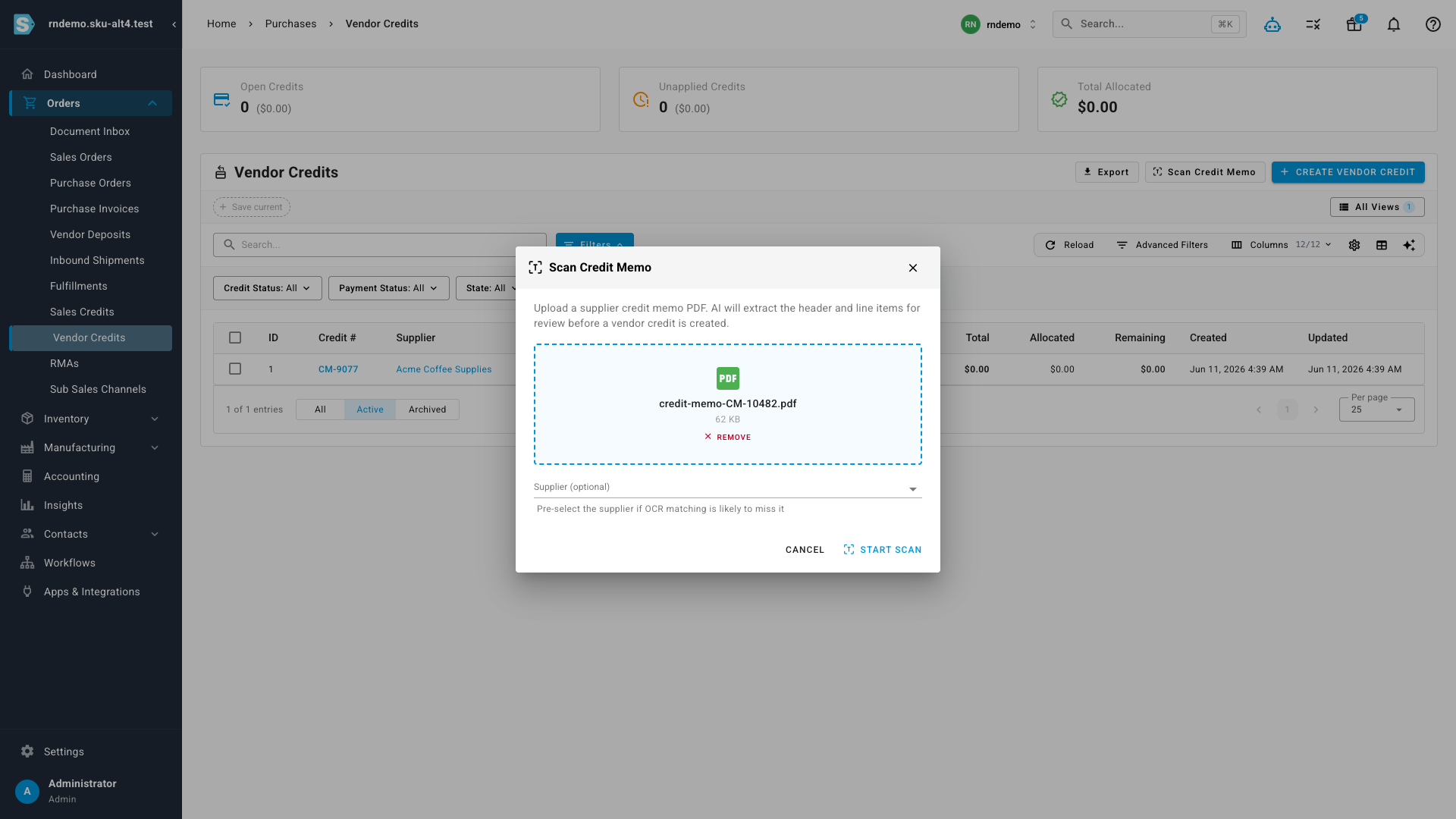
You can also start a scan while creating a vendor credit: the Create Vendor Credit dialog — including on a purchase order's Vendor Credits tab — now offers a Scan credit memo option alongside the manual paths. Launched from a purchase order, the scan is automatically linked to that PO.
Review before anything is created
When the scan finishes, the review screen shows the original document next to everything SKU extracted: supplier (matched against your supplier list), credit number, date, totals, and every line item. Matched lines show the product they resolved to; unmatched lines are flagged so you can pick the right product or mark them as non-product charges. If the memo references one of your purchase orders or invoices, SKU links it automatically.
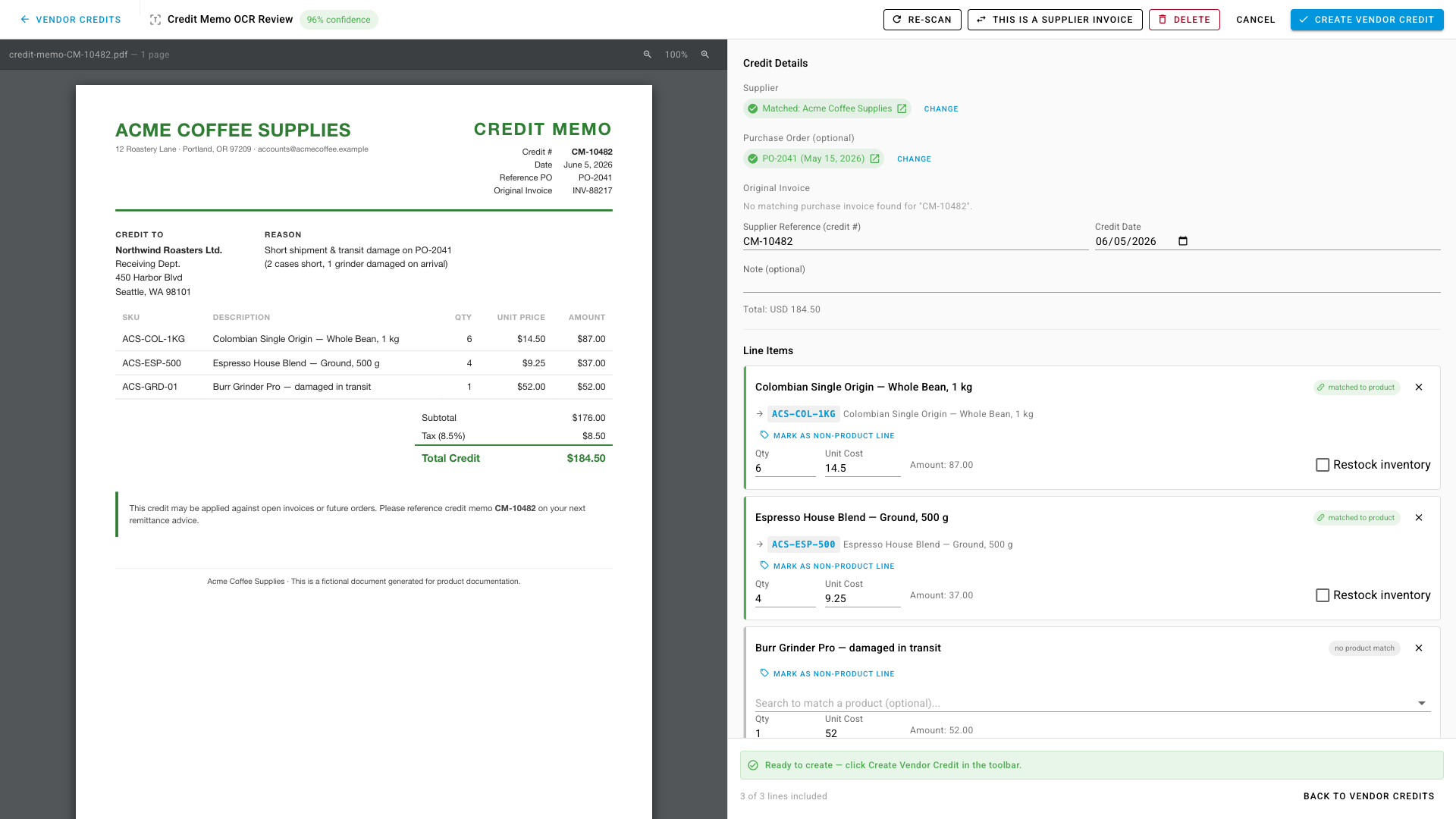
One click on Create Vendor Credit turns the reviewed extraction into a draft credit — with the supplier's credit number carried over as the credit's reference, the scanned PDF attached, and every confirmed line in place. Reclassification works in both directions: if a document in the credit memo queue turns out to be a regular supplier invoice, one click moves it to the invoice OCR flow — and a scanned invoice that's really a credit memo can be reclassified the other way, without re-scanning the document.
Emailed credit memos route themselves
The Document Inbox — the same inbox that already receives emailed customer POs and supplier invoices — now handles credit memos too. When a supplier emails a credit memo to your inbox address, SKU reads the analyzed document and works out what it is: mentions of "credit memo", a CM-prefixed document number, or a negative total all signal a credit rather than an invoice. Detected credit memos are routed straight to the credit memo review queue — no manual sorting, no mis-filed documents.
Auto-detected documents carry an Auto-detected badge in the inbox; hover it to see exactly which signals SKU used. The review screen shows the same signals in a banner, so you always know why a document landed where it did. A new Vendor Credits type filter narrows the inbox to credit memos, and the inbox's pending count now includes them. If SKU ever gets one wrong, the reclassify actions above move it to the correct queue in one click.
Documents on every vendor credit
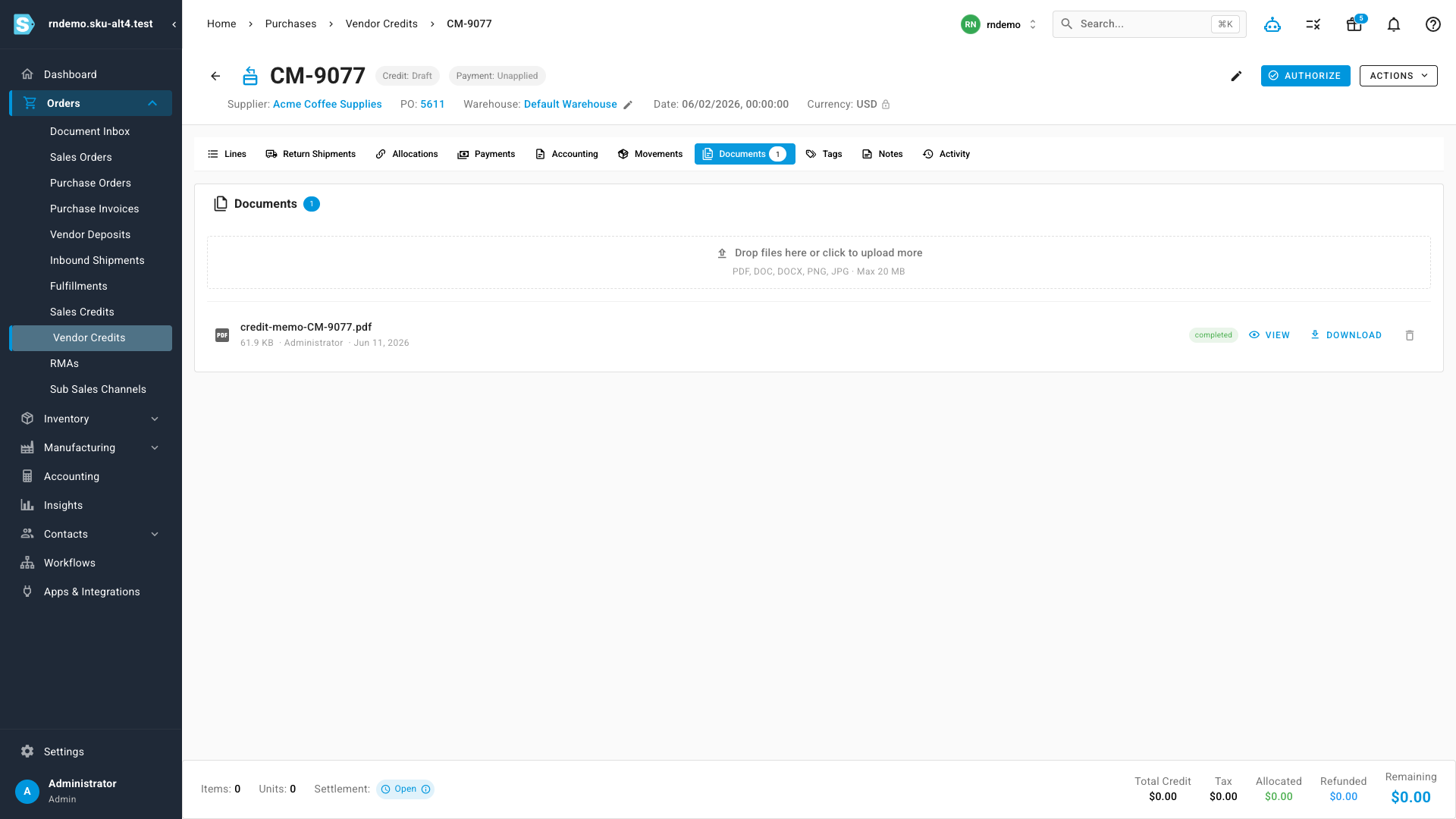
Every vendor credit now has a Documents tab. Upload credit memos, correspondence, or photos of damaged goods (PDF and common image formats, up to 20 MB), then view, download, or scan them with OCR at any time. Scanning an attached memo lets you apply the extracted details to that credit after the same review step.
Where to find it
- Orders → Vendor Credits — the Scan Credit Memo button in the page toolbar, and the Scan credit memo option inside Create Vendor Credit.
- Orders → Document Inbox — emailed credit memos arrive here automatically, filterable under the Vendor Credits type.
- Any vendor credit → Documents tab — attach files and scan them with OCR.
- Purchase order → Vendor Credits tab → Credit — scan a credit memo pre-linked to that purchase order.
Vendor credit scanning uses the same OCR configuration as invoice scanning — enable it under Settings → Invoice OCR.