Purchase Order Approval Requests — hand a draft PO to the people who can approve it
Granular permissions let you decide exactly who can approve a purchase order — but until now, everyone else hit a dead end. A purchasing clerk could build the perfect draft PO and then… nothing. No button, no handoff, no trail. The request lived in a Slack message, the decision lived in someone's head, and the draft sat unnoticed. Purchase Order Approval Requests closes that gap: anyone who can edit a purchase order can now submit it for approval in one click, everyone with approval rights is notified instantly, and the decision — approve, or reject with a reason — lands right back on the order where the whole team can see it.
✨ What this means for you:
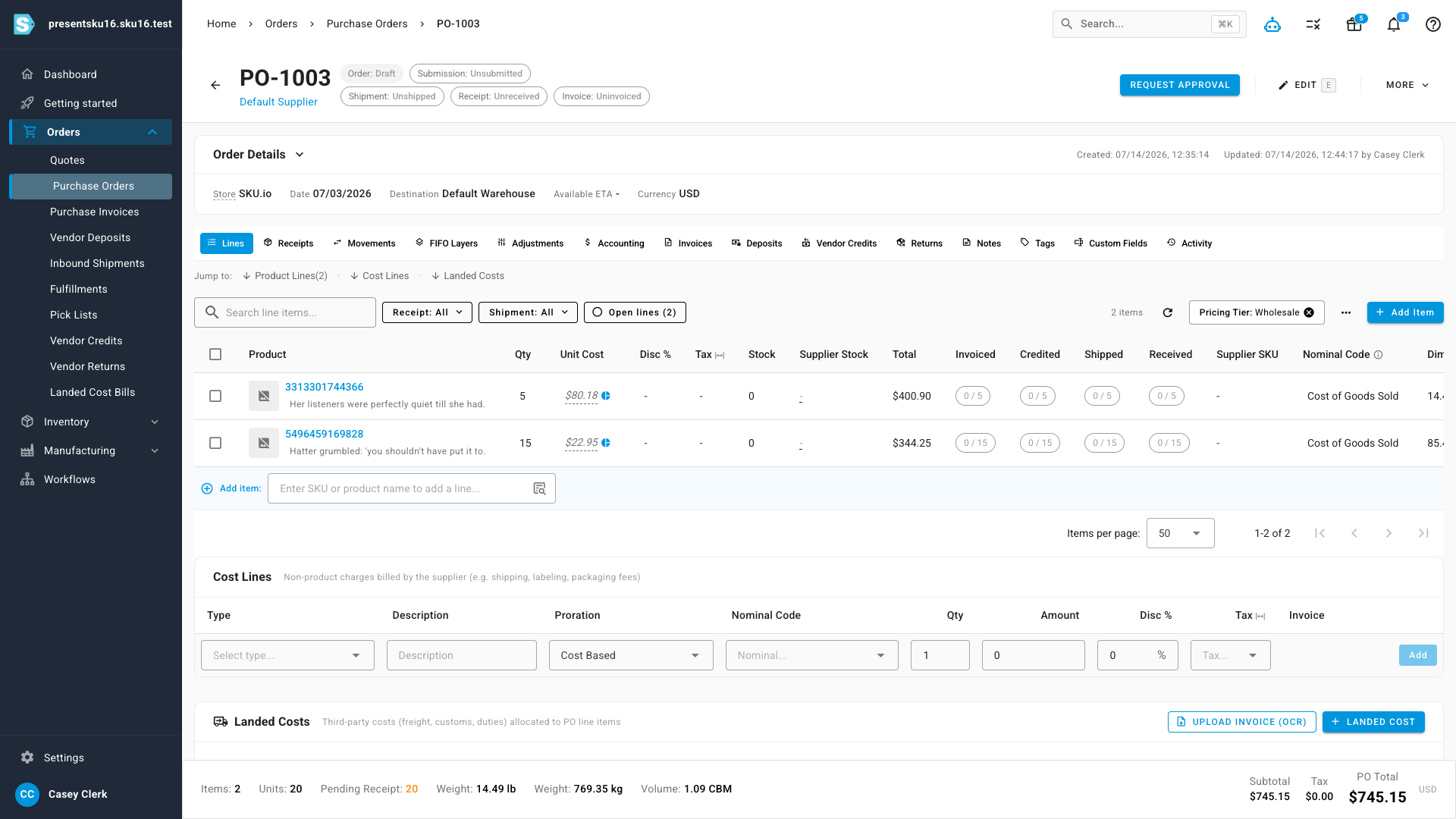
- No more dead-end drafts. If you can edit a PO but not approve it, Request Approval is now your primary action — with an optional note to tell approvers what they're looking at and why it matters.
- Approvers find out immediately. Everyone who holds the approve permission gets a high-priority alert with your name and note, deep-linked straight to the order. First to act decides — no single-person bottleneck.
- Rejections come with reasons. An approver can't reject without explaining why. The reason lands on the order in a banner, and the requester is notified so they can fix and resubmit — no chasing.
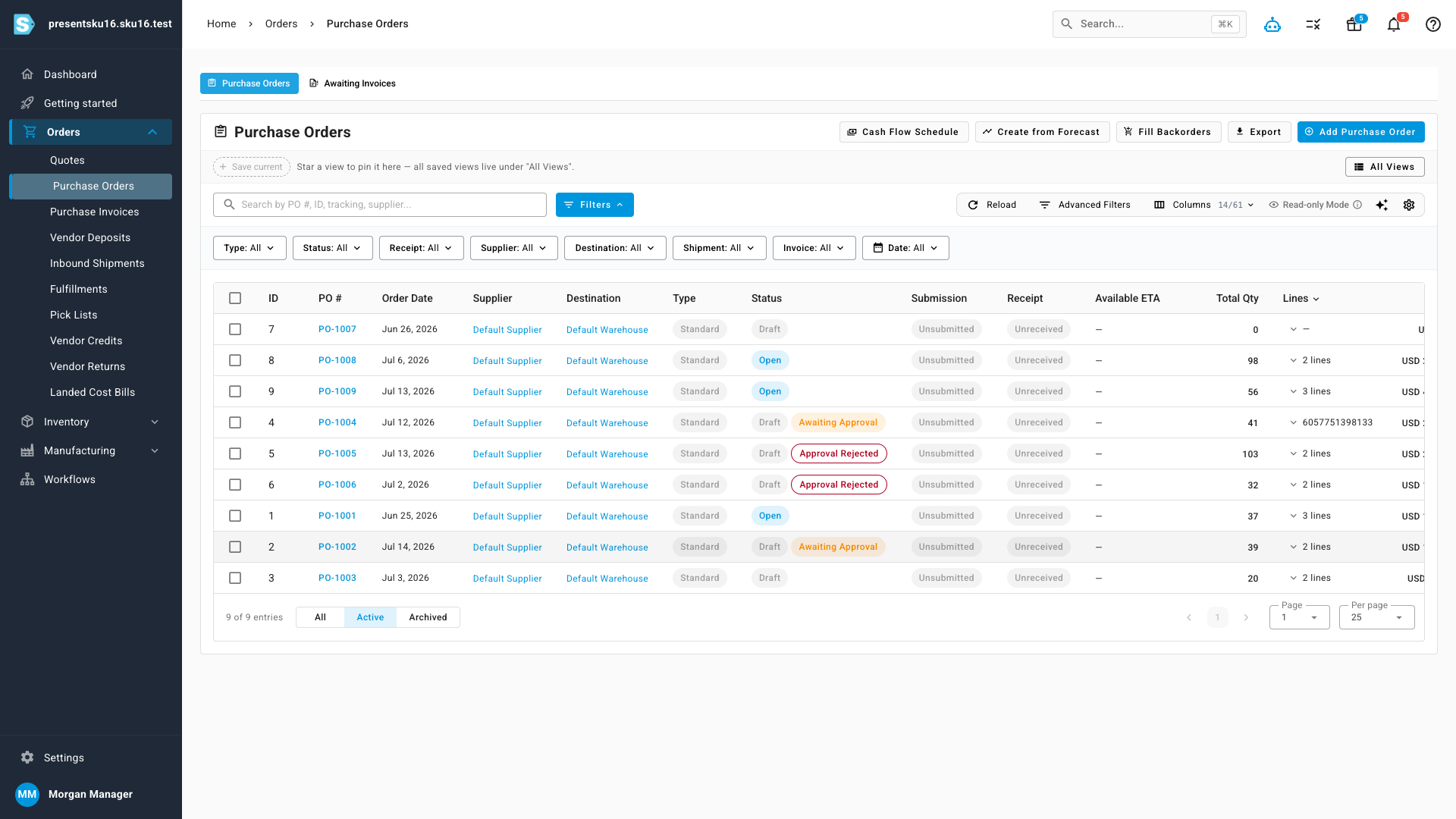
- Everything is visible at a glance. New Awaiting Approval and Approval Rejected chips on the purchase order list (plus an Approval Status filter) show exactly which drafts are waiting on a decision.
- Changed your mind? Withdraw. The requester can pull a pending request back at any time, returning the order to a clean draft.
- A full audit trail. Who asked, when, why, who decided, and the reason — stamped on the order and recorded in its activity history.
Request approval in one click
On any draft purchase order, users without approval rights see Request Approval as the primary action. Add an optional note for context — it travels with the request and shows up in every approver's notification.
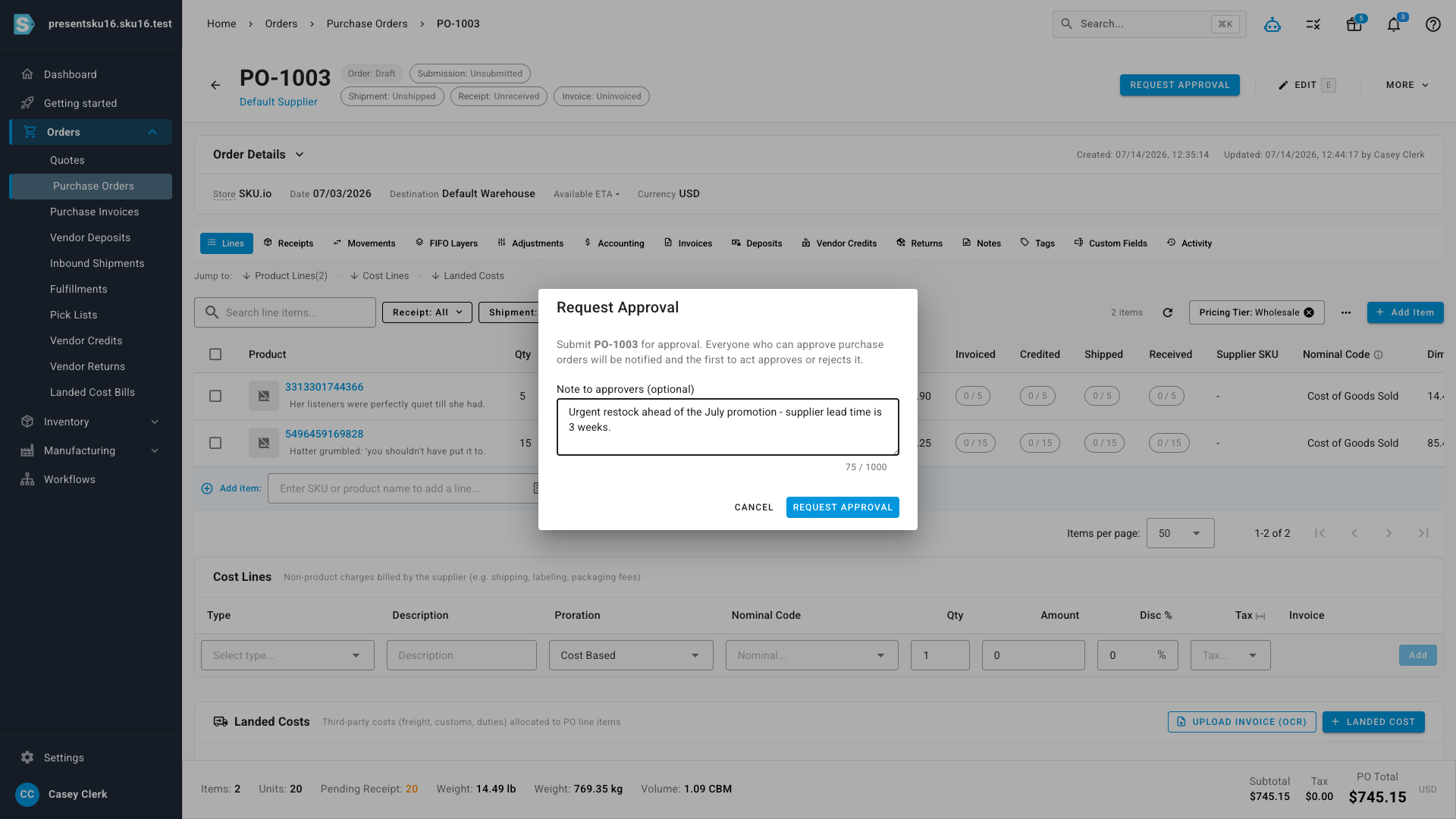
Once submitted, the order is flagged Awaiting Approval, a banner records who asked and why, and the button becomes Withdraw Request in case plans change.
Approvers decide right on the order
Everyone with approval rights is alerted the moment a request comes in — the notification names the requester, carries their note, and links straight to the order. There the approver sees the request banner alongside Approve and Reject. Approving opens the order for receiving exactly like a normal approval; rejecting requires a written reason, so the requester always knows what to fix.
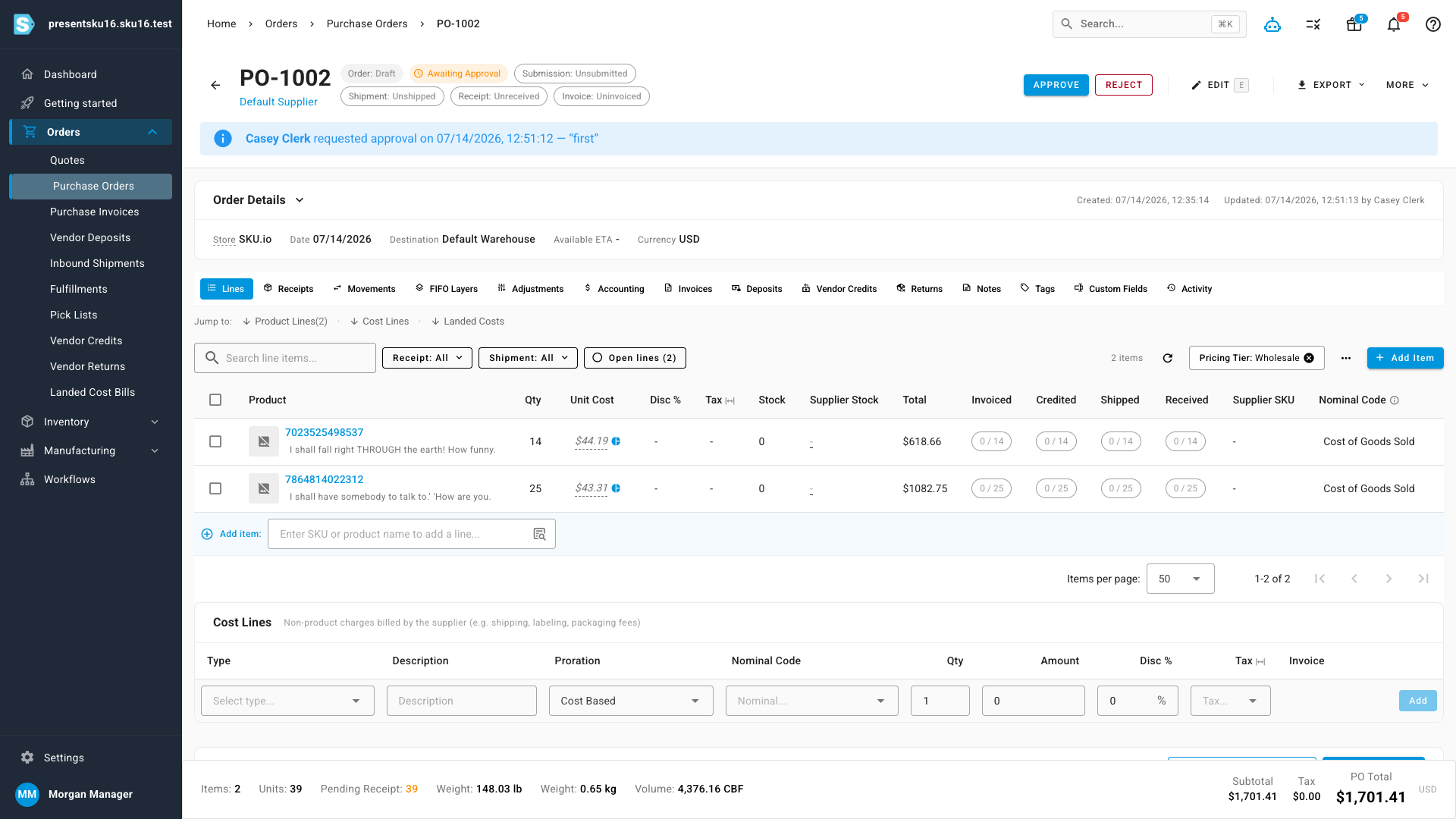
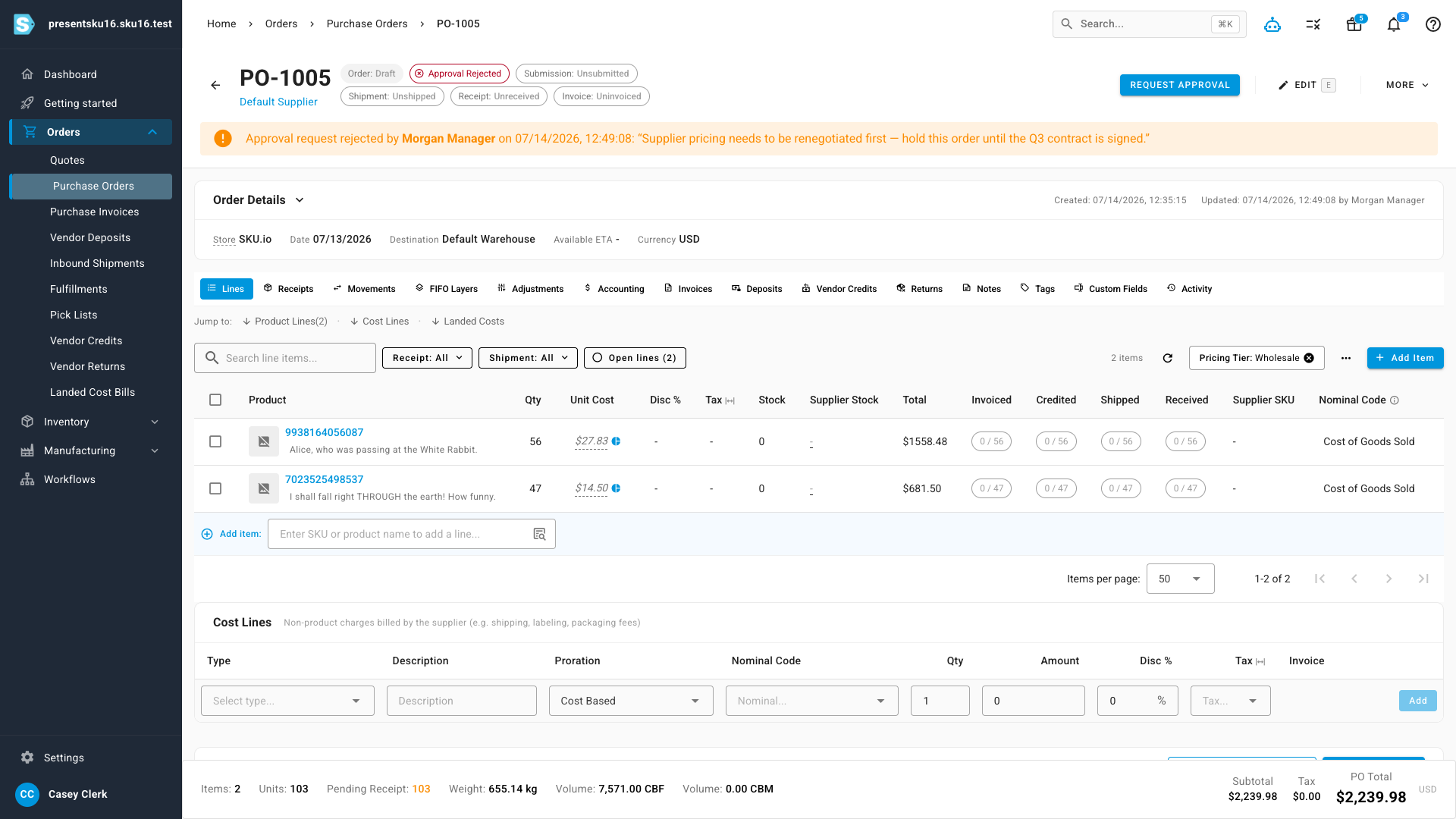
The requester is notified of the outcome either way — approved or rejected — and after a rejection they can amend the order and request approval again in one click.
See every pending decision at a glance
The purchase order list now wears the approval state next to each draft's status: an amber Awaiting Approval chip for orders waiting on a decision and a red Approval Rejected chip for ones sent back. A new Approval Status option in Advanced Filters narrows the list to exactly the orders that need attention — handy as a saved view for approvers who start their day there.
Where to find it
Orders → Purchase Orders. Open any draft purchase order — if your role can edit but not approve, you'll see Request Approval in the header. Approvers see Approve and Reject on any order with a pending request, and approval alerts arrive in the notification bell (email and Slack delivery follow your alert preferences under Settings → Alert Preferences). Approval permissions are managed per role under Settings → Users & Permissions.