Shopify Payouts — accounting that matches your bank deposits
The number Shopify deposits into your bank account is never your sales number. Every payout bundles sales, refunds, processing fees, and adjustments into a single net amount — so at month end someone has to reconstruct each deposit from dozens of individual invoices, or worse, book the whole thing to one income account and quietly misstate revenue, tax, and fees. SKU.io now syncs your Shopify Payments payouts and can post one summarized accounting entry per payout — sales, refunds, fees, and adjustments each routed to the right ledger account, with the net matching your bank deposit to the cent. When the deposit appears in your bank feed, it reconciles in one click.
✨ What this means for you:
- Every payout, synced — each Shopify Payments payout appears in SKU.io with its status, net amount, and the full breakdown of what made up the deposit.
- Matches the bank to the cent — the summarized entry always equals the deposited amount, so bank reconciliation is a match, not a reconstruction.
- Split, never lumped — sales, refunds, processing fees, and adjustments each post to the account you choose, keeping revenue, tax, and expenses accurate.
- A clean ledger — one summary per payout instead of thousands of per-order lines a month, with per-order posting still available if that's how you work.
- No double counting — switching between per-order and payout-matched accounting is guarded, so revenue is only ever recognized one way.
See every payout at a glance
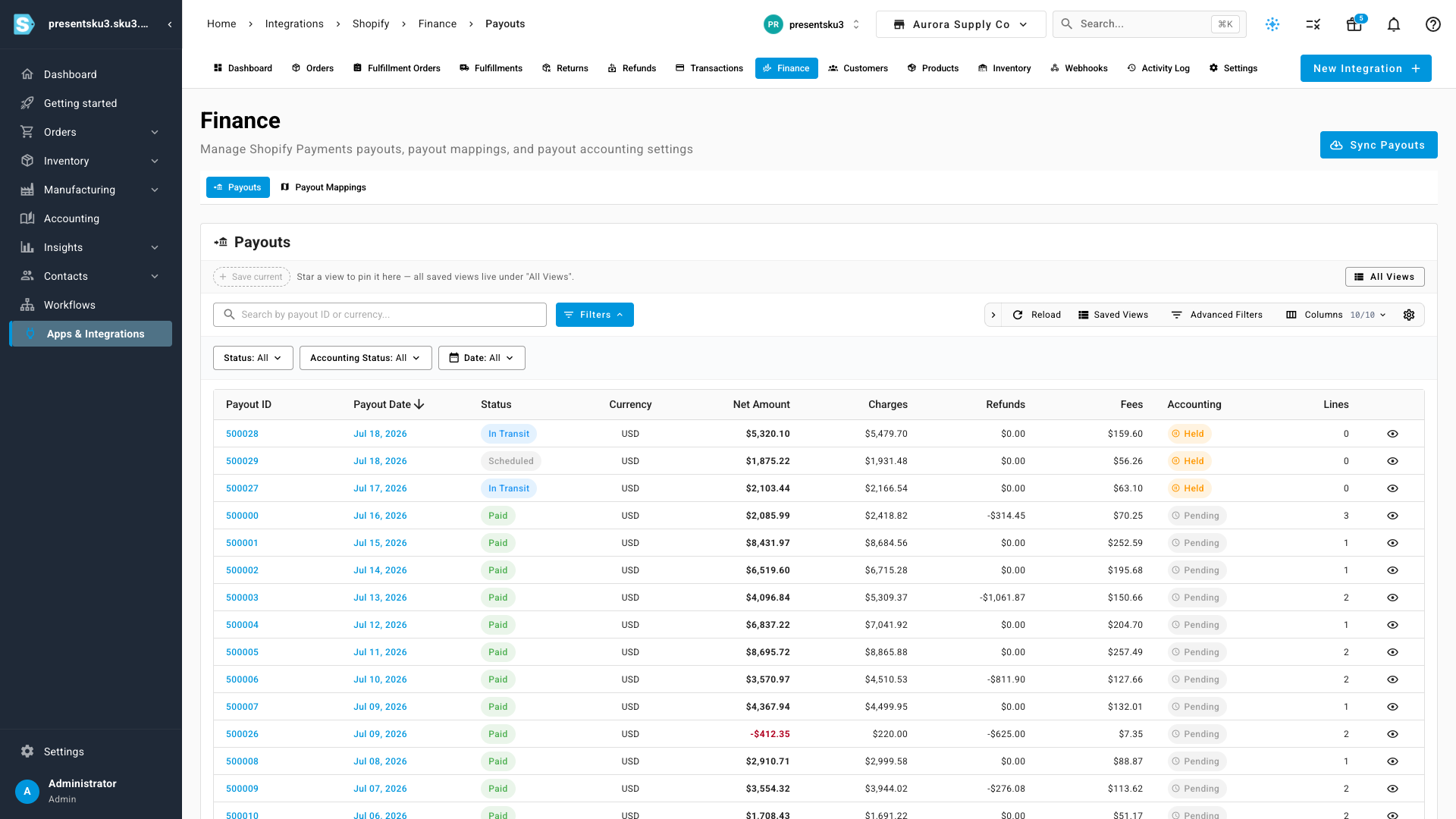
The new Finance area in your Shopify integration lists every payout with its payout ID, date, status, net amount, and the charges, refunds, and fees behind it. Filter by payout or accounting status, search by payout ID, and sort any column — held payouts (still in transit at Shopify) are clearly marked and never post until they're paid.
Drill into any deposit
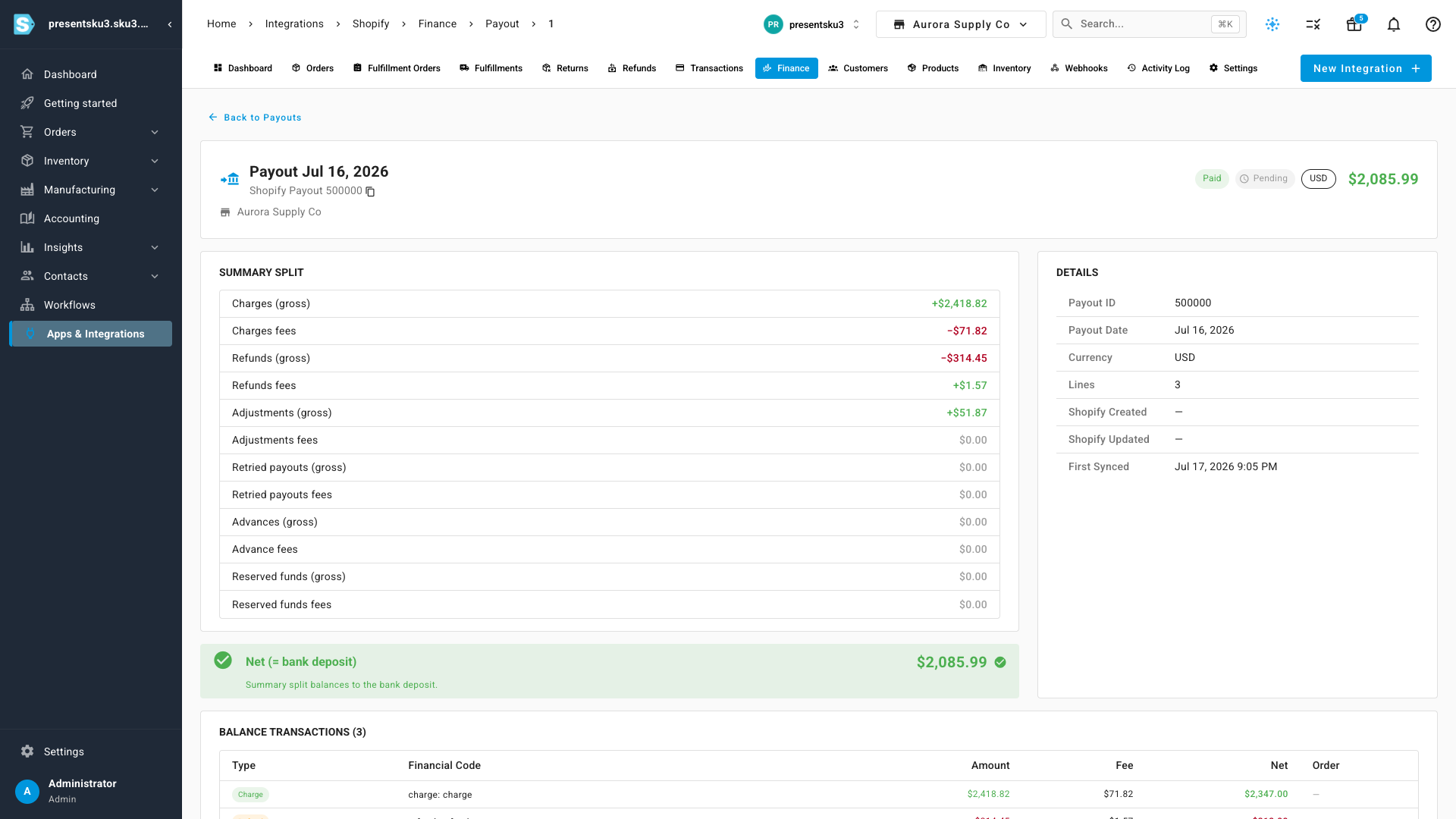
Click a payout to open its detail page: the summary split shows exactly how charges, fees, refunds, and adjustments add up to the deposit, with a clear confirmation when the numbers balance. Below it, every balance transaction in the payout is listed line by line, linked back to the order it came from.
Route every line to the right account
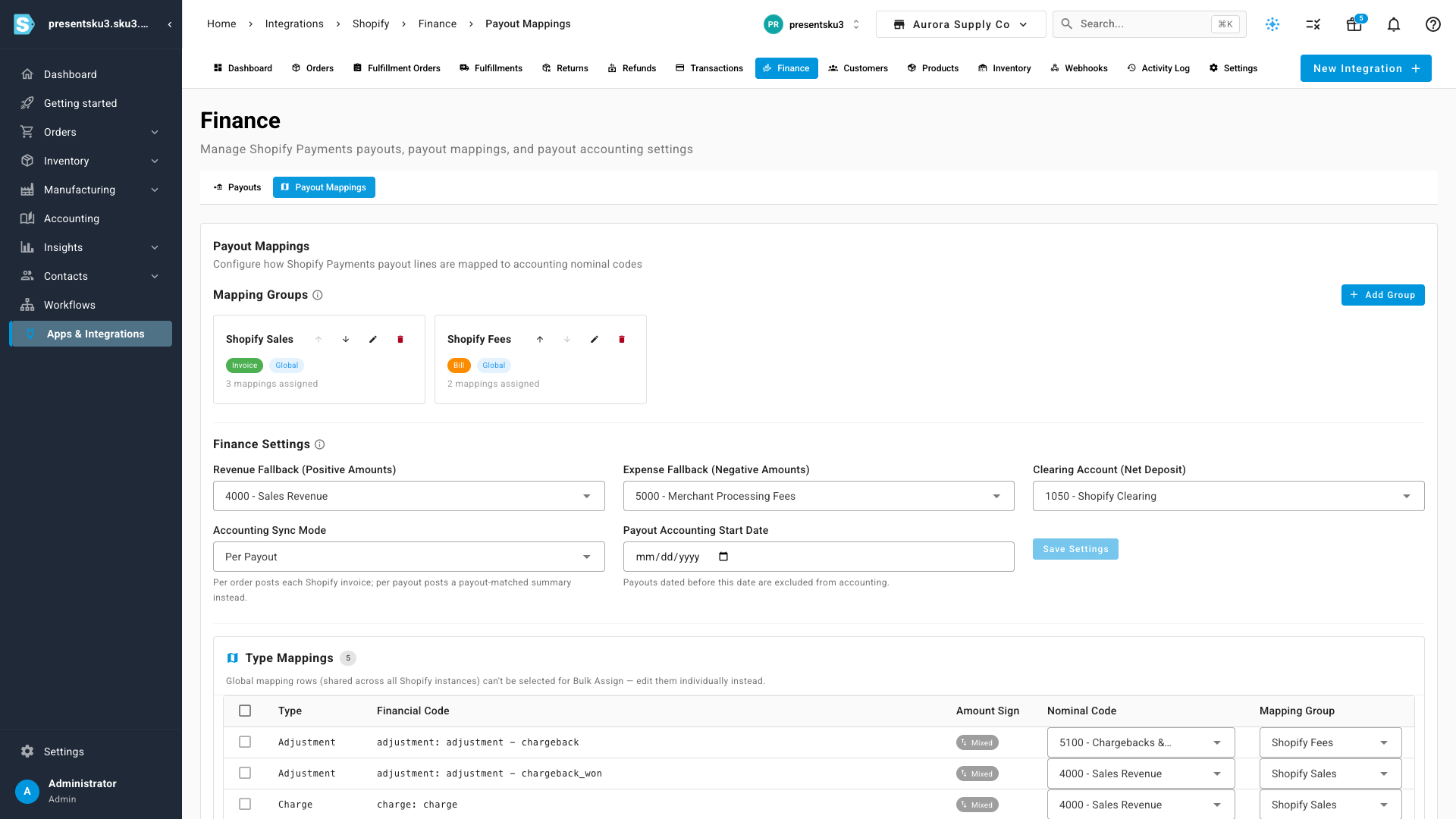
Payout Mappings is where you decide where the money goes. Group payout line types into invoice and bill documents, map each financial code to a ledger account, and set fallback accounts so nothing is ever dropped — unmapped lines are flagged and routed to your fallback revenue or expense account until you map them.
Choose how revenue posts — safely
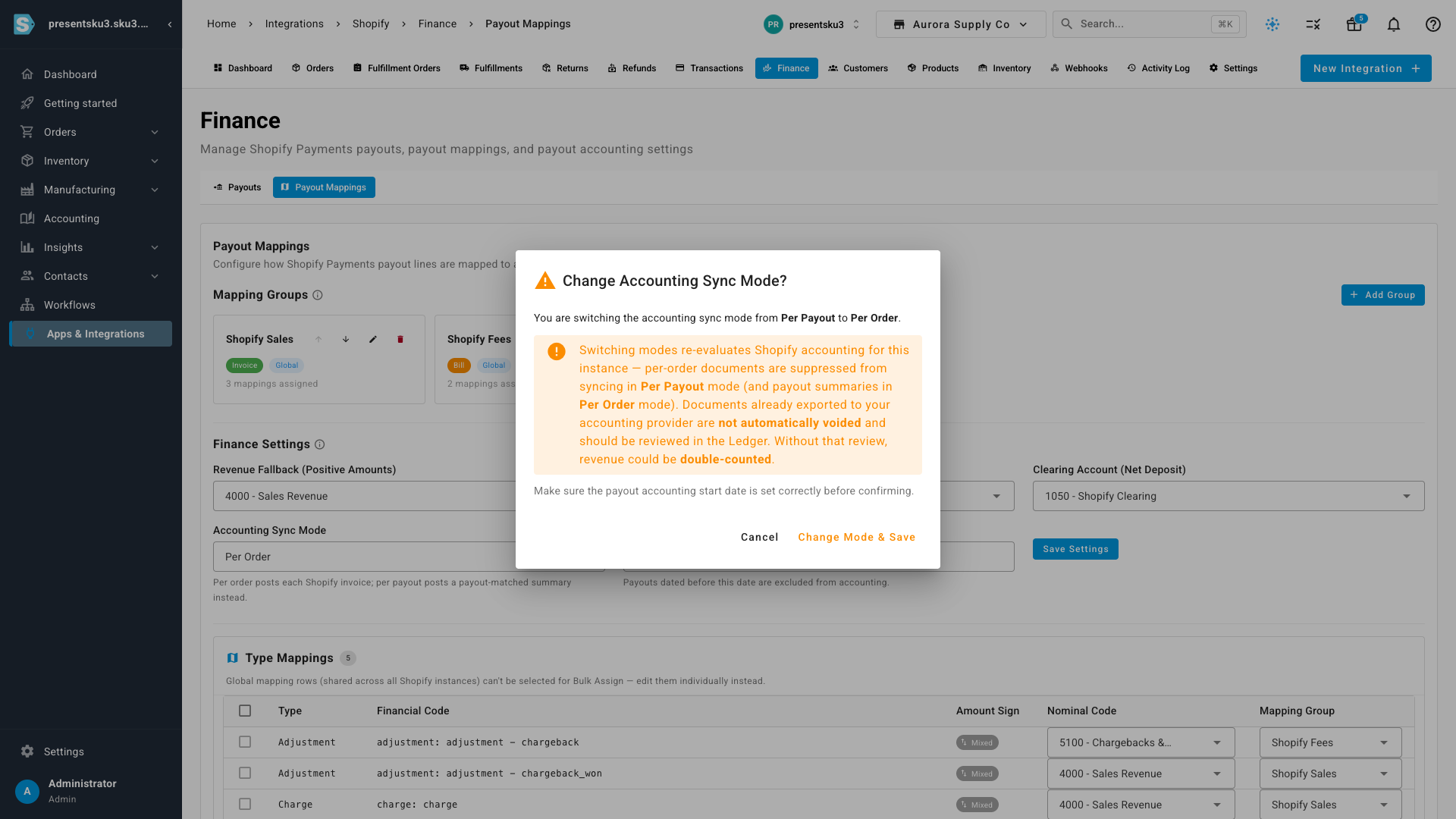
Prefer payout-matched summaries? Flip the accounting sync mode from Per Order to Per Payout in the finance settings. Because that changes how revenue is recognized, SKU.io asks for confirmation first and explains exactly what will happen — per-order invoices are suppressed while payout summaries carry your revenue, so nothing is ever counted twice. A payout accounting start date lets you choose the exact point the new mode takes effect.
Where to find it
Open Apps & Integrations → Shopify → Finance. The Payouts tab lists every synced payout (use Sync Payouts to pull the latest from Shopify), and the Payout Mappings tab holds your account mappings and accounting sync mode. Reconnect your Shopify store once to grant the new payouts permission, and SKU.io takes it from there.