Unpaid orders, handled your way — reserve, draft or open, per sales channel
When a customer checks out with an offline payment method — a bank transfer, a purchase order, a "pay on delivery" — the order lands in SKU.io unpaid, yet until now it behaved exactly like an order you'd already been paid for: it allocated your stock immediately and could sail straight through to fulfillment. So a wire that might never arrive could quietly tie up inventory for weeks, and there was no way to say "hold this until the money's in." The new Unpaid Orders settings let you decide, per sales channel, exactly how an unpaid order is handled — bring it in as a held reserve with an automatic expiry, park it as a draft for review, or treat it as open and let it ship — with per-payment-method overrides and control over when it reaches your accounting software.
✨ What this means for you:
- Stop unpaid orders from tying up stock — hold bank-transfer and PO orders as reserved or draft instead of allocating and shipping them like paid orders.
- Reservations that clean themselves up — set an expiry (say, 7 days) and an unpaid reserved order automatically releases its stock if the money never comes, so availability stays honest across every channel.
- Opens itself the moment you're paid — when payment lands, the order flips to open and flows to fulfillment on its own.
- Down to the payment method — cash-on-delivery can ship while a bank transfer waits; set the rule per method, not just per channel.
- Keep your ledger clean — choose whether unpaid orders push to your accounting software as chase-ready invoices, or stay out until they're paid.
Decide what happens to an unpaid order
Each connected store gets one row. Pick how unpaid orders arrive — Reserve (allocate the stock and hold fulfillment), Draft (don't allocate until you approve), or Open (treat it like a paid order) — and, for reserved orders, how many days to hold before the reservation auto-releases. Turn on Auto-open on payment and the order opens itself as soon as the payment is confirmed.
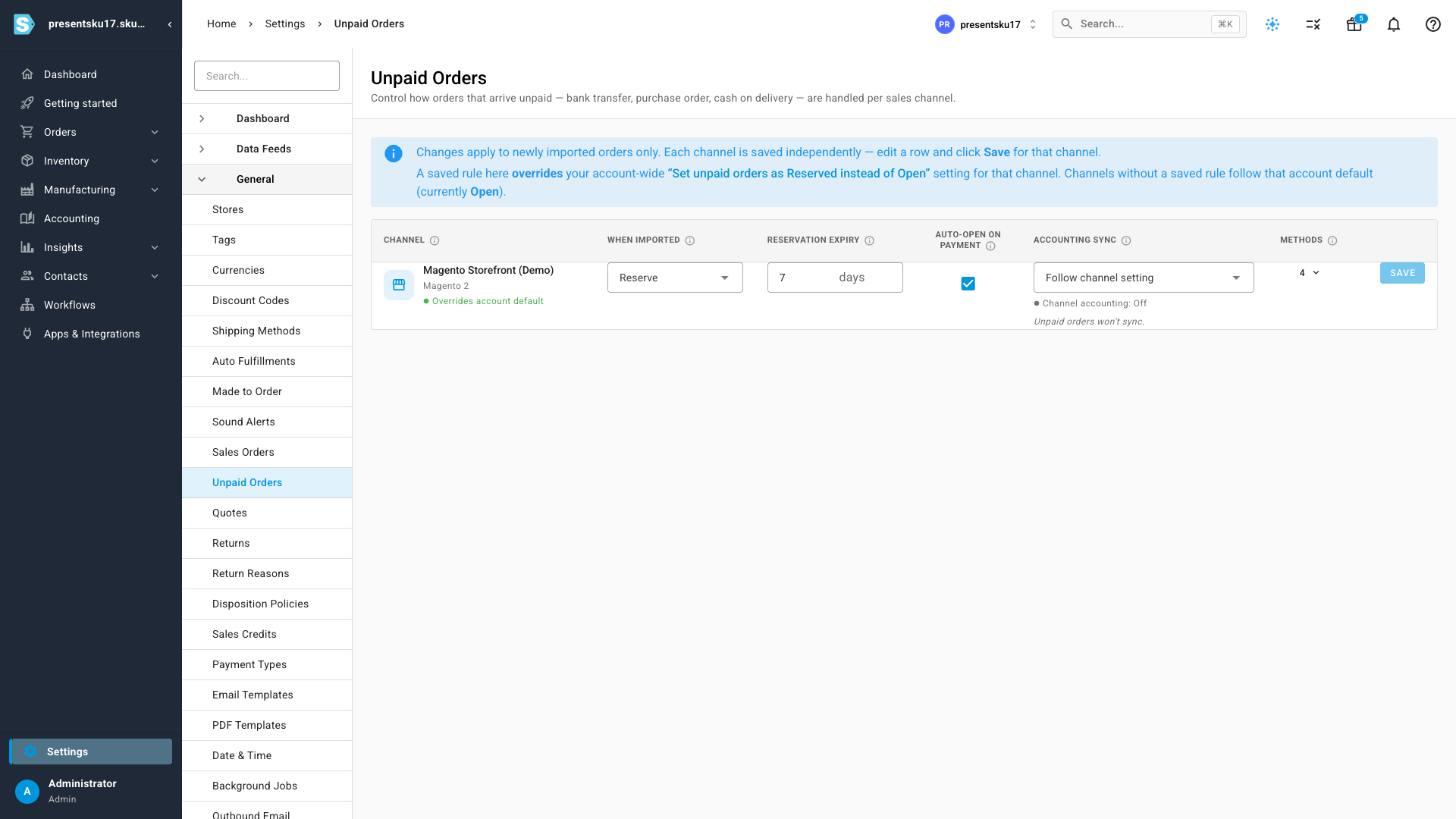
These rules override your account-wide "Set unpaid orders as Reserved" setting for any channel you configure here — and each row tells you whether it's using its own rule or following the account default, so there's no guessing which setting is in charge.
Down to the payment method
Not every unpaid order should be treated the same. A cash-on-delivery order ships unpaid by definition, while a bank transfer should be held until it clears. Expand a channel to set an override per payment method — SKU.io discovers the methods automatically from your imported orders — and decide, for each, how the order lands and whether its invoice syncs to accounting.
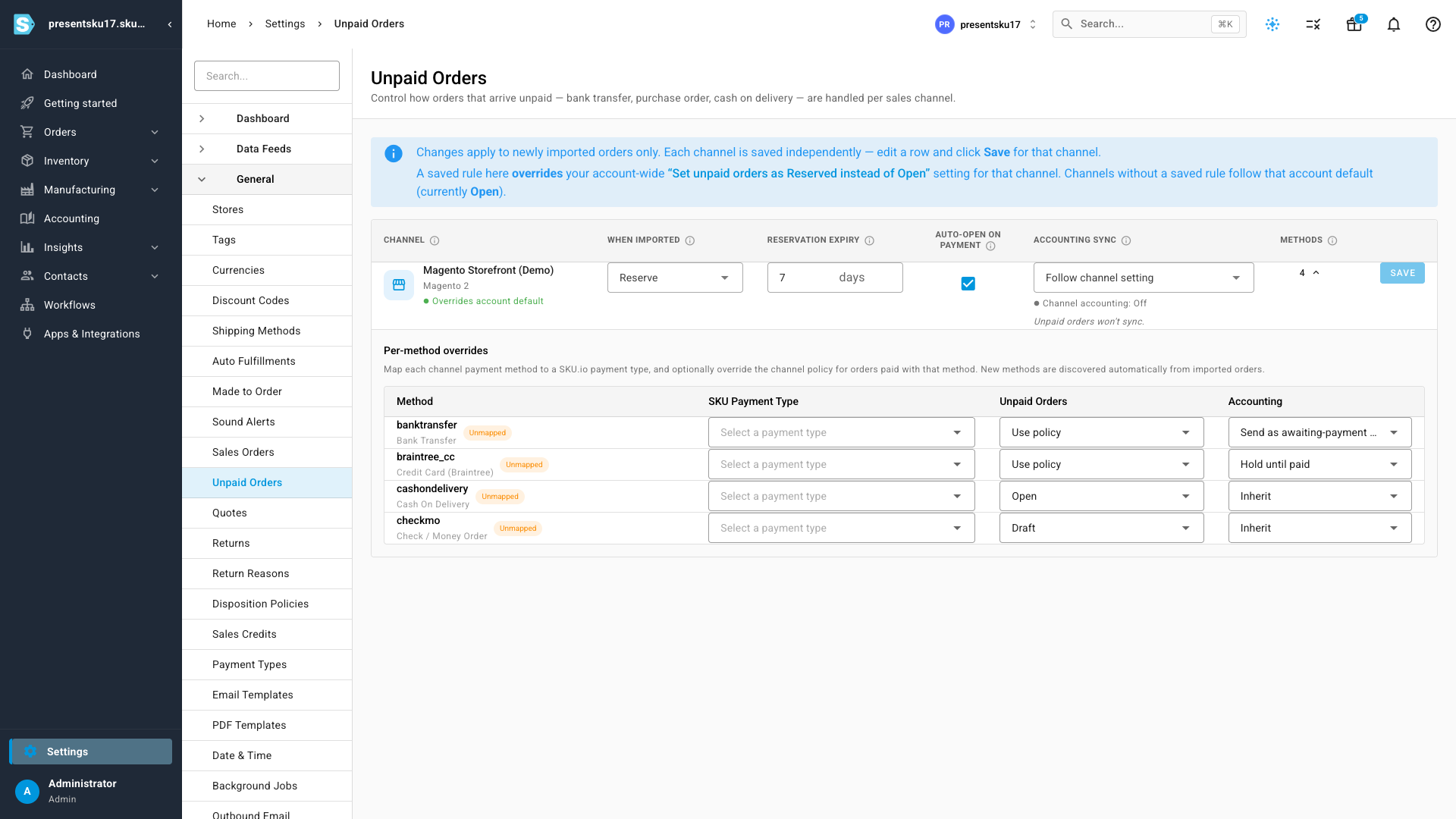
Keep your accounting clean
Unpaid orders and your books are two different questions. For each channel you can choose to send unpaid orders as awaiting-payment invoices — so you can chase them from Xero or QuickBooks — or hold them out of accounting until they're paid, or simply follow the channel's usual setting. You get the awaiting-payment invoices you want for collections without cluttering your ledger with money you may never see.
Works across your channels
The policy is channel-agnostic. It's available today for Magento 1, Magento 2, Shopify, and WooCommerce stores — so the offline-payment orders those storefronts send you all land the way you intend.
Where to find it
Go to Settings → Unpaid Orders. Edit the row for any connected store, set how its unpaid orders should be handled, and click Save for that channel. Changes apply to newly imported orders.