Bulk Customer Emails — one message per customer, not per order
Need to tell a batch of customers their orders are delayed, back in stock, or shipping Monday? Until now that meant opening each sales order and sending one email at a time — and a customer with five orders received five separate emails. Bulk Customer Emails changes that. Select any set of sales orders and SKU emails their customers in a single action, automatically grouping every order for the same customer into one message, skipping anyone without an address, and recording each send to the order's history.
✨ What this means for you:
- Email dozens of customers about their orders in one action instead of one order at a time.
- A customer with several selected orders gets one email listing all of them — not a flood of separate messages.
- See exactly who will (and won't) receive an email before you send — no silent drops.
- Every send is written to the order's activity log, so you always have a record of what went out, to whom, and when.
Start from the orders list
Select the sales orders you want to email about, open the bulk actions More menu, and choose Send Email.
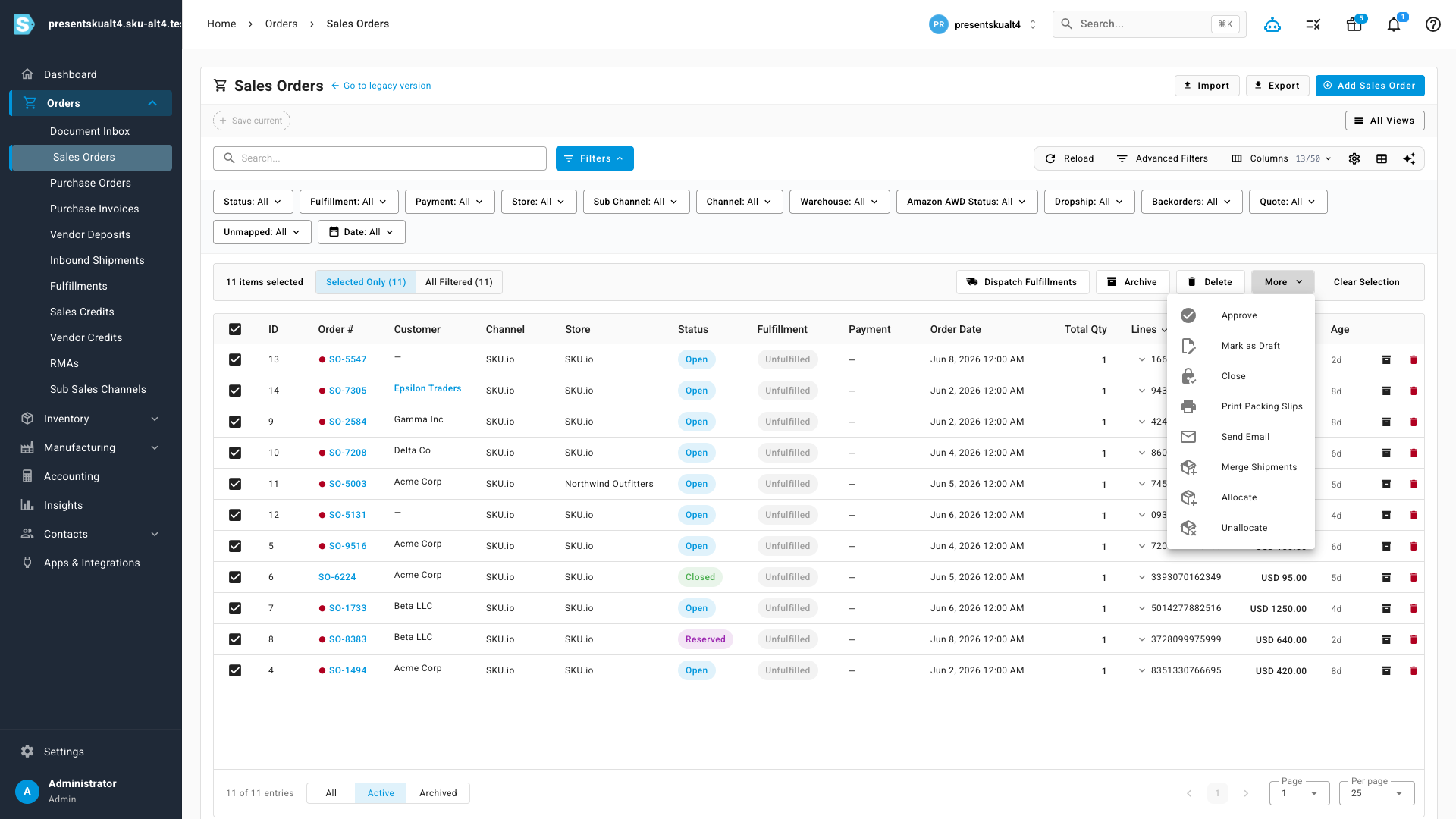
See who gets an email before you send
The compose window opens with a live recipient summary. SKU groups your selected orders by customer and shows how many emails will actually go out — here, 11 orders become 5 emails — alongside a clear breakdown of anyone skipped for having no email address or for opting out. Addresses are masked, so you can review the list without exposing customer details.
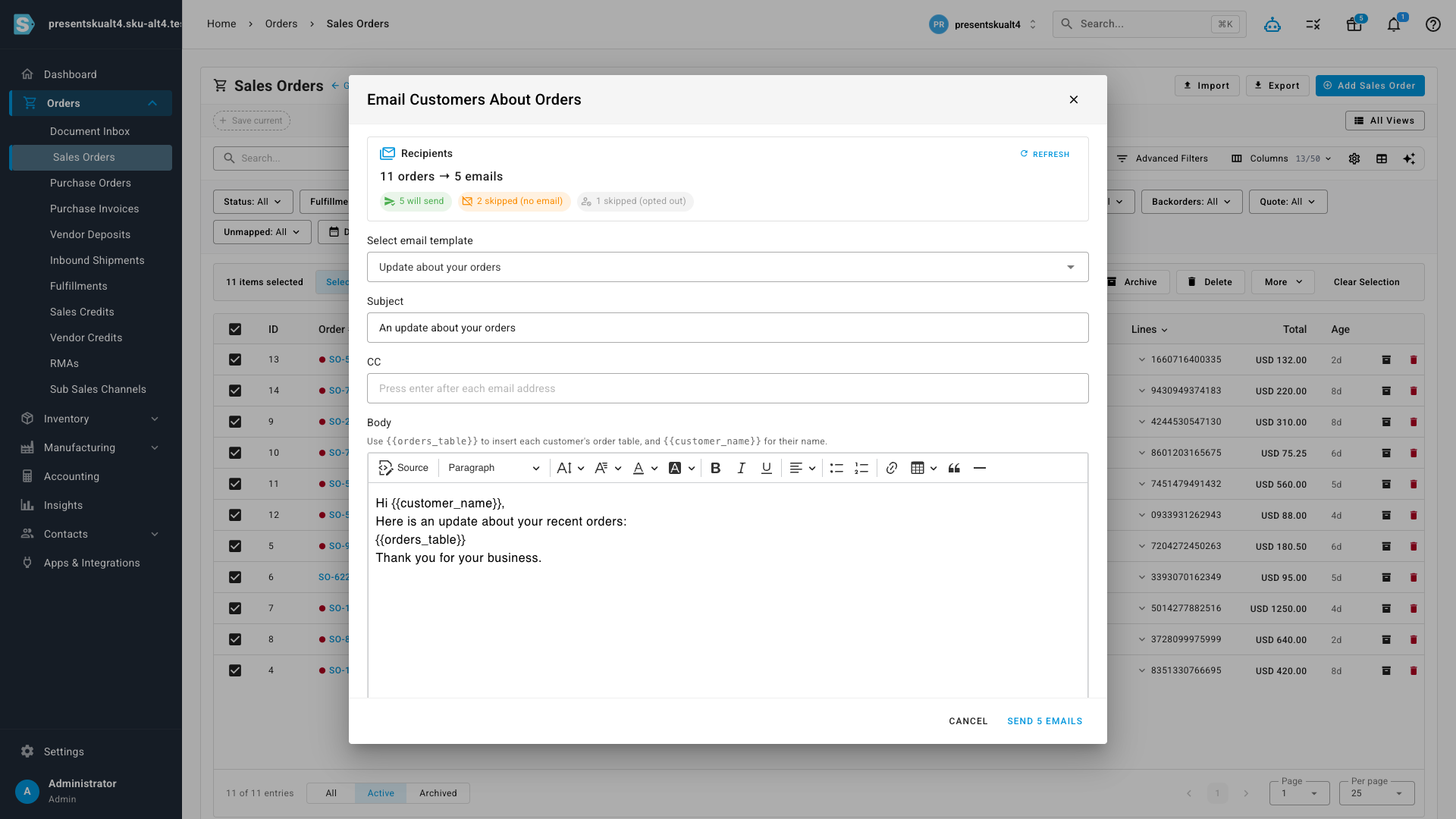
Compose once, send to everyone
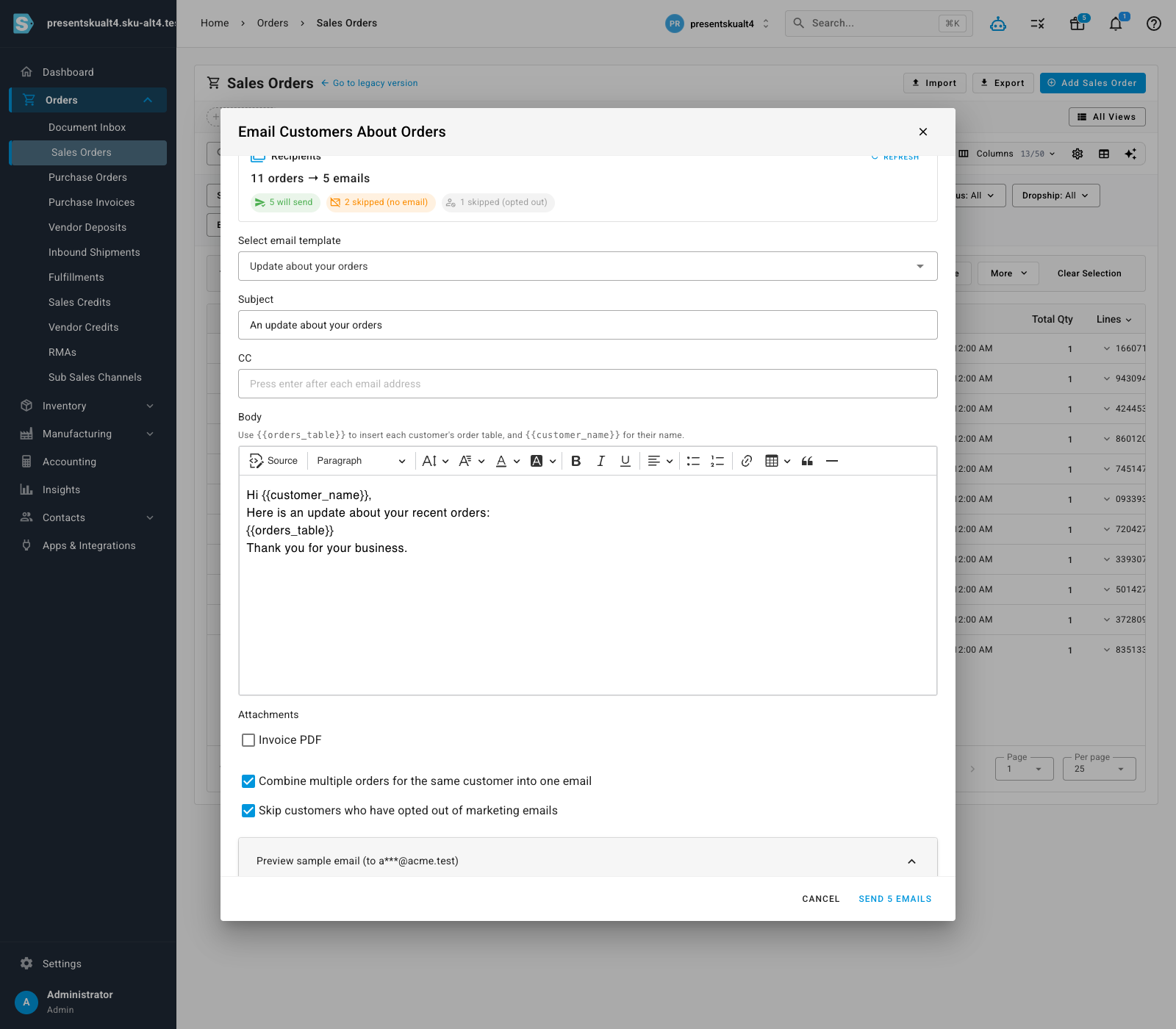
Pick a template or write your own, edit the subject and body, add CC recipients, and attach documents like the invoice PDF. Quick toggles let you decide whether to combine a customer's orders into one email and whether to skip customers who have opted out of marketing emails.
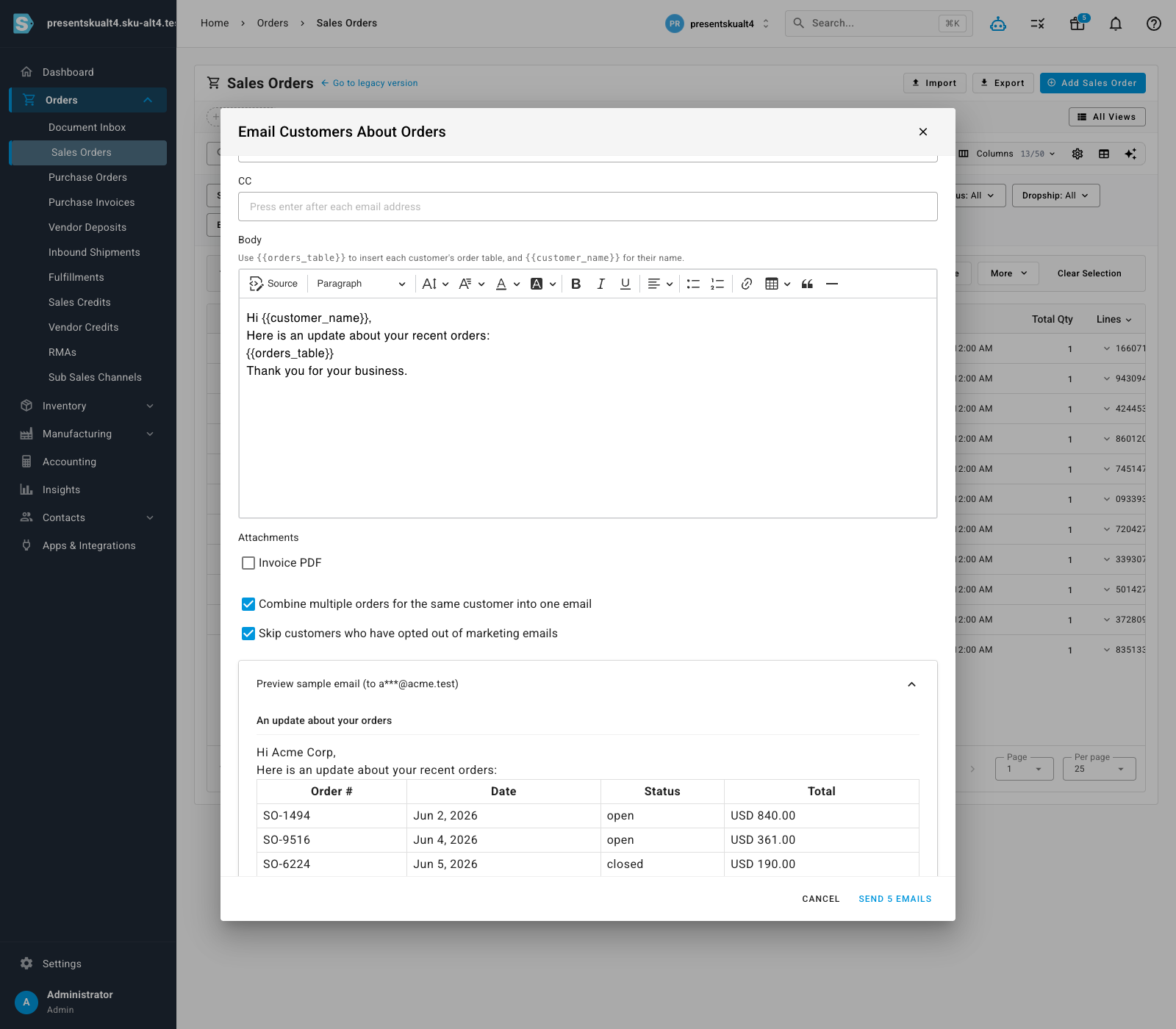
One clean email per customer
When a customer has more than one selected order, SKU drops a tidy table of all their orders straight into the email — so they receive a single, complete update instead of repetitive messages. You can preview the exact email, for a real recipient, before anything sends.
Hit send and the job runs in the background progress tray with a live per-recipient sent / skipped / failed summary, so you can watch it finish and confirm every message landed.
Where to find it
Go to Orders → Sales Orders, select one or more orders, open the More menu in the bulk actions bar, and choose Send Email.