Vendor Deposit Payments — from proforma invoice to paid, in one audited flow
When a supplier asks for a deposit or prepayment, the proforma invoice usually lands in someone's inbox — and everything after that happens over email: forward it to whoever pays, re-key the wire details into the bank, then remember to send proof back. Details get lost, nobody can say who approved a five-figure wire or against which PO, and swapped bank details in an intercepted email thread are the classic way overseas payments get stolen. Vendor Deposit Payments pulls the whole flow into SKU — record the supplier's proforma invoice against a purchase order, request payment from a designated payer with the wire instructions attached, capture the payment proof, and email the supplier a remittance advice — with every step on the record.
✨ What this means for you:
- Record a supplier's proforma invoice against a PO and request payment in a couple of clicks — no forwarding emails to whoever pays.
- The payer receives one notification with everything they need: amount, PO context, due date, and the payee's wire instructions.
- Bank details that differ from the supplier's profile cannot be paid until someone confirms they verified them out-of-band — your built-in guard against wire fraud.
- Capture the wire confirmation as payment proof — paste a screenshot or let SKU scan it to pre-fill the reference, amount, and date.
- Send the supplier a remittance advice in one click, with the proof attached and bank/account numbers deliberately left out.
- A complete audit trail on every deposit: who requested payment, who approved it, when it was paid, and when the supplier was notified.
Record the proforma invoice and request payment
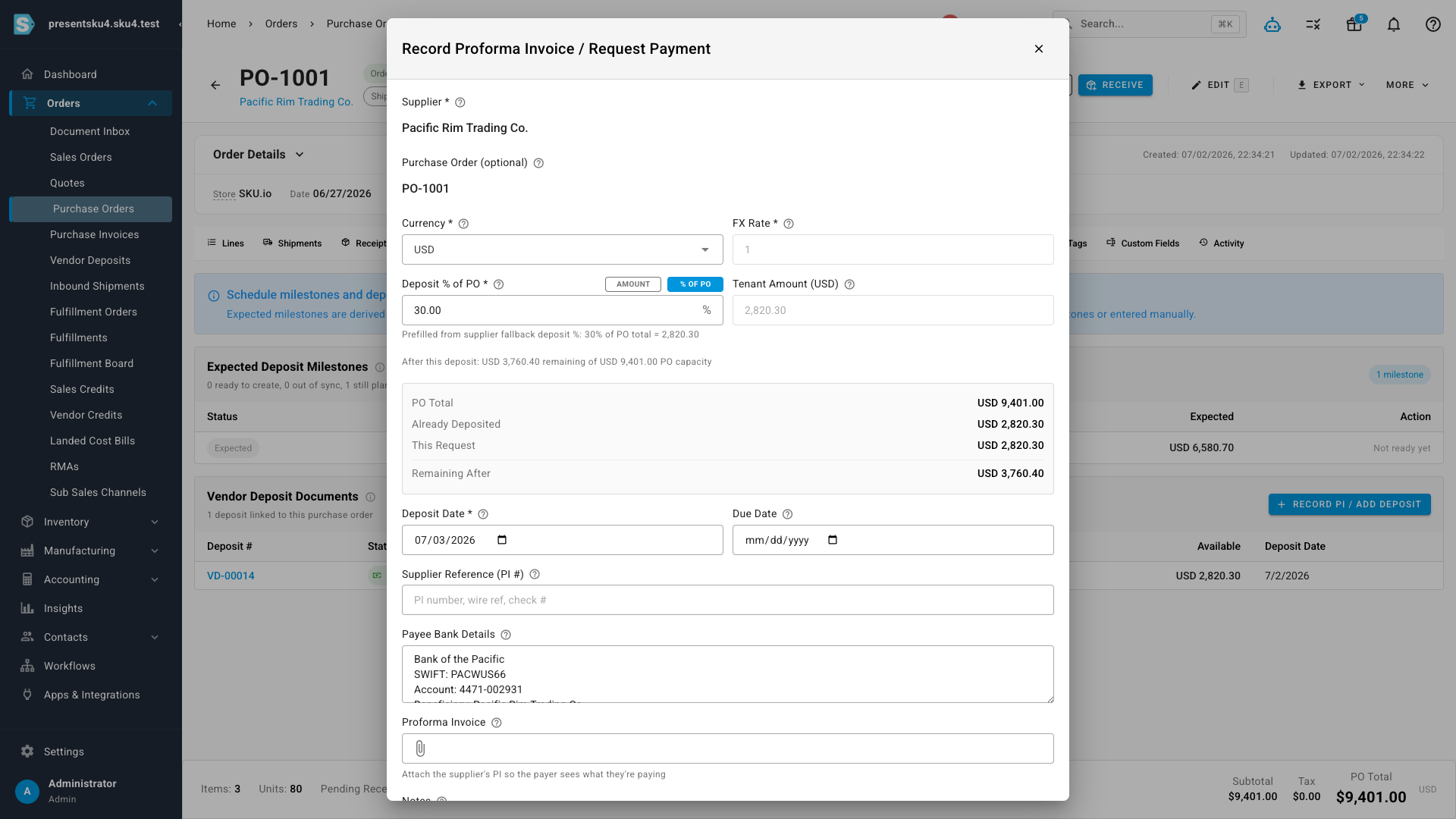
From any submitted purchase order, choose Record PI / Add Deposit. SKU pre-fills the supplier, the PO, and a suggested amount, then shows a live sanity check — PO total, already deposited, this request, and what's remaining — so an over- or under-payment is obvious before you send it. Attach the supplier's PI, confirm the payee's bank details, and click Save & Request Payment.
A built-in guard against wire fraud
The payee bank details prefill from the supplier's saved profile. If they've changed — a different account number, a new beneficiary — SKU flags the difference and won't let you request payment until you confirm you verified the new details through a known channel, like a phone call to a number you already have. Business email compromise almost always starts with swapped bank details in a reply, and this stops an unverified change from ever reaching the bank. The details you approve are snapshotted onto the deposit, so there's a permanent record of exactly what was paid and who signed off on it.
Pay from the wire instructions — and capture the proof
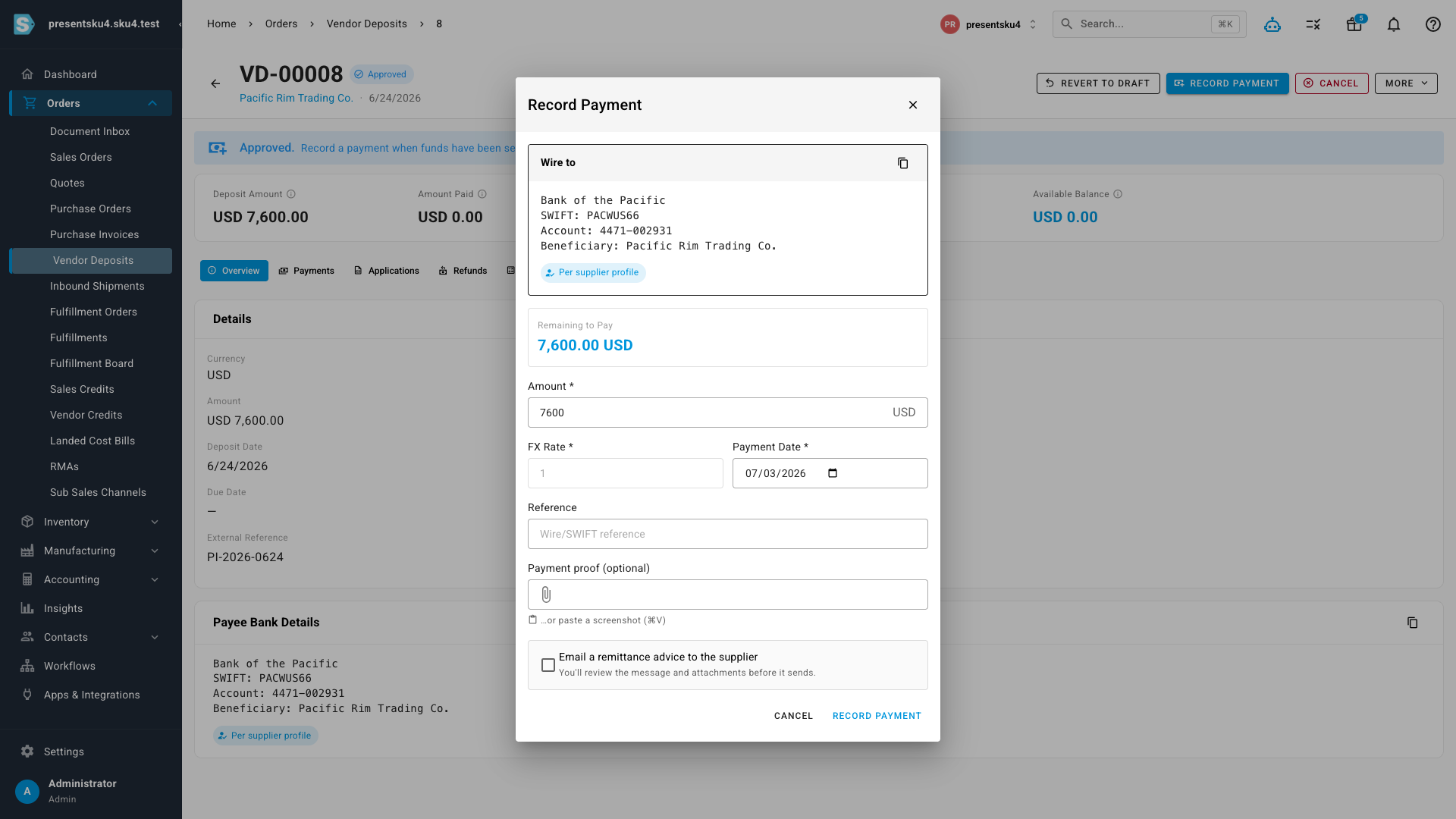
When it's time to pay, the deposit shows a Wire to panel with the payee's details and a copy button — the payer executes the wire straight from this screen, no digging through email. Enter the reference, then attach the wire confirmation as proof; you can paste a screenshot directly, or let SKU scan the document to pre-fill the reference, amount, and value date for you. Tick Email a remittance advice to the supplier to notify them in the same step.
Close the loop with the supplier
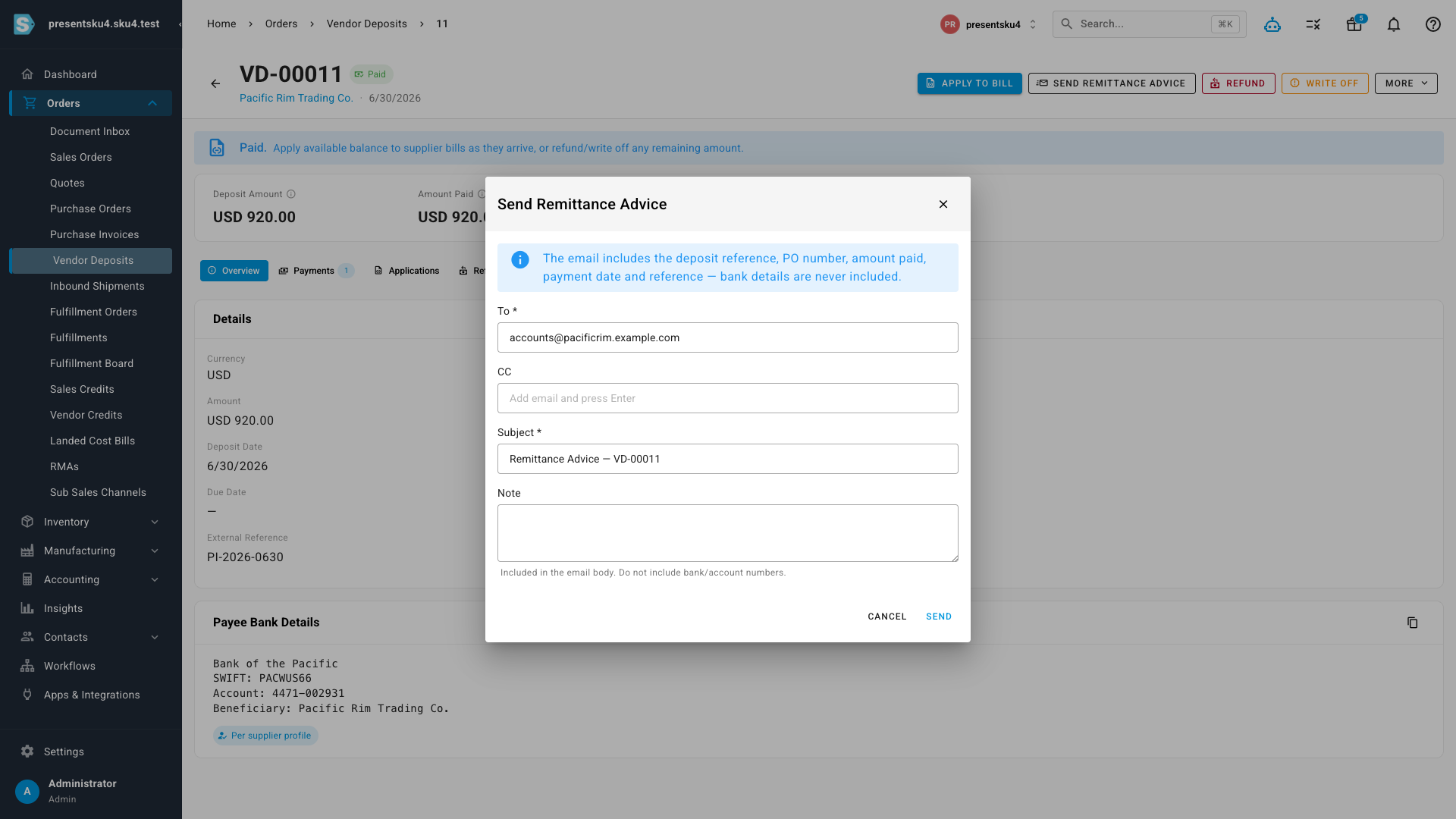
One click sends a remittance advice — deposit reference, PO number, amount paid, and payment date — with the payment proof attached. Full bank and account numbers are never included, and replies go straight back to the person who sent it, not a no-reply inbox.
Everything in one audited record
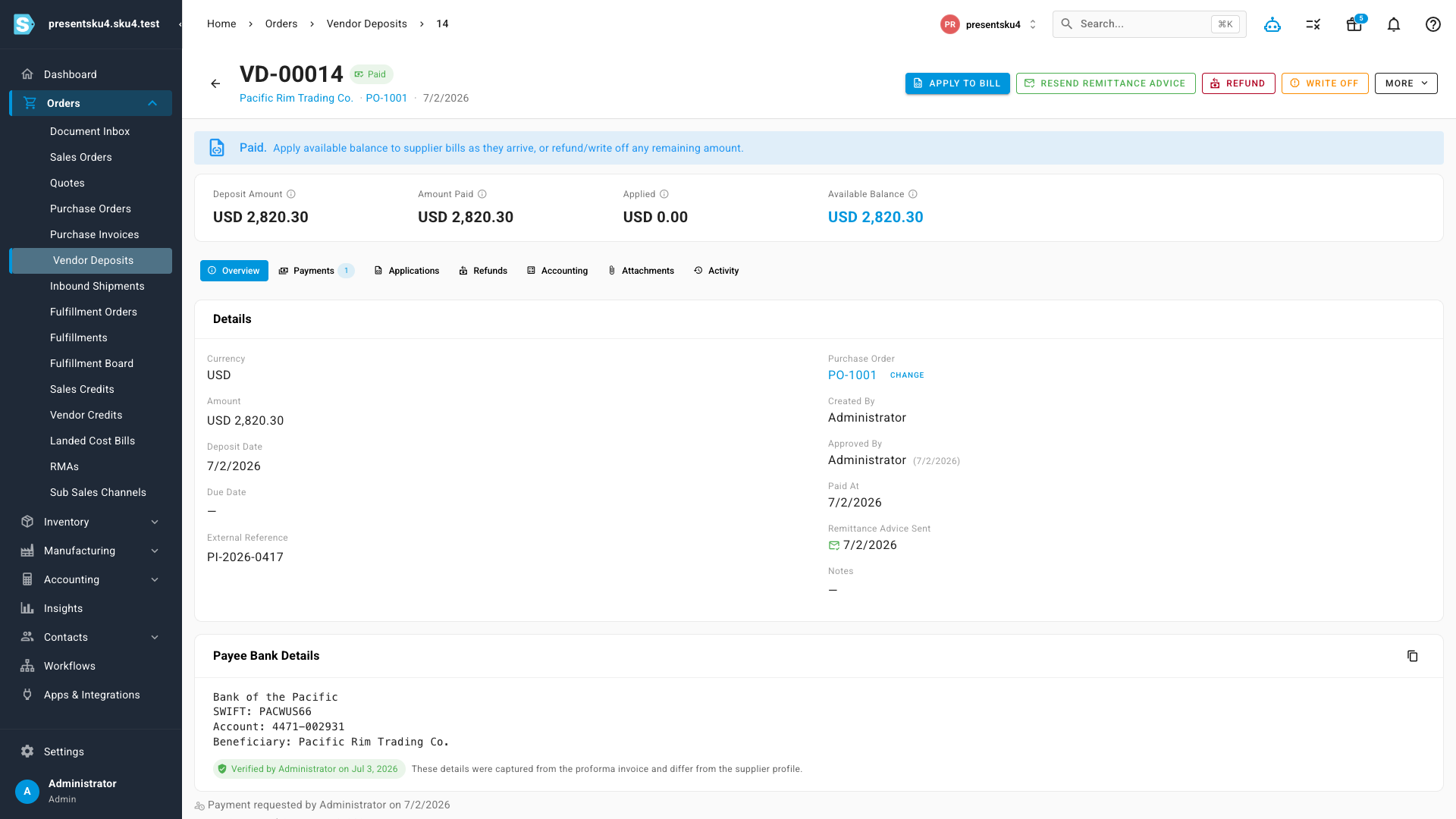
Each deposit tells the whole story on one page: the verified payee bank details, when payment was requested and by whom, when it was paid, and when the supplier's remittance advice was sent — so month-end reconciliation and "what was this wire for?" are answered without opening a single email.
Where to find it
Open any submitted purchase order, go to the Deposits tab, and click Record PI / Add Deposit. Existing deposits live under Orders → Vendor Deposits. To route payment requests to a specific person, set a default payment approver under Settings → Purchasing → Payment Approvals.