User Roles & Permissions — control exactly who can see and do what
Until now, SKU.io access control was all-or-nothing: everyone on your team could see every page and press every button, whether they needed to or not. Your warehouse staff could open accounting reports; a seasonal hire could delete a purchase order. User Roles & Permissions changes that. You build roles from a catalog of 280 fine-grained permissions — covering every area of the app, from products and orders down to individual actions like receiving a transfer or exporting a report — assign those roles to your users, and SKU.io enforces them everywhere: navigation menus, pages, action buttons, and the API itself.
✨ What this means for you:
- Roles that match your org — create roles like Warehouse Manager or Bookkeeper with exactly the permissions each job needs, nothing more.
- A permission matrix you can actually use — 280 permissions organized by category, with search, filters, and one-click "select all" per group.
- Enforcement everywhere, automatically — users only see the menus and pages they're allowed to; un-permitted buttons disappear; direct links and API calls are blocked too.
- Assign in seconds — pick roles for a user from simple cards right in the Users list.
- Admins are never locked out — admin users bypass all permission checks, so there's no way to gate yourself out of your own account.
Build roles with the permission matrix
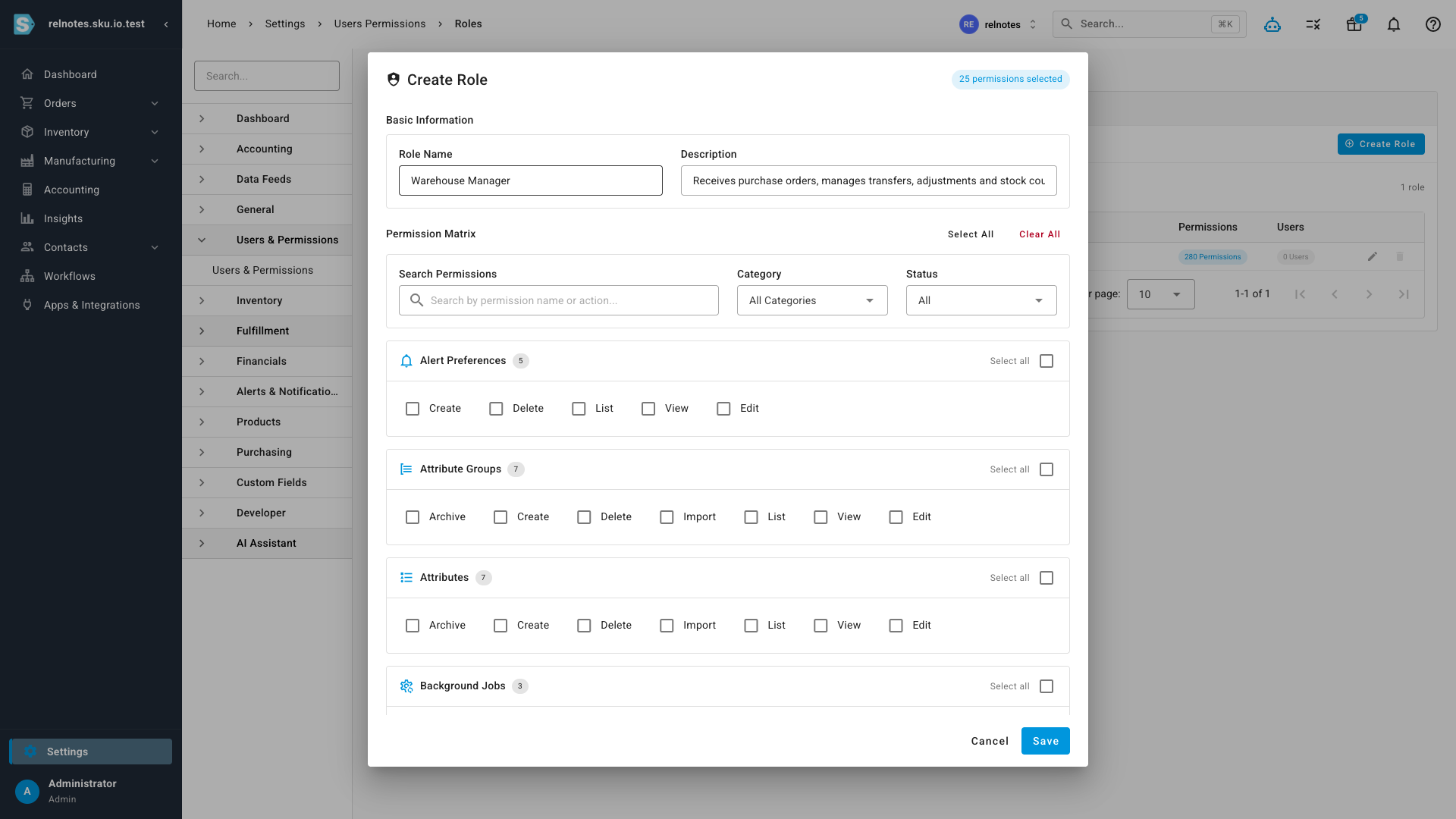
Creating a role is a single dialog: name it, describe it, and tick the permissions it grants. The matrix groups all 280 permissions by category — Products, Sales Orders, Warehouses, Warehouse Transfers, Tax Rates, Users, and dozens more — each with the standard actions (Create, List, View, Edit, Delete, Archive, Import, Export) plus domain-specific ones like Receive and Ship on Warehouse Transfers or Locations and Zones on Warehouses. Search for a permission by name, filter by category or selection status, use Select all per group, and watch the live counter tally up what the role grants.
Assign roles to your team
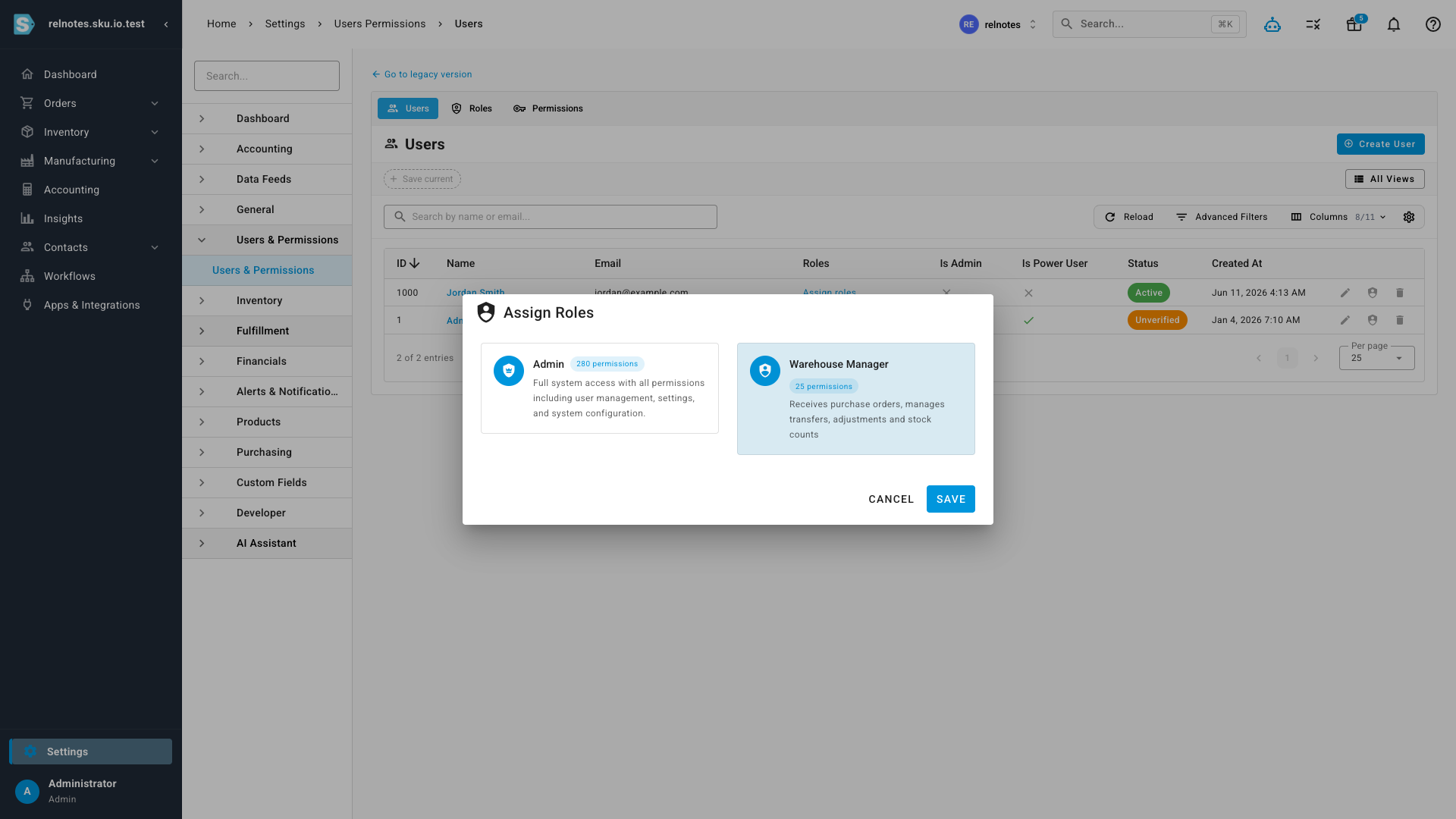
From the Users tab, each user's roles are right there in the list. Click to open the Assign Roles dialog and pick from role cards — each showing its description and how many permissions it carries. A user can hold multiple roles; their access is the combination of everything those roles grant.
The whole app follows your permissions
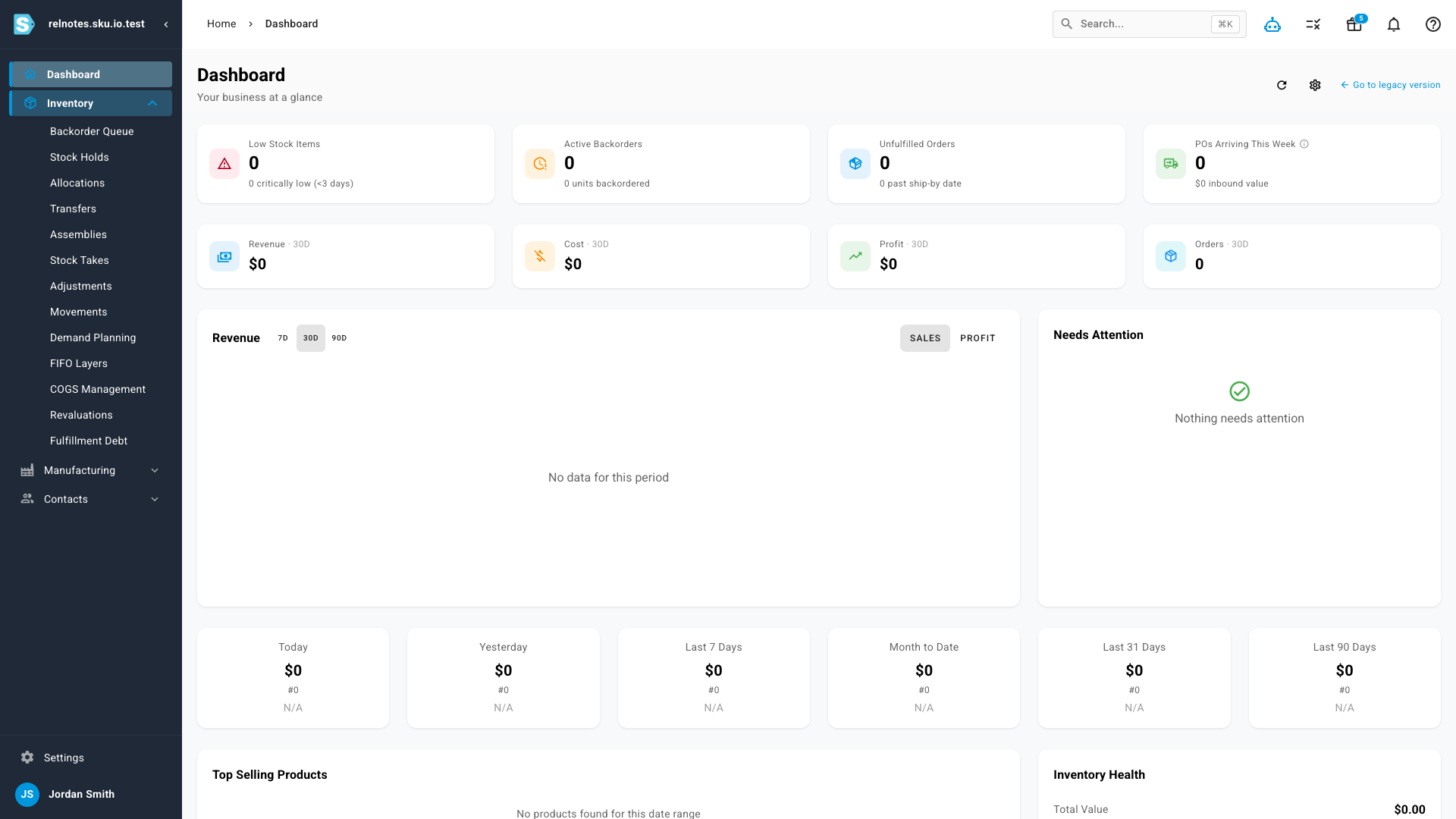
This isn't just an admin screen — the entire app respects what you set. A user without order permissions doesn't see Orders in the navigation at all; submenus trim themselves down to just the allowed pages; action buttons they can't use are hidden; and typing a URL directly simply lands them back on the dashboard. The same rules are enforced server-side, so the API rejects anything the interface wouldn't allow.
Every role at a glance
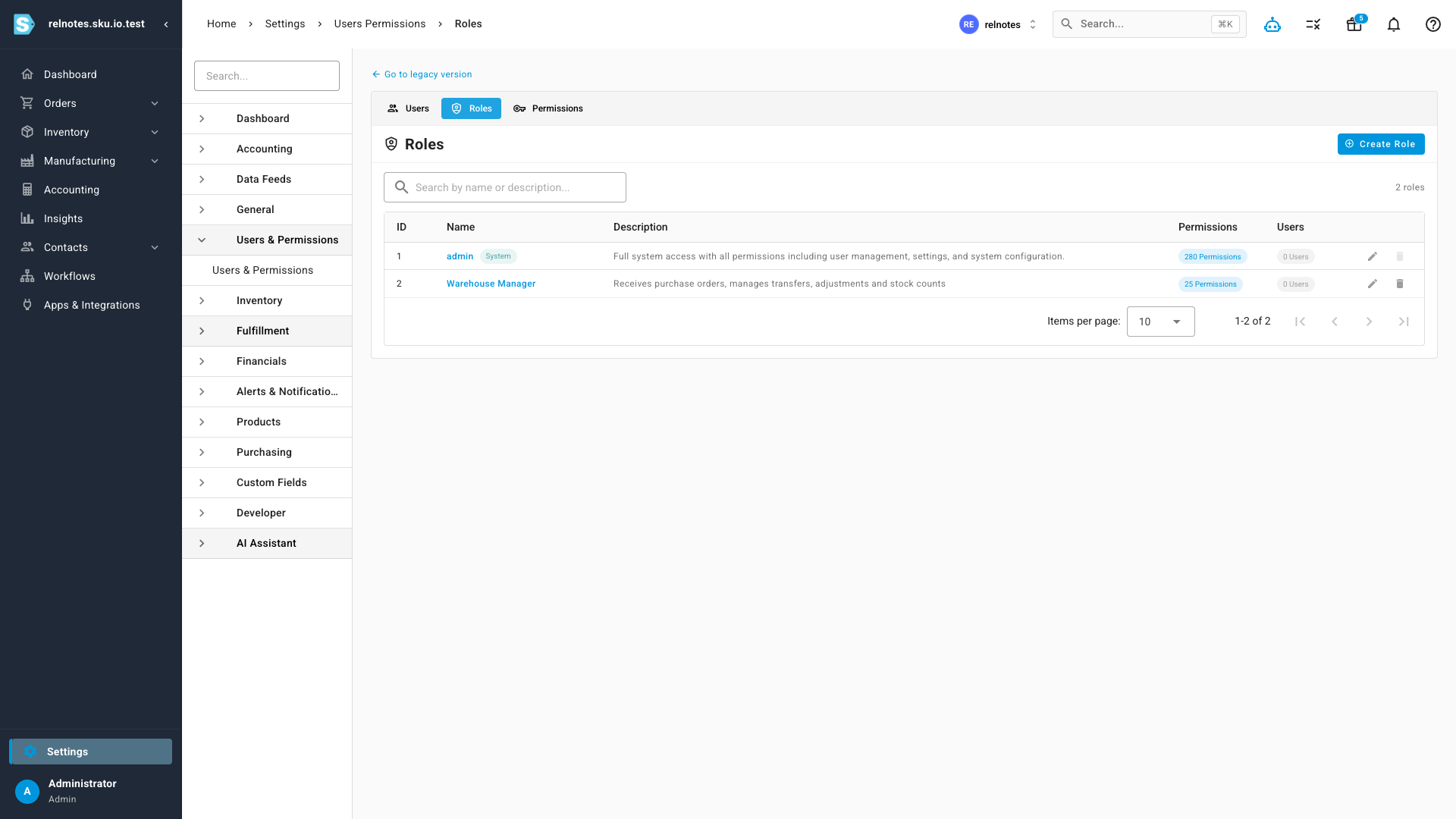
The Roles tab lists all your roles with their permission and user counts. The built-in admin role is protected — it always carries every permission and can't be deleted. Next to it, a read-only Permissions tab gives you the full reference matrix: every permission in the system and which roles grant it, so you can audit access without opening each role.
Where to find it
Open Settings → Users & Permissions. You'll find the Users tab (create users and assign their roles), the Roles tab (build and edit roles with the permission matrix), and the Permissions tab (the read-only role-permission reference).