AI-Assisted PDF Template Editor — redesign your documents by describing the change
Customizing your PDF documents — invoices, purchase orders, packing slips, quotes, credit notes — used to mean wrestling a word-processor-style editor that had its own ideas about your layout. Simple requests like "make the items table span the full page" were surprisingly hard, and anyone comfortable with HTML had to fight the editor's constant reformatting. The new PDF Template Editor replaces all of that with a proper split-pane workspace: your template's HTML on one side, a live PDF preview on the other, and a built-in Template AI assistant that can make layout changes for you from a plain-English instruction — "make the items table full width", "add a Supplier SKU column", "match a clean Stripe-style invoice". Every AI edit is validated, shown as a reviewable diff, and never saved until you say so.
✨ What this means for you:
- Change a template by describing the change — no HTML knowledge needed. The AI writes the edit, shows you exactly what changed, and updates the preview.
- See the real PDF as you type — the preview pane re-renders your document moments after every edit, using realistic sample data.
- Full control for technical users — a real HTML editor with syntax highlighting and variable autocomplete, and no hidden reformatting of your markup.
- Nothing breaks silently — every edit (yours or the AI's) is checked against your template's variables before it can be saved, and every save is snapshotted in a version history you can restore from.
A real editor with a live preview
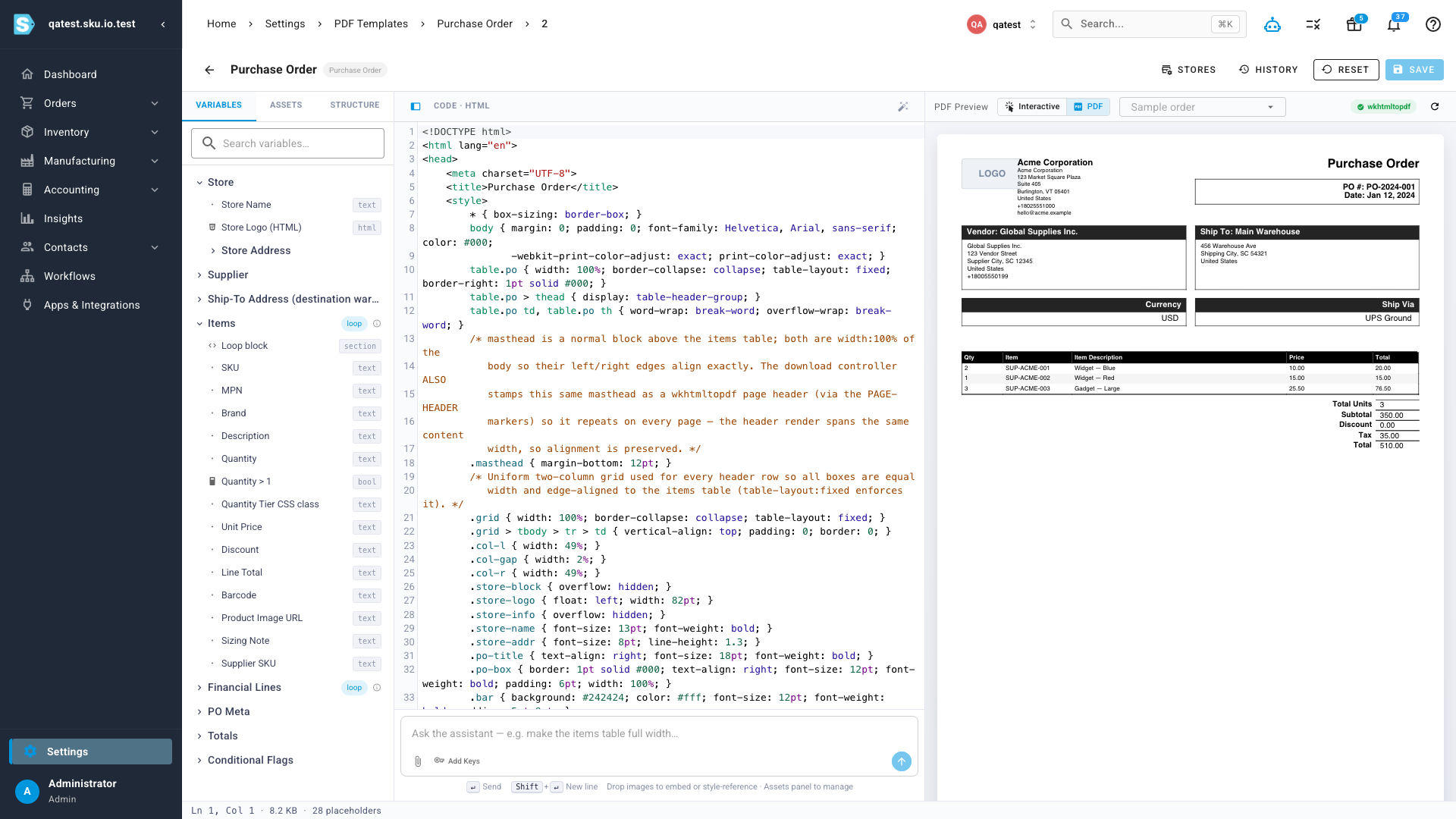
Open any template and you get a three-pane workspace: a Variables panel listing every placeholder your document supports (store details, addresses, line items, totals and more), the template's HTML source with syntax highlighting, and a live PDF preview that re-renders as you edit. Alongside variables, side panels let you manage image assets (like logos), jump around the document's structure, and work with conditional blocks.
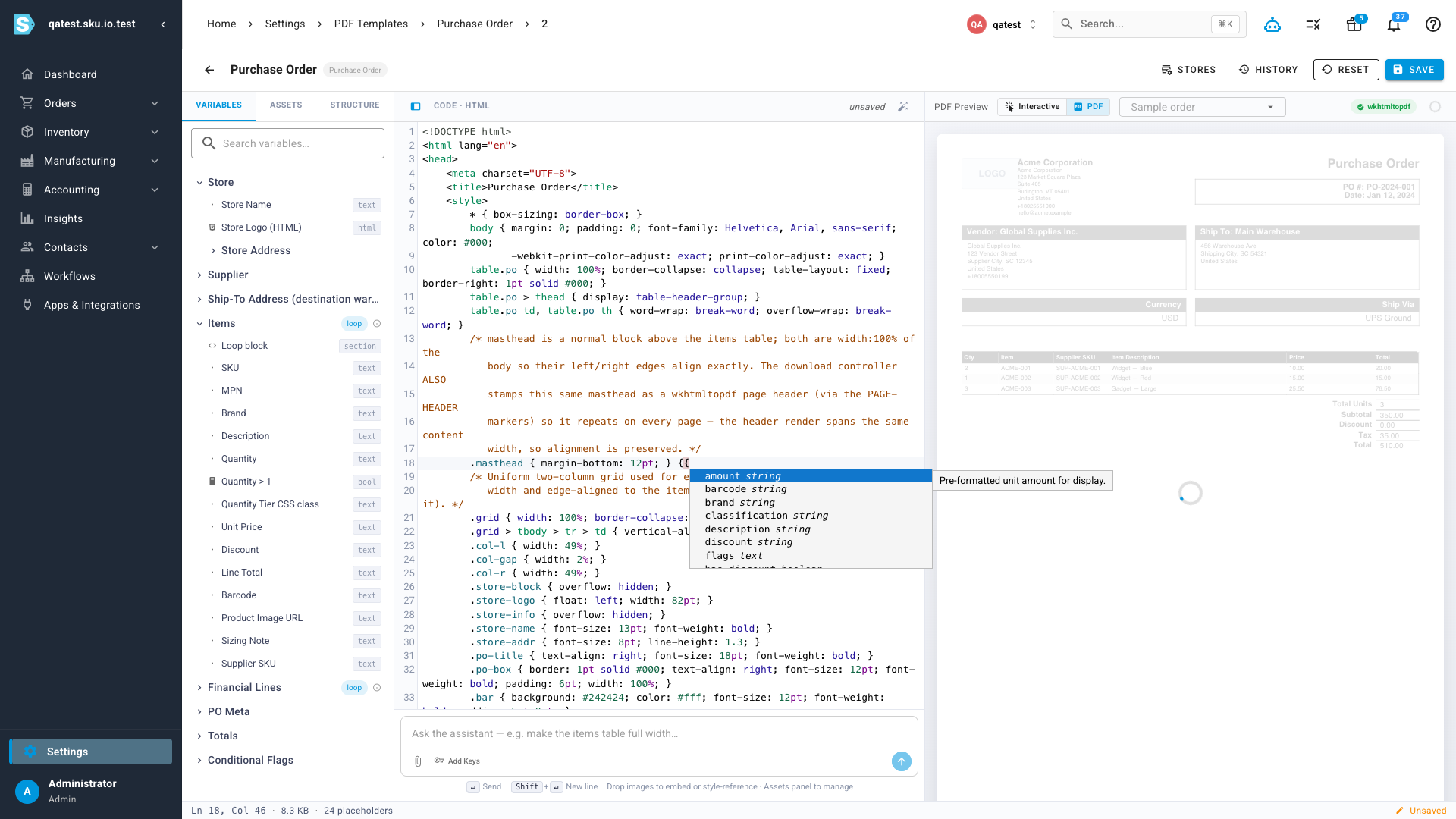
Type {{ anywhere in the code and an autocomplete list pops up with every variable available to that template — each with a type and a plain-language description — so you never have to guess a placeholder's name. Packing slips can even be previewed against one of your real orders, so you see the document exactly as your warehouse would.
Describe the change — Template AI does the editing
Click into the assistant bar at the bottom of the editor and describe what you want in plain English. Ready-made suggestions get you started — restyle it, rework the layout, add or remove sections, or polish what's there — and you can even drop in an image to embed it in the template or use it as style inspiration.
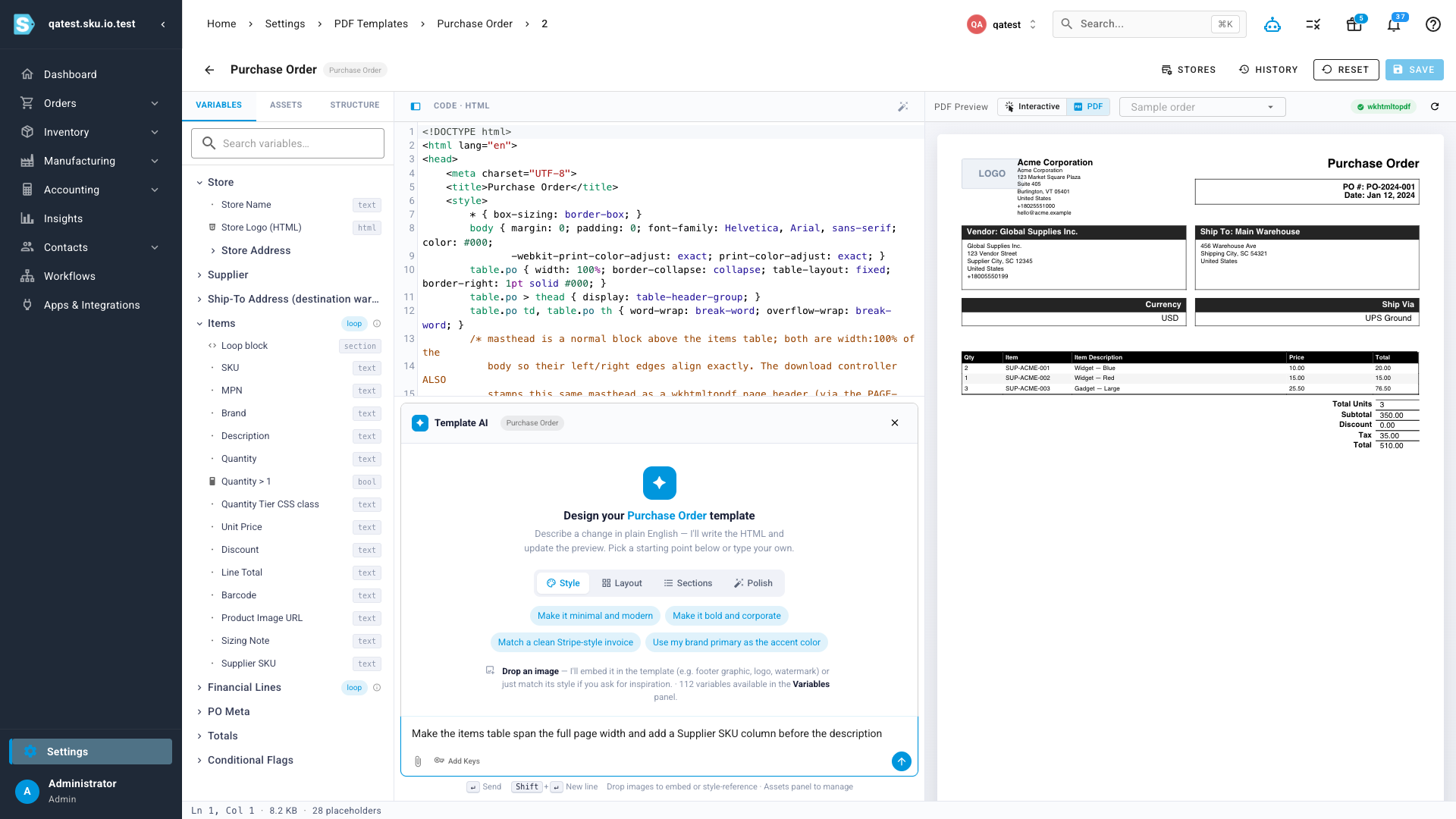
The assistant knows your template's exact variables, so it works with real data fields — it can add a Supplier SKU column because it knows your line items carry one, and it can't invent placeholders that don't exist.
Review every change before it sticks
When the AI proposes an edit, you get a plain-language summary of what changed and a side-by-side diff of the template, and the preview updates so you can see the result on the actual document. Here it's added a Supplier SKU column to a purchase order's items table — visible in the preview on the right:
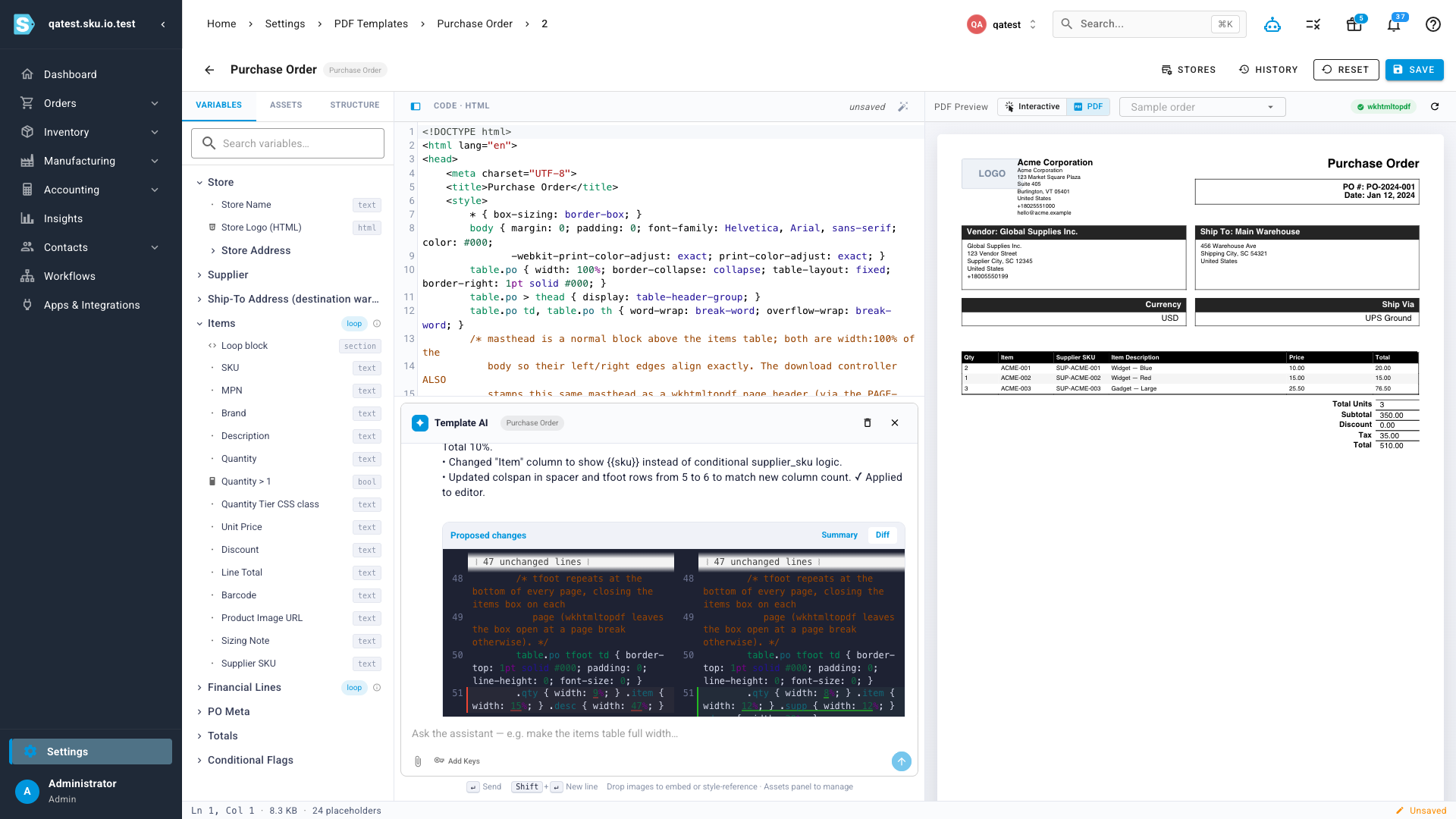
Changes land in the editor, not in your saved template — nothing is stored until you click Save. Every edit is validated first: placeholders are checked against the template's allowed variables and the document must render cleanly, whether the change came from you or from the AI. And every save adds a snapshot to the template's version history, so you can review past versions and restore any of them. If you navigate away mid-edit, the editor keeps your unsaved draft and offers to restore it when you come back.
The AI assistant runs on your own AI provider key — the same one the SKU.io AI Assistant uses. If you haven't added one, the editor and live preview work exactly the same; the assistant simply points you to the settings page to get connected.
Where to find it
Go to Settings → General → PDF Templates and open any template — sales orders, purchase orders, quotes, packing slips, sales credits, or vendor credits. The new editor loads automatically, with History and Reset in the top-right and the Template AI assistant bar along the bottom. To enable the assistant, add an AI provider key under Settings → AI Assistant.