Channel refunds — refund customers on any sales channel without leaving SKU.io
Until now, refunding a customer meant leaving SKU.io. Your CS rep would look up the order here — what shipped, what came back, what's already been credited — then open Shopify admin, or Seller Hub, or Seller Center, re-key the same line items and amounts into that channel's refund form, and hope nothing got transposed along the way. Every channel meant another login, another tab, another place a decimal could slip. Channel Refunds ends the round trip: pick the lines, quantities, and amounts right on the SKU.io sales order and the refund goes out to the channel itself — the customer gets their money back through the original payment method, and the matching sales credit lands in your books automatically, linked to the request that created it.
✨ What this means for you:
- One place to refund, every channel. Shopify, eBay, Walmart, WooCommerce, BigCommerce, TikTok Shop, and Magento refunds all start from the same Refund on [channel] action on the sales order — no channel admin, no re-keying.
- No more over-refunds. The dialog knows what's refundable: quantities and amounts are capped by what was ordered minus what's already been refunded — on the channel or in SKU.io — and a running total enforces the order's ceiling.
- The books take care of themselves. When the channel confirms the refund, SKU.io creates the sales credit and ties it back to the request — no double entry, no duplicate credits.
- A real audit trail. Every refund request records who issued it, when, which lines, the amounts, the channel's refund ID, and its final status — right on the order.
- Honest when a channel can't do it. Amazon has no refund API (industry-wide), so SKU.io deep-links you to the exact Seller Central page instead of pretending — and FBA refunds, which Amazon manages itself, stay out of your way entirely.
- Opt-in per channel. Nothing changes until you switch on Allow refunds from SKU in a channel's settings.
Refund from where the answer already is
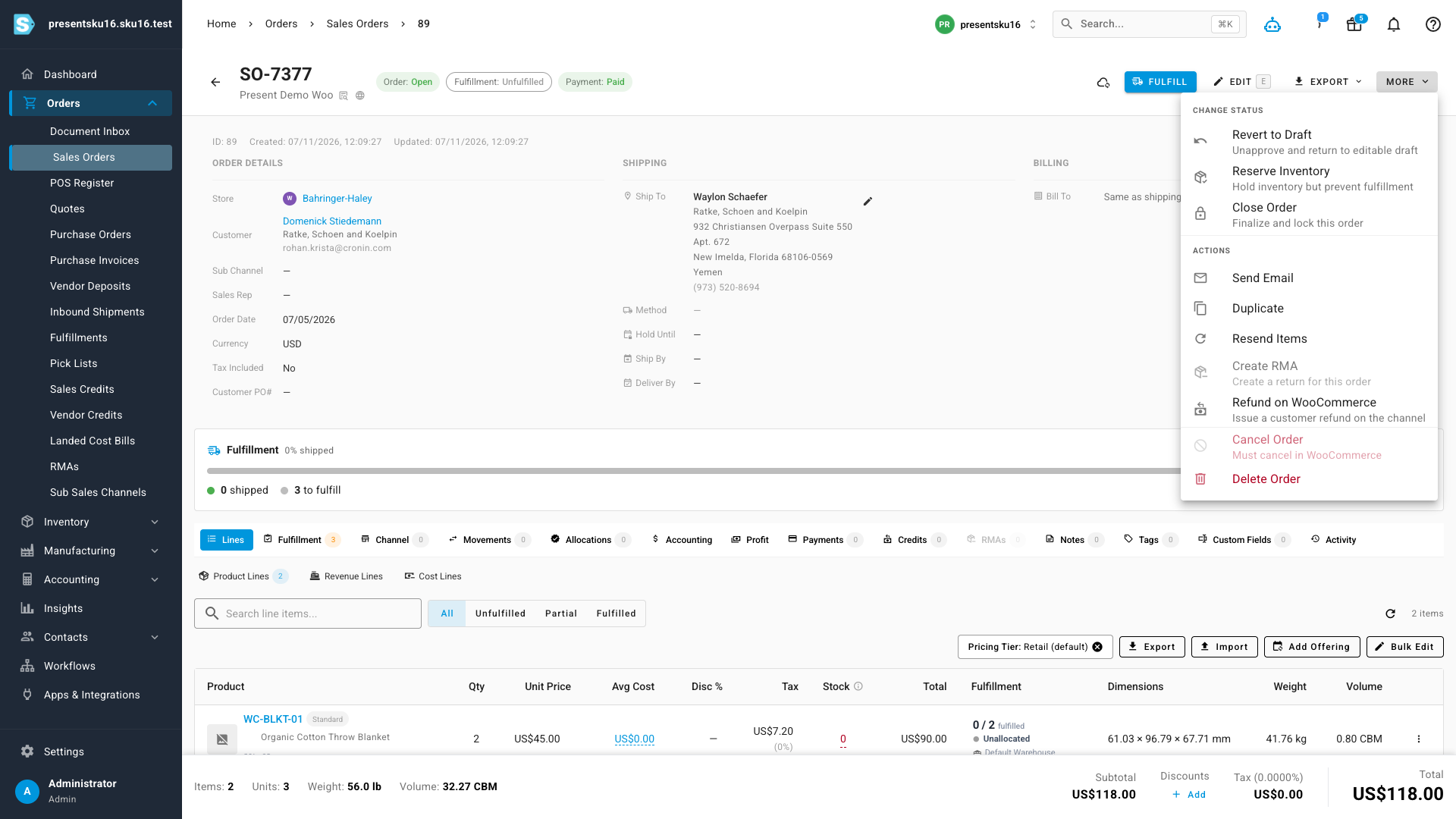
The order page is where your rep already decides whether to refund — it shows the fulfillment state, the payment history, the returns, the credits. Now it's also where the refund happens. Open the order's More menu and choose Refund on [channel]:
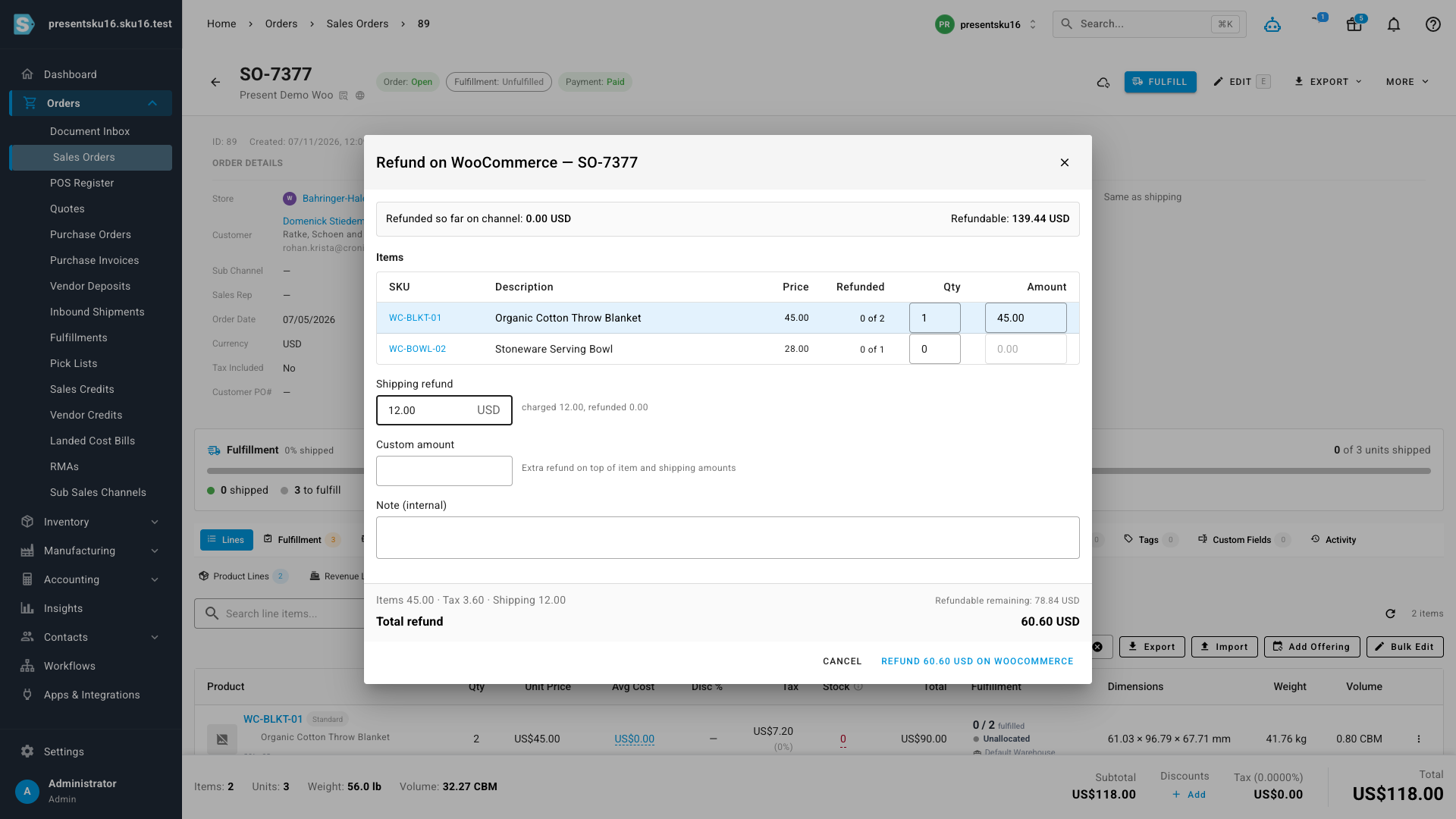
The refund dialog opens pre-filled with the order's items and everything the channel will let you do — per-line quantities and amounts, a shipping refund up to what was charged, an extra custom amount where the channel supports one, and options like restocking or notifying the customer where they exist. The header shows what's already been refunded on the channel and what's still refundable, and the button always tells you exactly what will be sent:
Each channel, on its own terms
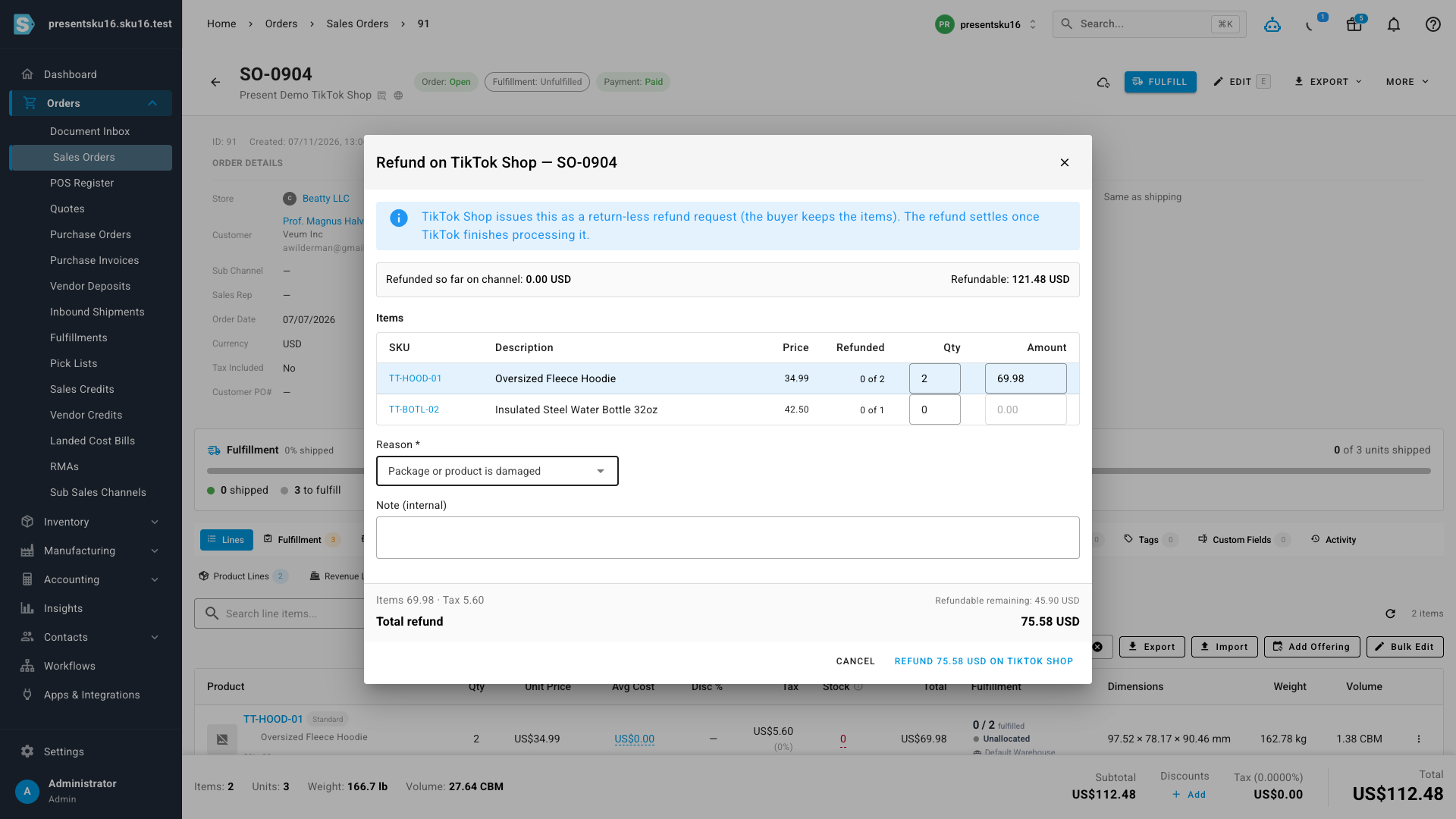
Channels don't all refund the same way, and the dialog is honest about the differences instead of hiding them. TikTok Shop, for example, issues seller refunds as return-less refund requests — the buyer keeps the items — and requires one of TikTok's own reason codes; the dialog says so up front and won't submit without a reason. eBay works order-side with its reason codes and settles asynchronously. Magento creates an offline credit memo — the order is marked refunded on the channel, but the dialog tells you plainly that the money itself must go back through your payment processor. What you see is always what that channel actually does:
Built so money can't move twice
Refunds are the one workflow where a retry can cost real cash, so the safety rails are structural. Every request is idempotent — submitting again can't create a second refund on the channel. If a channel ever answers ambiguously (a timeout, an outage, a half-response), SKU.io refuses to guess: the request parks as Awaiting channel, retries are blocked, and SKU.io keeps checking with the channel until it can prove whether the money moved — only then does the request complete or become safely retryable. Meanwhile the amount stays reserved against the order so nobody can refund the same value twice from another direction. Every attempt, whatever its outcome, stays visible in the Channel Refunds panel on the order.
Where to find it
Open any channel sales order and choose More → Refund on [channel]. Past requests and their statuses live on the same order under Credits → Channel Refunds. To enable the feature, open the channel's integration settings and switch on Allow refunds from SKU — it's off by default for every channel, so nothing happens until you decide it should.