Product Swatches — show colour and pattern, not just words
When a product comes in five colours, "Red", "Blue" and "Green" in a dropdown tell you almost nothing — is that red a crimson or a brick? And for anything with a pattern or texture, a word can't describe it at all. Shoppers pick with their eyes, and so do the marketplaces you list on. SKU.io now supports swatches — give each option of a product attribute a colour chip or a small image, and that swatch shows up on your variant products and flows out to the channels that support variant swatches, like Walmart and Shopify. No more guessing which "Red" is which.
✨ What this means for you:
- See the colour, not the word — every option can carry a hex colour or an image, rendered as a real swatch chip.
- Images for patterns and textures — a plain colour can't show a floral print or a wood grain; point an option at an image URL and the swatch shows the real thing.
- Set it once, use it everywhere — a swatch lives on the option itself, so every product that uses that option inherits it automatically.
- Flows to your channels — variant listings carry their per-variant swatch images to marketplaces that support them, starting with Walmart and Shopify.
- One place to manage variants — declare which attributes vary across a product's variations and edit their swatches together, in a single dialog.
Turn any attribute into a swatch
Every product attribute now has a Display as setting. Leave it as a
plain dropdown for descriptive attributes like Size, or switch it to
Swatch for anything visual like Colour or Material. Once it's a
swatch, each option gets two optional fields: a hex colour and an image
URL. Enter #E53935 for a red chip, or paste an image URL to show a
pattern or texture — the preview updates as you type.
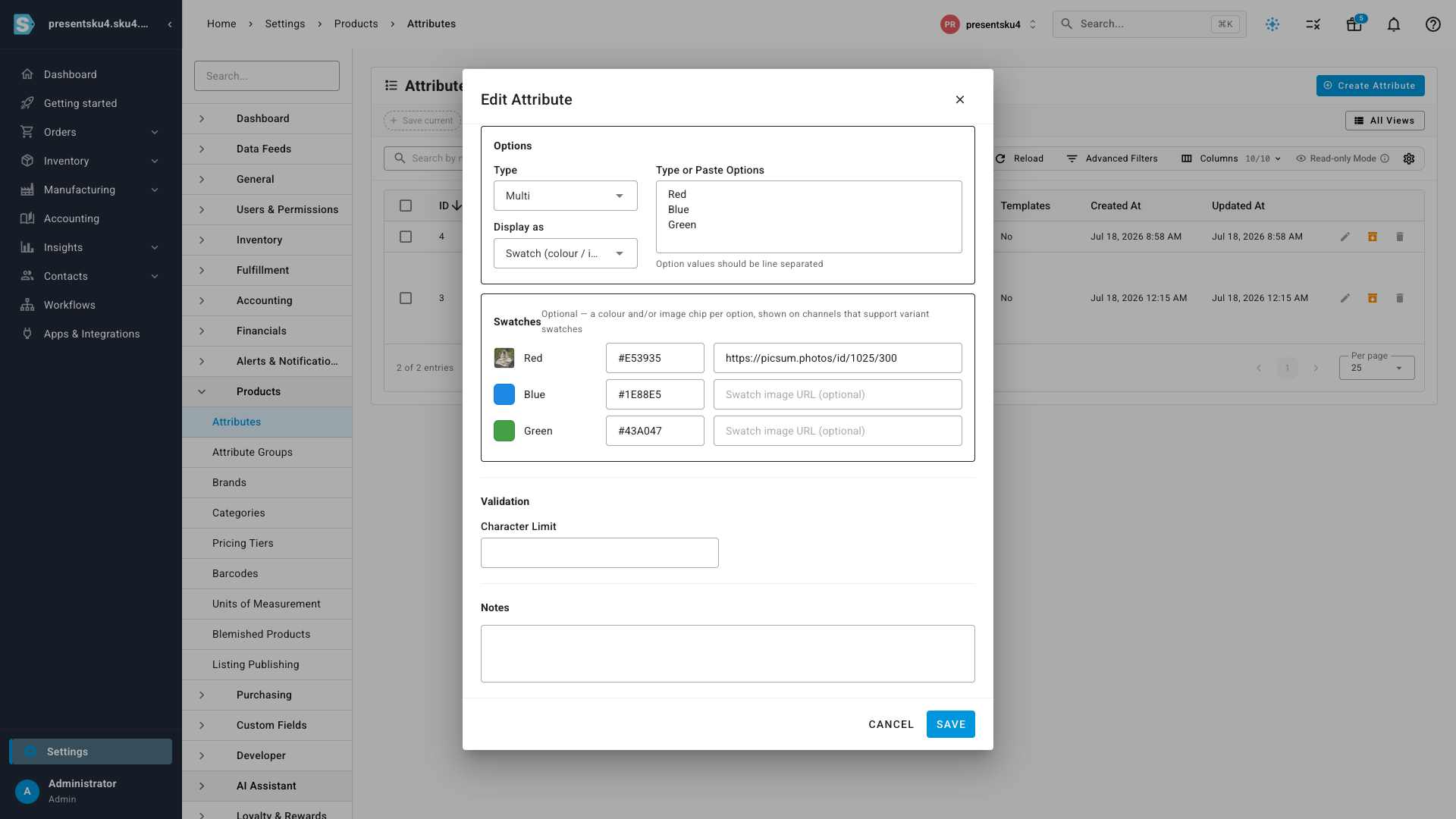
You'll find this under Settings → Products → Attributes — open an attribute, tick Has Options, and choose Swatch under Display as.
Declare your variants and their swatches in one place
On a product with variations, the Variant Axes & Swatches dialog does two jobs at once: it declares which attributes actually vary across the variants (Colour, Size, or both), and it lets you edit that attribute's swatches right there — no jumping back to Settings.
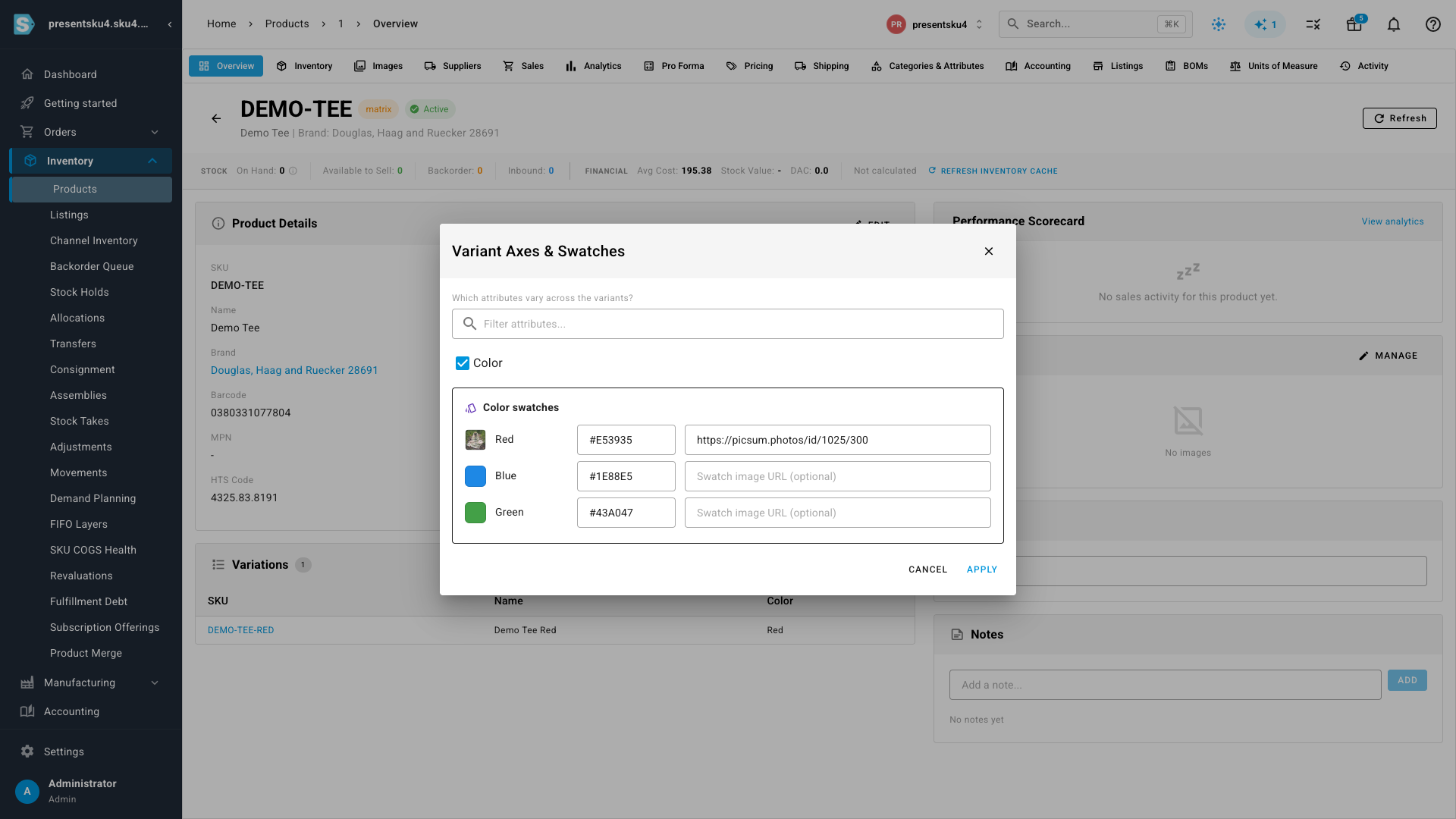
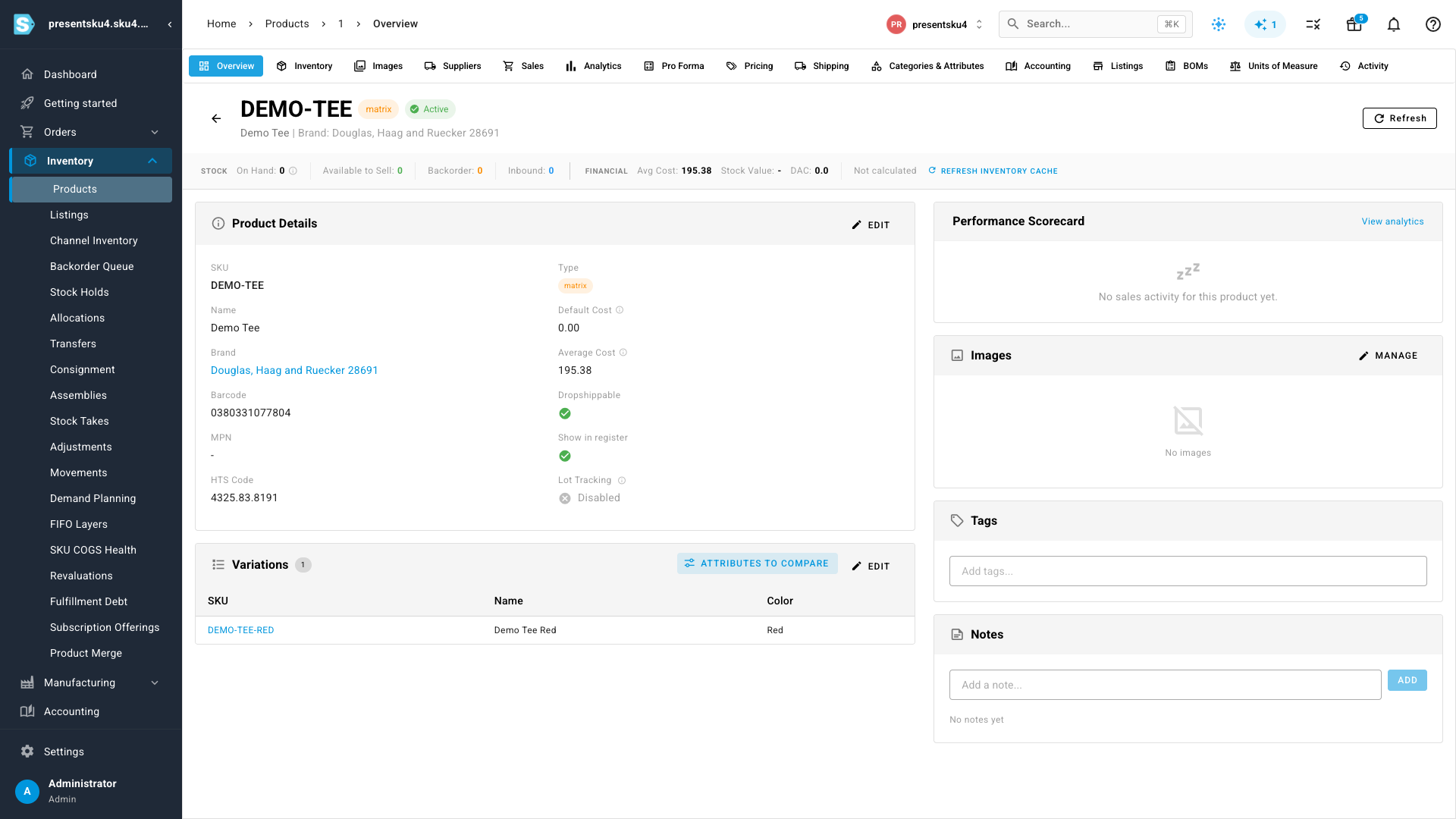
Open it from a variant product's Overview tab — in the Variations panel, click Attributes to Compare. Tick the attributes that vary, adjust their swatches, and hit Apply.
Real swatches on your variant products
Because the swatch lives on the option, every variant that selects that option shows the same chip automatically — nothing to re-enter per child. When you publish a variant product to a channel that supports variant swatches, SKU.io sends each variant's swatch image along with it, so your listing shows shoppers the actual colours and patterns.
Where to find it
- Set up swatches: Settings → Products → Attributes → open an attribute → Display as: Swatch, then set a colour or image per option.
- Manage a product's variants: open a variant product → Overview → Variations panel → Attributes to Compare.