Stripe Payments — get paid on your orders, faster
Chasing payment on an order has always meant leaving SKU.io — copying an amount into a separate payment tool, emailing a link by hand, then circling back to mark the order paid once the money landed. It's slow, easy to forget, and the two systems never quite agree.
Stripe Payments closes that loop. Connect your Stripe account once, and you can send a customer a secure, hosted invoice directly from any sales order. Your customer pays with a card through Stripe's checkout, and SKU.io records the payment against the order automatically — no manual reconciliation, no copy-paste, no guesswork.
✨ What this means for you:
- Send a pay-by-link invoice in seconds — right from the order you're already looking at.
- No more manual reconciliation — paid invoices post back to the order's payments automatically.
- Always know where money stands — every invoice's status (open, paid, void, refunded) is tracked in one place.
- Your customers get a familiar, secure checkout — hosted by Stripe, with a card form they already trust.
Connect your Stripe account
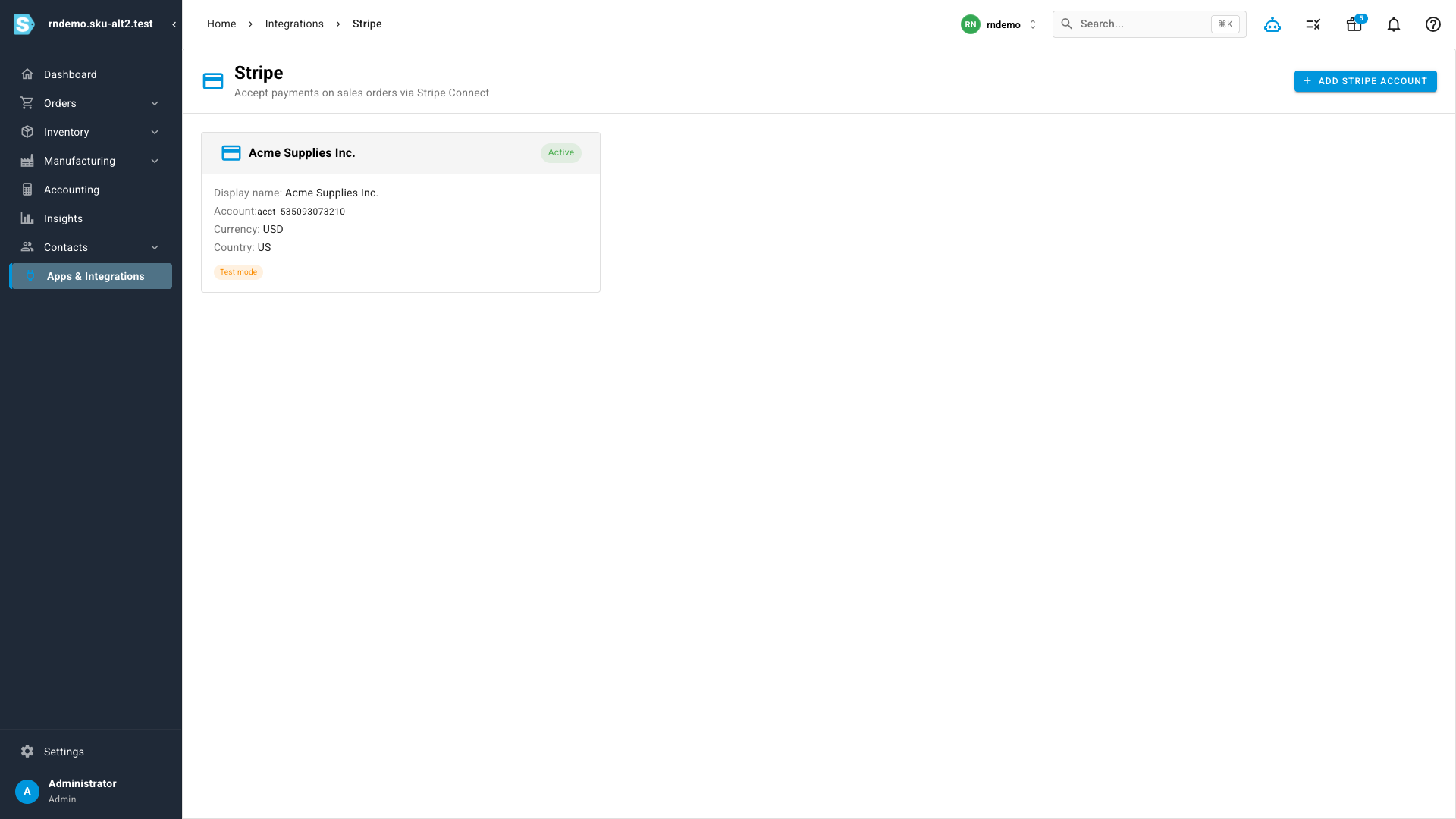
Head to Apps & Integrations and connect Stripe with a single authorization. Once linked, SKU.io shows your account status — currency, country, and whether the account is ready to accept charges — so you know at a glance that you're good to go.
Send an invoice from an order
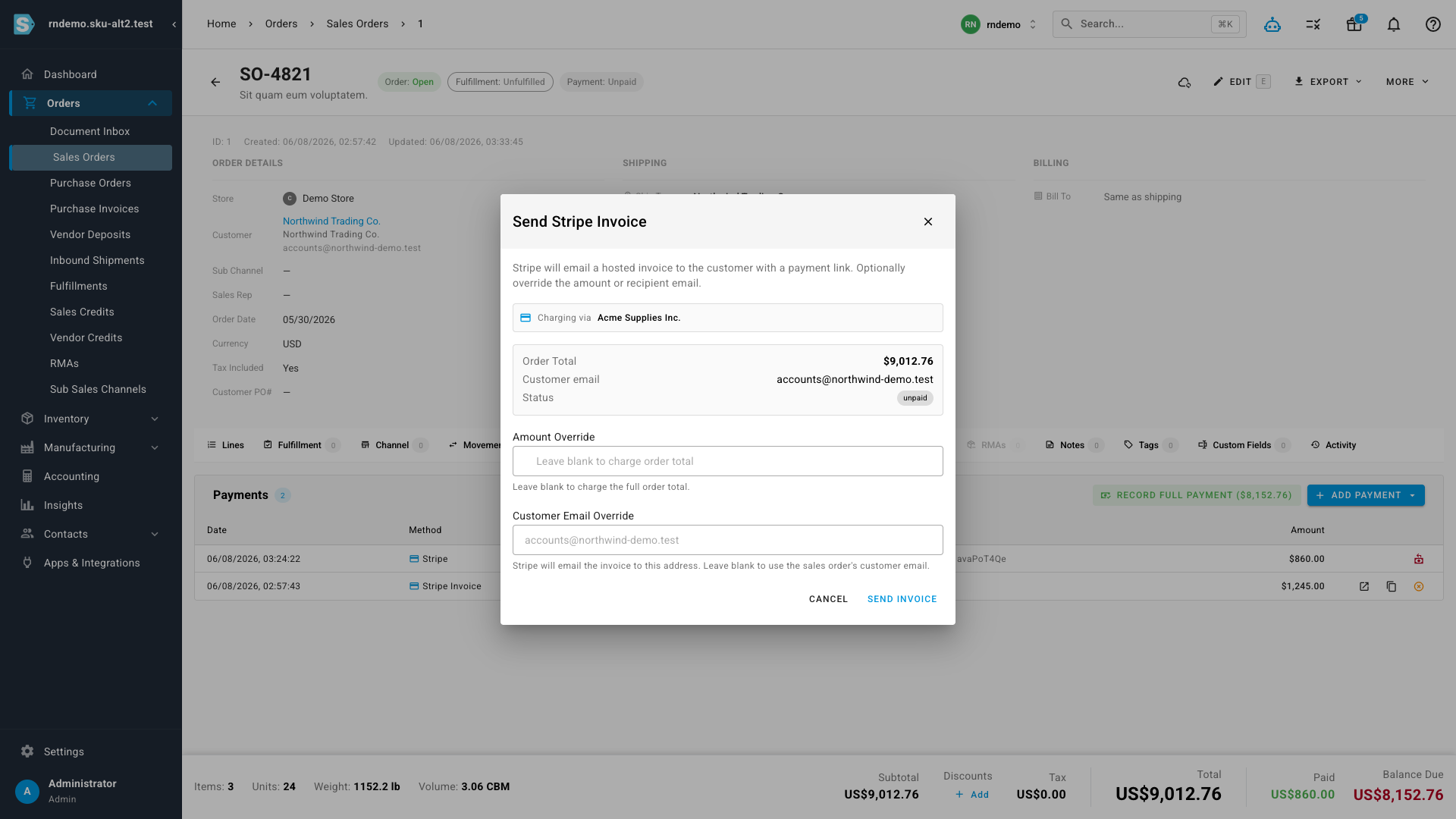
Open any sales order and send a Stripe invoice without leaving the page. Set the amount and a due date, and SKU.io creates a hosted Stripe invoice and emails your customer a secure link to pay.
Track payments on the order
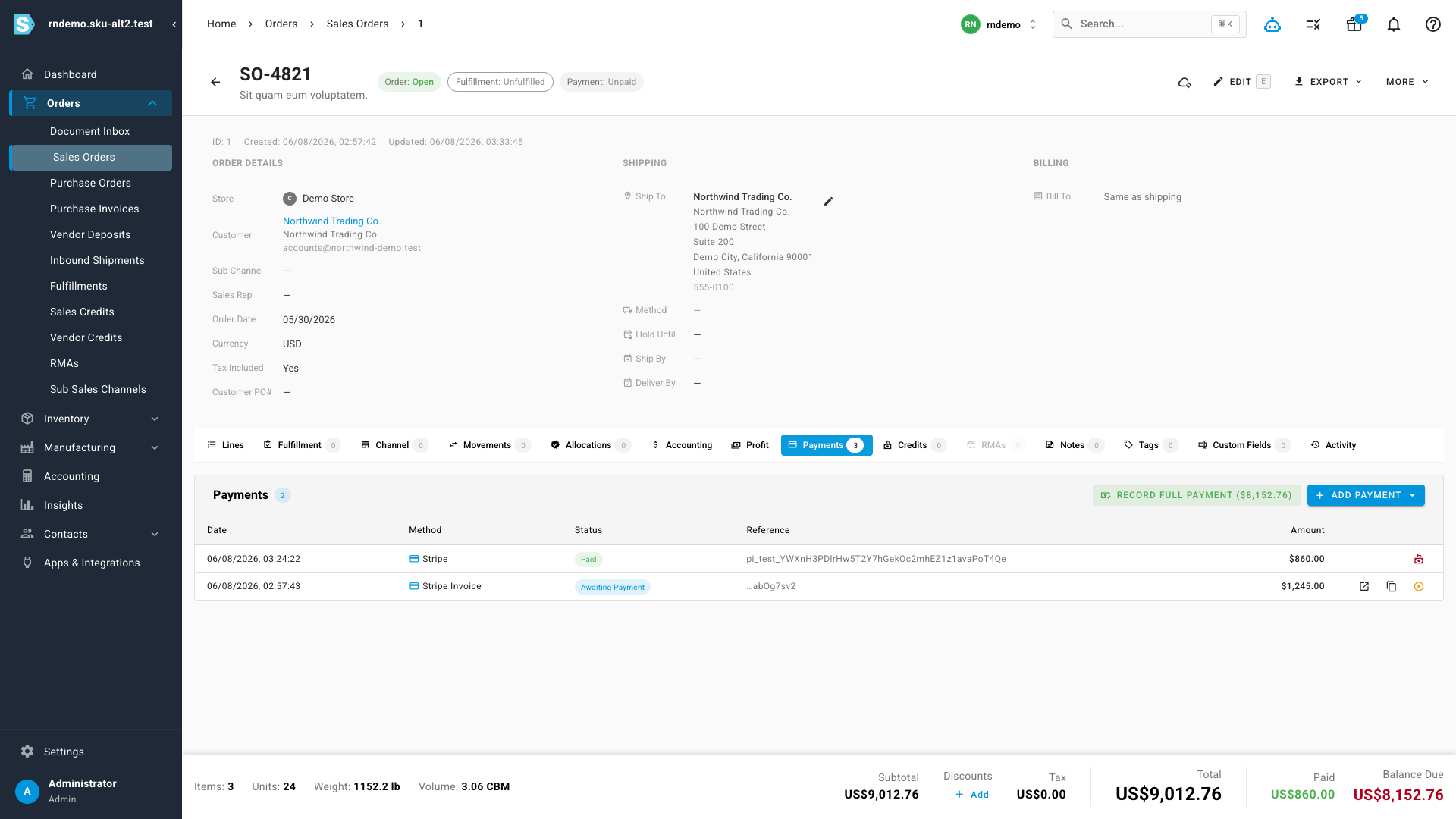
The order's Payments tab is now the single place to see what's owed and what's been collected. Invoices awaiting payment show as pending, and the moment a customer pays, the payment posts back to the order on its own — so the order's balance is always current.
Manage every invoice in one place
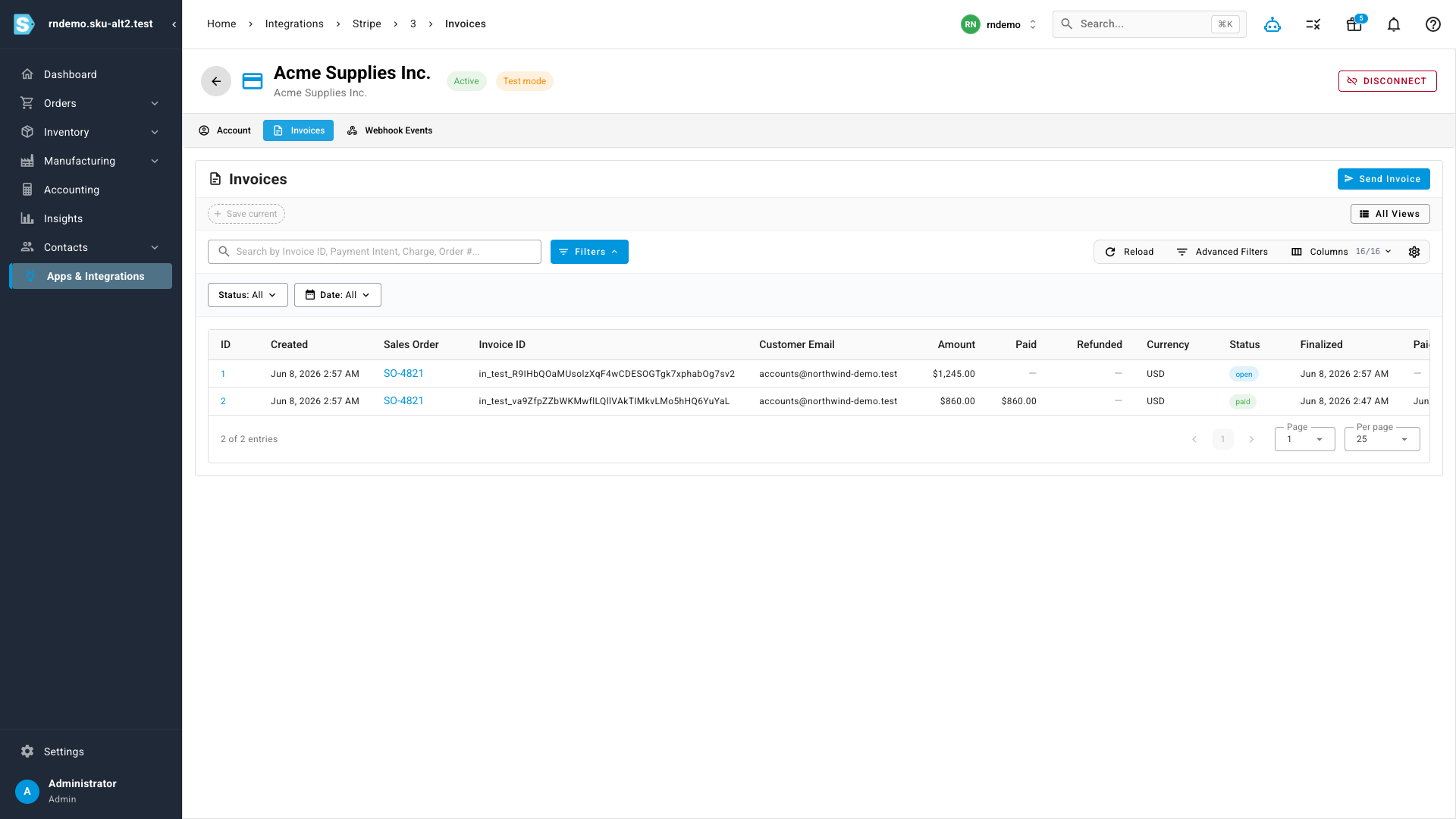
A dedicated invoices view lists every Stripe invoice you've sent across your orders, with its current status and amount. From here you can keep an eye on what's open, what's been paid, and what's been voided or refunded — all without opening Stripe.
Where to find it
- Connect Stripe: Apps & Integrations → Stripe
- Send an invoice: open a sales order → Payments → send a Stripe invoice
- Review all invoices: the Stripe invoices view under your integration