Tracking Categories — see your profit and loss by sales channel
If you sell on more than one channel, your Xero or QuickBooks profit and loss report probably can't tell you which channel actually makes money — Amazon revenue, Shopify revenue and your wholesale orders all land in the same sales and cost-of-goods accounts. Until now the only way to split them out was to create a separate account for every channel, which bloats your chart of accounts and makes month-end a chore. SKU.io now supports Tracking Categories — map each of your sales channels to a Xero tracking category option (or a QuickBooks class), and every invoice, credit and cost-of-goods journal we post carries that tag. Run your provider's normal P&L-by-tracking-category report and your numbers are already split by channel — no extra accounts required.
✨ What this means for you:
- Profit and loss by channel — see revenue and margin for Amazon vs Shopify vs wholesale in your own Xero or QuickBooks reports, using the tags SKU.io attaches automatically.
- COGS by channel, not just revenue — the cost-of-goods journals SKU.io generates from your real fulfilment costs carry the channel tag too, so you get true gross margin per channel — not just top-line sales.
- No account proliferation — one tracking category with an option per channel replaces a whole column of duplicate sales and COGS accounts.
- Set it once — map each channel to an option in a single settings screen; from then on every synced document is tagged for you.
- Works with what you already have — pulls your existing Xero tracking categories (or QuickBooks classes) so you map to the ones your accountant already uses.
Map each channel to a tracking category
Open the new Tracking Categories tab in your accounting settings. Pick the Xero tracking category you want to segment by — most sellers use one named "Sales Channel" — and match each of your connected channels to one of its options. Anything left unmapped is flagged so nothing gets tagged by accident, and you can set a fallback for channels you haven't mapped yet.
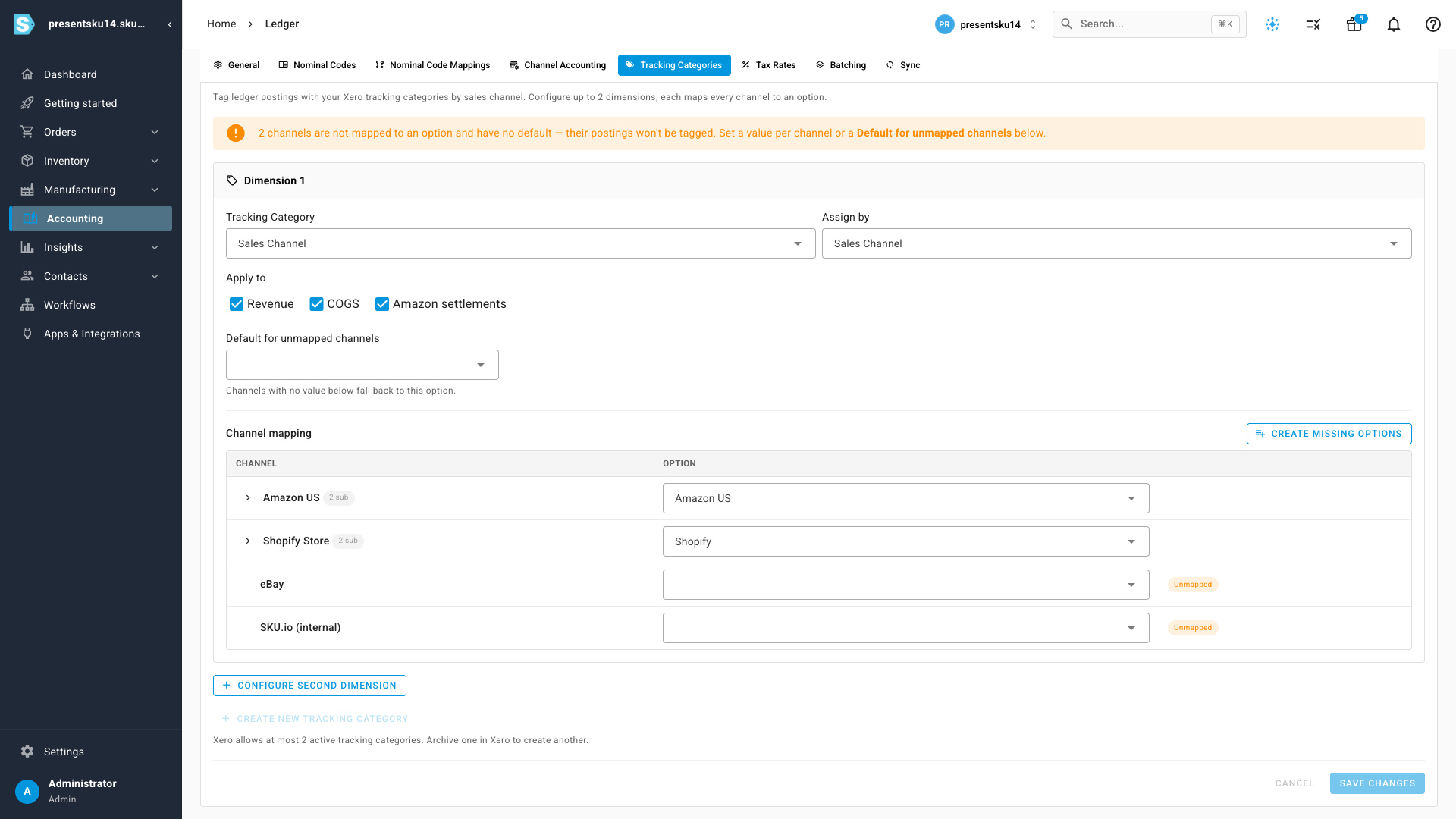
Choose exactly which documents get tagged — revenue, cost of goods, and Amazon settlement postings — with a simple set of toggles, so the tagging matches how you want to read your reports.
Create options without leaving SKU.io
Missing an option for a channel? You don't have to jump over to Xero and back. Create the tracking option — or a whole new tracking category — right from the settings screen, and SKU.io creates it in Xero for you and maps it in one step. (SKU.io respects Xero's limit of two active tracking categories, so it'll tell you when you've reached it.)
QuickBooks Online too
On a QuickBooks connection the same screen maps your channels to classes instead of tracking categories, so QuickBooks sellers get the same profit-and-loss-by-channel view using class tracking.
Where to find it
Go to Accounting → Settings → Tracking Categories (it appears once you've connected Xero or QuickBooks Online). Map your channels, save, and your next synced invoices and cost-of-goods journals will be tagged.