Warehouse Locations — bins, directed put-away, and guided picking
As you grow, "which shelf is that on?" becomes the question that slows your whole warehouse down. Stock lands wherever there's room, pickers wander the floor hunting for it, and the only real map lives in someone's head. Warehouse Locations gives that map a home in SKU.io: divide any warehouse into typed, barcoded bins — receiving docks, pick faces, bulk reserve, returns, shipping — and every unit of stock now has an exact address. From there, SKU.io does the thinking for you: it suggests where to put stock away on receipt, generates a guided pick route that walks staff bin-by-bin, keeps your pick faces topped up from reserve, and lets you move a whole pallet in one step. Best of all, you turn it on in place on a live warehouse — no re-creating warehouses, no stopping to count.
✨ What this means for you:
- Every unit has an address. Subdivide a warehouse into typed bins — Storage, Primary Pick, Reserve, Staging, Returns, Shipping — each barcoded, with live per-bin on-hand.
- Enable it without disruption. Flip it on for a live warehouse and SKU.io sweeps your existing on-hand into an Unassigned location and seeds the operational bins — your stock and history stay intact.
- Stop guessing where to put things. A Put Away queue lists everything sitting on the dock and suggests the right bin for each product.
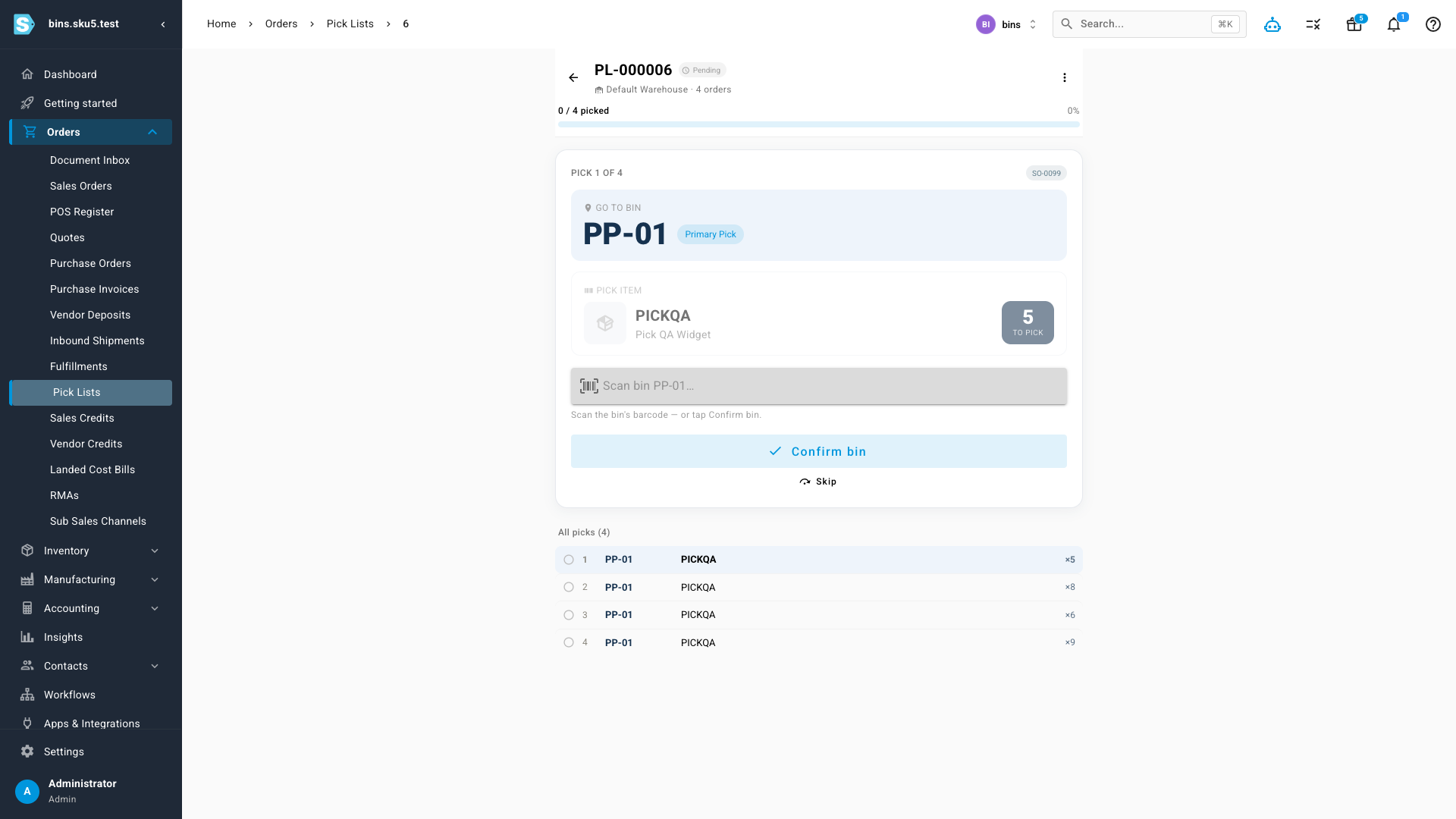
- Pickers stop wandering. Pick lists generate a guided, bin-sequenced route — "go to bin PP-01, pick 5, scan to confirm" — straight from your fulfillment orders.
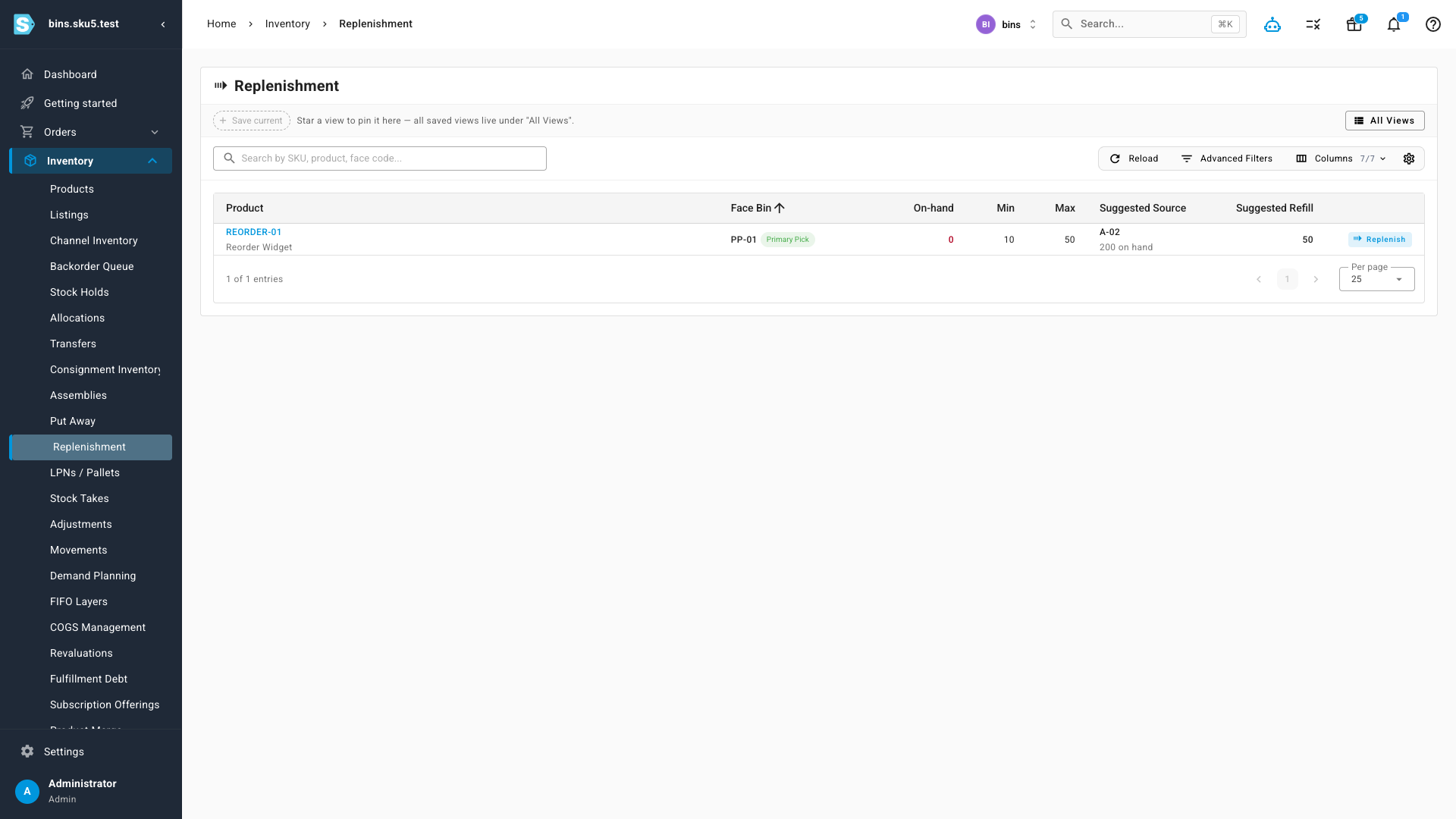
- Never pick from an empty face. Replenishment watches your pick faces and tells you exactly which reserve bin to refill them from, and how much.
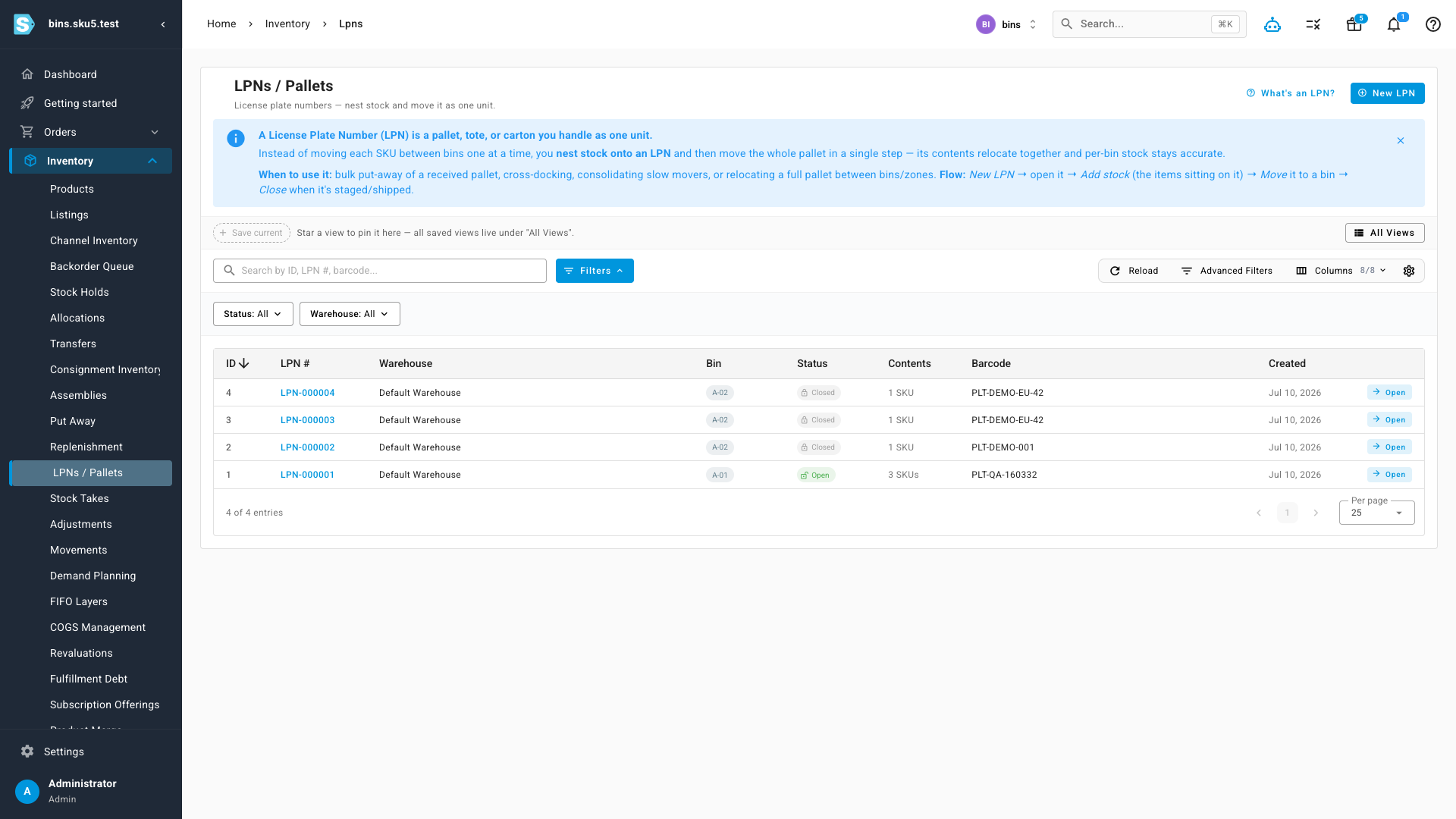
- Move a pallet, not one SKU at a time. Group stock onto a License Plate Number (LPN) and relocate the whole load in a single step.
Turning it on
Warehouse Locations turns on in two quick steps — it's a setting, not a migration:
- Switch on the feature for your account. Go to Settings → Fulfillment → Warehouse Locations and toggle Warehouse Locations (Bins) on. This unlocks the Locations tools across the app.
- Enable it on each warehouse you want to use bins in. Under Contacts → Warehouses, open a direct warehouse, go to its Edit Details tab, and flip Warehouse Locations on. On save, SKU.io seeds the operational bins, sweeps that warehouse's existing on-hand into an Unassigned location so nothing is lost, and hands you a View Locations link to start sorting stock into real bins at your own pace.
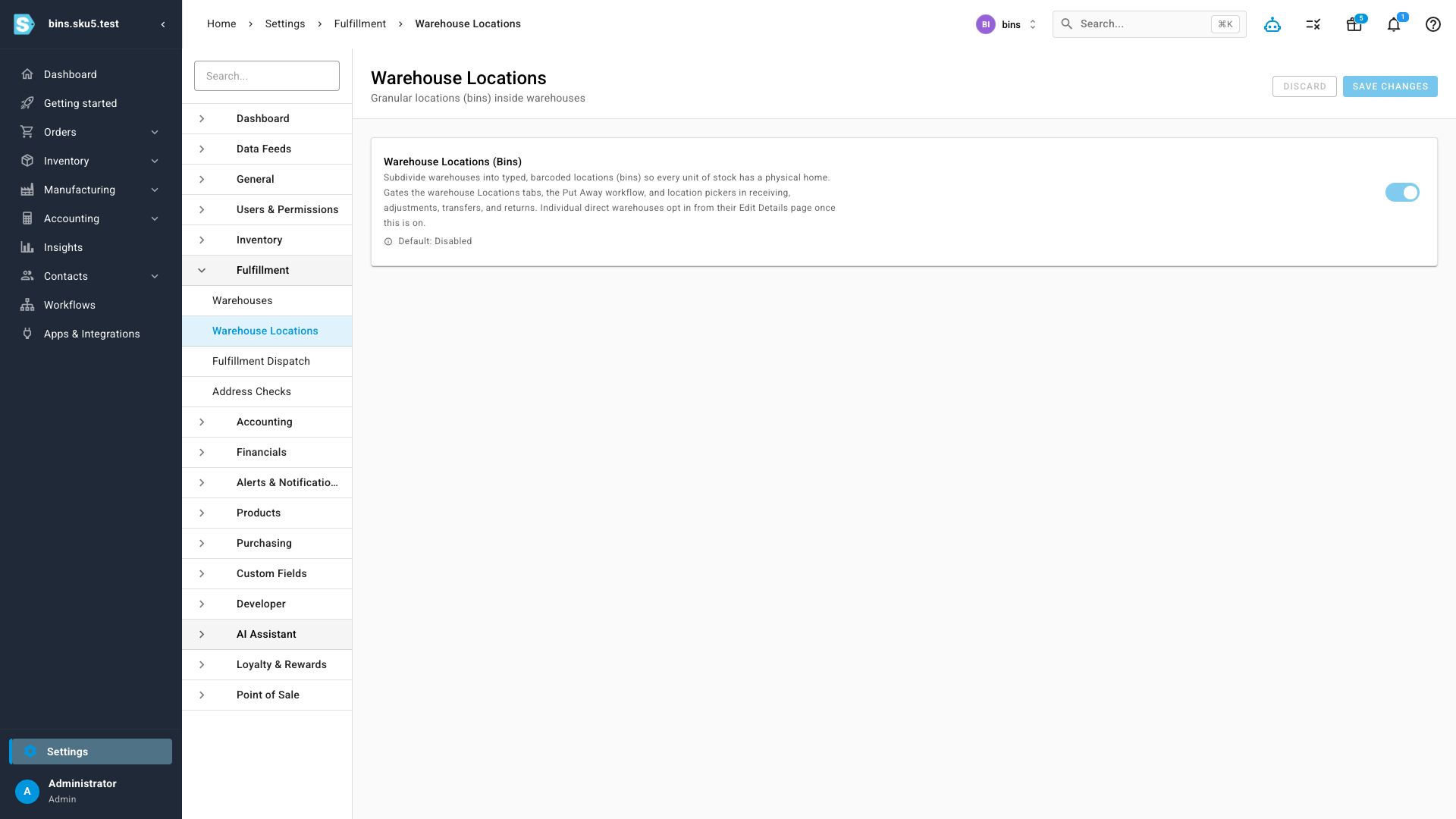
While you're enabling a warehouse you can also set two options: a Receive Mode — receive stock directly to bins, or to a staging area and then put it away — and a Negative Bin Policy (Block, Warn, or Allow) that decides what happens if a pick would take a bin below zero.
Turn any warehouse into bins
Open a warehouse and you'll find a new Locations tab. Each bin has a code, a type, and a barcode, plus optional zone / aisle / bay / shelf / bin coordinates so the address matches how your floor is actually laid out. The type is what makes SKU.io smart about each bin — a Primary Pick face behaves differently from Bulk Reserve, which behaves differently from a Staging dock — and small capability icons show at a glance whether a bin can receive stock, be picked from, or act as a put-away source. Live on-hand for every bin is shown in the Units column, kept current automatically as stock moves.
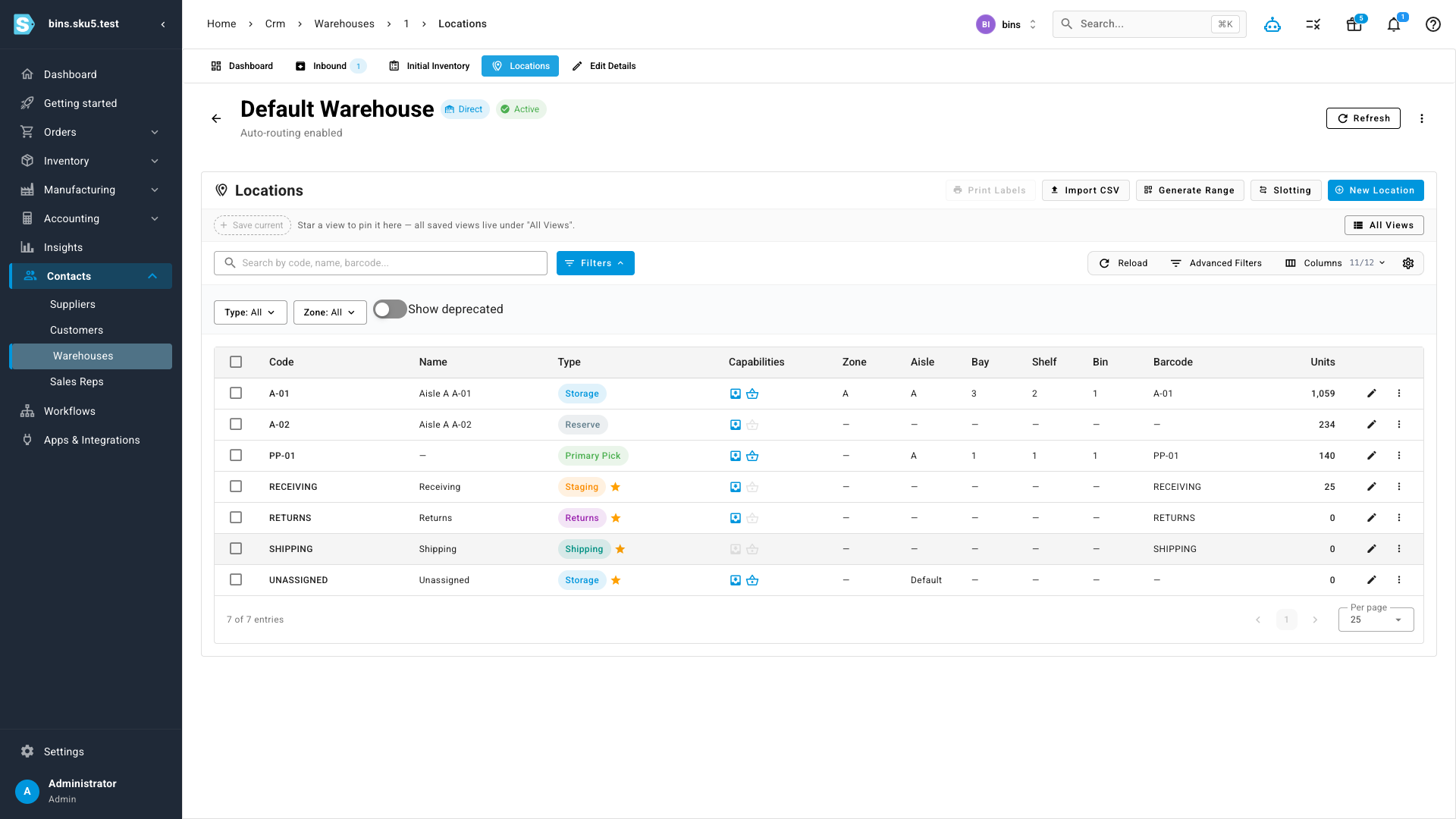
You don't have to build bins one at a time: Generate Range creates a whole aisle of bins at once, Import CSV brings in an existing layout, and Print Labels produces scannable barcodes for the shelf.
Directed put-away
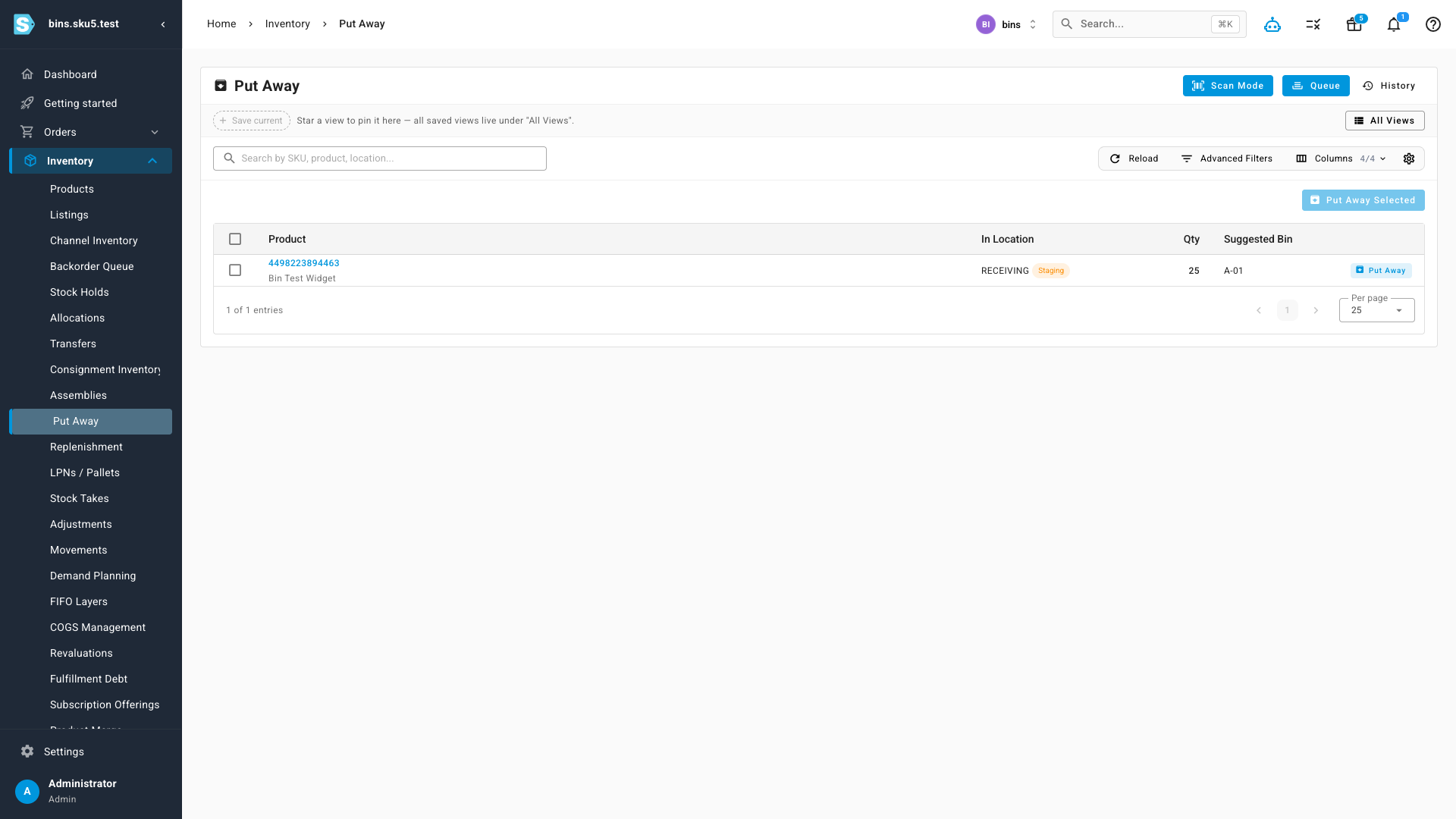
When stock arrives, the Put Away queue shows everything that's landed in receiving (or sitting unassigned) and, for each product, a Suggested Bin — its home location. Staff can accept the suggestion or choose another bin, confirm by scan, and the stock moves to its address. No tribal knowledge required, and no stock stranded on the dock.
Guided, bin-sequenced picking
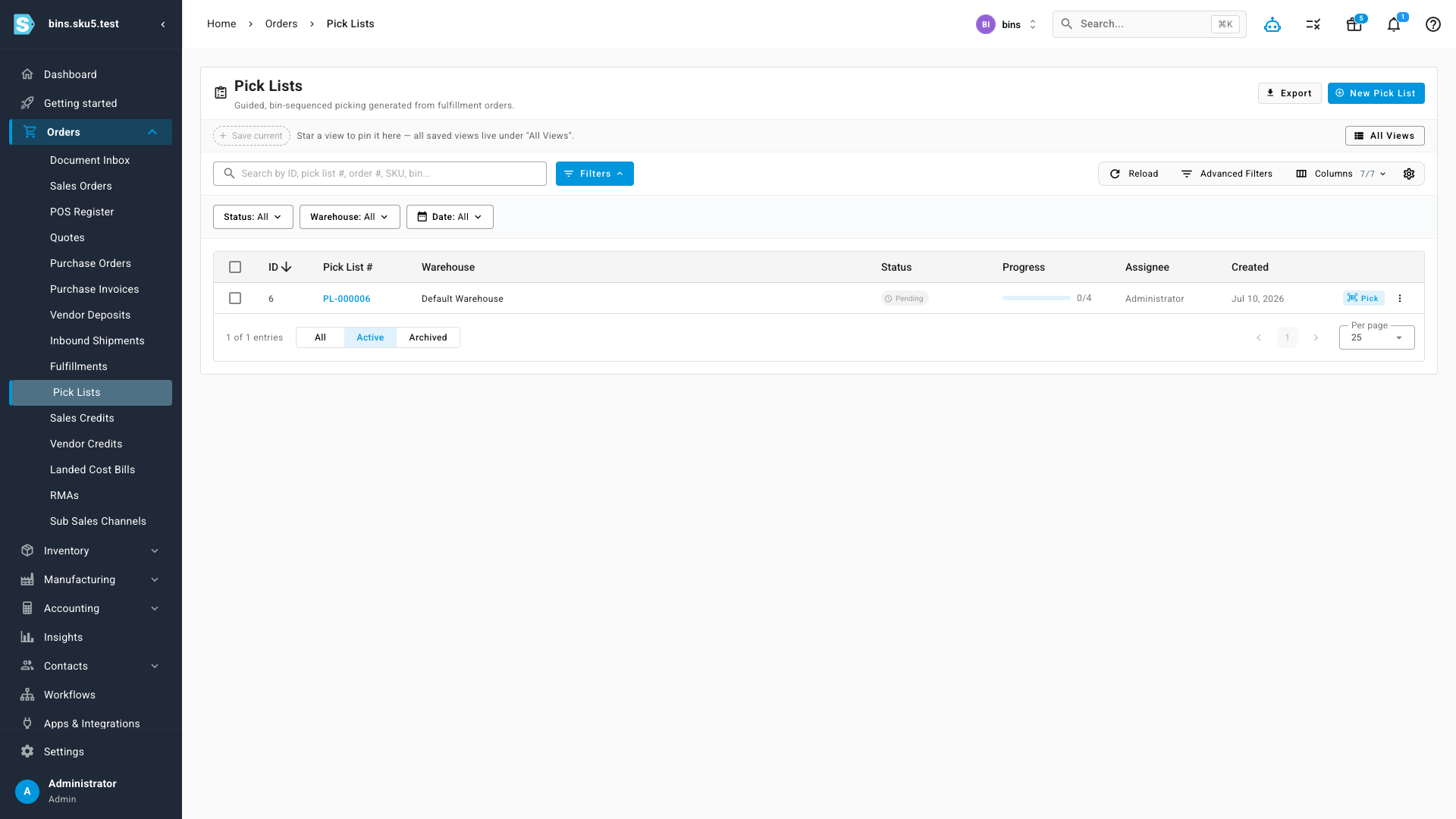
Fulfillment orders now generate Pick Lists — a work queue your team picks from directly. Each list shows its warehouse, status, and picked-vs-total progress, so a supervisor can see the floor at a glance and hand off the next batch with one tap.
Start a pick and SKU.io turns it into a step-by-step route. It tells the picker exactly which bin to go to, which product to pick, and how many — then asks them to scan the bin to confirm they're in the right place before the pick counts. Picks are ordered by bin so the walk through the warehouse is efficient, not a scavenger hunt, and the running list shows every pick in the route.
Keep your pick faces stocked
Fast pick faces run down — and a picker standing at an empty bin is lost time. The Replenishment queue watches the on-hand in each Primary Pick face against the min/max levels you set, and when a face drops too low it surfaces it here with a Suggested Source (the reserve bin to pull from) and a Suggested Refill quantity to bring it back up to par. One tap moves the stock from bulk reserve to the pick face.
Move whole pallets at once
Sometimes you're not moving a single SKU — you're moving a pallet. LPNs / Pallets let you nest stock onto a License Plate Number (a pallet, tote, or carton you handle as one unit), then relocate the whole load in a single step: its contents move together and per-bin stock stays accurate. It's ideal for bulk put-away of a received pallet, cross-docking, consolidating slow movers, or shifting a full pallet between zones.
Where to find it
Warehouse Locations turns on in two steps. First switch the feature on for your account under Settings → Fulfillment → Warehouse Locations (toggle Warehouse Locations (Bins)). Then open a direct warehouse under Contacts → Warehouses, go to its Edit Details tab, and flip Warehouse Locations on to seed its bins. Once a warehouse is location-enabled, the operational queues appear in the main menu:
- Inventory → Put Away — direct received stock to its home bin
- Inventory → Replenishment — top up pick faces from reserve
- Inventory → LPNs / Pallets — build and move pallets as one unit
- Orders → Pick Lists — guided, bin-sequenced picking for your fulfillment orders