Contacts — a real contact book for every supplier, customer, and warehouse
Real business relationships are never one person. Your supplier has a sales rep who quotes, an AR specialist who chases invoices, and a shipping coordinator who books freight — but until now, SKU.io gave you a single "contact name" field and left the rest to sticky notes and inbox archaeology. Contacts replaces that flat field with a full contact book on every supplier, customer, and warehouse: unlimited people, each with a role, email, phone, title, and notes, one of them starred as the primary. Contacts show up right in your supplier, customer, and warehouse lists, flow through import and export like any other data in SKU.io, and their personal details are encrypted at rest.
✨ What this means for you:
- Every relationship, on the record. Add as many contacts as you need to a supplier, customer, or warehouse — each with a role like Sales Rep, Accounts Receivable, Customer Service, or Warehouse Manager, so anyone on your team knows exactly who to reach.
- One primary, always. Star a primary contact per record; it's pinned to the top of every list, shown on the record's dashboard, and SKU.io keeps the "exactly one primary" rule intact for you.
- Visible where you work. A new Contacts column in the suppliers, customers, and warehouses lists shows the contact when there's one and an expandable count when there are more — expand any row for the full roster without leaving the page.
- Import and export like everything else. Bring contacts in from a spreadsheet — per record or in bulk across records — with a downloadable template, and export them on their own or flattened into your supplier/customer/warehouse exports, one row per contact.
- Click to reach. Emails are mailto links and phone numbers are tap-to-call, from every table they appear in.
- Private by design. Contact names, emails, and phone numbers are encrypted at rest.
A full contact book on every profile
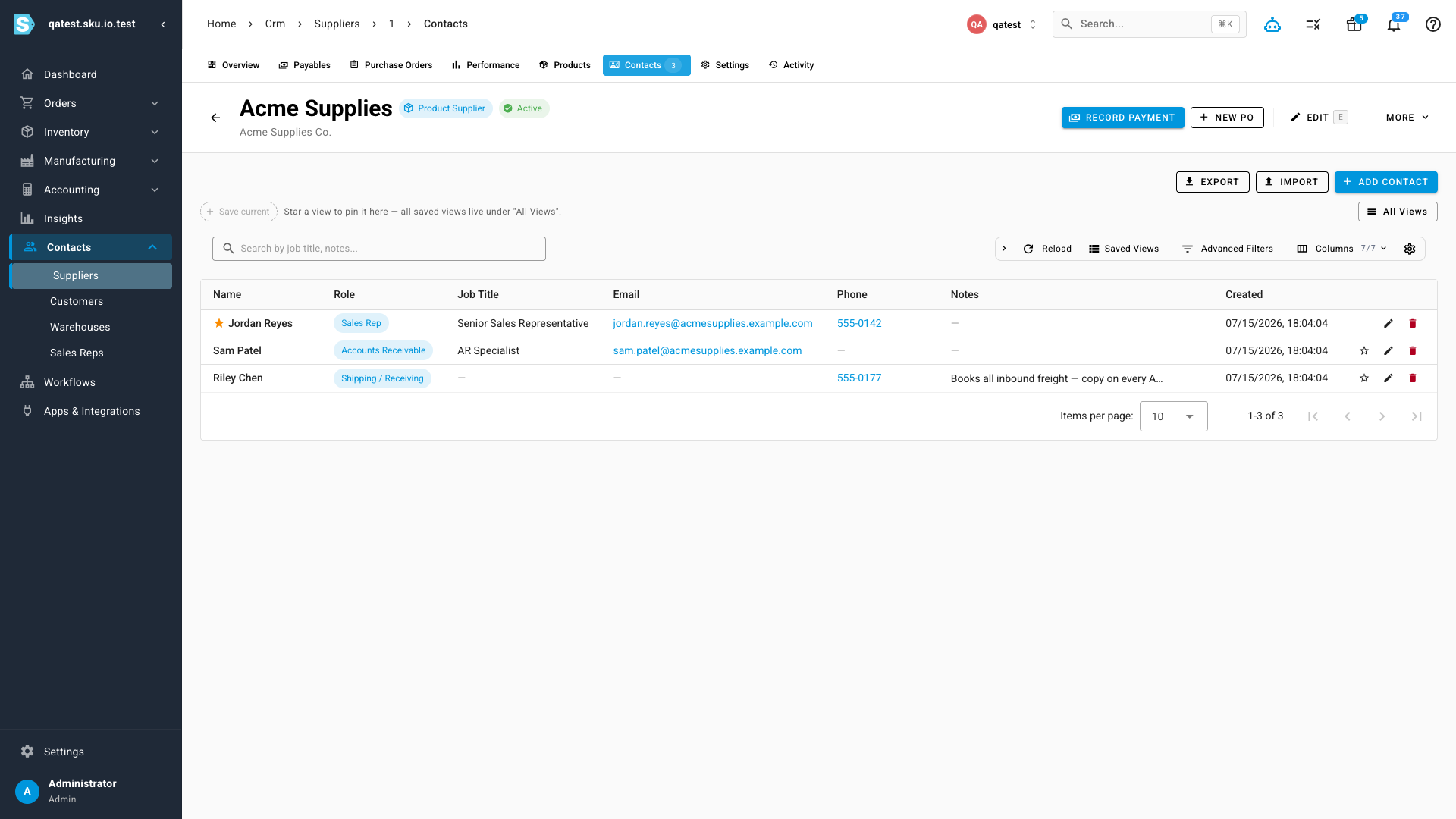
Every supplier and warehouse detail page gains a Contacts tab (on customers it sits alongside Dashboard and Addresses), with a count badge so you can see at a glance how many people are on file. It's a first-class SKU.io table — search, filters, saved views, column picker — with the primary contact starred and pinned first. Adding or editing a contact is a quick dialog: name, role (the role list adapts to the record type — warehouses offer Warehouse Manager, customers offer Billing, and so on), email, phone, title, notes, and the primary toggle.
See contacts right in your lists
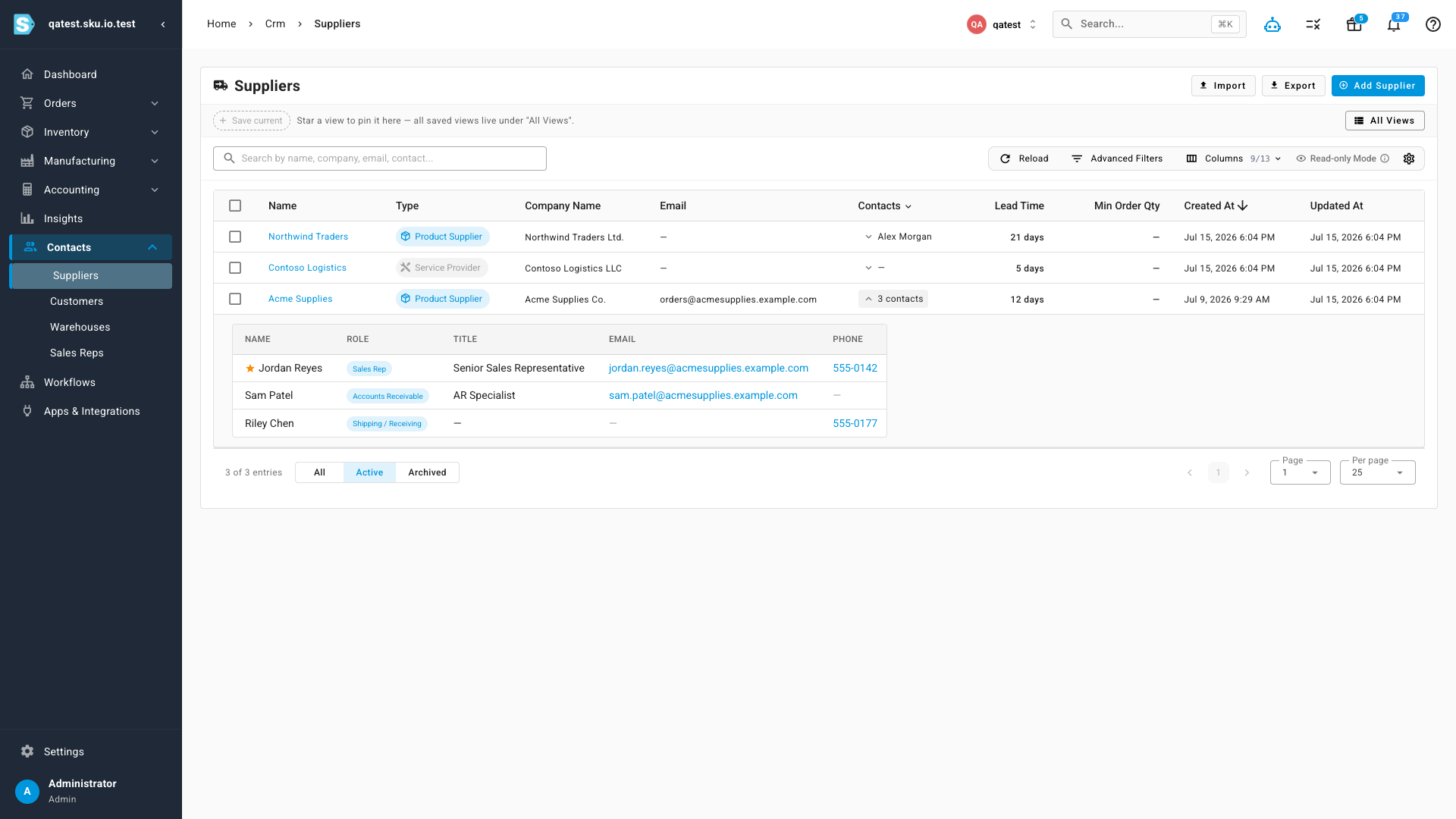
The suppliers, customers, and warehouses lists each gain a Contacts column that works just like the Lines column on purchase orders: a record with a single contact shows that person's name, one with several shows "3 contacts", and clicking expands the row into an inline roster — names, roles, titles, emails, and phones — without opening the record. A header toggle expands or collapses every row at once, and the column sorts by contact count.
Exports that include your contacts
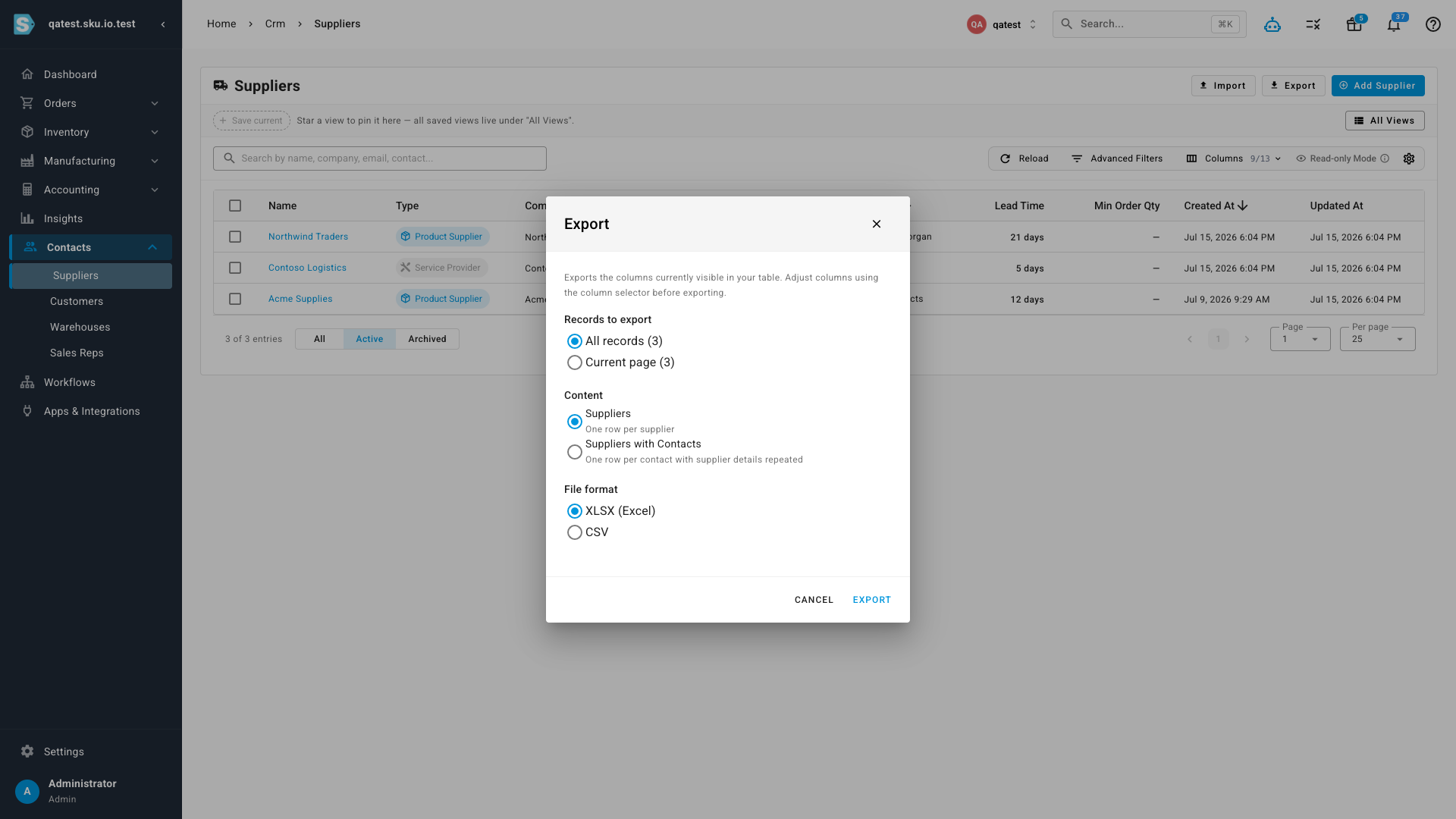
Exporting from the suppliers, customers, or warehouses list now opens the standard export dialog with a content choice: the classic one-row-per-record export, or "with Contacts" — one row per contact with the parent record's columns repeated, the same shape purchase-order exports use for line items. The Contacts tab has its own export too, honoring your visible columns and current filters, in CSV or Excel.
Bulk import, with a template to start from
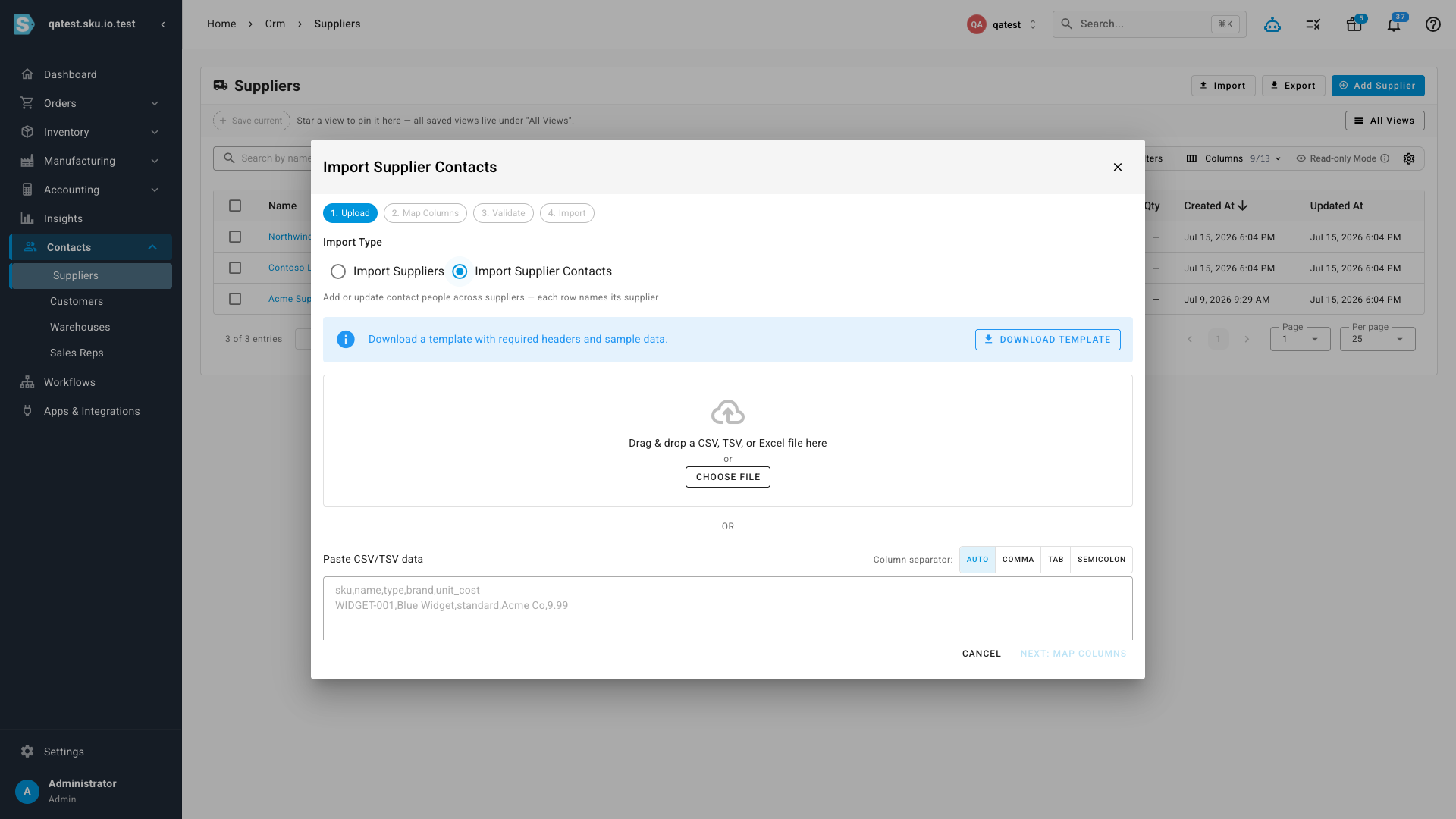
The import wizard on each list now offers two import types — the record itself, or its contacts. Pick Import Supplier Contacts (or the customer/warehouse equivalent) and each spreadsheet row simply names its owner by name or ID, so one file can add or update contacts across your whole supplier base. A Download Template button gives you the exact headers and a sample row, and the wizard validates everything — unknown owners, duplicate emails, multiple primaries — before a single row is written. Rows with an existing Contact ID or matching email update in place, so a round-trip of export → edit → import just works.
Where to find it
Open any record under Contacts → Suppliers, Contacts → Customers, or Contacts → Warehouses and head to its Contacts tab (customers show it as a tab on the customer page). The new Contacts column, export options, and import types live directly on those three list pages.