Your customer page is now an AR command center — see what's owed, chase it, collect it
You could always see a customer's orders — but never, in one place, how much they owed you, how overdue it was, or how to go about collecting it. Chasing payment meant exporting to a spreadsheet, hand-building a statement, and sending it from your inbox, all outside SKU.io. The customer page is now an accounts-receivable command center — it opens on money owed, breaks the balance down by how overdue it is, produces a real statement of account, and lets you email that statement or a payment request without leaving the page.
✨ What this means for you:
- Know exactly where a customer stands — outstanding balance, what's overdue, open credits and net receivable, right at the top of the page.
- See how late it really is — a current / 1–30 / 31–60 / 61–90 / 90+ aging bar, plus an overdue worklist ordered oldest-first.
- A real statement of account — open-item or activity, as of any date, ready to view, export to PDF/CSV, or email.
- Chase payment in a click — send the statement or a payment request by email straight from the customer page, with your credit terms and balance filled in.
- No more spreadsheets — the whole accounts-receivable workflow now lives where the customer does.
Money owed, at a glance
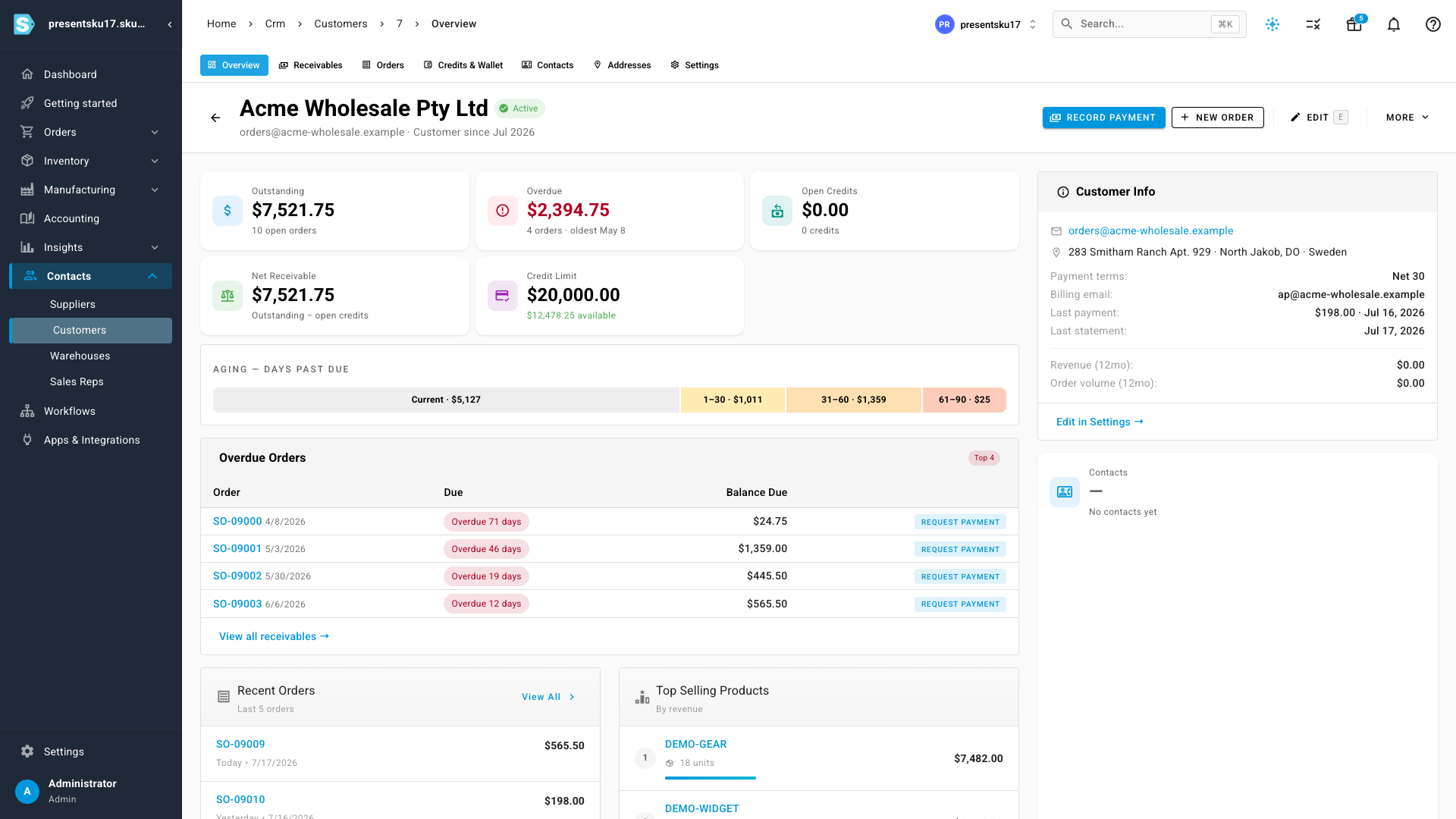
The customer page opens on the numbers that matter for collections: Outstanding, Overdue, Open Credits, Net Receivable and the customer's credit limit with headroom remaining. An aging bar splits the balance into current and past-due buckets, and an overdue worklist lists the late orders oldest-first — each with a Request Payment button right there.
A real statement of account
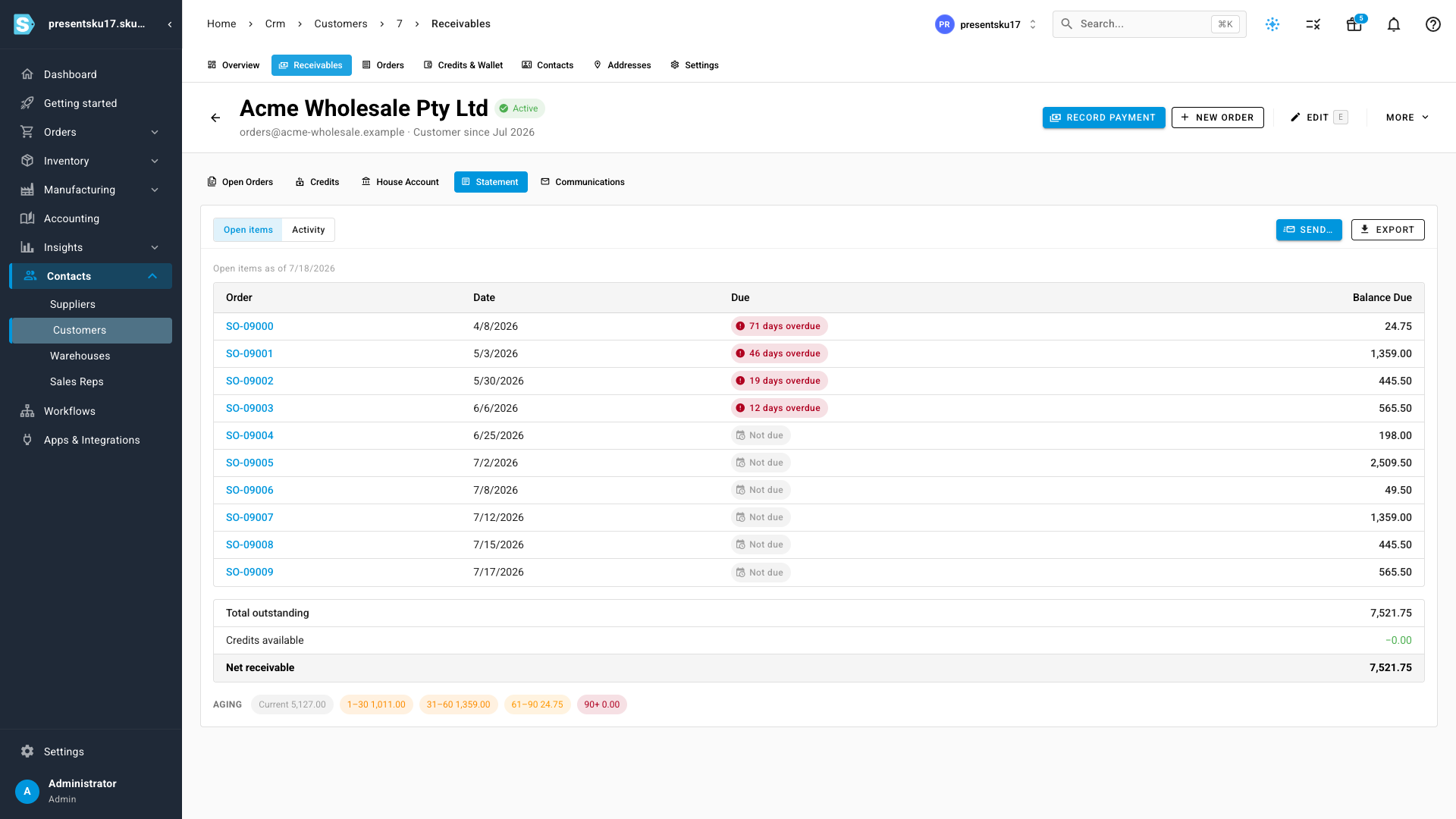
Open the Receivables → Statement view to produce a proper statement — as Open items (every unpaid order and its balance due, aged) or as an Activity statement over a date range. Totals foot to net receivable, credits are netted in, and you can export it to PDF or CSV for your records.
Chase payment without leaving SKU
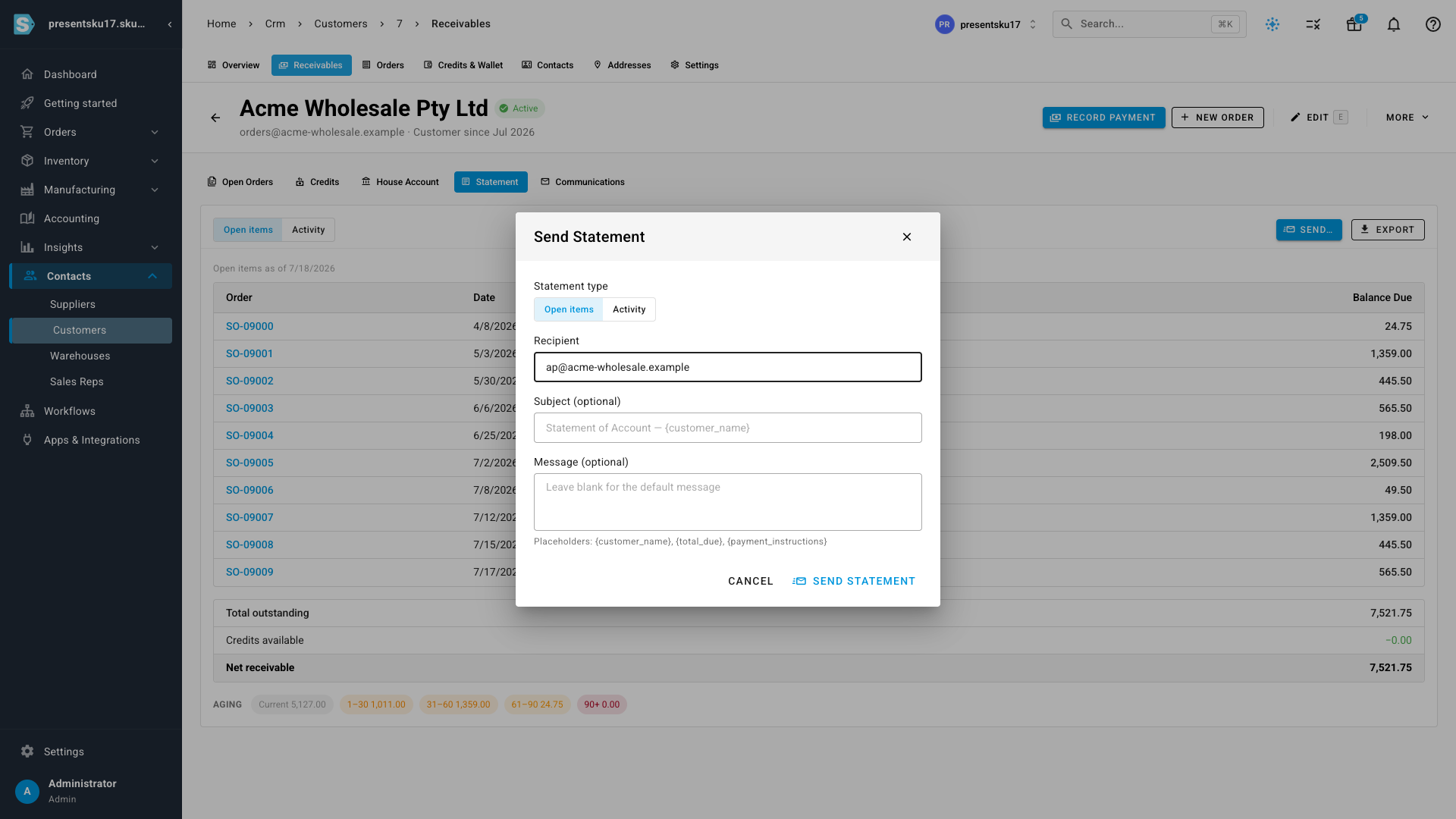
When it's time to collect, hit Send — email the statement, or a standalone
payment request, straight to the customer. The recipient is pre-filled from
the customer's billing email, and the subject and message support placeholders
like {customer_name}, {total_due} and {payment_instructions} so a
polished, personalized note goes out in seconds.
Where to find it
Open any customer under Contacts → Customers. The Overview tab now leads with accounts receivable, and the Receivables tab holds open orders, credits, the statement and your sent communications.