See the Impact Before You Adjust Stock — full visibility and control
Adjusting stock used to be a leap of faith. When you removed units — for damage, loss, a recount, or a correction — you couldn't see what that stock was already promised to. Take a few units, and a customer's order could quietly slip into backorder with nobody the wiser. Add stock, and you had no idea which waiting orders it would unblock. Now every inventory adjustment shows its impact before you commit — the exact orders it will fill or backorder — so nothing happens behind your back.
✨ What this means for you:
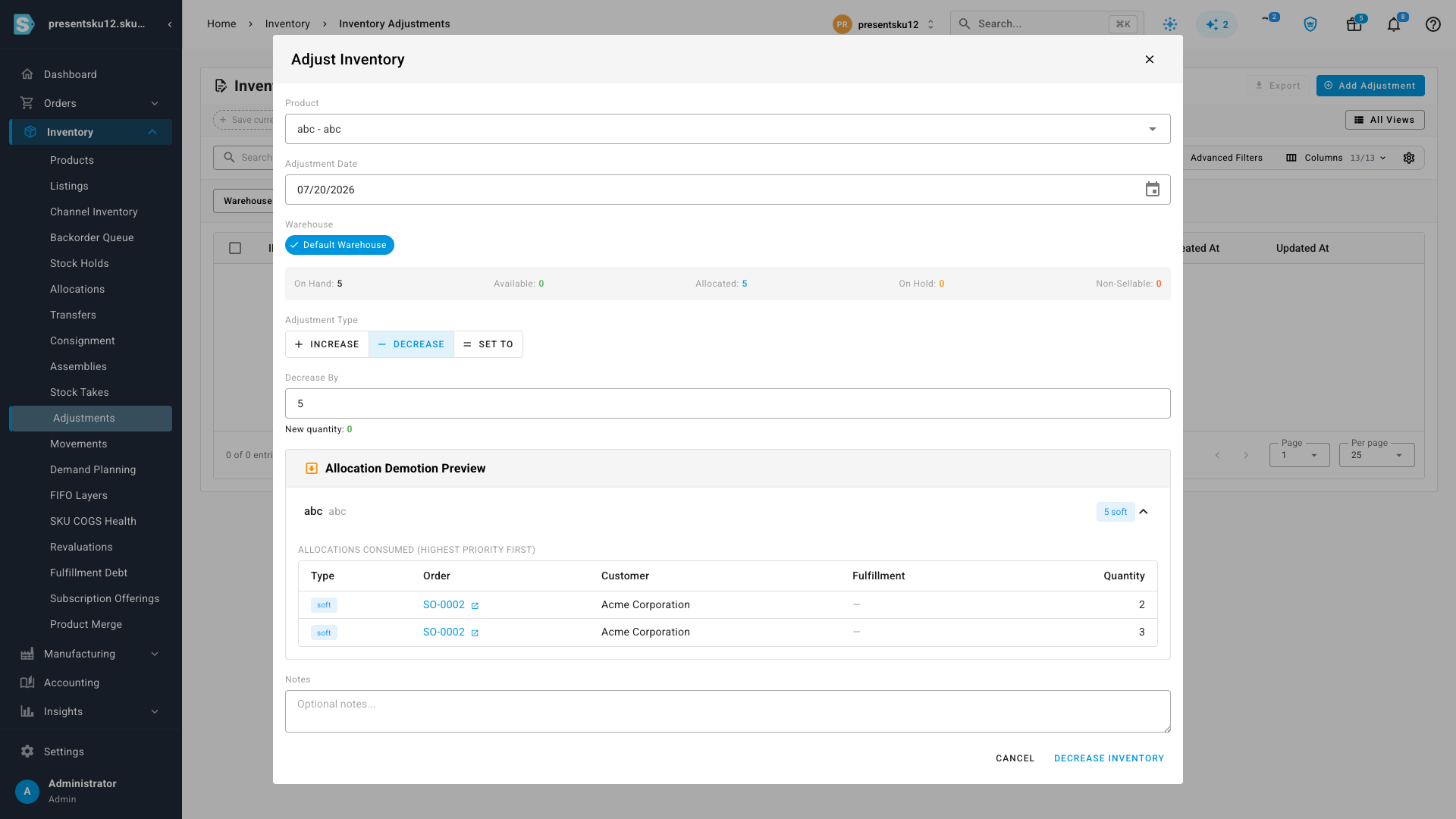
- Removing stock? See every order that will drop back to backorder — with the customer and quantity — before you confirm.
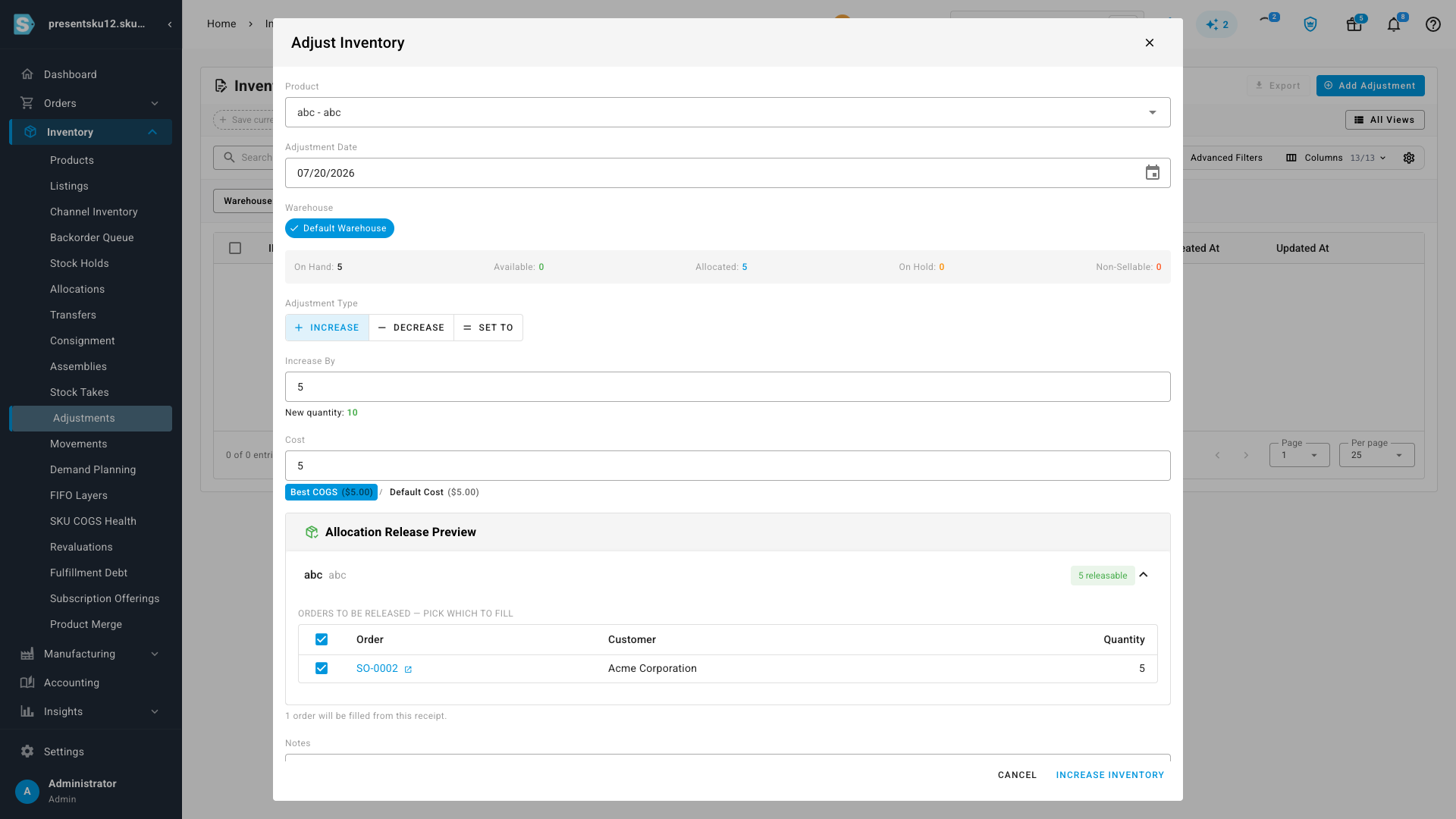
- Adding stock? See which backordered orders the new units can fill, and choose which ones get filled first.
- Never stuck when stock is already committed — you can send the affected orders to backorder, or even void the shipping label with the carrier (when it's still eligible) to free the units.
- A live On Hand / Available / Allocated readout on every adjustment, so you always know what's really free to move.
Removing stock? See exactly who it affects
Pick a product and choose Decrease, and SKU.io shows an Allocation Demotion Preview: the specific orders whose stock you're about to reclaim, each with its customer and quantity, ordered so the least-urgent commitments are consumed first. Instead of discovering a backorder after the fact, you see it before you click — and you can dial the quantity down if the impact is more than you intended.
Adding stock? Choose which orders it fills
Switch to Increase (or receive against a purchase order) and the same panel flips to an Allocation Release Preview: it shows the backordered orders your incoming units can unblock, each with a checkbox. Fill them all, or hand-pick which orders get the stock first — you're in control of where the new inventory lands, right at the moment you add it.
Already spoken for? You still have options — not a dead end
Sometimes the stock you're trying to remove is already allocated to orders, so a straight reduction isn't possible. Instead of a hard stop, SKU.io lays out your choices:
- Reserved-but-not-yet-shipped units can be sent straight back to backorder — you see exactly which sales orders are affected, and decide whether that trade-off is worth it.
- Units already on a printed shipping label are protected: rather than pulling stock out from under a shipment, SKU.io offers to void the label with the shipping provider — when the carrier still allows a cancellation — and return those units to stock. If a label isn't eligible to be voided, you'll be told plainly, so nothing is taken by force and no order gets double-shipped.
Either way, when the stock isn't freely available you always have a clear, deliberate path — backorder the order, or void the shipment — chosen by you, with the full consequences in view.
Where to find it
It's built into the everyday adjustment flow — no new screen to learn. Go to Inventory → Adjustments → Add Adjustment, choose a product and a direction, and the impact preview appears as soon as your change would touch allocated stock. The same visibility follows you into receiving against a purchase order, so goods-in and goods-out both tell you what's about to happen before it does.