Drop-ship automation — hands-off supplier fulfillment that actually routes
Drop-shipping should be the easiest kind of fulfillment — your supplier ships straight to the customer and you never touch the stock. In practice, an out-of-stock order would quietly backorder against your own warehouse instead of routing to the supplier, and when it didn't drop-ship there was no single place to see why. Drop-ship automation brings the whole flow together: a Drop-ship Status panel that shows exactly why an order will (or won't) route to a supplier, automatic routing of eligible out-of-stock orders, a purchase order created and sent on your behalf, and a clear view of whether that PO actually reached the supplier. No more guessing, no more silent backorders.
✨ What this means for you:
- A Drop-ship Status checklist tells you at a glance whether a product will drop-ship — and, if not, exactly what's missing — so you never wonder why an order backordered.
- Out-of-stock orders for eligible drop-ship products route to your supplier automatically — no manual warehouse assignment.
- The supplier purchase order is created and sent for you, either the moment the order is placed or batched at times you choose.
- You can see whether a drop-ship PO has been sent to the supplier right on the order — and the fulfillment step reads "Mark Shipped," so it's clear the supplier, not your warehouse, is doing the shipping.
- One clear place to configure drop-ship on a supplier, with a per-supplier stock setting instead of a hidden fixed number.
See exactly why an order will — or won't — drop-ship
Drop-shipping is deliberately explicit: an order only routes to a supplier when the product, the supplier link, the supplier's warehouse and its stock feed are all in place, so nothing is ever sent to a supplier by accident. The new Drop-ship Status panel makes those requirements legible in one spot. Open a supplier's product and it shows an Eligible / Not eligible badge and a checklist of every requirement, each ticked green or flagged, with anything missing called out so you know precisely what to fix.
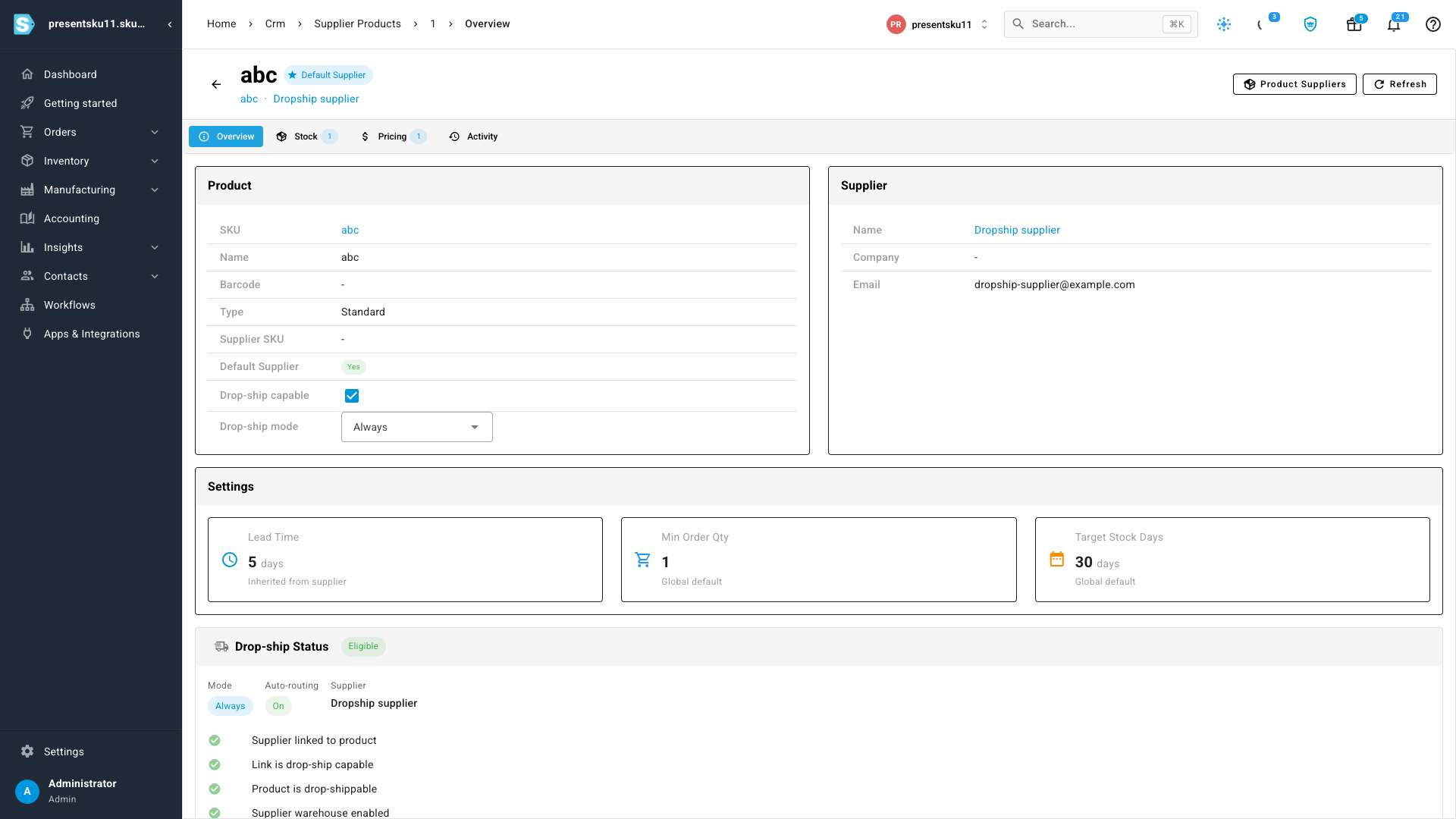
Route out-of-stock orders to your supplier — automatically
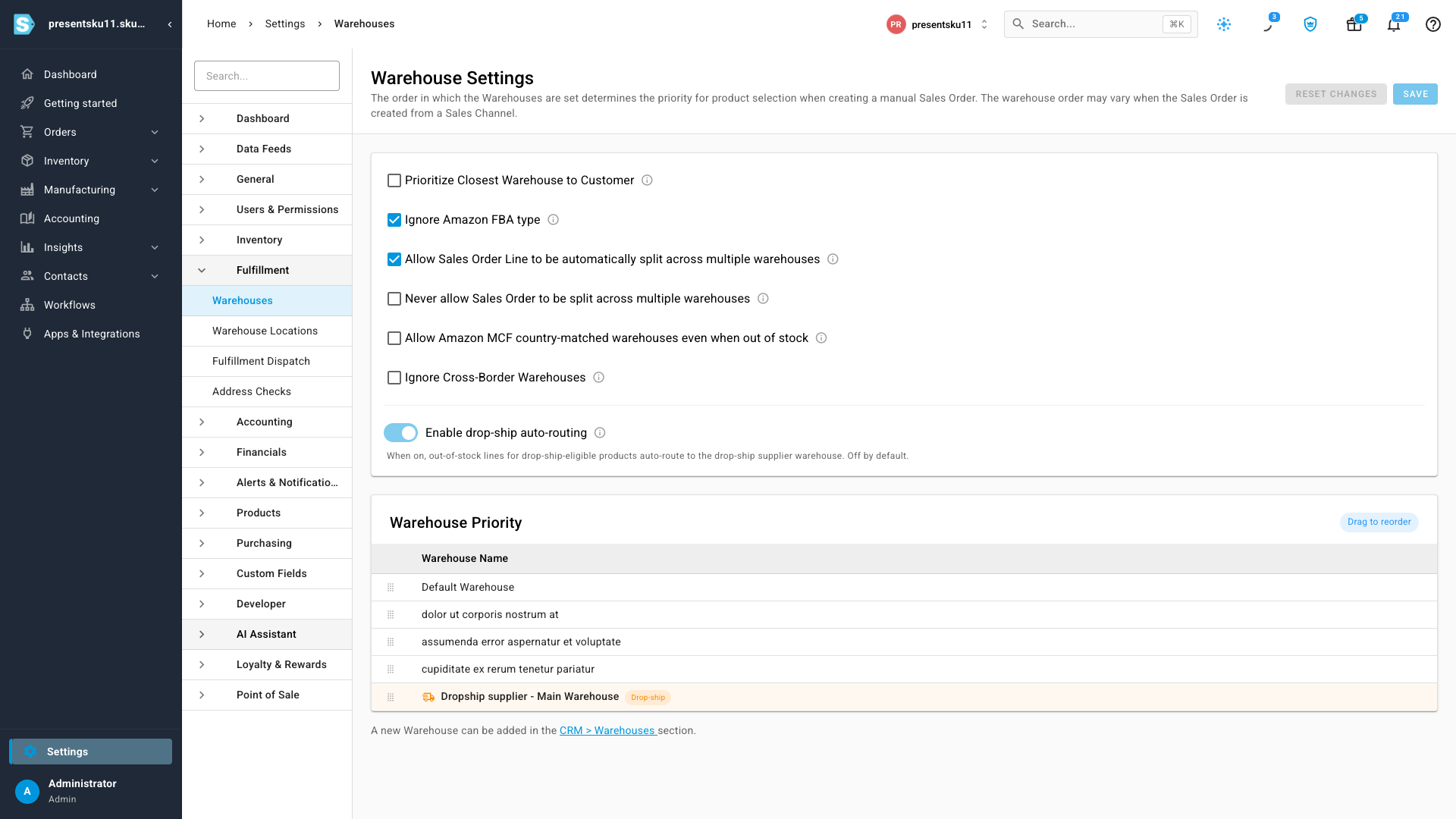
Turn on Enable drop-ship auto-routing and your drop-ship supplier becomes a stop in your warehouse priority list — drag it wherever it belongs. When an order can't be filled from your own stock, SKU.io routes the eligible lines to that supplier instead of backordering them against your primary warehouse.
You stay in control: a line only ever drop-ships when the product, the supplier, and the supplier's warehouse are all opted in — so nothing gets sent to a supplier by accident.
Set up drop-ship in one place — and choose when POs go out
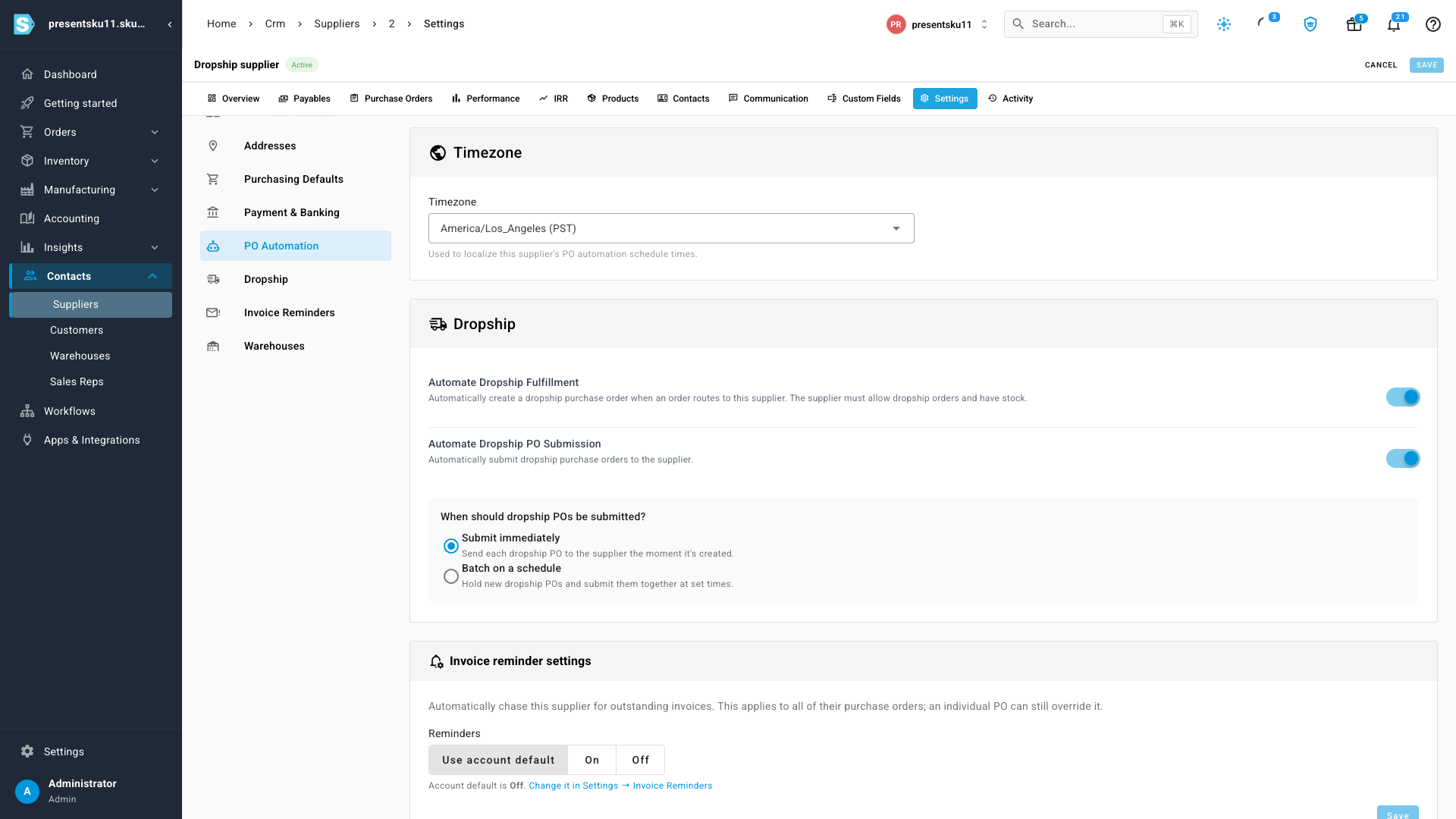
Every supplier now has a dedicated Dropship section. Switch on Automate Dropship Fulfillment to create the purchase order automatically when an order routes to that supplier, and Automate Dropship PO Submission to send it to them.
You decide the timing. Submit immediately sends each PO to the supplier the moment it's created. Batch on a schedule holds new POs and sends them together at the times you set — handy when a supplier prefers one consolidated order a day.
Always know where the order stands
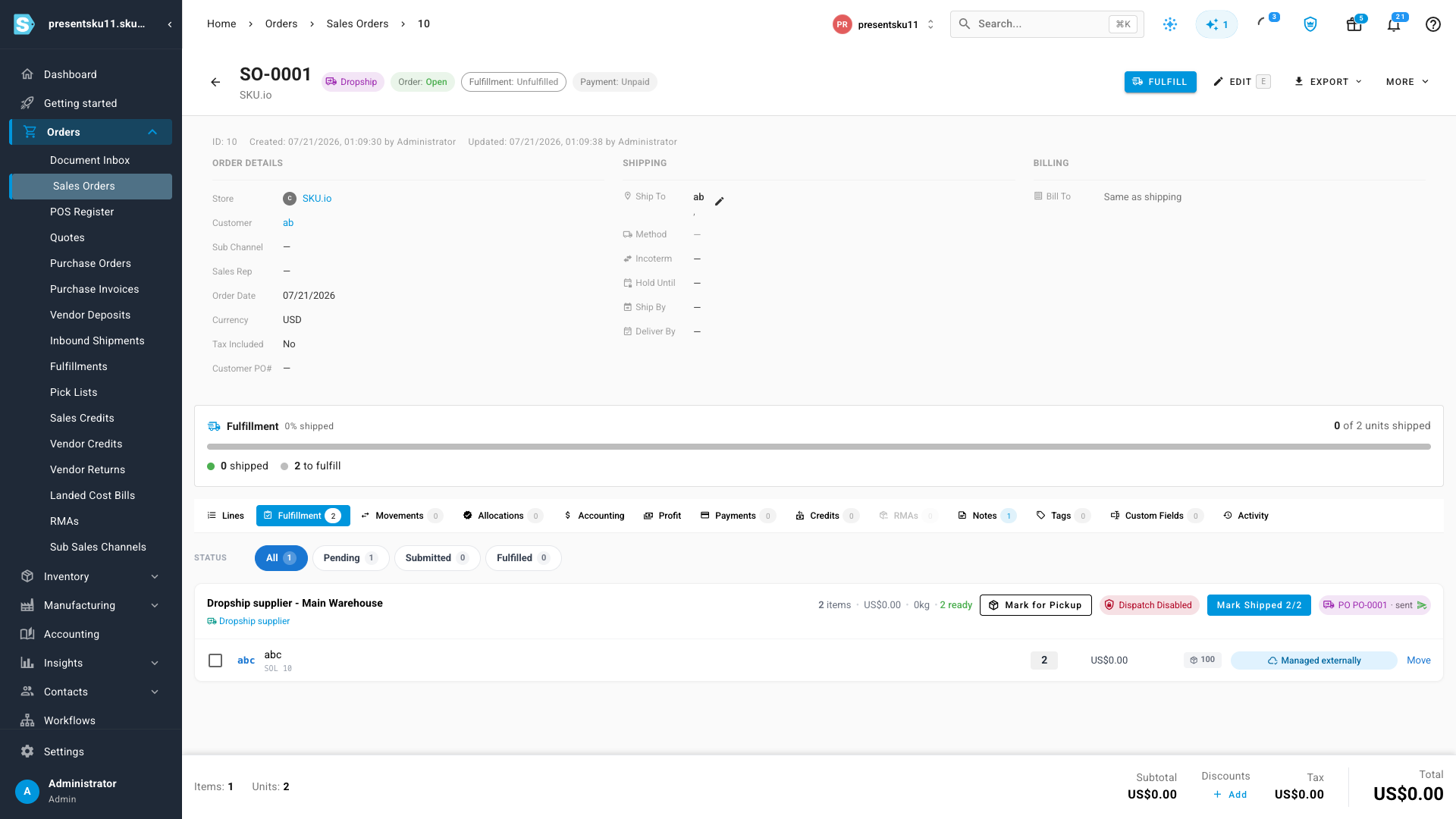
On an order's Fulfillment view, a drop-ship line clearly shows its supplier purchase order and whether it's been sent. Because the supplier is doing the shipping, the action reads Mark Shipped rather than a generic "fulfill" — so it's obvious what's happening and who's shipping.
And if a supplier is missing a purchase-order email, SKU.io flags it up front — on the supplier and on the PO — instead of silently failing to send, so a drop-ship order never sits waiting on a notification that was never going to arrive.
Where to find it
- Check what's needed (start here): open the supplier's product under Contacts → Suppliers → (your supplier) → Products — the Drop-ship Status panel shows the Eligible / Not eligible badge and ticks off each requirement, so you can see at a glance what's set and what's still missing.
- Mark a product drop-shippable for a supplier: on that same supplier-product page, set the link's Drop-ship / Always option (this is the master switch — the product's own drop-ship flag and the supplier warehouse must also be enabled, and the status panel tells you if either isn't).
- Turn on auto-routing: Settings → Fulfillment → Warehouses → Enable drop-ship auto-routing, then order your Warehouse Priority list.
- Configure a supplier's automation: Contacts → Suppliers → (your supplier) → Settings → Dropship — automate fulfillment, automate submission, and choose immediate vs. batched sending.
- Track an order: open any drop-ship sales order and switch to the Fulfillment tab.