17TRACK Delivery Tracking — live delivery status for every shipment
A tracking number on its own doesn't tell you anything. To find out whether an order actually reached the customer — or whether a supplier shipment is anywhere near your dock — you had to copy the number, open the carrier's website, and check shipments one at a time. Failed deliveries and stalled packages stayed invisible until a customer complained or a receipt came up overdue. 17TRACK Delivery Tracking changes that: connect your own 17TRACK account and SKU.io registers every new tracking number automatically, pulls live carrier status for it, and shows a delivery-status chip beside the tracking number everywhere it appears — across outbound fulfillments, purchase order inbound shipments, warehouse transfers, customer returns, and shipments back to vendors.
✨ What this means for you:
- Every tracking number becomes a live status. In Transit, Out for Delivery, Delivered, Exception — a colored chip right in your lists and detail pages, with the latest carrier event on hover. No more carrier-site hopping.
- Problems surface themselves. Failed deliveries, carrier exceptions, and expired trackings are flagged in red and orange the moment the carrier reports them — filter any list by delivery status to work the problem queue instead of discovering it from a support ticket.
- It covers your whole operation, not just orders. The same tracking works on five shipment types: sales order fulfillments, PO inbound shipments, warehouse transfer shipments, RMAs (customer returns), and vendor credit shipments (returns to suppliers).
- The full journey lives in SKU.io. Click any tracking to see the complete checkpoint timeline — every scan, location, and timestamp — plus pickup date, delivery date, and time in transit.
- You control the credits. 17TRACK quota is spent per registered tracking number, so SKU.io lets you choose exactly what auto-tracks: by shipment type, and for fulfillments even by sales channel and sub-channel — leave out Amazon FBA orders the marketplace already delivers, for example.
- Updates arrive on their own. Carrier events stream in through webhooks in near real time, with a scheduled backup sync to catch anything a webhook missed.
One workspace for every shipment in motion
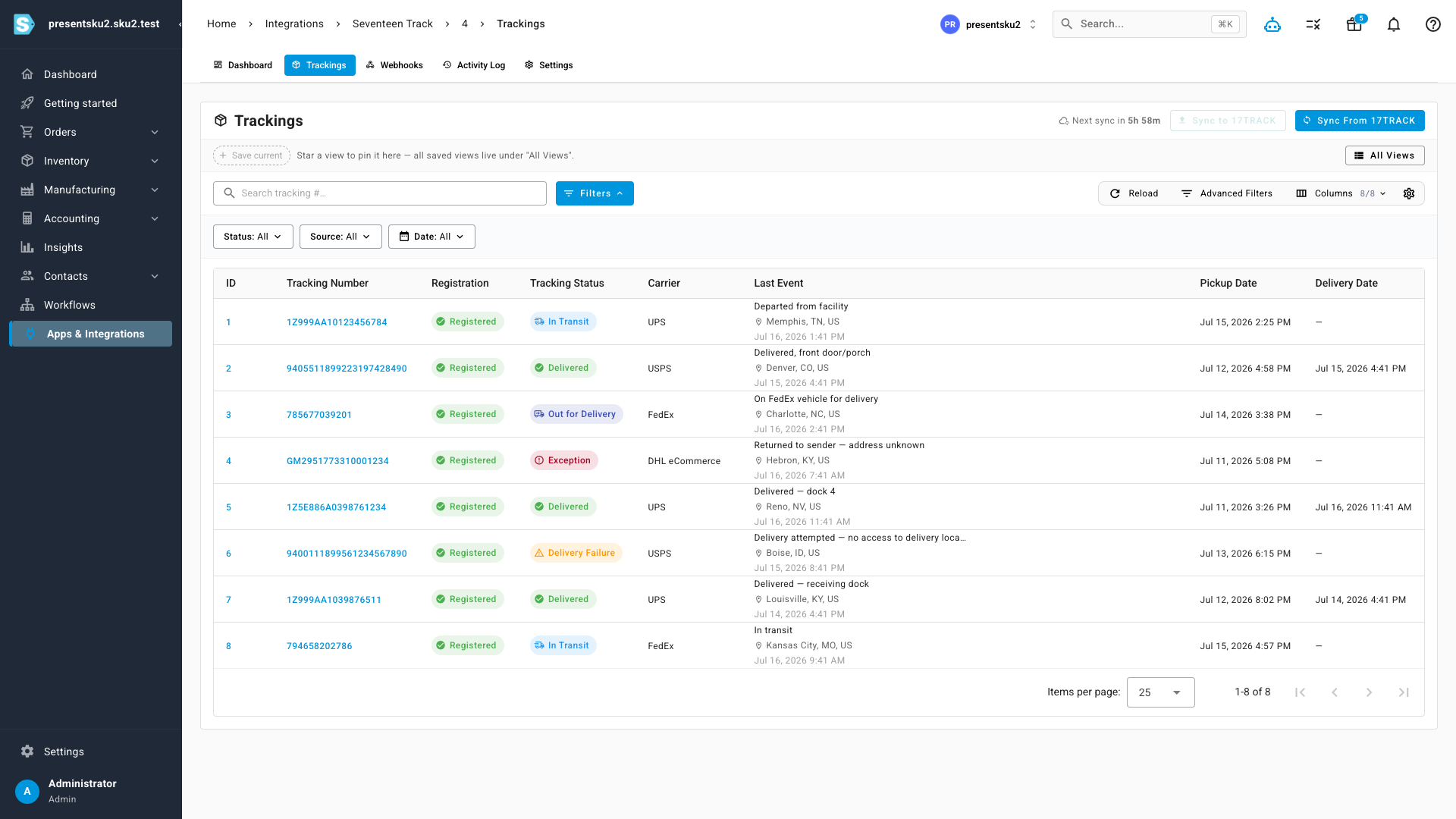
The Trackings workspace lists every registered tracking number across all five shipment types in one table: registration state, live delivery status, carrier, latest event with location, pickup date, and delivery date. Filter by status or source type, search by tracking number, and click through to the shipment it belongs to. Sync buttons let you push any unregistered numbers to 17TRACK and pull the latest events on demand, alongside the scheduled automatic sync.
Delivery status where you already work
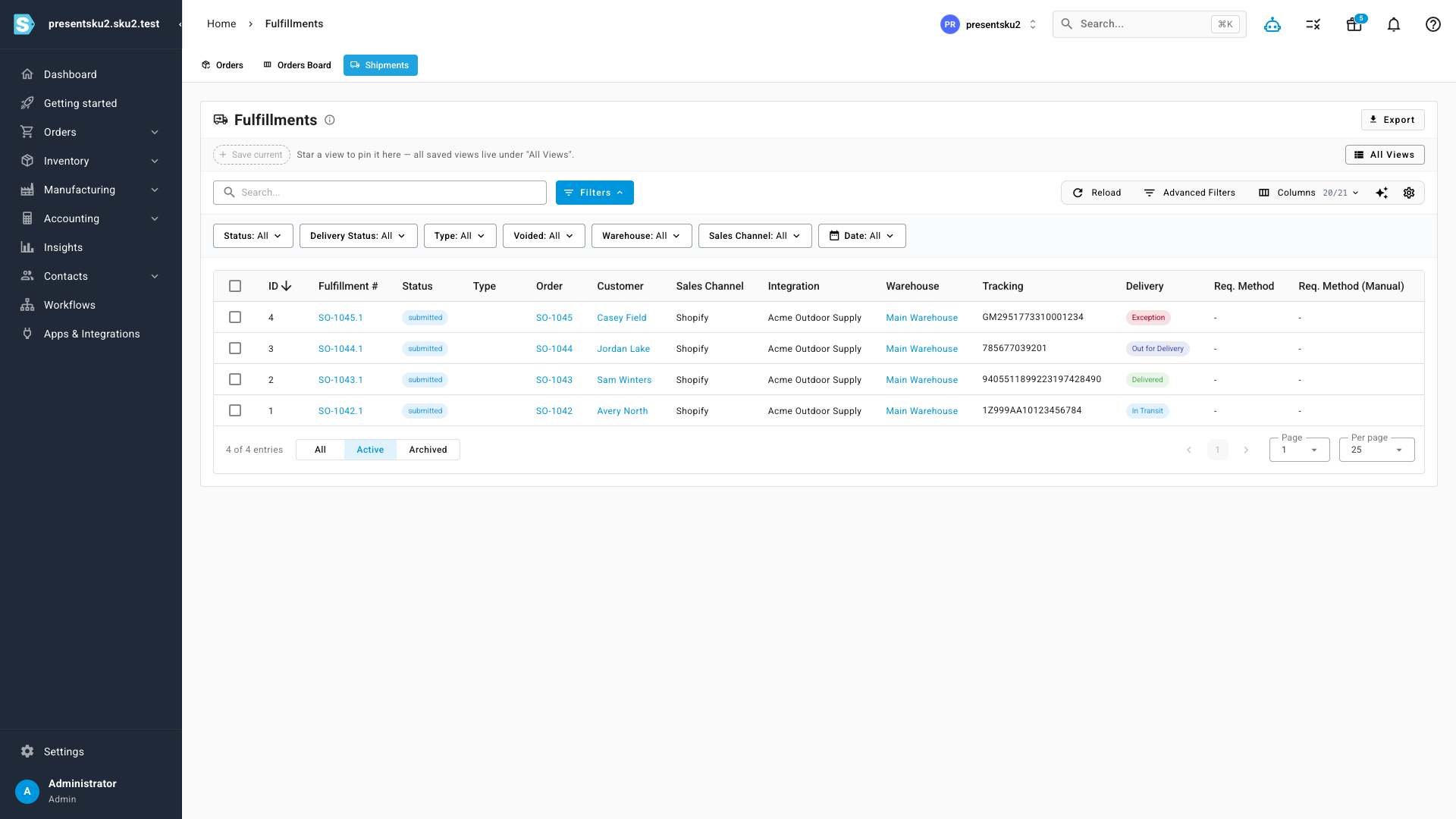
You don't need to visit a separate page to benefit. Fulfillment lists gain a Delivery column with a live status chip beside each tracking number, plus a delivery-status filter — and the same chips appear on sales order details, purchase order inbound shipments, warehouse transfer shipments, RMA details, and vendor credit shipments. Hover a chip for the latest carrier event; click it to open the full timeline.
The whole journey, without the carrier site
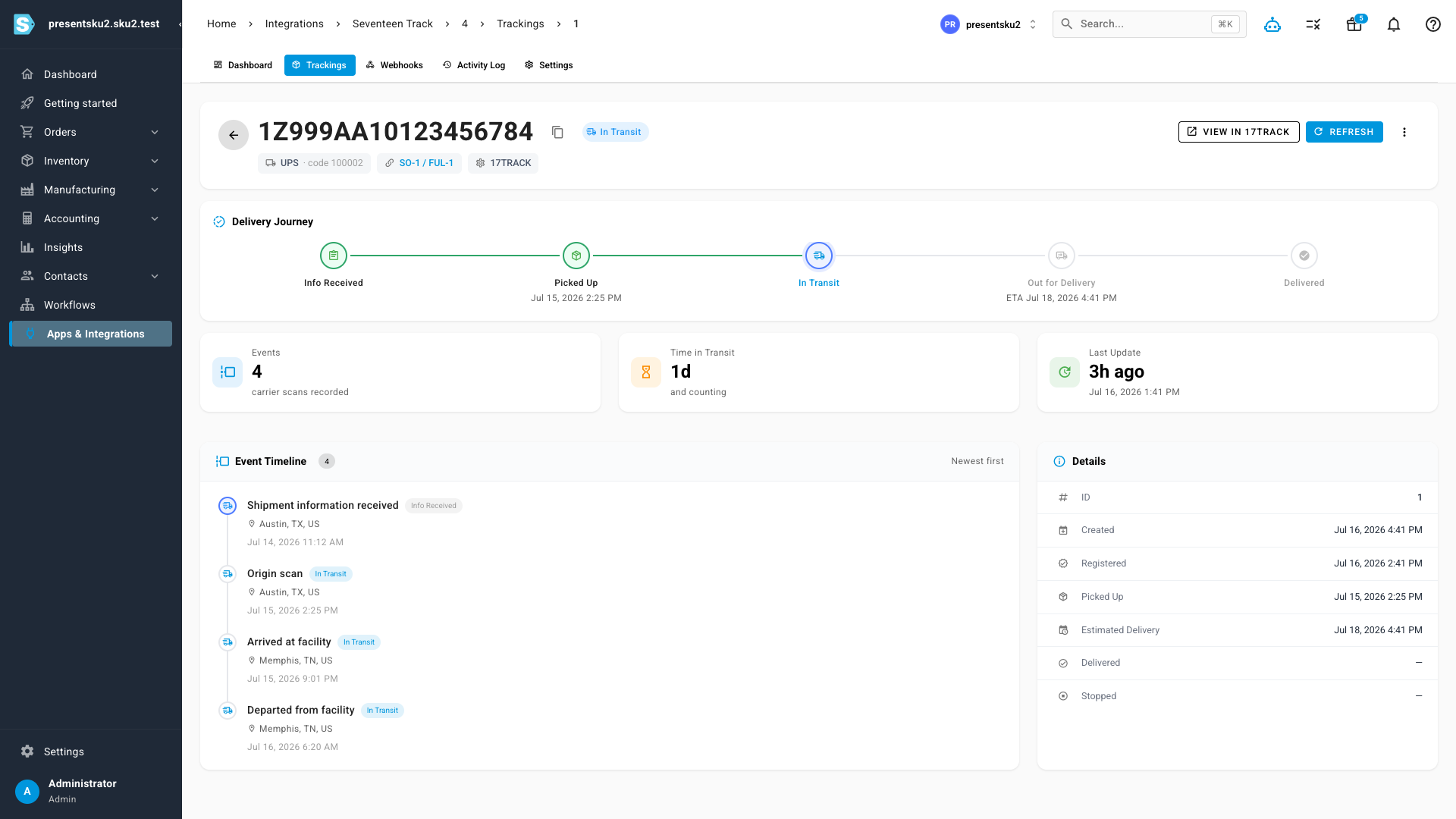
Every tracking has a detail page: a Delivery Journey stepper from first scan to delivered, the complete event timeline with locations and timestamps, and at-a-glance stats for carrier scans, time in transit, and last update. It links straight back to the sales order or shipment it belongs to, offers a one-click refresh for the latest events, and keeps a carrier link-out for when you do want the source.
Spend your tracking credits where they matter
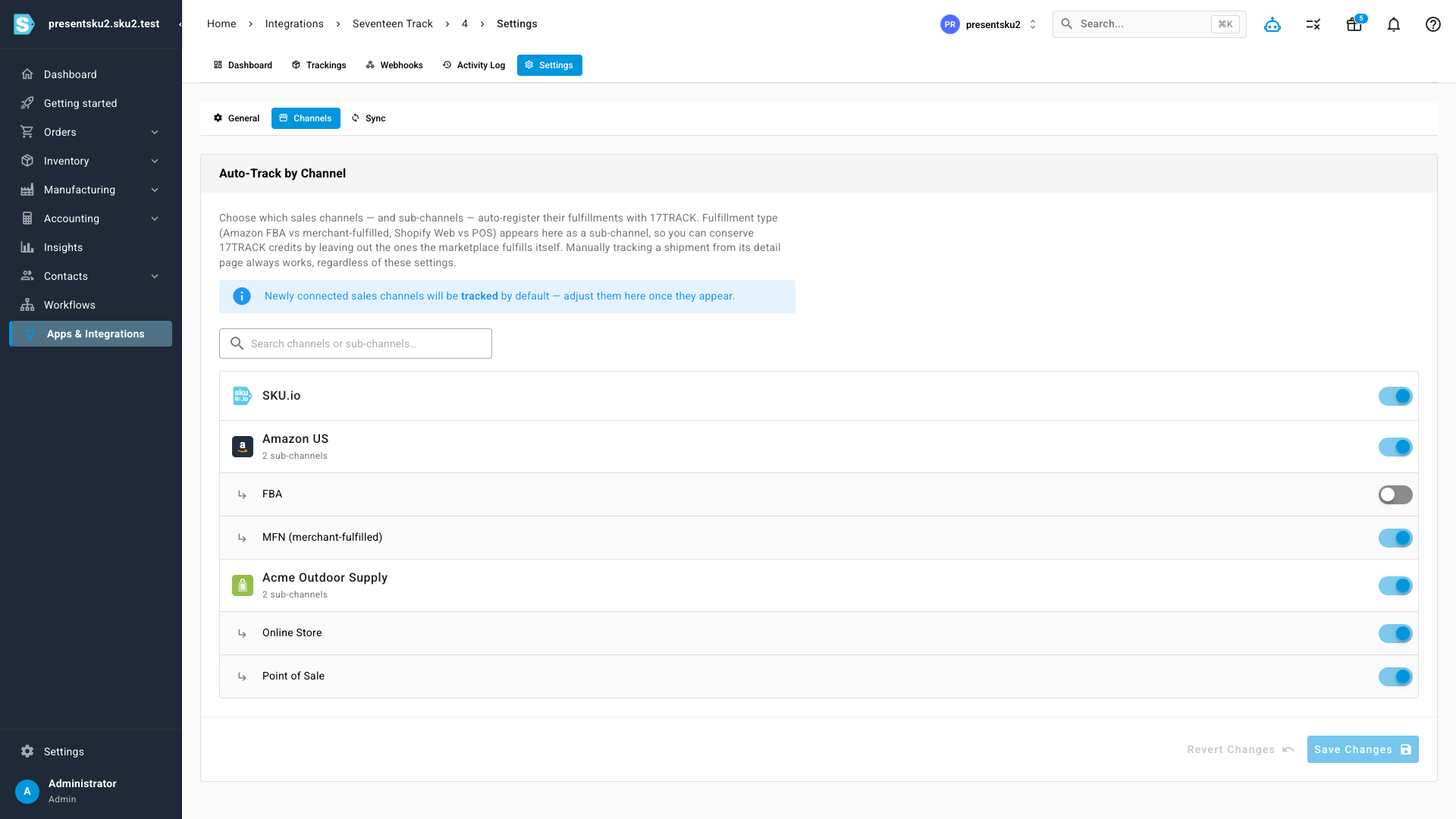
17TRACK charges quota per tracking number registered — so SKU.io gives you precise control over what auto-tracks. Toggle each shipment type on or off in settings, and for outbound fulfillments go further: choose which sales channels — and sub-channels — auto-register. Fulfillment type appears as a sub-channel (Amazon FBA vs merchant-fulfilled, Shopify online store vs point of sale), so you can skip the shipments the marketplace already handles and save your credits for the ones you actually need eyes on. Manually tracking a shipment from its detail page always works, regardless of these settings.
Bring your own 17TRACK account
Setup is self-serve and takes a few minutes: create a free 17TRACK API account (100 trackings per month free, paid tiers beyond), paste your API key into the connect screen, test the connection, and copy the SKU.io webhook URL into your 17TRACK dashboard so events stream in as they happen. The integration dashboard shows your quota usage, status breakdowns, and sync health at a glance — and warns you before the quota runs out.
Where to find it
- Apps & Integrations → 17TRACK — connect your account, then explore the Dashboard, Trackings, Webhooks, Activity Log, and Settings tabs.
- Orders → Shipments — the fulfillments list with the new Delivery column and delivery-status filter.
- 17TRACK → Settings → Channels — auto-track scoping by sales channel and sub-channel.
- Delivery chips also appear on sales order details, purchase order inbound shipments, warehouse transfers, RMAs, and vendor credit shipments.