Customize your dashboard
Your Dashboard doesn't have to be one fixed layout. You can add any of 100+ widgets — KPIs, trend charts, gauges, leaderboards and live activity — arrange and resize them, and keep separate dashboards for different jobs. Everything is drawn from your live data, so a widget shows real numbers the moment you add it.
Before you begin
- Anyone can customize their own dashboard — your changes are personal and don't affect other users.
- Some widgets show financial figures (revenue, cost, profit). If financial data is hidden for your account, those widgets simply don't appear in the picker.
Add a widget
- Go to Dashboard (the home screen).
- Click Customize in the top-right, then click Add widget. The widget picker opens.
- Browse widgets by area using the list on the left — Sales & Orders, Inventory & Stock, Financials & Profitability, Forecasting & Demand, and more — or type in the search box to search all 100+ at once.
- Click a widget card. The panel on the right shows a live preview built from your own data, so you can see exactly what the widget looks like before you add it.
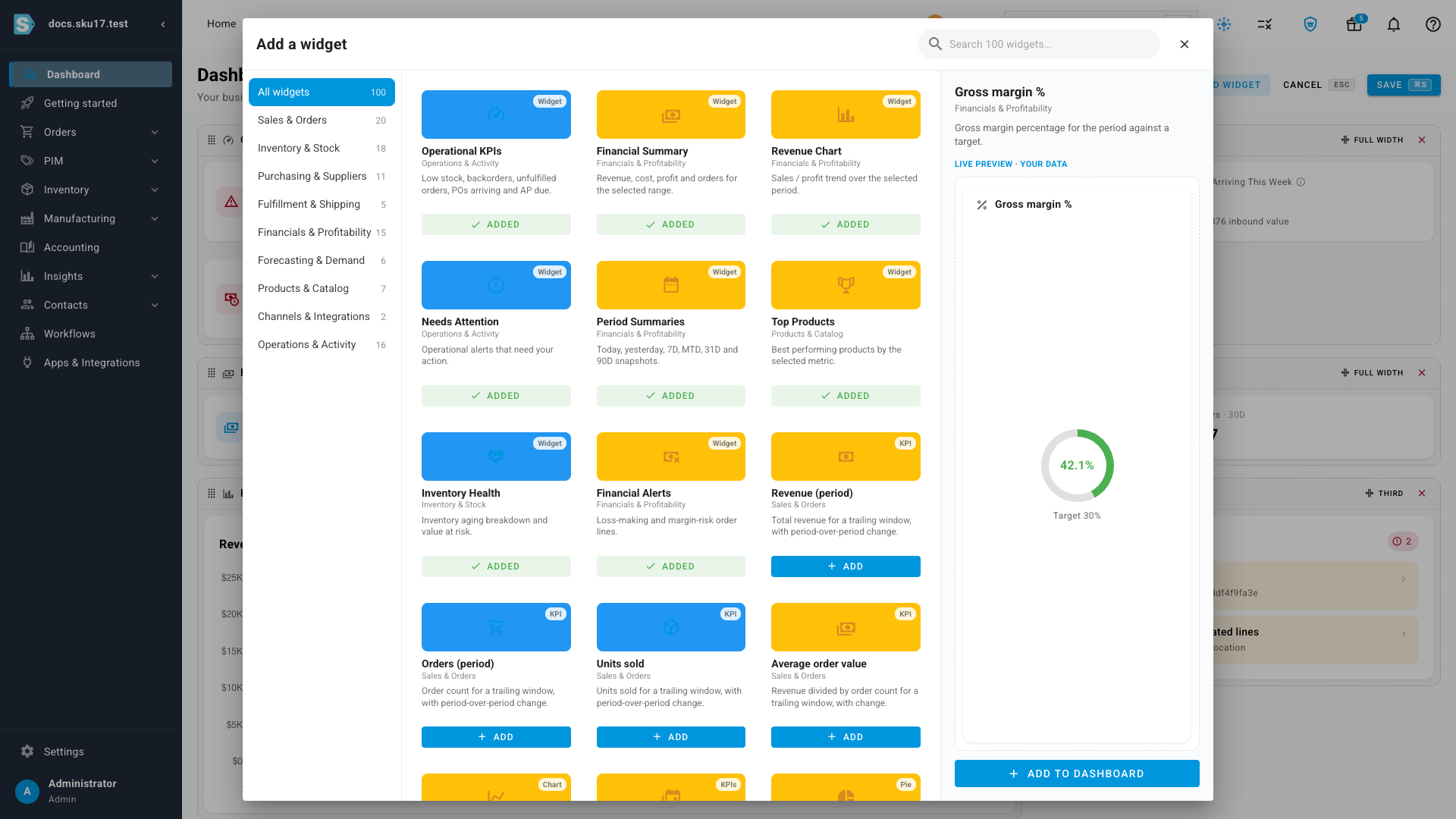
- Click Add to dashboard (or the Add button on the card). The widget drops onto your dashboard and the view scrolls to it.
Arrange and resize
While you're in Customize mode:
- Drag any widget by its handle to reorder it.
- Use a widget's width control to size it — from a third of the row up to full width.
- To remove a widget, click the × on its frame.
- Click Save (or press ⌘S on a Mac, Ctrl+S on Windows) to keep your changes. To back out, click Cancel (or press Esc) — you'll be asked to confirm before any unsaved changes are discarded.
Keep several dashboards
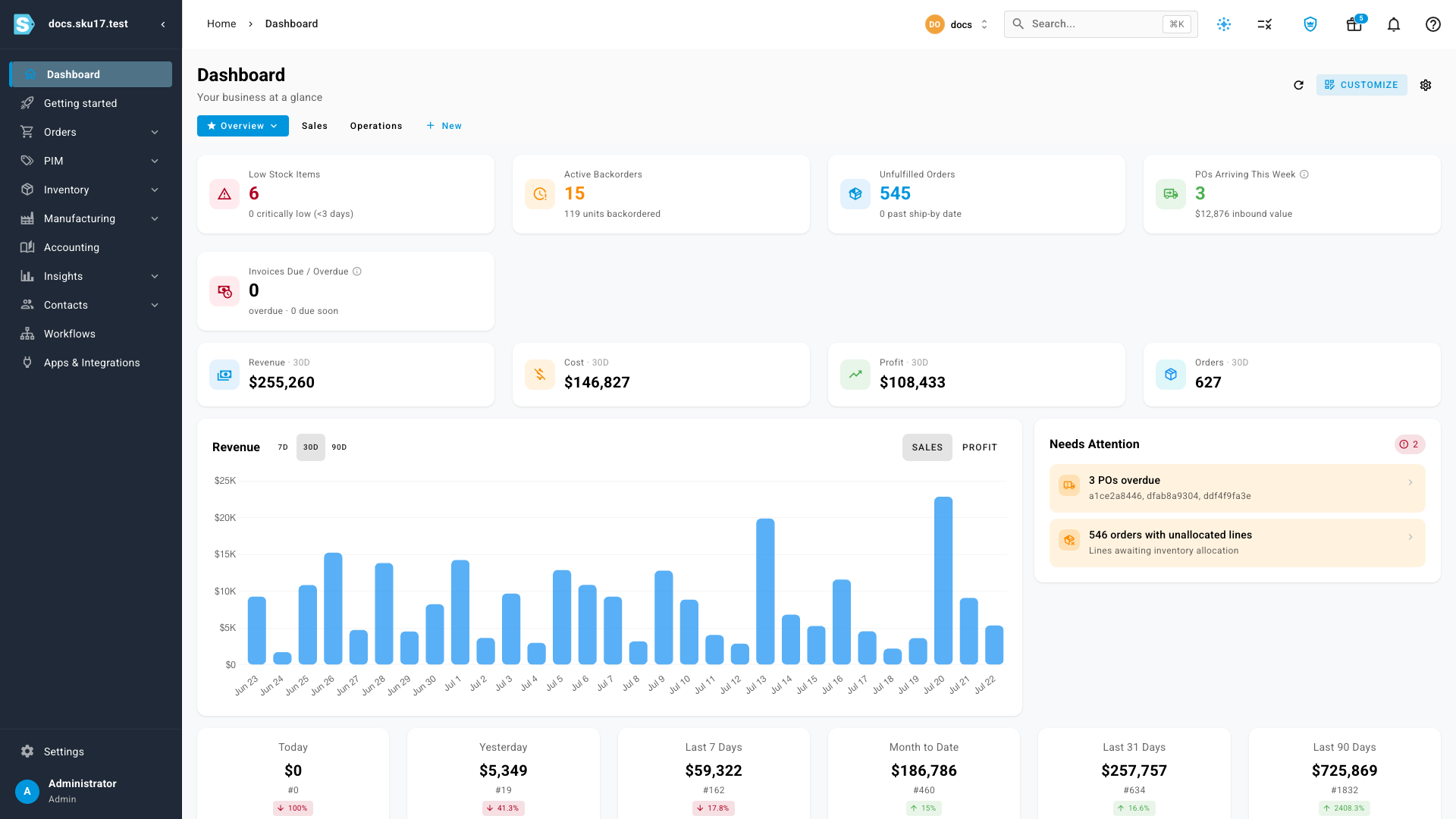
One layout rarely fits every role, so you can create as many named dashboards as you like and switch between them from the tabs beneath the page title.

- Click New to create a dashboard. Give it a name — for example Sales or Operations — and it opens ready to fill with widgets.
- Click a tab to switch to that dashboard. Each one remembers its own widgets and layout.
- On the active tab, click the ▾ menu to Rename it, Make default (the one that opens when you sign in), or Delete it.
- Drag the tabs to reorder them.
On your phone
Your dashboards come with you to mobile. On a phone, the board you built stacks into a single column and the tab switcher comes along, so you can jump between your Overview, Sales and Operations views on the go. Editing the layout stays on the desktop, where dragging and resizing are easier.
Next steps
- Read your dashboard — a tour of the built-in widgets and what each one tells you.
Video transcript
Your dashboard doesn't have to be a fixed layout. Let's make it yours. Keep separate dashboards for different jobs — an Overview, a Sales view, an Operations view — and switch between them in one click. To add a widget, click Customize, then Add widget. Browse by category, or search all one hundred widgets. Pick one, and the panel on the right previews it with your real data. Click Add to dashboard, and it drops onto your board, already showing live numbers.