Vendor deposits
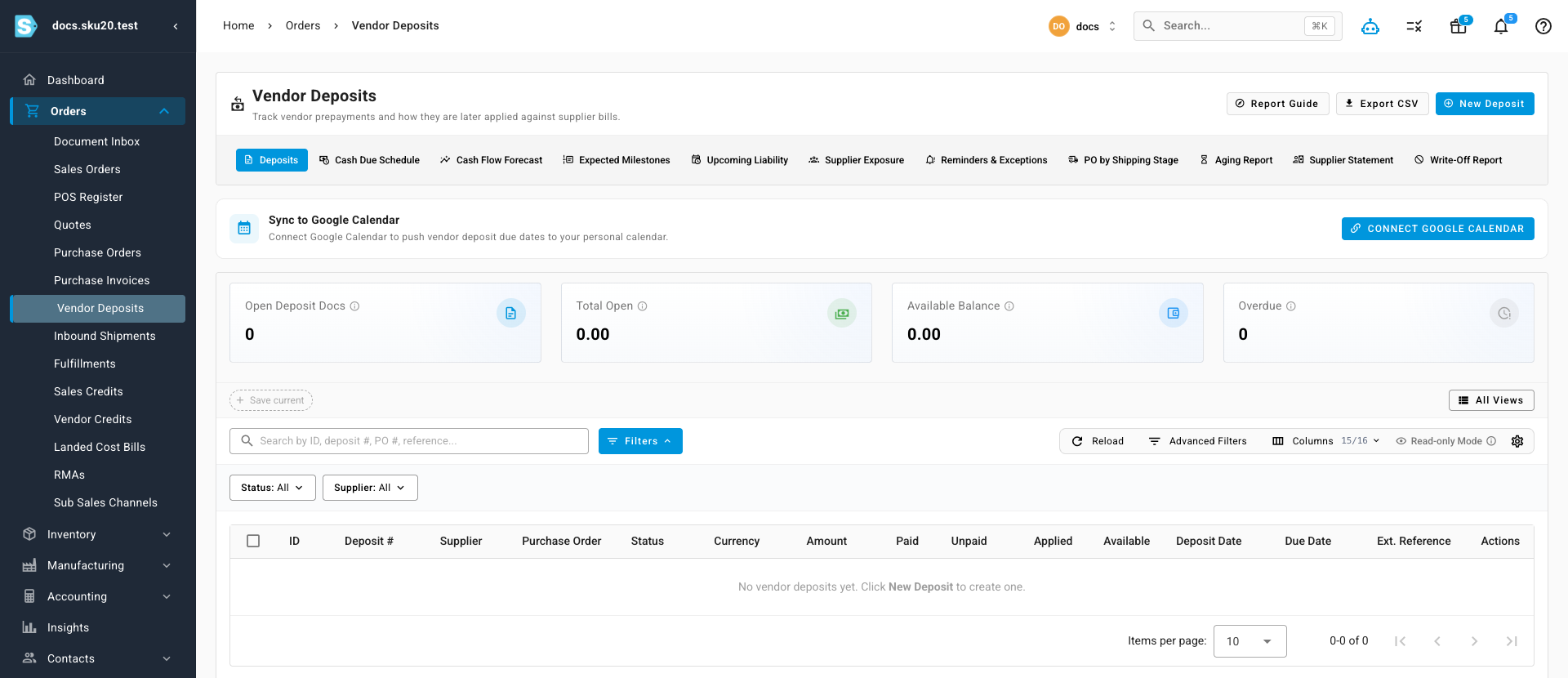
A vendor deposit is money you pay a supplier up front, before the goods ship — a prepayment. Many suppliers, especially overseas manufacturers, require one: for example, "30% on order, 70% before we ship." That up-front payment is often requested on a proforma invoice — a preliminary bill the supplier sends before the real invoice, used to request the deposit and confirm the order.
SKU.io tracks these prepayments against the purchase order (PO) they belong to, so the cash you've committed is always tied to the order it's paying for. Everything lives on the PO's Deposits tab, which keeps two layers deliberately separate:
- Expected Deposit Milestones — the plan: when and how much you'll owe.
- Vendor Deposit Documents — the actual deposit records you pay and track.
This guide covers turning a milestone into a real deposit, recording an ad-hoc deposit or proforma invoice, and reading each layer's statuses.
A deposit is cash you commit to the supplier ahead of delivery. A vendor credit is money the supplier owes back to you — for returns, over-bills, or refunds. If you're chasing money coming the other way, see Vendor credits instead.
Before you begin
- Open the purchase order you want to work with from Orders → Purchase Orders. The examples below use PO-DOCS-0001 (supplier Acme Supplies, destination Main Warehouse).
- Vendor deposits have their own tab on the PO detail page: Deposits. The tab badge shows how many are linked.
- Creating a deposit from a schedule milestone requires the Update purchase orders permission — without it, the Create Deposit button doesn't appear.
Milestones vs. deposit documents
Open the PO and select the Deposits tab. It shows two tables that are two layers of the same idea — and it's important not to confuse them:
| Layer | What it means | Is it a financial record? |
|---|---|---|
| Expected Deposit Milestones | Planning rows worked out from the PO's payment-term schedule. Each milestone has a trigger event, a basis date, a due date, and an amount (a percentage of the PO total or a fixed amount). | No — a milestone is a forecast of a deposit you'll owe. |
| Vendor Deposit Documents | The actual deposit records, each with its own status, amount, paid, applied, and available balance. Created from a milestone or entered by hand. | Yes — this is the real prepayment you pay and track. |
A few terms these tables use:
- Basis date — the date the milestone counts from (for example, the PO approval date). The due date is worked out from it, such as "10 days after approval."
- Applied — how much of a paid deposit has been used up against the supplier's final invoice. A deposit starts fully Available; as the real bill arrives, the deposit is applied against it and the available balance drops.
Milestones become real deposits over time: once a milestone's trigger event happens, it's marked Ready to create, and you turn it into a vendor deposit document.
A worked deposit schedule
Say PO-DOCS-0001 totals $10,000, and Acme's payment terms are 30% on approval, 70% on first shipment. SKU.io lays that out as two Expected Deposit Milestones:
| Milestone | Trigger | Amount (% of PO) | Amount ($) | Status before trigger |
|---|---|---|---|---|
| Deposit 1 | PO Approved | 30% | $3,000 | Expected |
| Deposit 2 | PO First Shipment | 70% | $7,000 | Expected |
Here's how the schedule plays out:
- You approve the PO. The PO Approved trigger fires. Deposit 1 flips from Expected to Ready to create. You create it, pay Acme $3,000, and that deposit's Available balance sits at $3,000 until the final invoice arrives. Deposit 2 is still Expected — its trigger hasn't happened.
- Acme records the first shipment. The PO First Shipment trigger fires. Deposit 2 flips to Ready to create. You create it and pay the remaining $7,000.
- Total prepaid: $3,000 + $7,000 = $10,000 — the full PO value, committed across the two milestones exactly as the payment terms describe.
Later, when Acme's real invoice arrives for the goods, you apply these deposits against it so you're not billed twice for money you've already paid. See Invoicing and the 3-way match for how the final invoice is reconciled.
A milestone amount can be a percentage of the PO total (30%) or a fixed amount (a flat $3,000). Percentages recalculate if the PO total changes; fixed amounts don't.
Milestone statuses
Each milestone row carries a status chip (hover it for the full explanation):
| Status | Meaning |
|---|---|
| Expected | The payment term says this deposit should exist later, but the triggering PO event hasn't happened yet. |
| Ready to create | The triggering event has happened. The next step is to create the actual deposit document. |
| Created | A deposit document is already linked to this milestone. |
| Out of sync | A linked deposit exists, but the payment-term schedule no longer matches it exactly and needs review. |
What triggers a milestone
A milestone's Trigger column names the PO lifecycle event that makes it ready. SKU.io fires that event exactly once, on the boundary transition — not every time something is recalculated:
| Trigger | Fires when the PO… |
|---|---|
| PO Approved | is approved (moves from Draft to Open). |
| PO First Shipment | records its first shipment (from unshipped/planned to any shipped). |
| PO Fully Shipped | becomes fully shipped. |
| PO First Receipt | records its first receipt (from unreceived to partially or fully received). |
| PO Fully Received | becomes fully received. |
| Manual / Logistics Tracking Date | is triggered by hand or by a logistics tracking date rather than a status change. |
SKU.io also keeps draft deposits roughly in step with the schedule for you: when a PO's payment term or PO date changes, it re-works the draft deposits to match. For the status transitions that drive these triggers, see How purchase order status works.
Editing the PO's dates can shift the schedule and move its milestones (a later basis date pushes the due dates out). When a change would affect deposit milestones, SKU.io warns you before you save so you can preview the impact — read that preview before confirming.
Create a deposit from a ready milestone
- On the Deposits tab, find a milestone whose status is Ready to create.
- Click Create Deposit on that row.
SKU.io turns the milestone into a vendor deposit document (in Draft), pre-filled from the milestone's amount and due date, and links it back to the milestone.
What you'll see: the milestone's status changes to Created, and the new draft deposit appears in the Vendor Deposit Documents table below.
A milestone that already has a linked deposit, or that isn't ready yet, can't be created again — the action returns an explanatory message instead of making a second deposit.
Record an ad-hoc deposit or proforma invoice
When a deposit isn't tied to a scheduled milestone — for example, the supplier sends a proforma invoice out of the blue and asks for payment — record it directly:
- On the Deposits tab, click Record PI / Add Deposit. (You can also start from the PO's More menu (⋮) → Record Proforma Invoice / Request Payment, which opens the same drawer on the Deposits tab.)
- In the Record Proforma Invoice / Request Payment drawer, the Supplier, purchase order, total, and currency are pre-filled from the PO, along with the remaining deposit capacity.
- Enter the deposit value. Toggle between Amount and Deposit % of PO to enter it either way.
- Attach the supplier's proforma invoice if you have one, then click Save as Draft.
What you'll see: a new vendor deposit document appears in the Vendor Deposit Documents table in Draft. It then follows its own approval workflow before it can be paid and applied.
Deposits are capped at the PO total
PO-linked deposits can't exceed the purchase order's total. Continuing the $10,000 example: once your deposits already linked to the PO add up to $10,000, you've used all the capacity.
Once linked deposits cover the PO total, both Create Deposit and Record PI / Add Deposit are disabled, and their tooltip explains that additional PO-linked deposits are blocked because linked deposits already cover the purchase order total. Cancelled, void, refunded, and written-off amounts free that capacity back up.
Deposit statuses
A vendor deposit document moves through its own lifecycle, shown as a status chip in the Vendor Deposit Documents table:
| Status | Meaning |
|---|---|
| Draft | Created but not yet submitted for approval. |
| Pending approval | Submitted and awaiting sign-off. |
| Approved | Signed off and ready to be paid. |
| Partially paid | Some, but not all, of the deposit amount has been paid. |
| Paid | The full deposit amount has been paid to the supplier. |
| Partially applied | Some of the paid deposit has been used against the supplier's invoice; a balance is still Available. |
| Fully applied | The whole deposit has been used up against invoices — nothing left to apply. |
| Refunded | The supplier returned the money. |
| Written off | The deposit was cleared from the books as unrecoverable. |
| Void / Cancelled | The deposit was voided or cancelled before completing. |
The table also shows each deposit's Amount, Paid, Applied, and Available balance. Click a deposit number to open its detail page.
An approved vendor deposit that's overdue and still unpaid shows a warning icon on the purchase orders list — so you can spot prepayments that need attention without opening each PO.
How vendor deposits reach your accounting
Vendor deposits keep their own accounting records, separate from the PO's own accounting entry. Those records are what your accounting integration (such as Xero or QuickBooks) mirrors. For how the PO itself posts to accounting when stock is received, see How a PO becomes inventory.