Receive stock against a purchase order
Receiving is how the stock you ordered turns into on-hand inventory — units physically in a warehouse that you can pick, sell, and count. Until you receive it, ordered stock is only incoming inventory (units you expect but don't yet have). This page walks through a normal receipt and every real-world wrinkle: partial and over-deliveries, receiving against a planned shipment, barcode scanning, capturing lots, fixing $0-cost lines, and closing out a short delivery.
When you record a receipt, SKU.io does four things automatically:
- Adds the units you entered to each line's running Received total.
- Advances the purchase order's (PO's) receipt status (Unreceived → Partially received → Received).
- Raises your on-hand inventory for those products.
- Creates the FIFO layers behind the scenes. FIFO ("first in, first out") means the cost of the oldest units you bought is used first when you later sell them — so each receipt records what these units cost you, ready to become COGS (Cost of Goods Sold — the cost of a product at the moment it sells) down the line.
Before you begin
- You need the Receive purchase orders permission. The Receive button and receipt actions only appear when you have it.
- The PO must be Open — approve and submit it first; see Approve and submit a PO.
- The destination must be a real stocking warehouse. Supplier warehouses, Amazon AWD (Amazon Warehousing & Distribution), and Walmart WFS (Walmart Fulfillment Services) destinations can't be received manually — see Orders SKU.io doesn't receive manually.
- Open the purchase order from Orders → Purchase Orders. The examples below use PO-DOCS-0001 (supplier Acme Supplies, destination Main Warehouse, 190 units across 3 lines).
Receive items against the PO
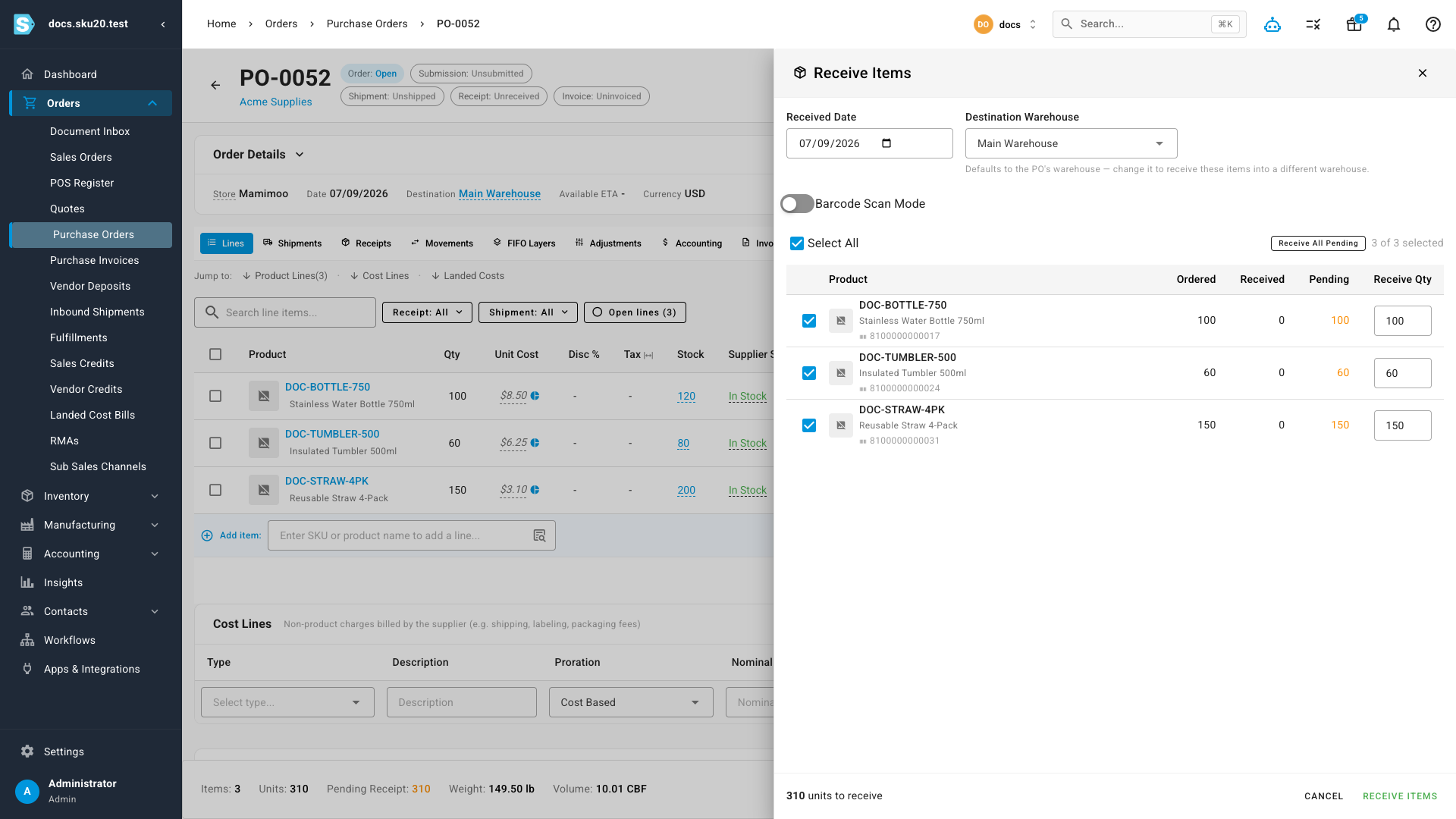
- Open the purchase order and click Receive near the top of the page. The Receive Items drawer opens on the right.
- Set the Received Date. It defaults to today.
- Check the Destination Warehouse. It defaults to the PO's warehouse (Main Warehouse); change it to receive these units into a different warehouse.
- In the lines table, set the Receive Qty for each line you're receiving. Each column tells you where the line stands:
- Ordered — how many you asked the supplier for.
- Received — how many you've already booked in on earlier receipts.
- Pending — what's still outstanding (Ordered − Received).
- Receive Qty — what you're booking in right now.
- Every line with an outstanding balance starts selected, pre-filled with its full Pending quantity. Adjust as needed:
- Click Receive All Pending to reset the whole receipt to everything still outstanding.
- Use the Select All checkbox to select or clear every line at once.
- For lot-tracked products, complete the lot / expiry panel that appears under the selected line (see Capture lot and expiry details).
- Click Receive Items, review the Confirm Receipt summary ("You are about to receive N units across M line item(s)"), and click Confirm.
What you'll see: the drawer shows "Receiving started — track progress in the job tray," and a progress bar streams live as each line is received. When the job finishes, the PO refreshes — each line's Received count goes up, the receipt status advances, and the receipt appears on the Receipts tab.
A receipt is processed as a tracked background job so a large multi-line receipt doesn't freeze the page. If a receive is already running for the same PO, a second attempt is refused ("A receive is already in progress for this purchase order") — wait for the first to finish in the job tray. A few options run immediately instead of going through the job tray: routing to a specific existing shipment, resolving unexpected scanned items, and reversing quantities.
Receive in stages (partial and full)
You rarely receive an entire PO in one go. Each receipt adds to the running Received total per line, and the PO's receipt status follows automatically:
| Receipt status | What it means | PO behavior |
|---|---|---|
| Unreceived | Nothing received yet. | PO stays Open. |
| Partially received | Some units in, but not the full order. | PO stays Open so you can keep receiving. |
| Received | Every line's ordered quantity is met. | PO auto-closes the moment it crosses into fully received. |
Come back and click Receive again for each subsequent delivery.
If a later edit drops the received total back below the ordered total, a closed PO auto-reopens. For the full set of status values and transitions, see How purchase order status works and the status reference.
Route a receipt to a specific shipment
If the PO has planned inbound shipments at the selected warehouse, a Receive Against Shipment control appears in the drawer with three choices:
| Choice | What it does |
|---|---|
| Automatic — fill planned shipments (oldest first) (default) | Received units fill existing planned shipments at that warehouse, oldest first; anything left over creates a new shipment. |
| A specific shipment | The whole receive is routed to that shipment. A Draft shipment moves to In Transit, and quantities beyond its plan are over-received onto it. |
| New shipment — create a separate shipment | A brand-new shipment is created for this receive, and existing planned shipments are left untouched. |
Plan inbound shipments before goods arrive
You can record shipments ahead of receiving so you can track carrier, tracking number, and estimated dates while stock is in transit.
- On the PO's Shipments tab, click Create Shipment.
- Allocate un-shipped line quantities to a destination warehouse.
- Set the carrier, tracking number, and logistics dates.
A PO's goods can split across multiple shipments and warehouses; each shipment tracks its own portion and shows its planned-versus-total quantity.
Where a carrier's tracking reports the parcel as delivered but you haven't recorded the receipt yet, the shipment shows an Awaiting receipt hint. And a receipt you record can auto-create a shipment for you (marked Auto-created from receipt), so the two records stay in step.
Create Shipment is disabled when the PO has no line items ("Add line items to the PO before creating a shipment") or when every unit is already assigned to shipments ("All items have already been added to shipments"). Shipment planning is hidden for draft and dropship POs.
The PO's requested shipping method can be a free-text value or a value chosen from your shipping-methods list, but not both — setting one clears the other, so the surviving value is what prints on the supplier document. See the fields reference.
Scan barcodes to receive
For high-volume receiving, turn on Barcode Scan Mode in the drawer and scan each item instead of typing quantities:
- Toggle Barcode Scan Mode on. Set Case Size if one scan represents a case of more than one unit.
- Scan a barcode or type a SKU into the scan box and press Enter. Each scan that matches a PO line selects the line and adds the case size to its Receive Qty, with an audio and visual confirmation and a running Recent scans log.
- When you've scanned everything, click Receive Items and confirm as usual.
Two kinds of mismatch are surfaced as you scan:
| Mismatch | What it means | How you resolve it |
|---|---|---|
| Unexpected Items | The product exists in SKU.io but isn't on this PO. | In the confirmation step, choose Adjustment (books the units as a positive inventory adjustment) or Add to PO (adds a line). |
| Unknown Barcodes | The barcode isn't in your catalog at all. | Listed so you can correct or discard them. They're not received. |
Receive more than you ordered
Over-receiving is allowed — SKU.io doesn't cap the received quantity at the ordered quantity. When a Receive Qty exceeds the line's pending amount, the row is flagged red and the drawer warns "N item(s) exceed the pending quantity. Over-receiving is allowed but will be flagged," with a per-line breakdown on the confirmation dialog. Confirm to receive the full amount.
What happens to the extra units depends on whether the product is on the PO:
- Product is on the PO — the line is topped up to its ordered quantity, and the surplus is booked as a positive inventory adjustment.
- Product isn't on the PO — the units go through the unexpected-items flow above.
Once a PO is fully received, the primary Receive button is replaced by Receive (Over-receive) in the More menu (⋮), so you can still record an overage.
Worked example: An over-delivery
You ordered 100 bottles at $8.50 each and the supplier ships 105.
- The line was pending 100. You enter a Receive Qty of 105.
- The first 100 units fill the line, taking it to fully received.
- The extra 5 units are booked as a positive inventory adjustment — valued at 5 × $8.50 = $42.50 of added on-hand stock.
- Your on-hand count rises by all 105 units, but the PO's line still reads ordered 100, and the surplus is clearly flagged so it isn't mistaken for a normal receipt.
Resolve $0-cost lines before receiving
A line with a $0.00 unit cost that isn't explicitly marked free of charge would create a zero-cost FIFO layer — units that appear to have cost you nothing, which would understate your COGS when they sell. SKU.io stops you before that happens.
When you receive a PO that still has unresolved $0 lines, the Resolve $0 unit cost lines before receiving dialog opens. For each line, choose an Action:
| Action | When to use it | What you enter |
|---|---|---|
| Update Price | The $0 was a mistake or missing cost. | The real unit cost. |
| Free of Charge | The item is genuinely free. | A Reason: Sample, Warranty Replacement, Promotional, Vendor Concession, or Other. A free-of-charge line must keep a $0 unit cost. |
Then continue:
- Click Resolve & Receive to apply your choices and carry on, or
- Click Receive anyway to proceed without resolving.
The PO's lines grid shows a persistent zero-cost warning with a Show $0 lines quick filter, so you can correct prices ahead of time. Editing prices and free-of-charge flags is covered in Edit a PO and its line items.
Capture lot and expiry details
Some products are lot-tracked — SKU.io records which manufacturing batch each unit came from, so you can trace it and manage expiry dates. When a received line is a lot-tracked product, a lot / expiry panel opens beneath it.
Add one or more lots, each with:
- A Batch number (up to 128 characters).
- An optional Manufacture date and Expiry date.
- A Quantity.
- Optional Lot notes.
The lot quantities must add up to the line's Receive Qty.
The Receive Items button stays disabled — with the reminder "Complete the lot / expiry details … quantities must add up" — until every selected lot-tracked line's lots sum exactly to its Receive Qty. For example, if you're receiving 60 units, splitting them 40 + 20 across two batches is valid, but 40 + 15 leaves 5 units unaccounted for and blocks the receipt.
Edit or delete a receipt
Recorded receipts live on the PO's Receipts tab. Open a receipt to change its date or quantities (Edit Receipt), or Delete Receipt to reverse it. Editing or deleting recalculates the affected lines' received totals and the PO's receipt status.
Delete Receipt doesn't just remove the record — it reverses the on-hand inventory that receipt added. If the receipt's stock has already been consumed downstream (for example, sold), SKU.io blocks the change, because the FIFO layer can no longer be reversed. For how receipts flow into inventory, movements, and COGS, see How a PO becomes inventory.
Receive less than you ordered
When a supplier ships fewer units than ordered and won't send the rest, you have two ways to close out the shortfall. Pick by whether you need an accounting entry for the missing units.
| Approach | Accounting impact | Use when |
|---|---|---|
| Short-close | None | You just want to stop expecting the missing units. |
| Close with Receiving Discrepancy | Posts an accounting adjustment | You need to record the value of what you never received. |
Short-close the outstanding lines
Short-closing lowers a line's ordered quantity to what you actually expect, releasing the cancelled units from backorder (stock still owed to you) without any accounting impact.
- The quantity you keep must be at least what's already been received and less than the original ordered quantity.
- A line can hold only one active short-close at a time.
- Short-closing the last outstanding line can auto-close the PO.
The full workflow — including reconciling several short lines at once and undoing a short-close — is in Close, reopen, and short-close a PO.
Close with a receiving discrepancy
Use Close with Receiving Discrepancy when you want to close the PO and book an accounting adjustment for the units you never received. This posts a receiving-discrepancy accounting transaction and sets the receipt status to Received for less — a terminal (final) state that later receipt recalculations won't revert.
- Open the PO's More menu and click Close with Receiving Discrepancy ("Close and create an accounting adjustment for the difference").
- In the dialog, set the Transaction Date — it controls which accounting period the discrepancy falls into and defaults to the PO date if left blank.
- Click Close with Discrepancy.
A PO can hold only one receiving discrepancy; once one exists, the action is disabled ("A receiving discrepancy has already been recorded for this PO"). Recording a discrepancy needs a COGS nominal-code mapping — the accounting-software ledger account (a "nominal code") that the adjustment posts to. If none is configured, SKU.io returns an error instead of posting.
To reverse it: use Undo Close with Discrepancy from the More menu. This deletes the discrepancy transaction, reverts any linked Amazon pending inbound to partially received, and reopens the PO.
Undo is available only while the transaction is still unposted. Once the discrepancy has synced to your accounting software, the option is disabled and you must create a reversing entry manually. This action isn't available on Amazon FBA (Fulfillment by Amazon) POs.
Send an ASN to a 3PL destination
When the PO's destination is a 3PL (third-party logistics provider — an outside warehouse that stores and ships stock for you) with an email on file, you can notify it that stock is inbound. Open the More menu and click Send ASN to 3PL — an ASN (Advanced Shipment Notice) is a heads-up to the warehouse about what's arriving. The action reads Resend ASN to 3PL once one has already been sent.
Orders SKU.io doesn't receive manually
Some destinations are managed by the sales channel, so you don't record receipts yourself. In each case the channel — not you — confirms the goods arrived.
| Destination | Who reports receipt | What you do instead |
|---|---|---|
| Amazon FBA / AWD | Amazon | Use Mark as Shipped (see below). |
| Walmart WFS | Walmart | Nothing — a banner explains receipt is reported by Walmart; the PO captures supplier cost only and the Receipts tab is hidden. |
| Dropship | No warehouse involved | Use Ship — enter the supplier's tracking number to fulfill the linked sales order. |
Amazon FBA / AWD. Instead of a Receive button, an open Amazon PO shows Mark as Shipped. Confirming it creates a pending inbound record — a placeholder for stock that's on its way to Amazon but not yet checked in at their fulfillment center, so it counts as incoming (not on-hand) inventory. FBA is marked shipped to Amazon immediately, and AWD begins ledger tracking once Amazon processes the shipment. Mark-as-shipped only works on FBA/AWD POs and only once (a PO that already has a pending inbound is "already shipped"). For AWD, the Receive button is intentionally inert and points you to the AWD ledger. Track progress on the PO's Amazon FBA/AWD tab. Full detail is in Amazon and dropship POs.
Dropship. The supplier ships straight to your customer, so there's no warehouse receipt. The Receive button is replaced by Ship: enter the supplier's tracking number to fulfill the linked sales order and mark the items shipped to the customer. See Amazon and dropship POs.
What receiving locks
Receiving records physical and financial facts, so SKU.io protects them:
- You can't revert the PO to draft — reverting is rejected once the receipt status is anything other than unreceived (and always on a closed PO). See Approve and submit a PO.
- You can't reduce a line's ordered quantity below what's been received, and you can't delete a line that has receipts. Editing lines is covered in Edit a PO and its line items.