Vendor credits
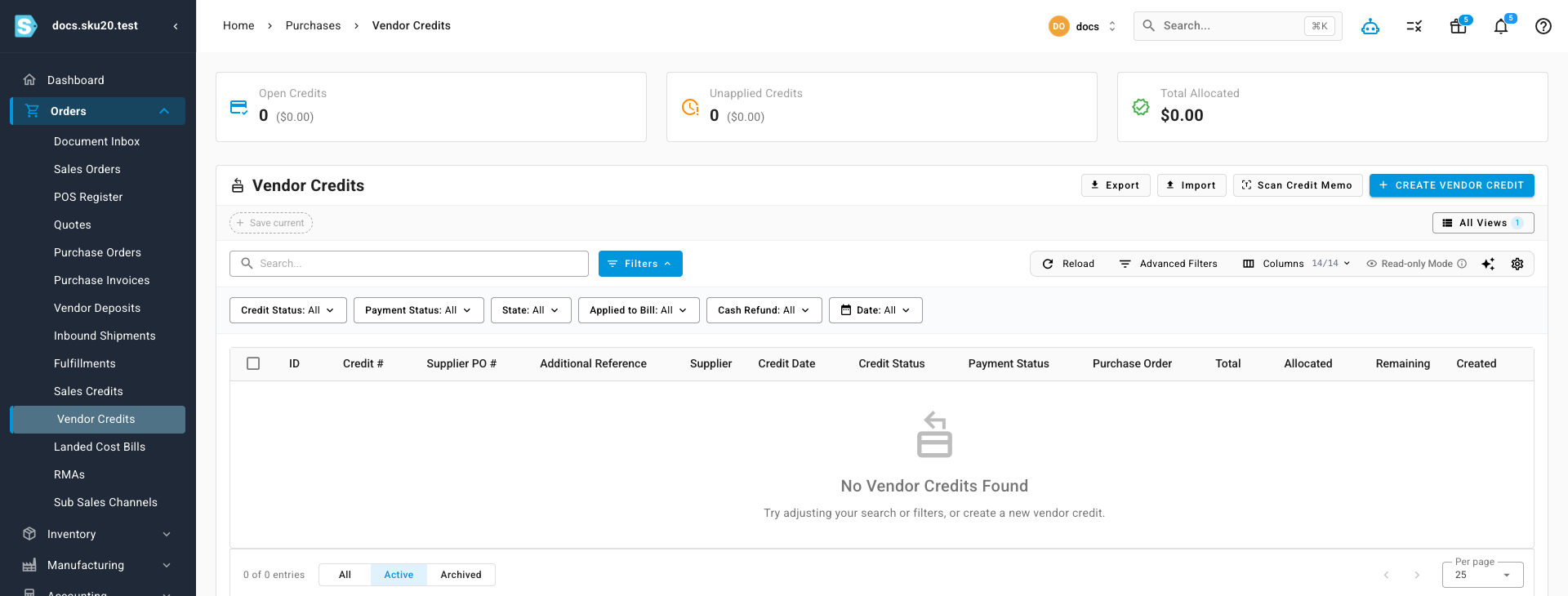
A vendor credit is money the supplier owes back to you — for returned or damaged goods, a price adjustment, an over-billed invoice, or a refund. You manage credits from the purchase order (PO) they belong to, on the PO's own Vendor Credits tab.
This guide covers creating a credit, resolving an over-billed invoice with one, scanning a supplier's credit memo, and what happens to your stock and its cost when a credit returns physical goods.
For money flowing the other way — prepayments you make to the supplier before delivery — see Vendor deposits.
Vendor credit vs. supplier invoice
These two documents point in opposite directions. Getting them straight is the whole game:
| Supplier invoice | Vendor credit | |
|---|---|---|
| Who owes whom | You owe the supplier | The supplier owes you |
| Effect on your balance | Increases what you owe | Reduces what you owe, or gets you a refund |
| Typical reason | The supplier is billing you for goods | Returned/damaged goods, a price dispute, an over-bill, a rebate |
| Where to record it | Record a supplier invoice | This page |
Think of a vendor credit as a "negative invoice." An invoice adds to your bill; a credit chips away at it (or sends money back). If you find yourself about to record what the supplier owes you, you want a credit — not an invoice.
Before you begin
- Open the purchase order you want to work with from Orders → Purchase Orders. The examples below use PO-DOCS-0001 (supplier Acme Supplies, destination Main Warehouse).
- Vendor credits have their own tab on the PO detail page: Vendor Credits. The tab badge shows how many are linked.
- You can only credit units you have already received (physically booked into the warehouse), so receive stock before raising a return credit. See Receive stock against a PO.
Where vendor credits live
Open the PO and select the Vendor Credits tab. When credits exist, a summary row shows three totals for the PO:
| Total | What it means |
|---|---|
| Total Credit | The combined value of all active credits on this PO. |
| Allocated | How much of that credit has been applied against a bill or refund. |
| Remaining | Credit value still unused (Total Credit − Allocated). |
Below the summary, each credit gets one row showing its credit number, credit date, a credit status chip, a payment status chip, and the credit amount. Click a row to open the credit's detail page — it carries a back link to this PO.
When no credits exist yet, the tab shows an empty state explaining that credits record returns, price adjustments, or supplier refunds against this purchase order.
Create a vendor credit against a PO
There are two entry points, and both open the Create Vendor Credit dialog already linked to this purchase order:
-
On the Vendor Credits tab, click Credit (or Create Vendor Credit from the empty state). Alternatively, from the PO's More menu (⋮), click Create Vendor Credit.
-
Under What are you creating this credit for?, choose the tile that matches your situation:
Tile Use it for Moves stock? Return or damage goods Sending product back to the supplier or writing it off Yes — updates on-hand stock and COGS (Cost of Goods Sold) Adjust, rebate, or refund A money-only credit: price dispute, freight error, or volume rebate No — no stock movement Scan credit memo Uploading the supplier's document and letting SKU.io read it Depends on the extracted lines -
Confirm the Purchase Order (pre-filled with the PO you started from) and the destination Warehouse.
-
Enter the supplier's own Credit Memo # if they printed one; leave it blank to auto-number the credit.
-
Add the lines being credited from the line picker. For each product line, the picker shows what you received, how much has already been credited, and the available quantity you can still credit.
-
Click Create.
What you'll see: the new credit appears on the Vendor Credits tab, and its value rolls into the PO's Total Credit / Allocated / Remaining summary.
A worked example
You received 100 bottles at $8.50 each on PO-DOCS-0001. On inspection, 5 arrived cracked and the supplier agrees to credit them.
- Click Credit → choose Return or damage goods.
- Add the bottle line and enter a quantity of 5.
- Click Create.
The credit is worth 5 × $8.50 = $42.50. That $42.50 reduces what you owe Acme Supplies, and the 5 cracked bottles come back out of your on-hand stock at their original cost. The PO summary now reads Total Credit $42.50.
You can only credit what you received
The available quantity on each line is the received quantity minus what has already been credited on other credits for that line. You can't credit more than you received, even if you ordered more — this keeps returns tied to real stock. Receiving more (or voiding an earlier credit) raises the available quantity.
The PO's Total Credit, Allocated, and Remaining figures include only active credits. A credit in Draft or Void status is excluded from those totals — and from the PO's invoice reconciliation — until it becomes active.
Resolve an over-billed invoice with a credit
When a supplier bills you for more than you ordered or received, the invoice check (the 3-way match) flags that line as Over-billed and offers a Resolve with credit action.
To reconcile the line — bring the bill and the credit into agreement so nothing is left outstanding:
- On the invoice's 3-Way Match tab, find the Over-billed line and click Resolve with credit.
- The Resolve over-bill with vendor credit dialog opens, previewing the Ordered, Received, Billed, and Over-billed quantities and the credit it will raise.
- Confirm.
SKU.io creates a vendor credit against the same PO to offset the excess, tying the over-bill directly to the credit that cancels it.
What you'll see: the Over-billed flag clears, the new credit appears on the Vendor Credits tab, its value rolls into the PO totals, and the invoice line reconciles to complete.
Worked example: you ordered 100 bottles at $8.50 but the supplier bills 105. The extra 5 units (5 × $8.50 = $42.50) are the over-bill. Resolving with a credit raises a $42.50 vendor credit that cancels the excess, so you pay only for the 100 you agreed to. For how the over-billed flag is detected, see Invoicing and the 3-way match.
Scan a supplier credit memo (OCR)
When the supplier emails a credit memo as a document, let SKU.io read it with OCR (Optical Character Recognition — reading text off an image or PDF) instead of keying it in:
- In the Create Vendor Credit dialog, choose the Scan credit memo tile.
- In the Scan Credit Memo dialog, upload the supplier's credit-memo file. It's automatically linked to this PO and supplier.
- Start the scan. A Scan Credit Memo: task appears in the job tray (the progress tray at the bottom of the screen) and pulls the document's details out for you.
- When it finishes, SKU.io opens the extracted credit for review, so you can confirm the details and create the credit.
Scanned documents also feed the Document Inbox queue. If a document you scanned as a supplier invoice turns out to be a credit, you can reclassify it as a credit right there — no need to upload it again.
Credit statuses
A vendor credit carries two independent status chips: one for the document's lifecycle, one for how much of its money has been used.
| Chip | Values | Meaning |
|---|---|---|
| Credit status | Draft, Open, Closed, Void | The document's lifecycle. New credits open as Open; Draft and Void are excluded from PO totals. |
| Payment status | Unapplied, Partially applied, Applied, Refunded | How much of the credit's value has been used against bills or refunded back to you. |
How credits affect the PO's invoice status
An active (non-void) vendor credit counts toward the purchase order being fully invoiced — a credited quantity offsets the ordered quantity the same way an invoiced quantity does.
This is why a PO whose balance was settled by a credit, rather than a bill, can still reach Invoiced. For example, if the supplier bills 8 of 10 units and credits the other 2, the line reconciles to 10 and reads as fully invoiced. See Invoicing and the 3-way match.
What a return does to your stock and its cost
A vendor credit created for Return or damage goods is the way you return received stock to the supplier. When you create it, SKU.io removes those units from your on-hand inventory and draws their exact original cost back out — the specific cost each unit came in at when you received it.
SKU.io values inventory using FIFO (First-In, First-Out) — the oldest stock is treated as sold or returned first, and every unit remembers the price it arrived at. A return unwinds the receipt at that same price, so your COGS (Cost of Goods Sold) and inventory value stay accurate to the penny rather than using a rough average.
Because a return draws down real cost from units you still hold, it's only possible while that stock is on hand. If the units have already been sold, transferred, or otherwise used up, SKU.io can't reverse the receipt — there's nothing left to return. In that case, use an Adjust, rebate, or refund credit instead, which is money-only and moves no stock.
For the full receipt-to-inventory story, see How a PO becomes inventory.
How vendor credits reach your accounting
Vendor credits post their own entries to your accounting, separate from the PO's own accounting entry for received stock. Those entries are what your connected accounting software (such as Xero or QuickBooks) mirrors, so a credit shows up on the supplier's account there just as it does in SKU.io. For how the PO itself posts when stock is received, see How a PO becomes inventory.