Browse, filter, and manage the purchase orders list
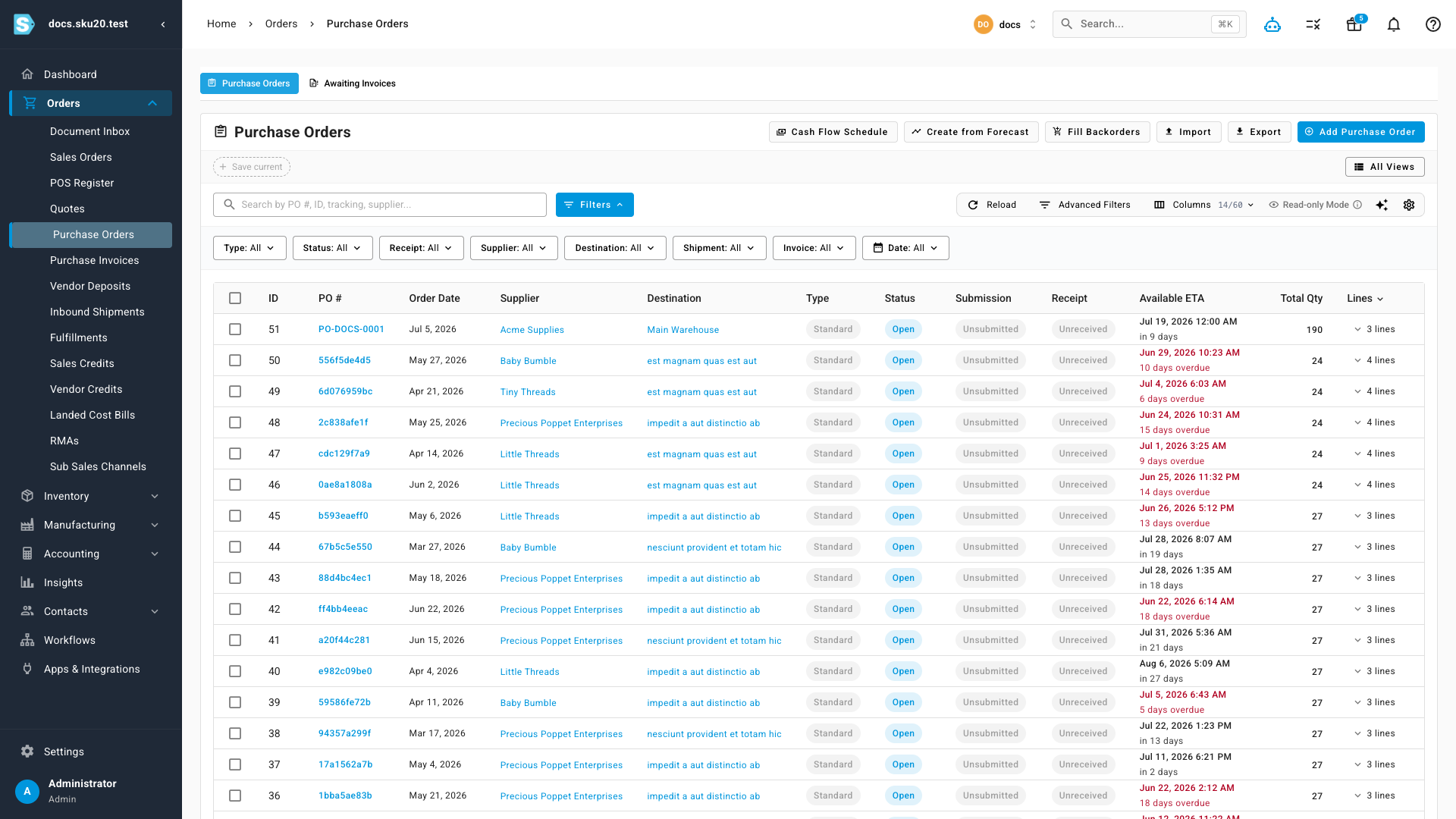
The Purchase Orders list is the home screen for everything you order from suppliers. A purchase order (PO) is the document you send a supplier to buy stock. From this list you can search and filter thousands of POs, tune which columns show, save reusable views, act on many orders at once, export the results, and open the cash-flow schedule. This guide covers browsing the list and every management action you can run from it.
Before you begin
- Open the list at Orders → Purchase Orders. The screen opens on the Purchase Orders tab; a sibling Awaiting Invoices tab lists POs still waiting on a supplier invoice (see Record a supplier invoice).
- Anyone with access to the list can browse, search, filter, and expand rows. Individual management actions are permission-gated. Buttons you lack permission for don't appear.
| Action | Permission required |
|---|---|
| Import | Import purchase orders |
| Export (list or single-PO documents) | Export purchase orders |
| Add Purchase Order | Create purchase orders |
| Approve and Submit (bulk) | Approve purchase orders |
| Archive / Unarchive | Update purchase orders |
| Delete | Delete purchase orders |
- The examples below use PO-DOCS-0001 (supplier Acme Supplies, destination Main Warehouse).
Browse and search the list
Each row is a purchase order. Several cells are clickable shortcuts:
- PO # opens the order's detail page.
- Supplier opens the supplier's CRM (Customer Relationship Management) record.
- Destination opens the warehouse.
- Any Invoices link opens their purchase invoices.
- Type in the Search box to match across several fields at once: PO number, ID, tracking number, order status, submission format, supplier name, item SKU (Stock Keeping Unit — the code that identifies a product), and supplier invoice number.
- Click a column header to sort by it. Most columns are sortable; a few are display-only and don't sort — Type, Lines, Tags, Invoices, Age, and the address columns.
- Use the pagination controls at the bottom to move between pages and set the page size (10, 25, 50, 100, or 200 per page). The footer shows a running count such as "25 of 312 entries", and an empty list reads "0 of 0 entries".
You can switch the whole grid between Table and Grid view with the view toggle in the toolbar.
Grid view supports inline editing of common fields — supplier, destination, dates, tracking number, payment term, and more. Each edit saves as you leave the cell, so there's no separate Save step.
Preview a PO's line items inline
- In the Lines column, click the row's chevron. When a PO has a single line, the cell shows that line's SKU; otherwise it shows a line count such as "3 lines".
- The row expands to a compact table of its line items — SKU, Barcode, Product, Received (received / ordered), Price, and Total — without leaving the list.
- Use the chevron in the Lines column header to expand or collapse every visible row at once. A banner shows how many rows are expanded, with a Collapse All shortcut.
What you'll see: the row grows to show its lines beneath it, and the list stays in place — no page navigation.
Filter the list
Quick-filter dropdowns sit above the grid: Type, Status, Receipt, Supplier, Destination, Shipment, Invoice, and a Date filter. Pick a value in any of them to narrow the list; combined filters compose (they all apply together).
For anything more precise, click Advanced Filters in the toolbar. The builder groups every filterable attribute — Order Info, Statuses, Fulfillment, Supplier, Destination, Line Items, Totals, and more — and lets you combine conditions with and / or logic. Active advanced filters appear as removable chips beneath the toolbar; click a chip to edit it or the × to remove it. For the full list of columns and the filters available on each, see List columns and filters.
Show, hide, and reorder columns
Click Columns in the toolbar to choose which columns are visible. The list ships with a core set shown and many columns hidden by default (currency breakdowns, supplier and destination address fields, submission format, timestamps). Any custom fields and logistics-tracking dates you've configured for purchase orders appear here as columns too.
Show active, archived, or all POs
The pagination footer has an All / Active / Archived toggle. Archiving keeps a PO out of the everyday list without deleting it — a way to file away completed or abandoned orders you may still want to look up later.
| Toggle | What it shows |
|---|---|
| Active (default) | Hides archived POs |
| Archived | Only archived POs |
| All | Both active and archived |
See Act on a single PO from the list to archive or restore an order.
Save and reuse a view
Once you've dialed in filters, columns, and sort, save them as a named view so you can return to the same slice with one click. Saved views live in the favorites bar at the top of the list and are specific to purchase orders. A saved view remembers your filters, visible columns, and sort together.
If you mark a view as your default, the list applies it automatically on load — so the first results already reflect your preferred filters rather than briefly flashing the unfiltered list.
Act on a single PO from the list
Each row has icon buttons on the right, and right-clicking a row opens a context menu.
| Action | Where | What it does |
|---|---|---|
| Archive / Unarchive | Archive icon (toggles by state) | Moves the PO into or out of the archive after you confirm. Archived items can be restored later. |
| Delete | Red delete icon | Permanently removes the PO after you confirm. The dialog warns that deleting can't be undone. |
| Right-click menu | Right-click the row | Offers View Purchase Order, View Supplier, and View Destination (each opens in a new browser tab), plus Archive / Unarchive and Delete. It also has per-column quick filters to show only rows matching the value you clicked, or to filter that value out. |
Act on many POs at once
- Select rows with the checkboxes in the first column. A bulk-actions bar appears showing how many items are selected.
- Choose the scope with the toggle (see the warning below).
- Click the action you want:
| Bulk action | What it does |
|---|---|
| Approve | Approves the selected draft POs. See Approve and submit a PO. |
| Submit | Submits the selected POs to their suppliers. |
| Archive / Unarchive | Moves the selection into or out of the archive. Only the relevant button shows, based on whether the selection is already archived. |
| Delete | Permanently deletes the selection after you confirm. |
- Confirm in the dialog. Use Clear Selection to deselect without acting.
The scope toggle has two settings, and each shows its count in parentheses:
- Selected Only — acts on just the rows you checked.
- All Filtered — acts on every PO that matches your current filters, including rows on other pages you can't see.
For example, if your filters match 312 POs and only 25 are on screen, All Filtered (312) will archive, submit, or delete all 312 — not the 25 you're looking at. Before running a bulk Delete or Submit with All Filtered, glance at the count in parentheses and confirm your filters are narrowed to exactly the set you intend. Bulk deletes can't be undone.
Bulk Approve and Submit report partial results: if some POs can't be processed (for example, an empty PO can't be approved), the successful ones still go through and you get a warning listing which failed and why. Bulk Delete honors the same per-PO safeguards described below — a PO that can't be deleted is skipped rather than forcing the whole batch to fail.
Delete a purchase order
Deleting a PO removes it and everything derived from it, all in one step. SKU.io deletes:
- the PO's line items;
- any inbound shipments and goods receipts recorded against it;
- the stock-cost history those receipts created (the First-In, First-Out (FIFO) cost layers SKU.io uses to value your inventory — oldest stock is counted as sold first);
- the matching inventory movements and adjustments;
- any bills raised from it;
- any linked Amazon inbound plan; and it unlinks associated Amazon FBA (Fulfillment by Amazon) and AWD (Amazon Warehousing and Distribution) shipments.
Deleting a dropship PO also recalculates the linked sales order's fulfillment status.
Because a delete cascades through receipts, stock-cost layers, and bills, treat it as a last resort — use it only for orders that should never have existed. To take a completed or abandoned PO out of your everyday list without destroying its history, archive it instead.
Two guardrails block a delete and return an explanatory message:
| Blocker | Why it's blocked | How to proceed |
|---|---|---|
| The PO has purchase invoices. | A PO with recorded supplier invoices can't be deleted. | Remove or void the invoices first. |
| The PO is received and its receipts were already used. | The received stock has been consumed (for example, sold or shipped) with no offsetting positive inventory to cover it. Deleting would drive inventory negative. | Remove the sales-order usages, or add other positive inventory events, before deleting. |
You can also delete a PO from its detail page: open the More menu (⋮) in the header and choose Delete, then confirm. On success you're returned to the list.
Delete a single line item
To remove one line from a PO (rather than the whole order), open the PO and delete the line from its lines grid. A line can't be deleted when:
- it has already been invoiced ("Invoice issued for this purchase order line");
- it's the only remaining line on the PO ("Can't delete last line of a purchase order"); or
- it has receipts against it.
Deleting a line releases any awaiting-receipt backorder coverage it was providing back to planned. (A backorder is a customer order you can't fill from stock yet — an incoming PO line can be earmarked to cover it, and deleting that line hands the coverage back.) Full line editing lives in Edit a PO and its line items.
Export the list
- Click Export in the header to open the export dialog.
- Pick a scope:
| Scope | What it exports |
|---|---|
| All records | Every PO, ignoring your current filters. |
| Filtered results (default) | Every PO matching your active filters. |
| Current page | Just the rows on the page you're viewing. |
| Selected records | The rows you've checked (shown only when you have a selection). |
- Pick a content mode:
- PO Summary — one row per purchase order.
- PO with Line Items — one row per line item, with the PO details repeated on each.
- Pick a file format: XLSX (Excel) or CSV.
- Click export. The file downloads with a timestamped name.
The file includes exactly the columns you have visible in the grid — including any custom-field and logistics-tracking columns — so tailor your columns first if you want a specific layout. (In PO with Line Items mode the ten line-item columns are always included in full, on top of your visible PO columns.)
For the full list of every column each mode produces, see Exportable purchase order columns reference. A list export is built for reading, not re-importing — to bulk-create POs from a file, start from the import template instead.
Export documents from a single PO
Open a purchase order and use the Export dropdown in its header for document-style outputs:
- Download PDF — the supplier-facing PO document.
- Export CSV — the PO's lines as CSV.
- Print Pick List — a receiving pick list that opens inline in a new browser tab, ready to print.
Each item shows a progress indicator while it downloads, and only one export runs at a time — the others stay disabled until the current one finishes. All three require the Export purchase orders permission.
Open the cash-flow schedule
Click Cash Flow Schedule in the header to open a planning report that projects upcoming PO payment obligations onto a timeline or calendar. For how to filter, group, and read it, see Purchase order cash-flow schedule.
Common problems
| Symptom | Likely cause | Fix |
|---|---|---|
| A bulk action affected far more POs than you expected. | The scope toggle was on All Filtered, which acts on every matching PO across all pages — not just the checked rows. | Narrow your filters, or switch to Selected Only, and re-check the count in parentheses before confirming. |
| Delete is blocked with a message about invoices. | The PO has recorded supplier invoices. | Remove or void the purchase invoices first, then delete. |
| Delete is blocked with a message about received stock. | The received stock has already been sold or shipped, so deleting would drive inventory negative. | Remove the sales-order usages or add other positive inventory events first. |
| A line item won't delete. | It's been invoiced, it's the last remaining line, or it has receipts against it. | Void the invoice, or keep at least one line — a PO must always have one line. |
| An expected button (Import, Export, Approve, Delete) isn't showing. | You lack the permission it requires; unavailable buttons are hidden, not greyed out. | Ask an administrator to grant the matching permission from the table above. |
| A column you configured isn't in the grid. | It's hidden, or it's a custom / logistics-tracking field that isn't switched on. | Open Columns in the toolbar and enable it. |