Ship dropship POs and mark Amazon POs as shipped
Most purchase orders (POs) ship stock into your own warehouse, where you receive it. Some don't. This guide covers the two that behave differently:
- An Amazon FBA (Fulfillment by Amazon) or AWD (Amazon Warehousing & Distribution) PO sends stock into Amazon's network rather than to your shelves. FBA is Amazon's fulfillment program that picks, packs, and ships your orders from Amazon warehouses; AWD is Amazon's bulk storage program that feeds stock into FBA.
- A dropship PO has the supplier ship goods directly to your customer, so the stock never touches your warehouse at all.
Because the goods land somewhere other than your warehouse, these POs differ from a standard PO at approval, shipping, and receiving. This guide covers reserving inventory for FBA, marking FBA/AWD orders as shipped, and shipping a dropship PO.
For the model and the reasons behind these differences, see How dropship and Amazon POs differ from a standard PO. Unfamiliar with a term below? Check the purchase orders glossary.
Before you begin
| You need to… | Required permission |
|---|---|
| Approve a PO (including Reserve Inventory) | Approve purchase orders |
| Mark an order as shipped | Update purchase orders |
| Ship a dropship PO | Update purchase orders |
How SKU.io decides which kind of PO you're looking at:
| PO type | How it's identified | Badge on the PO detail page |
|---|---|---|
| FBA | Destination is an Amazon FBA warehouse | Orange FBA badge next to the PO number |
| AWD | Destination is an Amazon AWD warehouse | Orange AWD badge next to the PO number |
| Dropship | Linked to a sales order, ships from the supplier's warehouse | Teal Dropship badge naming the linked sales order |
Dropship POs are created from a sales order, not from the Add Purchase Order modal. Creating them is covered in the sales order fulfillment guides; this article picks up once the dropship PO already exists.
New to the PO lifecycle? See How purchase order status works and the status reference.
Reserve inventory for an FBA purchase order
For a draft PO whose destination is an Amazon FBA warehouse, the primary approval button reads Reserve Inventory instead of Approve. Clicking it approves the order exactly the way Approve does — the status moves from Draft to Open — and it starts treating the ordered quantities as committed to the Amazon shipment (reserved, meaning set aside for this shipment and no longer available to promise elsewhere).
- Go to Orders → Purchase Orders.
- Open the draft FBA PO — a PO whose Destination is an Amazon FBA warehouse.
- Click Reserve Inventory.
What you'll see: the PO status changes from Draft to Open, and the ordered quantities are now committed to the Amazon shipment.
A few things to know:
| Behavior | Detail |
|---|---|
| The label depends on the destination | Only FBA destinations show Reserve Inventory. AWD and standard-warehouse destinations show Approve. The action is identical — it approves the draft. |
| Save edits first | The button is disabled while unsaved line changes are still saving. Wait for edits to finish, then click it. |
| Backorder coverage | Approving can add backorder-coverage rows to the lines. (A backorder is demand you can't fill from current stock; the coverage row records which incoming order will cover it.) The line grid refreshes automatically, so these appear without reloading the page. |
| Bulk approval | You can approve several POs at once from the list. If one fails, SKU.io shows the specific per-line reason so you can fix and retry. See Approve and submit a purchase order. |
Mark an FBA or AWD purchase order as shipped
Amazon-managed POs aren't received manually. Instead, once the order is Open, you mark it as shipped to hand it off to Amazon's inbound tracking. This creates a pending inbound record — a placeholder for stock that's on its way in — so SKU.io can later reconcile it (compare what Amazon actually receives against what you shipped).
- Open the Open FBA or AWD purchase order.
- Click Mark as Shipped.
- In the confirmation dialog, click Confirm.
What happens next depends on the destination:
| Destination | What SKU.io does |
|---|---|
| FBA | Creates a pending inbound record and marks the shipment as shipped to Amazon FBA. This routes through Amazon inbound management and records any shortages needed to reconcile the shipment. |
| AWD | Creates a pending inbound record for AWD. Ledger tracking begins once Amazon processes the shipment. |
What you'll see: the Mark as Shipped button disappears (it only shows while the PO is Open with no pending inbound yet), and the PO now has a pending inbound attached.
Common problems when marking as shipped
| Message / symptom | What it means | What to do |
|---|---|---|
| "Only FBA purchase orders can be manually marked as shipped." | You tried to mark a standard-warehouse PO as shipped. Only FBA and AWD POs support this. | Use the standard Receive flow instead. |
| "Purchase order has already been shipped." | The PO already has a pending inbound; SKU.io won't create a second one. | No action needed — it's already handed off. Track it under Amazon inbound management. |
| Marking as shipped fails with no pending inbound created | The FBA path requires a linked Amazon inbound shipment (and its Amazon integration connection) to exist for the order. Without one, there's nothing for SKU.io to hand the shipment off to. | Create and link the inbound shipment first — see below. |
The FBA "mark as shipped" step only works when the order is already tied to an Amazon inbound shipment — the shipment plan Amazon uses to book your stock into a fulfillment center. If none exists, the action fails instead of shipping.
To recover:
- In Seller Central, create (or locate) the inbound shipment plan for these units so Amazon has a shipment on file.
- Confirm your Amazon integration is connected in SKU.io (under Apps & Integrations) so that inbound shipment can sync in and link to this PO.
- Once the linked Amazon shipment appears on the PO, return here and click Mark as Shipped again.
Receiving FBA and AWD orders
You don't receive Amazon-managed POs with the Receive flow used for standard warehouses:
| Destination | How receiving is tracked |
|---|---|
| FBA | Tracked automatically through Amazon's inbound system. The Receipt status advances from Unreceived → Partially Received → Received as Amazon confirms units at the fulfillment center. |
| AWD | Managed through ledger uploads. On an AWD PO, the Receive button is inert and points you to the AWD Ledger instead. |
For standard-warehouse receiving, see Receive stock against a PO.
Editing is locked once a shipment is linked
When an FBA PO is linked to an Amazon inbound shipment, editing is restricted:
- The PO shows the banner "Editing is restricted because this FBA purchase order has an associated Amazon shipment."
- The Edit button is disabled, with a tooltip explaining the link.
- Amazon-managed POs can't be reverted to draft — the Revert to Draft action is hidden for them.
Once Amazon has a shipment on file for these units, changing the PO would put SKU.io and Seller Central out of sync. The lock keeps the two records agreeing on what was shipped.
Ship a dropship purchase order
A dropship PO fulfills a sales order directly from the supplier — the stock never lands in your own warehouse. Once the PO is Open, you record the supplier's tracking number to mark the goods as shipped to the customer and fulfill the linked sales order in one step.
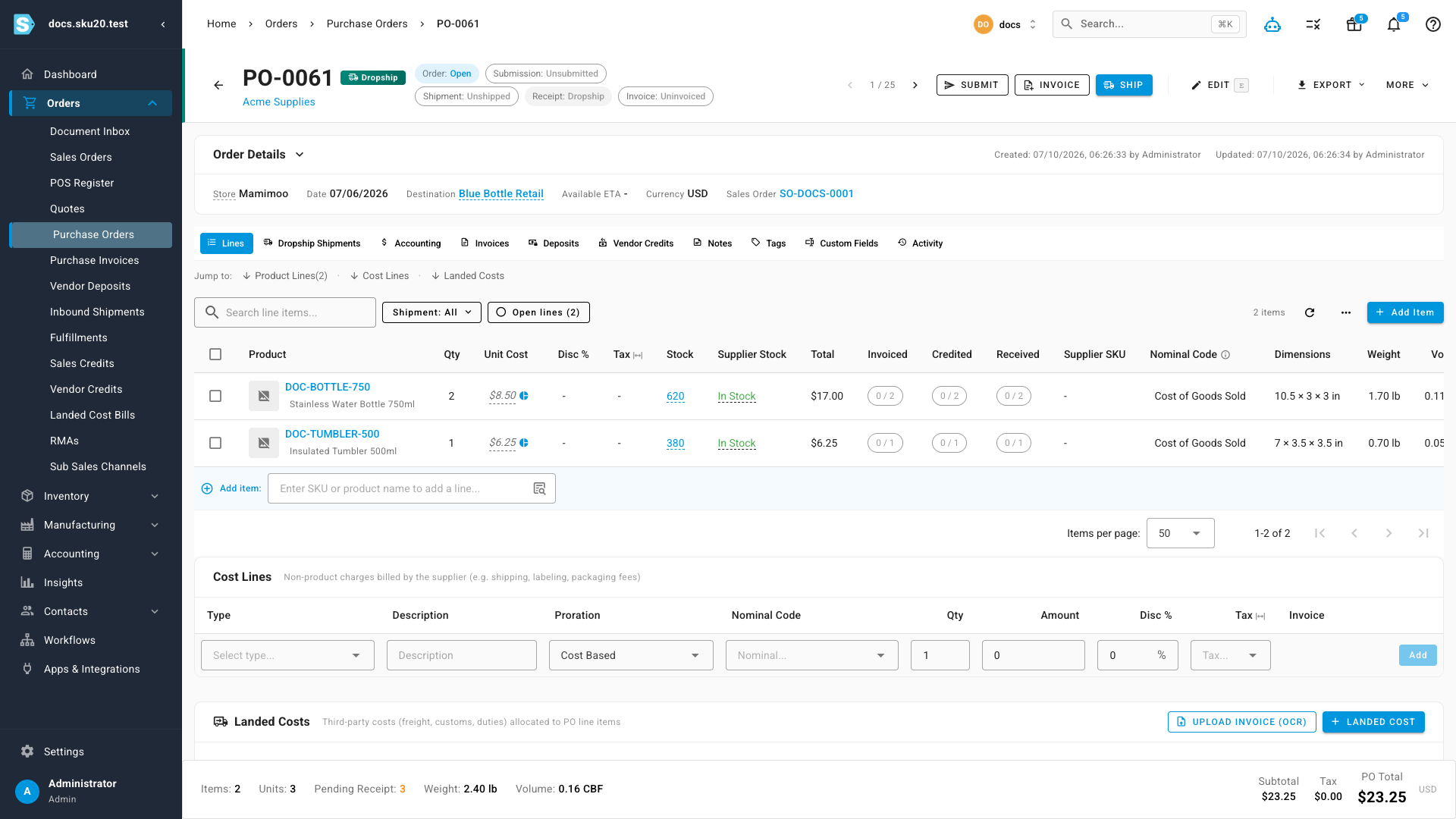
You can tell it's a dropship PO at a glance: the teal Dropship badge sits next to the PO number, the Receipt status reads Dropship (never Unreceived, because you never receive dropship stock), and the header links back to the sales order it fulfills.
- Open the Open dropship purchase order.
- Click Ship.
- In the Ship Dropship Order dialog, enter the Tracking Number the supplier provided (for example,
1Z999AA10123456784). - Click Ship.
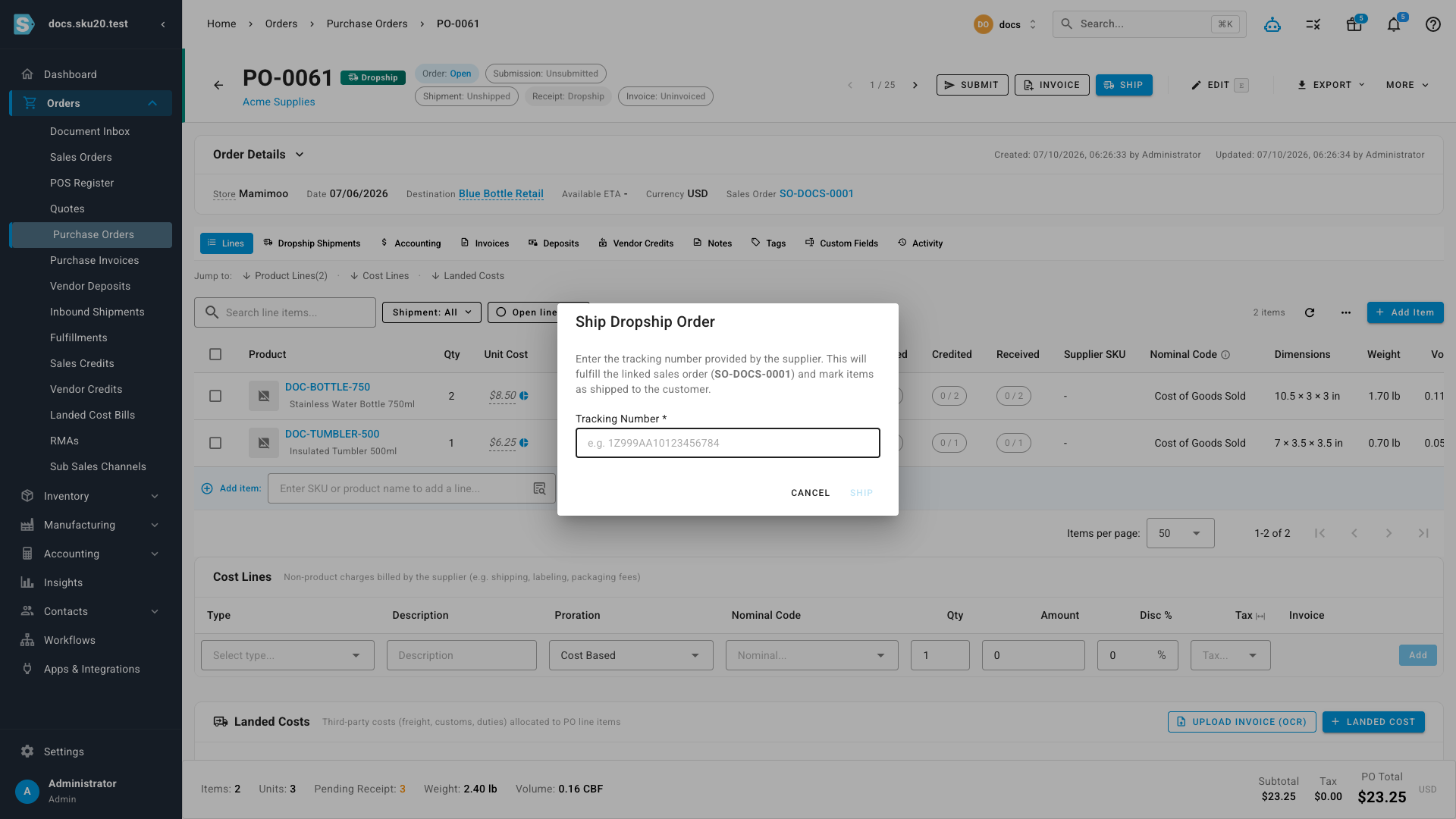
What you'll see: SKU.io fulfills the unfulfilled lines of the linked sales order at the supplier's warehouse, records the tracking number on the fulfillment, and confirms "Dropship order shipped — sales order fulfilled." The PO's Shipment status becomes Shipped to Customer, and its Receipt status reads Dropship — because dropship stock never lands in your own warehouse.
A few things to know:
| Behavior | Detail |
|---|---|
| The tracking number is required | The Ship button stays disabled until you enter one. |
| Ship replaces Receive | Dropship POs aren't received into your inventory, so there's no Receive action — Ship is the equivalent step. |
| Nothing left to fulfill | If the linked sales order is already fully fulfilled, shipping returns an error saying the sales order has already been fully fulfilled. |
| Auto-submit on approval | If the supplier has automatic dropship submission enabled, approving the dropship PO also submits it to the supplier in the same step. See Approve and submit a purchase order. |