Create purchase orders from a demand forecast
Instead of building a purchase order line by line, you can let SKU.io calculate what to reorder and raise one purchase order (PO) per supplier from the result. It does this from a demand forecast — a projection of how much of each product you'll need to buy, based on your recent sales or a target stock level. This is the fastest way to reorder to a target stock level, replenish based on recent sales, or fill open backorders — and the POs it creates stay linked to the forecast that produced them, so you can always see where the numbers came from.
A few terms you'll meet on this page:
| Term | What it means |
|---|---|
| Backorder | A confirmed customer order (or line) you can't fulfil yet because you're out of stock. Filling backorders means buying enough to clear that unmet demand. |
| Lead time | How many days a supplier takes to deliver after you place an order. Longer lead times mean you must order sooner and in larger amounts. |
| MOQ (Minimum Order Quantity) | The smallest quantity a supplier will accept for a product. If the forecast suggests fewer than the MOQ, SKU.io rounds up to the MOQ. |
| Incoming inventory | Stock you've ordered but haven't received yet. It's separate from on-hand inventory (stock physically in your warehouse now). |
| Backorder coverage | The link between a PO's incoming stock and the backorders it's meant to fill, so those units are reserved for that demand instead of being sold to someone else. |
For plain-language definitions of every term used across purchase orders, see the Purchase orders glossary.
Before you begin
- You need the Create purchase orders permission to create POs, and the Approve purchase orders permission if you want to approve them as part of creation.
- Each supplier you forecast for needs at least one supplier product with a cost, so the tool can suggest reorder lines and estimate what they'll cost.
- To forecast from sales history, you need sales orders in the period you choose. To fill backorders, you need open sales-order backorders for the supplier's products.
Build a forecast and turn it into purchase orders
The forecast-to-PO flow runs in the Inventory Forecasting Tool (under Inventory → Demand Planning), and the purchase-orders list links straight into it.
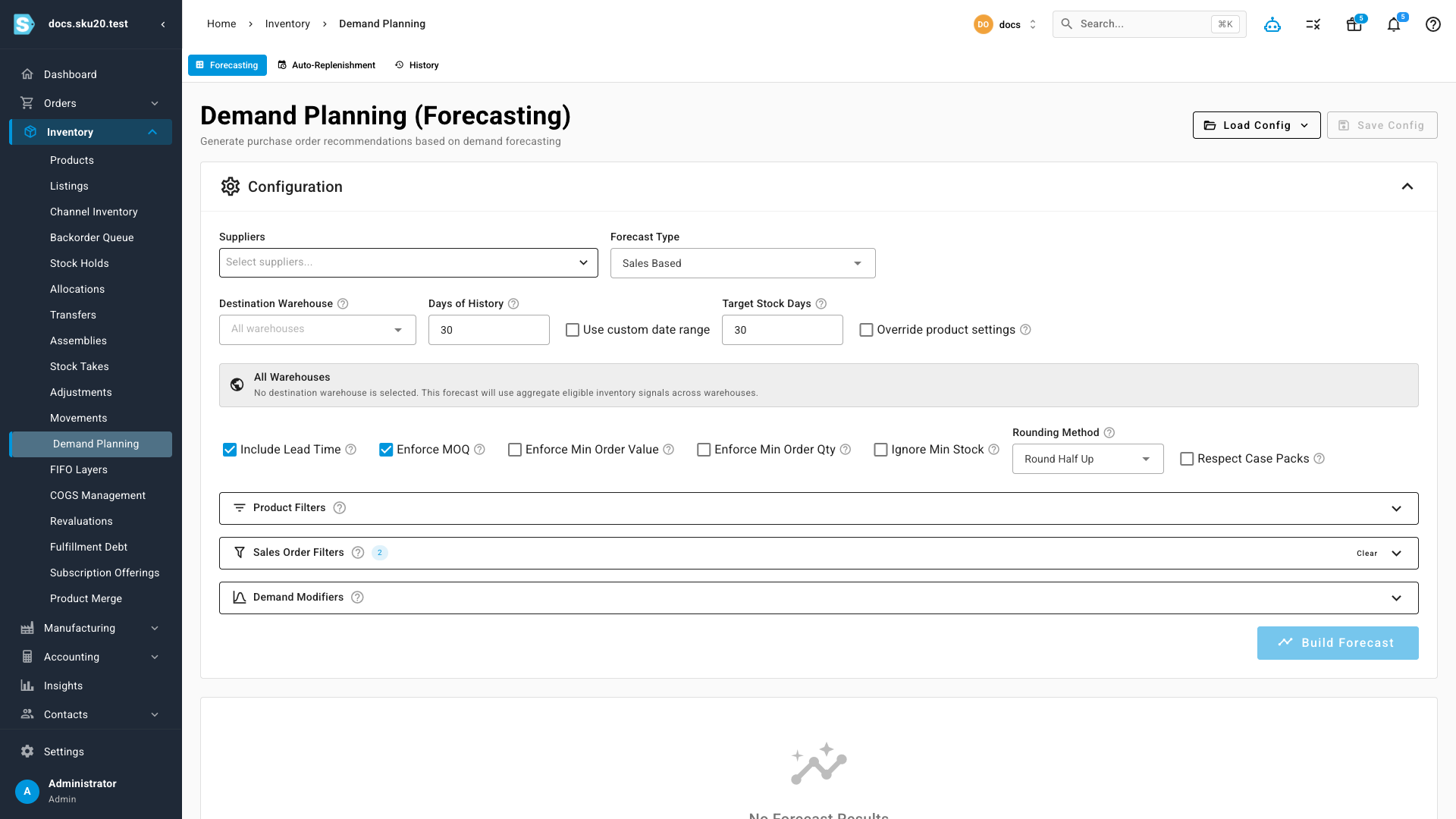
- Go to Orders → Purchase Orders. In the toolbar, click Create from Forecast to open the Inventory Forecasting Tool. (Click Fill Backorders instead to open the same tool preset to the backorder-fill mode.)
- Under the supplier selector, choose one or more suppliers to forecast for. You can select several and create a separate PO for each in one pass.
- Pick a Forecast Type (see the comparison table below).
- Set the forecast options for the type you chose. For Sales Based, set the Sales History window (a number of days, or a Date Range) and the Target Stock Days. Optionally toggle Use Lead Time and Use MOQ, and choose a Rounding method.
- Click Build Forecast. The tool returns a results table per supplier, with a suggested reorder quantity and estimated cost for each product. When you forecast several suppliers, each gets its own tab showing its item count.
- Review the suggested lines. You can edit any suggested quantity, deselect lines you don't want to order, and choose a supplier Pricing Tier to re-price the lines.
- Create the PO using one of the buttons:
- Create PO for Selected raises a PO for the lines you have checked on the active supplier's tab.
- Create PO for All raises a PO for every suggested line on that supplier.
- Create POs for all N suppliers raises one PO per supplier in a single action.
- In the Create Purchase Order dialog, confirm the Destination Warehouse and choose a Status: Draft (default) or Approved. If the order is below the supplier's minimum order value or quantity, the dialog warns you and asks you to tick the acknowledgement before it lets you continue. Click Create Purchase Order.
- On the success screen, each new PO is listed with its number, supplier, destination, and status. Click Open to jump to the PO's detail page.
What you'll see: for the demo supplier Acme Supplies, a Sales Based forecast into Main Warehouse produces a draft PO much like PO-DOCS-0001 — ready for you to review, edit, and approve.
Choosing a Forecast Type
| Forecast Type | What it orders | Best for |
|---|---|---|
| Sales Based | Projects demand from recent sales and reorders up to a target number of days of stock (your Target Stock Days). | Ongoing replenishment based on how fast a product actually sells. |
| Target Stock Level | Reorders each product up to a fixed Target Quantity you set, regardless of sales. | Keeping a set quantity on the shelf (for example, always 500 units). |
| Fill Backorders Only | Orders exactly the quantity needed to clear open backorders — no lead-time, MOQ, or rounding padding is added. | Clearing customer demand you already owe, nothing more. |
Use Lead Time and Use MOQ add padding so an order lasts through the supplier's delivery window and meets their minimum. Fill Backorders Only ignores both on purpose — it orders the exact shortfall and nothing extra.
A worked example — Sales Based reorder
Say you sell a bottle that costs $8.50 from your supplier, and over the last 30 days you sold 90 units — an average of 3 units per day. You build a Sales Based forecast with:
- Sales History: 30 days → average daily demand = 90 ÷ 30 = 3 units/day
- Target Stock Days: 30 → you want 30 days of stock on hand = 3 × 30 = 90 units of coverage
- On-hand inventory: 20 units already in the warehouse
The forecast works out the gap:
suggested quantity = target coverage − on-hand = 90 − 20 = 70 units
At $8.50 each, the estimated line cost is 70 × $8.50 = $595.00.
Now layer on the padding options:
- Use Lead Time (7 days): the supplier takes a week to deliver, so it adds 7 × 3 = 21 units to cover demand while you wait → 91 units.
- Use MOQ (100): the supplier won't ship fewer than 100, so the 91 rounds up to the MOQ → 100 units suggested, an estimated $850.00.
You can still edit any suggested quantity before creating the PO.
The most common frustration is a forecast that returns nothing to order. It almost always means the tool found no unmet demand for that supplier's products. Check each of these:
- Sales Based — there were no sales in your Sales History window, so projected demand is zero. Widen the window or pick a Date Range that contains sales.
- On-hand stock already covers the target — if you already hold enough to meet Target Stock Days (or the Target Quantity), the gap is zero, so nothing is suggested. Nothing is wrong here — it just means you're well stocked.
- Fill Backorders Only — the supplier has no open backorders, so there's nothing to clear.
- No costed supplier products — a supplier product needs a cost to be suggested. Add costs to the supplier's products and rebuild.
Rebuild the forecast after adjusting any of these.
Fill backorders for one supplier in a single step
If you only need to clear a single supplier's backorders, the quick-create modal does it without opening the forecasting tool.
- On the purchase-orders list, click Add Purchase Order (or press C).
- Select the Supplier, order date, Destination, and currency.
- Once the supplier is set, two shortcuts appear beneath the form. Click Fill Backorders.
SKU.io runs a backorder-fill forecast for that supplier, scoped to the destination warehouse you picked, then creates a draft PO containing every backordered line and opens it.
What you'll see: the new draft PO opens with one line per backordered product. If the supplier has no backordered items, you instead see "No backordered items found for this supplier" and no PO is created.
The modal's other shortcut, Create from Forecast, opens the full forecasting tool already scoped to the selected supplier — use it when you want the sales-based options rather than a straight backorder fill.
What approving a forecast PO does
A draft PO is only a plan — it doesn't reserve any incoming stock or cover any backorders yet, so you can still change it freely. Approving the PO is what activates the supply. On approval:
- The PO moves to Open and stamps its incoming quantity onto your inventory (as incoming, not on-hand), and locks in its currency exchange rate.
- Any backorders the forecast linked to the PO's lines are bound to those lines as backorder coverage, so the incoming quantity is reserved against that demand and can't be sold out from under it.
- Dropship POs whose supplier is set to auto-submit are also sent to the supplier on approval.
You can approve at creation time by choosing Approved in the Create Purchase Order dialog, or later from the PO itself — see Approve and submit a PO.
A PO that has no product lines and no cost lines can't be approved — there's nothing to activate.
For how order, receipt, and the other states interact, see How purchase order status works.
Refresh backorder coverage on an open PO
If new backorders appear after a PO is already open, you can re-link the PO's incoming quantity to that demand without editing the lines.
- Open the PO and go to its line grid.
- Click the ⋯ More actions menu and choose Refresh allocation coverage.
SKU.io re-checks coverage across the PO's lines so any newly coverable backorders are reserved against the inbound supply.
What you'll see: the confirmation "Allocation coverage refreshed". When the stock is later received, the reserved coverage is released into fulfillable inventory; see How a PO becomes inventory.
Refresh allocation coverage appears only on open, non-Amazon POs that are not yet fully received. It's hidden on a fully received PO, because re-running coverage there could clear the historical record of what filled what.
Each line can only cover as much backordered demand as it actually orders. If the backorders linked to a line add up to more than the line's quantity, saving the PO fails with "Total linked backorders quantity cannot exceed purchase order line quantity." Raise the line quantity or link fewer backorders, then save again.
See the forecast context on a created PO
Every PO created from a forecast keeps a snapshot of the forecast that produced it, so its origin is auditable.
- A compact banner at the top of the PO reads "Created from forecast type by user on date". Hover it to see the forecast's key settings, and click View Forecast Run to open the full forecast run in demand planning.
- The Forecast Context panel expands to show the full configuration: forecast type, target stock days, the sales-history window, the Use Lead Time / Use MOQ / rounding choices, any demand modifiers, and a count of any quantity adjustments you made after the forecast but before the PO was created.
Plan cash flow for upcoming POs
To see when forecast-driven and existing POs will come due for payment, click Cash Flow Schedule in the purchase-orders toolbar — see Purchase order cash-flow schedule.
Next steps
- Edit a PO and its line items — adjust suggested quantities, tax, and pricing before you approve.
- Approve and submit a PO — activate the PO and send it to the supplier.
- Receive stock against a PO — turn the inbound order into inventory.
- Create a purchase order — build a PO by hand instead.
- Import purchase orders from a spreadsheet — bring in POs in bulk.
- Purchase orders overview — the full lifecycle and the rest of this section.