Invoicing and the 3-way match
When a supplier's invoice arrives, you want to answer one question before you pay it: does this bill match what we actually ordered and received? The 3-way match answers it automatically. SKU.io lines up three records for the same goods — your purchase order, your goods receipt, and the supplier's invoice — and flags any line where the quantity or the price doesn't agree.
Getting this right is what stops you from overpaying for stock you never received, or for a price nobody agreed to.
The three documents being matched
"3-way" means three sources of truth are compared, pairwise:
- Purchase order — what you ordered, and at what price. On the example order PO-DOCS-0001 (supplier Acme Supplies), that's the quantity and unit cost on each line.
- Receipt — what physically arrived, recorded when you receive stock against the PO.
- Supplier invoice — what the supplier billed, entered as a purchase invoice whose lines map back to the PO lines.
When all three agree on quantity and price, the line is clean. When they disagree, the difference is a variance — a mismatch you resolve on purpose. SKU.io never silently overwrites one document with another; it shows you the gap and lets you decide.
If you haven't recorded a goods receipt yet, SKU.io still compares the two documents it has — the PO against the invoice — and labels it a 2-way match. Receiving the stock upgrades it to a full 3-way match, adding the "did we actually get it?" check.
Reading the 3-Way Match screen
Open a purchase invoice and select the 3-Way Match tab. Four cards summarize the reconciliation, and a PO vs Receipt vs Invoice table lays the three documents side by side.
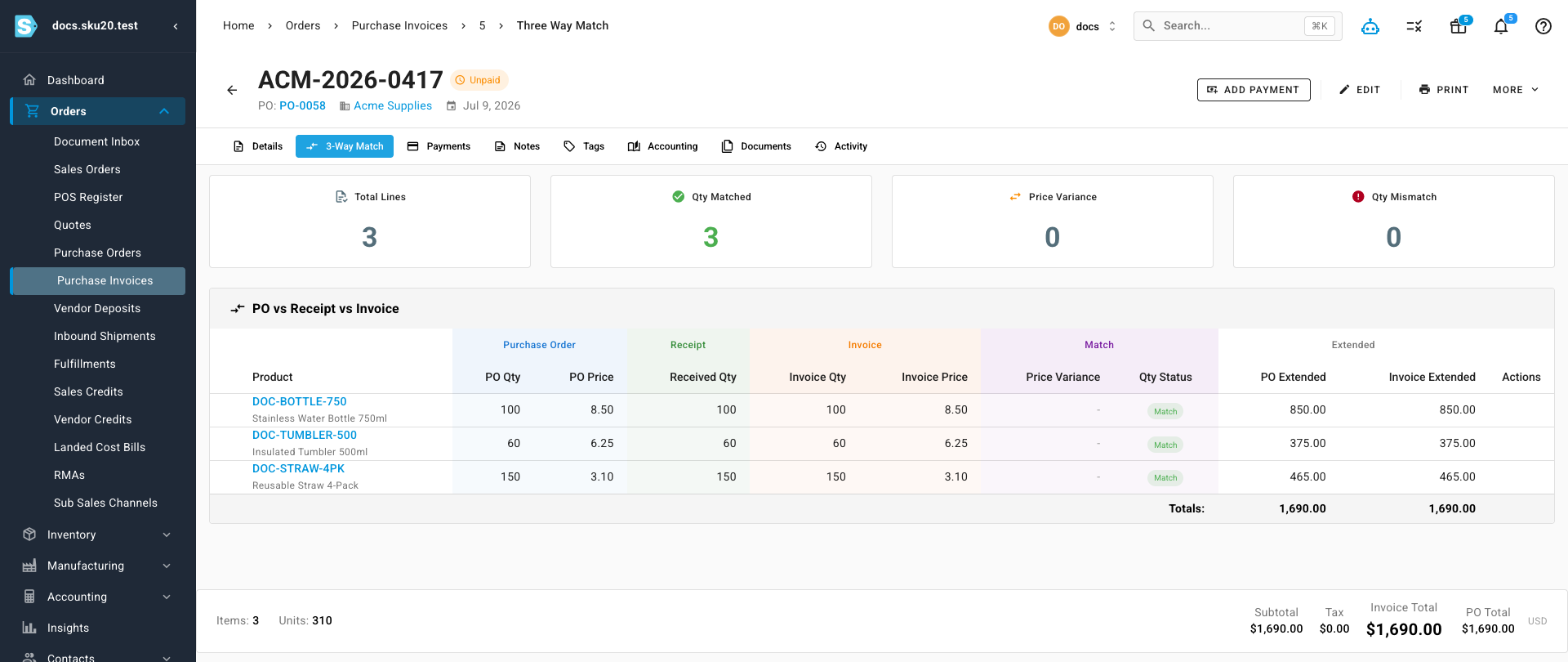
The four cards give you the at-a-glance verdict:
| Card | What it counts |
|---|---|
| Total Lines | Product lines on the invoice. |
| Qty Matched | Lines where ordered = received = invoiced. |
| Price Variance | Lines where the invoice price differs from the PO price. |
| Qty Mismatch | Lines where the invoiced quantity differs from what was ordered. |
In the screenshot every line reads Match with a zero price variance — a textbook clean invoice. Variances, when they exist, show up in the Price Variance and Qty Status columns of the table below.
Each line reports two kinds of variance:
- Quantity variance — the invoiced quantity against the ordered quantity, flagged as matched, over-invoiced (billed for more than you ordered), or under-invoiced (billed for less).
- Price variance — the invoice unit price against the PO unit price, shown as both a dollar and a percentage difference.
A worked example
Say you ordered 100 bottles at $8.50 each and received all 100. Two different invoices could arrive:
Price variance. The supplier bills 100 bottles, but at $8.75 each.
- Quantity: 100 ordered = 100 received = 100 invoiced → no quantity variance.
- Price: $8.75 − $8.50 = +$0.25 per unit, or +$25.00 on the line (100 × $0.25) — a +2.9% price variance.
The line is fully billed, but SKU.io flags the $25 you're being asked to pay above the agreed price, so you can query it or accept it before paying.
Over-bill (quantity variance). The supplier bills 105 bottles when you only ordered 100.
- The extra 5 units (5 × $8.50 = $42.50) are an over-bill; the line shows an Over-billed flag.
- You resolve it with a vendor credit for those 5 units, which offsets the excess and settles the line — see Resolving an over-bill below.
Resolving variances
Syncing the PO price from the invoice
When the supplier's price differs from the PO but is genuinely correct (a price rise you agreed to), you can adopt it instead of querying it. On the 3-Way Match tab, tick the affected lines and click Update PO prices to copy each invoice line's unit price onto its linked PO line.
This copies in one direction only — from invoice to PO, never the reverse. It's blocked once the invoice has been paid; the button is disabled with the tooltip Cannot update — invoice has been paid, so a settled financial record is never rewritten.
Resolving an over-bill with a vendor credit
When a supplier bills more than was ordered or received, the line shows an Over-billed flag and a Resolve with credit action. Choosing it opens the Resolve over-bill with vendor credit dialog, which previews the Ordered, Received, Billed, and Over-billed quantities and the credit it will raise. Confirming creates a vendor credit against the same PO to cancel out the excess.
What you'll see: the over-bill flag clears, the new credit appears against the PO, and the line reconciles to complete.
How a line becomes fully invoiced
Each product line is reconciled on its own. A line is fully invoiced once the supplier has billed or credited every unit you effectively ordered:
billed quantity + credited quantity ≥ effective ordered quantity
Three rules make this behave the way an accountant expects:
- Vendor credits count toward "billed." A vendor credit adds to the settled quantity instead of reopening the line. If a supplier bills you for 8 of 10 units and issues a credit for the other 2, the line reconciles to 10 and reads as fully invoiced. (Subtracting credits would reopen a line every time a legitimate credit was issued — a trap SKU.io deliberately avoids.)
- Short-closing lowers the target. "Effective ordered quantity" is what's still expected after any short-close. Short-close a line from 10 to 8, and it now needs only 8 units billed-or-credited to be complete.
- A final-invoice flag always completes the line. Marking a line's billing as settled (next section) forces it to fully invoiced regardless of any outstanding quantity.
Only product lines count toward completeness — charge lines (freight, fees) never gate it. A PO with no product lines is therefore never considered fully invoiced.
Marking a final invoice for a short residual
Sometimes a supplier ships and bills fewer units than ordered and tells you they'll never bill the rest. Left alone, that line keeps the PO stuck at Partially Invoiced forever. Marking the line's billing as settled — SKU.io's "final invoice" flag — closes the gap.
- Per line: on the Lines tab, open a product line's menu and choose Mark final invoice ("No more invoices expected"). To undo it, choose Reopen billing.
- Whole PO: from the Invoice status chip on the PO header, choose Mark final invoice to settle every remaining outstanding product line at once.
Marking a final invoice tells SKU.io "stop expecting more bills for this line." The line then reports fully invoiced no matter how many units were never billed — so use it only when the supplier truly won't invoice the rest, not to paper over a bill you're still chasing. You can always Reopen billing to undo it.
SKU.io rejects the action if the line is a charge line, is already settled, or is already fully invoiced (there's nothing to settle). The Invoice chip's popover explains the current verdict, for example "2 line(s) settled via credit; 1 marked final."
How the lines roll up to the PO's Invoice status
The per-line results combine into the PO's single Invoice status:
| Invoice status | What it means |
|---|---|
| Uninvoiced | No invoice, vendor credit, or final-invoice flag on any product line yet. |
| Partially Invoiced | At least one product line has a real invoiced quantity, a vendor credit, or a settlement — but the PO isn't fully invoiced yet. |
| Invoiced | Every product line is complete by the rule above. This stamps the PO as fully invoiced, finalizes its submission status, and — for a dropship PO — automatically closes the order. |
| Paid | The invoice has been fully paid. This value comes from your accounting software's sync, not from inside SKU.io. |
A PO that's been sent to the supplier but is still uninvoiced or partially invoiced appears on the Awaiting Invoices worklist, where you can chase the missing bill. For how invoicing sits alongside receipt and shipment status, see How purchase order status works.