Record a supplier invoice and reconcile
When a supplier bills you for a purchase order (PO), you record their invoice in SKU.io so the system knows how much of the order has actually been billed — line by line. Doing this drives the PO's Invoice status from Uninvoiced through to Invoiced.
This guide covers three jobs:
- Recording an invoice when it arrives.
- Chasing invoices that haven't arrived yet.
- Closing the gap when a supplier ships fewer units than ordered (a short-ship) and tells you they'll never bill the rest.
To reconcile an invoice is to line it up against what you ordered and what you received, and resolve any difference. SKU.io compares all three automatically — that check is the 3-way match. This page is the how-to; for the full explanation of matching and variances, see Invoicing and the 3-way match.
Before you begin
| Requirement | Detail |
|---|---|
| Permission | You need the Update purchase orders permission to request invoices from suppliers and to mark lines as settled. Creating the supplier invoice itself is done on the Purchase Invoices screen, which has its own permissions. |
| PO must be sent | Requesting an invoice only works once the PO has been sent — its submission status must be Submitted or Finalized. |
| PO must still owe a bill | The PO must still be Uninvoiced or Partially Invoiced. |
| Open the PO | Go to Orders → Purchase Orders and open the order. The examples below use PO-DOCS-0001 (supplier Acme Supplies, destination Main Warehouse). |
Understand the Invoice status
The Invoice chip in the PO header tracks billing — completely separate from receiving (the physical arrival of stock). It moves through four states:
| Invoice status | What it means |
|---|---|
| Uninvoiced | No invoice recorded yet. |
| Partially Invoiced | An invoice covers some, but not all, of the ordered quantity. |
| Invoiced | Every product line is fully billed (or credited, or settled). Ready to submit to accounting. |
| Paid | The invoice has been fully paid. This state comes from your accounting software's sync, not from SKU.io directly. |
A PO counts as fully invoiced when, for every product line, the invoiced quantity plus any non-void vendor credits (supplier refunds/adjustments recorded against the PO) reach the effective ordered quantity — or when you explicitly mark the line as final (see Mark the remaining quantity as final invoice). A PO with no product lines is never fully invoiced. The Invoices section on the PO shows the billed-versus-ordered amount and repeats this verdict, so the header chip and the section always agree.
For the exact completeness rule (including how credits and short-closes change the target), see How a line becomes fully invoiced.
Record a supplier invoice against a PO
When a supplier's invoice arrives, record it against the PO so the billed quantity is tracked line by line.
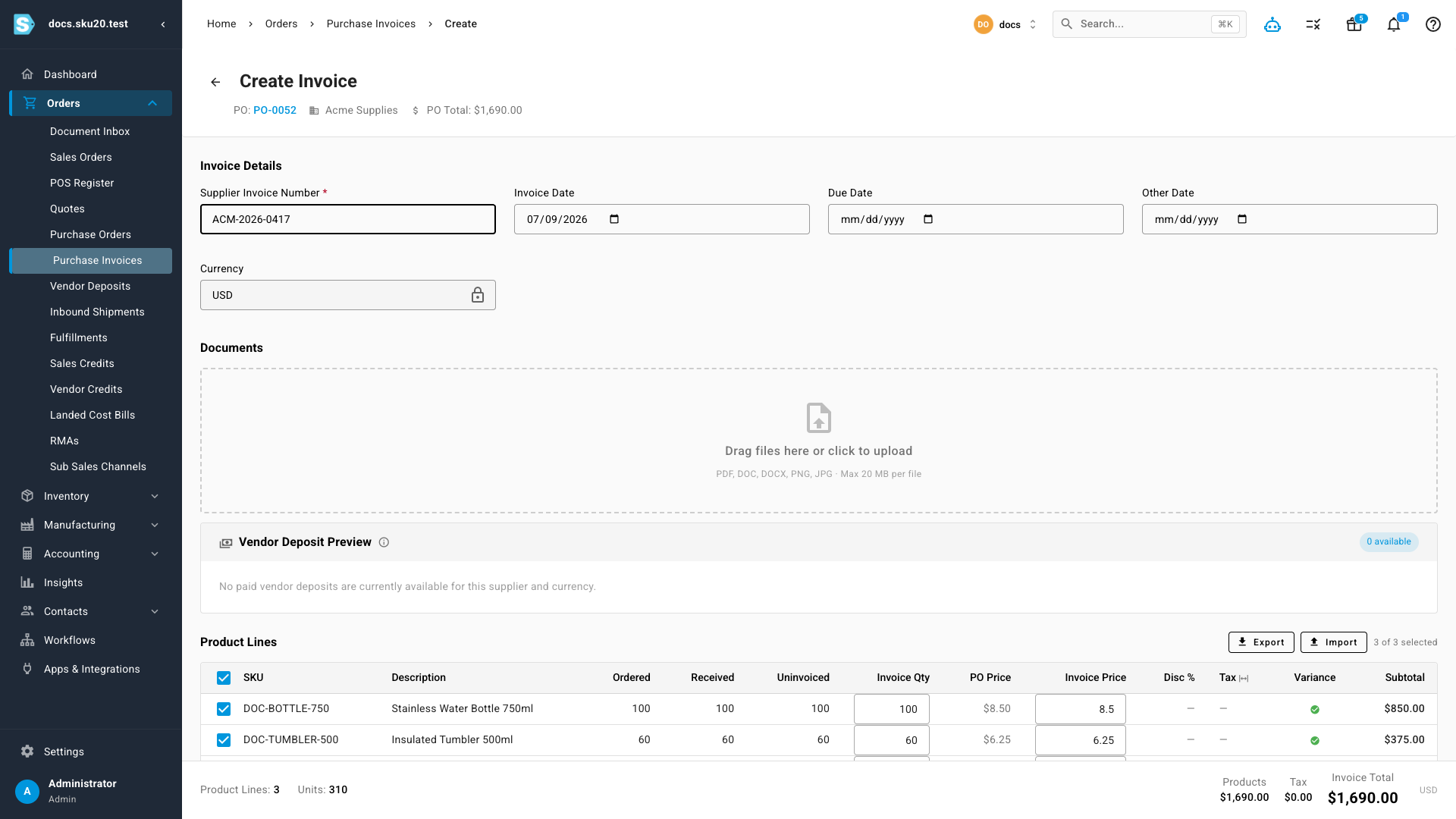
- Open the purchase order. In the header, click Invoice (or click Invoice / Create Invoice in the Invoices section further down the page).
- On the Create Invoice screen, enter the Supplier Invoice Number (required) — for example, the number printed on Acme Supplies' invoice.
- Set the Invoice Date. It defaults to today; change it to match the supplier's invoice.
- For each line, enter the quantity you're being billed for. Each line shows how much is still uninvoiced, so you only bill the outstanding units. The Expected on Save column previews what the PO will reflect once you save.
- Click Create Invoice.
What you'll see: the invoice is saved against the PO, the billed amount updates in the Invoices section, and the header Invoice chip advances to Partially Invoiced or Invoiced. If a vendor credit already reduced the gap, the Invoices section notes how many credited units are included and links to Vendor Credits.
A worked example
You ordered 100 bottles at $8.50 each on PO-DOCS-0001. Acme's invoice bills you for 60 of them.
- You enter 60 in that line's invoice quantity. The line's Uninvoiced column had shown 100; after saving it shows 40.
- Billed value on this line: 60 × $8.50 = $510.00.
- The line isn't fully billed (40 units still owed), so the PO's Invoice chip moves to Partially Invoiced.
When the second invoice for the remaining 40 bottles arrives, record it the same way. The line reaches 100 of 100 billed, and the chip advances to Invoiced.
The Invoice button is hidden for Amazon FBA (Fulfillment by Amazon) / AWD (Amazon Warehousing & Distribution) purchase orders, and whenever there's nothing left to invoice. Once a PO is fully invoiced, the header Invoice button disappears; to record an extra invoice anyway, use Create Invoice in the More menu (⋮).
Find POs still awaiting an invoice
The Awaiting Invoices tab is a worklist of sent POs that haven't been fully invoiced yet, so you can chase the ones that are overdue.
- Go to Orders → Purchase Orders and click the Awaiting Invoices tab. The count badge on the tab shows how many POs are waiting.
- Review the list. It shows ID, PO #, Supplier, Order Date, Age, Invoice Status, Prepaid, Total, Amount Paid, Last Requested, and Requests. Prepaid POs sort to the top.
- Use the Supplier, Invoice Status, Prepaid, and Requested filters to narrow the list, or add advanced filters and saved views as on the main list.
The Age column is color-coded so overdue invoices stand out: amber at 30 days and red at 60 days. When nothing is outstanding, the list shows "No purchase orders are awaiting a supplier invoice."
Request an invoice from the supplier
If a supplier hasn't sent an invoice, email them a request from within SKU.io. Replies route back to you.
- Open the PO and, from the More menu, click Request Invoice — or, on the Awaiting Invoices tab, click the email icon in a row's Actions column.
- In the Request Invoice dialog, confirm the To address. It prefills with the supplier's PO email; the field is required and must be a valid email.
- Optionally add CC recipients (type an address and press Enter; up to 10), edit the Subject (required), and add a Note, which is included in the email body.
- Click Send Request.
What you'll see: SKU.io emails the supplier, records the request against the PO, and updates the Last Requested date and Requests count on the Awaiting Invoices list. If you've requested before, the action reads Resend — you can chase the same PO more than once.
Invoice requests are rate-limited to protect your sending reputation, so requests sent in rapid succession may be throttled.
Request invoices in bulk, grouped by supplier
When several POs are waiting, request them together — SKU.io sends one consolidated email per supplier and never mixes orders across suppliers.
- On the Awaiting Invoices tab, select the POs you want to chase. Selection accumulates across pages, and the bulk bar shows how many are selected and across how many suppliers.
- Click Request Invoices.
- In the stepped dialog, work through each supplier using the left rail. For the current supplier, review the listed orders, confirm To / CC / Subject / Note, and click Send & Next (or Send & Finish on the last one). Use Skip supplier to pass one over, or Resend if a request was already sent.
- Click Done when finished. The footer tracks how many suppliers were sent, skipped, and still pending.
Mark the remaining quantity as final invoice
When a supplier short-ships (sends fewer units than ordered) and confirms they won't bill the missing units, mark the outstanding quantity as final invoice. The line then counts as fully invoiced even though its full ordered quantity was never billed, so the PO can resolve to Invoiced. You can reopen a settlement later if the supplier does bill the rest.
You can settle billing at three scopes:
| Scope | How | Undo |
|---|---|---|
| One line | On the PO's Lines, open the line's row menu (⋮) and click Mark final invoice. | Open the same menu and click Reopen billing. |
| The whole PO | Open the header Invoice chip. When the PO is Partially Invoiced, its popover shows a Mark final invoice button that settles every outstanding line at once. Add an optional Reason, then confirm. | Reopen individual lines from their row menu. |
| Several lines at once | When lines came up short, a reconciliation banner appears above the Lines grid: "N lines came up short and can be reconciled." Click Mark N final invoice to settle all the under-invoiced lines through the Bulk Reconcile dialog, which reports per-line progress and any failures. | Reopen individual lines from their row menu. |
Reopen billing applies only to a line that's currently settled; on a line that isn't settled, SKU.io rejects it with a message explaining the line isn't billing-settled. The whole-PO popover footer also explains why the PO reads as it does — how many lines are outstanding, settled via credit, or already marked final.
Only product lines can be settled — charge lines (freight, fees) are billed with the PO, not individually. A line that's already settled, or already fully invoiced through invoices or credits, can't be settled again; SKU.io rejects it. Marking a line final updates the PO's invoice status immediately.
Marking a final invoice tells SKU.io "stop expecting more bills for this line." The line then reports fully invoiced no matter how many units were never billed — so use it only when the supplier truly won't invoice the rest, not to paper over a bill you're still chasing. You can always Reopen billing to undo it.
Under-received lines (stock that never arrived) are reconciled differently — you short-close them to release the backorder (the unshipped remainder still expected from the supplier). The same reconciliation banner offers Short-close N for those. See Close, reopen, and short-close a PO.
Download the PO document to send or attach
To send a supplier a copy of the order — or to attach it to an invoice request — download the PO document from the header.
- Open the PO and click Export.
- Choose Download PDF for a formatted document, or Export CSV for a spreadsheet the supplier can work from. Print Pick List produces a picklist PDF instead.
What you'll see: the CSV columns follow your account's default column selection, which suppliers can override per-supplier. SKU and barcode columns are exported as text so long numbers aren't mangled into scientific notation. Exporting a CSV for a PO with no lines is rejected.
How invoicing locks parts of a PO
Recording an invoice against a line constrains later edits so your billing history stays consistent:
- You can't reduce a line's ordered quantity below what's already been invoiced. SKU.io rejects it as "quantity less than invoiced." (The same guard applies to already-received quantity.)
- You can't delete a line that has invoice lines. Remove the invoice first, or leave the line in place.
A PO auto-closes only the first time it becomes fully received. If you deliberately reopened a fully received PO, later invoice matching or edits keep it open — matching an invoice won't silently re-close it.
Track invoice activity
The PO's Activity Log records invoice events alongside the rest of the order's history — it covers the purchase order, its lines, and its invoices, and is searchable by user, event, or details. Use it to see when an invoice was recorded, when a request was sent, and when a line was marked final or reopened.