Create a purchase order
A purchase order (PO) is how you order stock from a supplier and track it from the order to your warehouse. Creating one is a two-part flow:
- Open a Draft — pick the supplier, the destination warehouse, and the currency.
- Add the products you want to order as line items.
This guide covers creating a PO from scratch and duplicating an existing one.
- Incoming stock (incoming inventory) — units you've ordered but haven't received yet. A PO only counts toward incoming stock once it's approved, not while it's a draft.
- On-hand stock — units physically in your warehouse right now. Receiving a PO moves units from incoming to on-hand.
- Backorder — a customer order you can't fulfill yet because you're out of stock. A PO can be built to cover those backorders (see below).
Before you begin
To create a PO you need a few things in place:
| Requirement | Why it's needed |
|---|---|
| Create purchase orders permission | The Add Purchase Order button and the Duplicate action only appear when you have it. |
| At least one supplier | This is who you're ordering from. |
| At least one destination warehouse | This is where stock will be received. Supplier-type and Amazon FBA warehouses aren't offered here — you pick from the warehouses you receive stock into. (FBA orders come from the Amazon integration instead.) |
| A default currency configured | New POs default to it, and the supplier can override it. |
The examples below use PO-DOCS-0001 (supplier Acme Supplies, destination Main Warehouse) so you can follow along with the screenshots.
Create a purchase order
The New Purchase Order dialog captures only the header — supplier, order date, destination, and currency. You add products afterward on the PO's own page.
- Go to Orders → Purchase Orders.
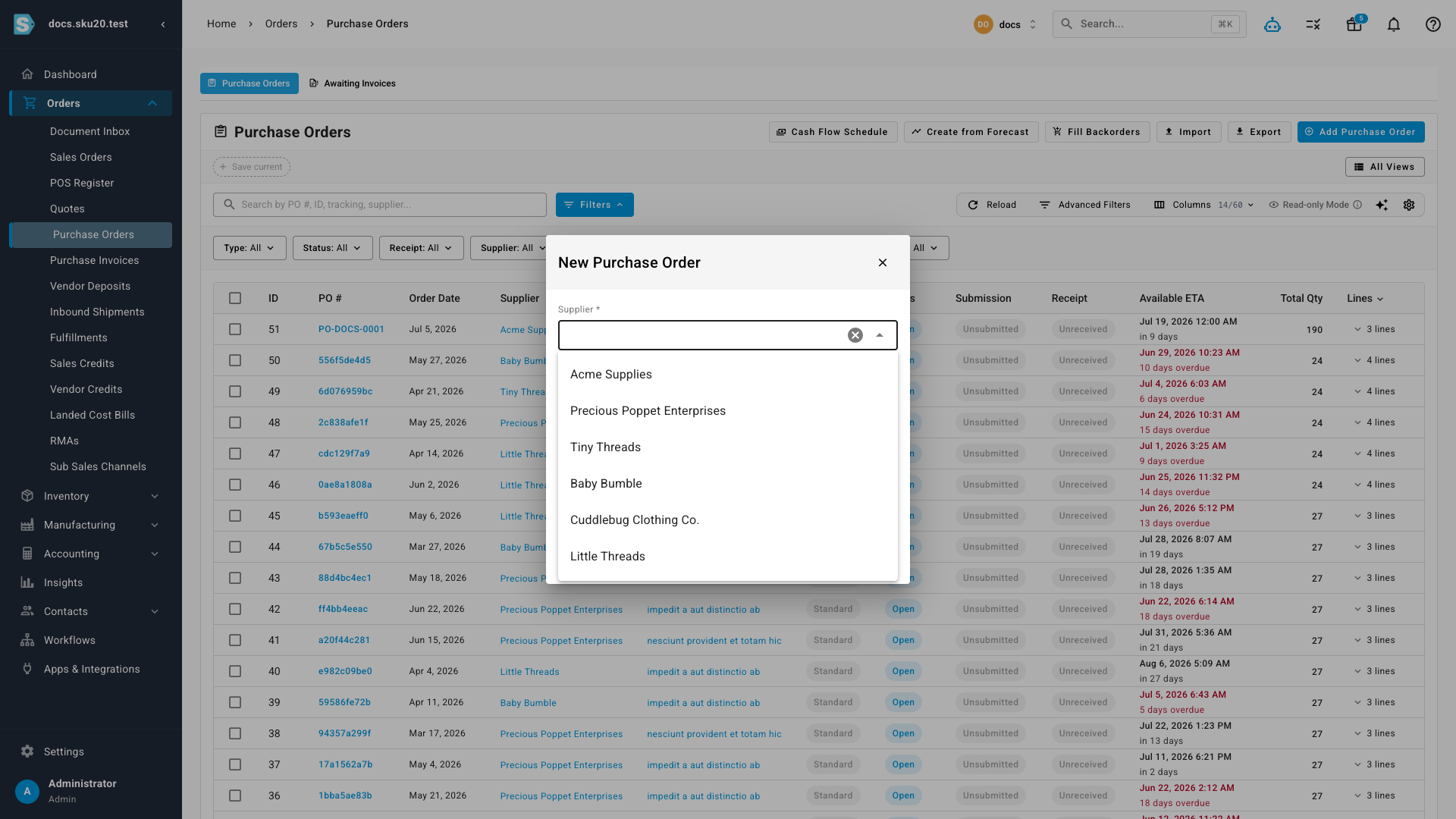
- Click Add Purchase Order in the top-right of the toolbar. The New Purchase Order dialog opens.
- In Supplier, search for and select the supplier you're ordering from — for example, Acme Supplies. Selecting a supplier also applies that supplier's defaults (store, payment term, and supplier warehouse) to the new PO.
- Set the Order Date. It defaults to today; change it if you're backdating the order.
- Choose the Destination warehouse where the stock will be received — for example, Main Warehouse.
- Confirm the Currency. It defaults to your default currency and switches automatically to the supplier's pricing-tier currency when one is set. To order in a currency you haven't added yet, click the + in the currency field, pick the currency and its conversion rate, and click Add.
- Click Create Draft.
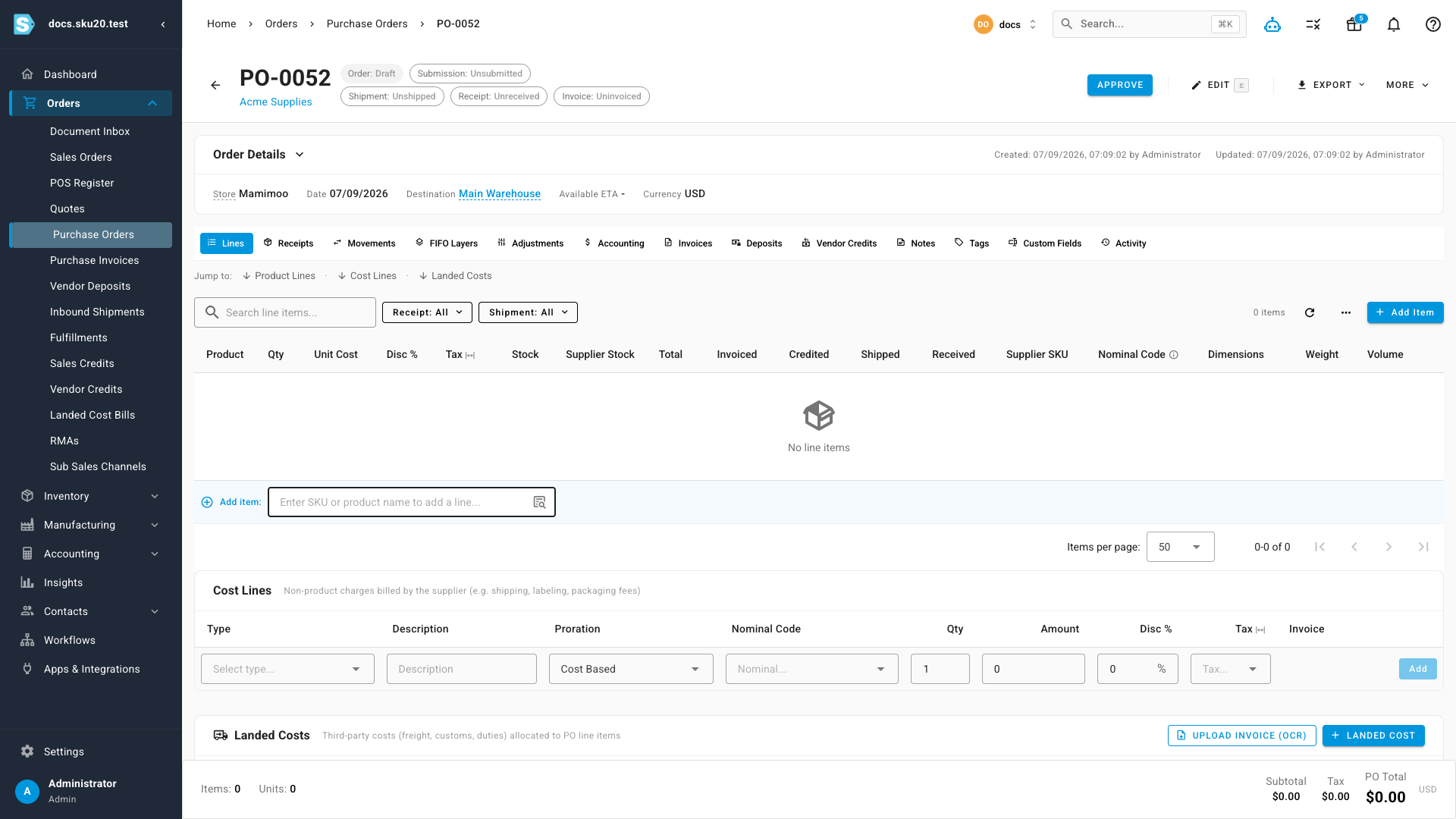
What you'll see: SKU.io creates the PO and opens it. The new order is a Draft, and its PO number is generated automatically from the next sequence (for example, PO-DOCS-0001) — you don't need to enter one. It starts with these statuses:
| Status | Value on a new draft | Meaning |
|---|---|---|
| Overall | Draft | Fully editable and not yet ordered. |
| Submission | Unsubmitted | Not yet sent to the supplier. |
| Receipt | Unreceived | Nothing has arrived yet. |
At this point the order isn't counted against your incoming stock.
A Draft doesn't cover backorders or add to incoming inventory yet. Keep building the order as a draft, then approve it when it's ready — approving is the step that reserves stock against backorders and adds it to incoming inventory. See Approve and submit a PO.
Add line items
A new draft has no products on it. On the PO's page, use the line items grid to add what you're ordering. There are three ways to add lines:
| Method | How to do it | Best for |
|---|---|---|
| Add one at a time | Click Add Item to focus the inline add row, type a SKU or product name ("Enter SKU or product name to add a line…"), pick the product, then set its Quantity and Unit cost and press Enter. | A short, known list. |
| Browse the supplier's catalog | Click the Browse products icon next to the add row to open the product drawer, tick several products, and add them together. | Building an order by shopping the catalog. |
| Import from a file | Open the grid's overflow (three-dot) menu and click Import lines to bulk-add products from a CSV (comma-separated values) file. See Import purchase orders. | A long list you already have in a spreadsheet. |
When you add a line one at a time, the Unit cost pre-fills from the supplier's pricing for that product when one exists — so you usually don't have to type it.
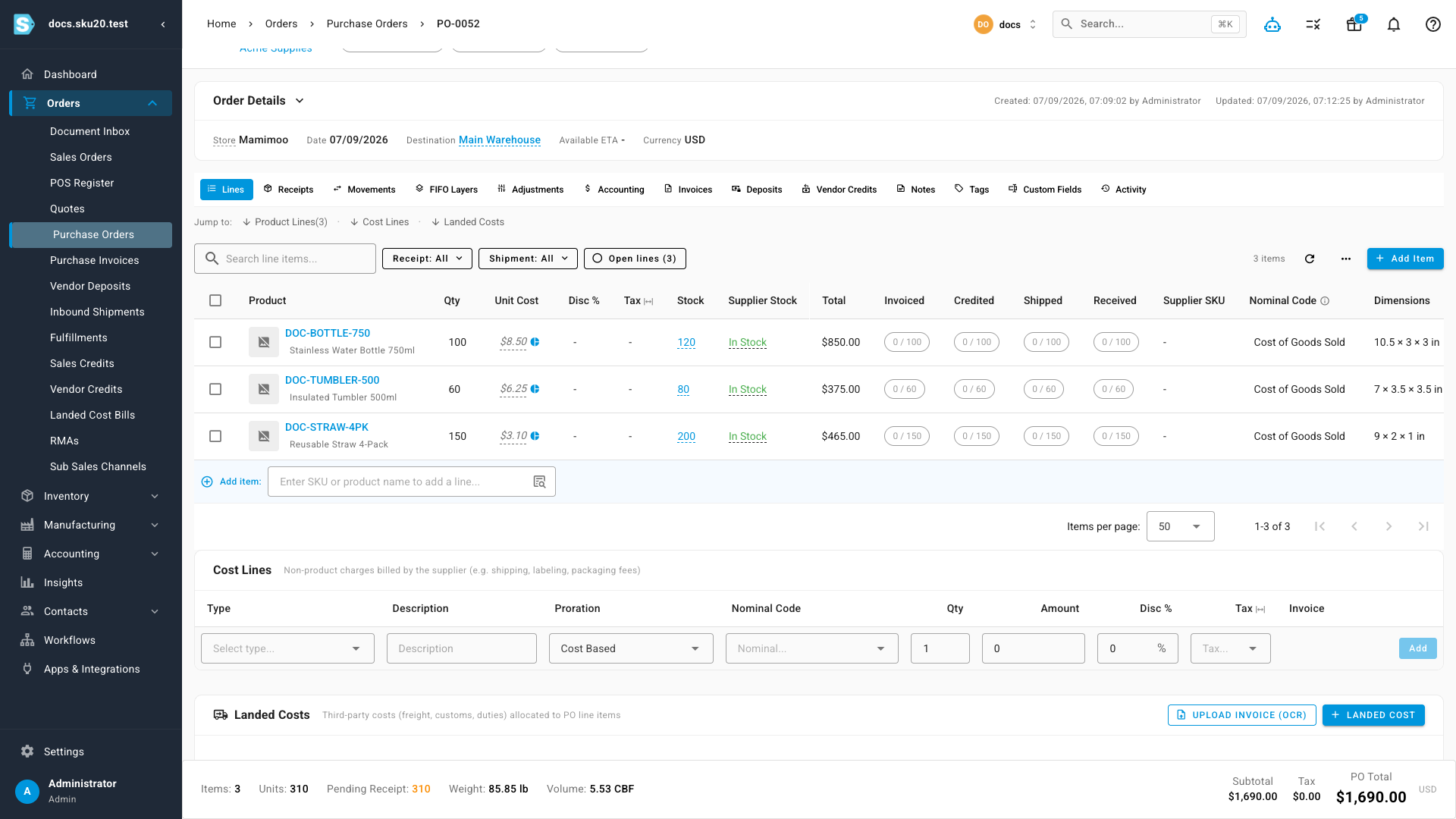
What you'll see: each product you add becomes a line with its Quantity, Unit cost, and line total, and the running PO total updates in the footer.
For editing quantities, costs, tax, discounts, and pricing tiers on the lines you've added, see Edit a PO and its line items. For the meaning of each header and line field, see the fields reference.
Amazon FBA (Fulfillment by Amazon) warehouses aren't offered in this dialog. An FBA purchase order needs a linked Amazon inbound shipment, so it's created from your Amazon integration rather than by hand here. An AWD (Amazon Warehousing and Distribution) destination is selectable, and the PO is created as an Amazon inbound that behaves differently from a standard order. Either way, see Amazon and dropship POs.
Start from a forecast or fill backorders
If you're creating a PO to cover demand rather than a known list of products, the New Purchase Order dialog offers two shortcuts once a supplier is selected:
- Create from Forecast takes you to the forecasting tool scoped to that supplier, where you build order quantities from projected demand.
- Fill Backorders builds a PO pre-filled with the supplier's outstanding backordered items for the chosen destination, so you don't have to add them by hand.
Both are covered in Create POs from a forecast / fill backorders.
Duplicate an existing purchase order
When a new order closely matches one you've placed before — same supplier, same products — duplicate the existing PO instead of rebuilding it. Duplicating requires the Create purchase orders permission.
- Open the purchase order you want to copy, for example PO-DOCS-0001.
- Click the More menu (⋮) near the top of the page.
- Click Duplicate.
What you'll see: SKU.io creates a copy and opens it. The duplicate carries over the supplier, destination, currency, every line item, any cost or charge lines, and the tags from the original. It starts fresh as a Draft with a new PO number and today's order date.
Only the order details are copied. Approval, submission, receipts, shipments, and invoicing all start from zero on the duplicate — so a copy of a fully received PO is an empty draft again, not a received order. Review and adjust the copied lines before you approve it.
A dropship PO (one that ships straight from the supplier to your customer) does not link its copy to the original sales order — the duplicate is an ordinary PO you can send to the supplier like any other.
Next steps
- Add and edit line items — set quantities, costs, tax, and discounts.
- Approve and submit a PO — move the draft to Open and email it to the supplier.
- Receive stock against a PO — book stock in as it arrives.
- Create POs from a forecast — order to cover projected demand and backorders.
- Purchase orders overview — the full PO lifecycle.
Video transcript
To start a purchase order, click Add Purchase Order, choose your supplier — here, Acme Supplies — and click Create Draft.
On the draft, add each product you're ordering — search by SKU or name, choose it, and it drops onto a new line. Add as many as the order needs. Then set the quantity for each line. The line total, and the running PO total, update as you type.
When the order's ready, click Approve. It moves to Open — and its units now show as incoming inventory: stock that's on the way, not yet on hand.
When the shipment arrives, click Receive. SKU pre-fills the pending quantities — confirm, and they're received into your warehouse as on-hand stock.
Record the supplier's invoice — enter the invoice number and click Create Invoice. SKU matches what you ordered, received, and were billed.
That's the full cycle — received, invoiced, and closed, with your inventory and costs updated automatically.