Create a supplier pickup order
Some of your customers — often distributors, but it can be any buyer — prefer to collect their orders directly from your supplier instead of having them shipped. A supplier pickup order captures that: SKU.io raises the purchase order to your supplier, the goods never touch your own warehouse or balance sheet, and you still record the true cost and revenue so your margins stay accurate. This guide shows how to create one, mark it collected, and track it.
How supplier pickup differs from drop shipping
A supplier pickup is a drop-ship order — it's a special case, not a separate thing. In both, your supplier fulfills the order, the goods never enter your warehouse or balance sheet, and SKU.io still records the cost (from the purchase order) and the revenue (from the sales order) so your margins stay accurate. The only difference is the last mile — who moves the goods off the supplier's dock:
| Regular drop shipping | Supplier pickup | |
|---|---|---|
| Last mile | Your supplier ships the goods to your customer | Your customer collects the goods from your supplier |
| How you fulfill it | Enter a tracking number — the button reads Ship | Click Mark as Picked Up — there's no tracking number |
| Purchase order ends as | Shipped to customer | Picked up at supplier |
| What makes it a pickup | (nothing — this is the default) | A pickup shipping method on the drop-ship line |
So there's really just one switch: set the drop-ship line's shipping method to a pickup method (like Supplier Pickup) and SKU.io treats it as a supplier pickup — swapping "Ship + tracking" for "Mark as Picked Up," and surfacing it in the Supplier Pickup Orders report. Everything else about drop shipping is unchanged.
It's the shipping method, not the customer. Any customer can collect from your supplier — nothing about who they are makes an order a supplier pickup. The pickup shipping method on the drop-ship line is the only thing that does. (Tagging some customers — e.g. "Distributor" — is still handy for filtering the report, but it never changes how an order behaves.)
Before you begin
- A supplier warehouse with dropshipping enabled (Contacts → Suppliers → the supplier's warehouse → Dropship enabled). In this guide it's Shenzhen Supplier DC under Shenzhen Helmet Co.
- A pickup shipping method: Settings → General → Shipping Methods → add a method with This is a pickup shipping method checked. Here it's Supplier Pickup.
- A product that can be dropshipped by that supplier, and a sales order for the customer (e.g. Acme Distribution).
Steps
-
Open the sales order for the customer from Orders → Sales Orders.
-
Create the supplier pickup purchase order for the dropship line. In the Create Supplier Pickup PO dialog, choose the supplier warehouse, set the shipping method to Supplier Pickup, and enter the Expected pickup date (this can be months out — SKU.io tracks it as an open order the whole time). The dialog confirms the goods are collected by the customer at the supplier, rather than shipped to them.
-
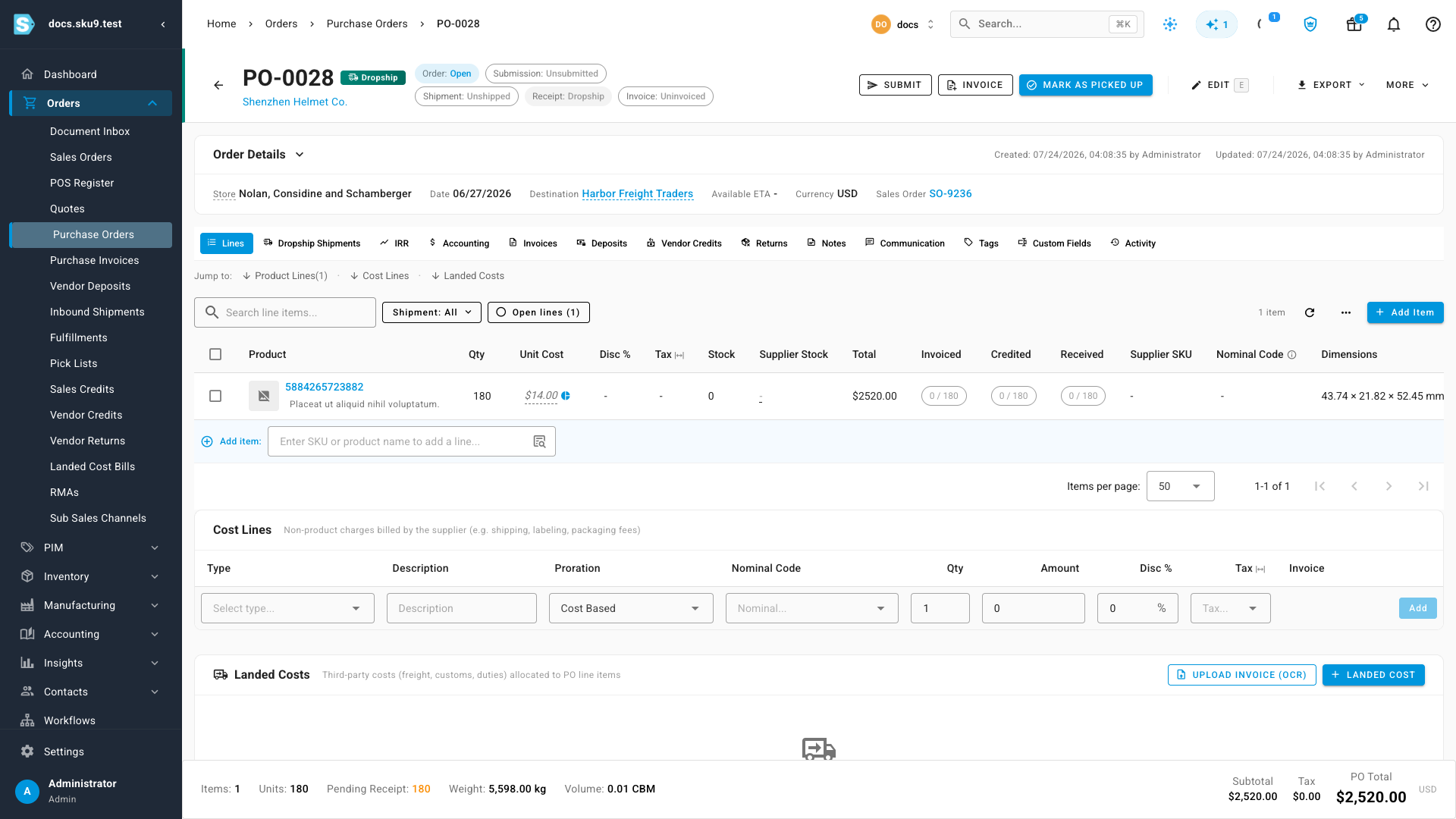
Submit the PO. It opens with an Awaiting pickup at supplier state and a Dropship tag, linked back to the sales order. Because the line is a dropship line, no stock is deducted from your warehouses and nothing is added to your balance sheet.
-
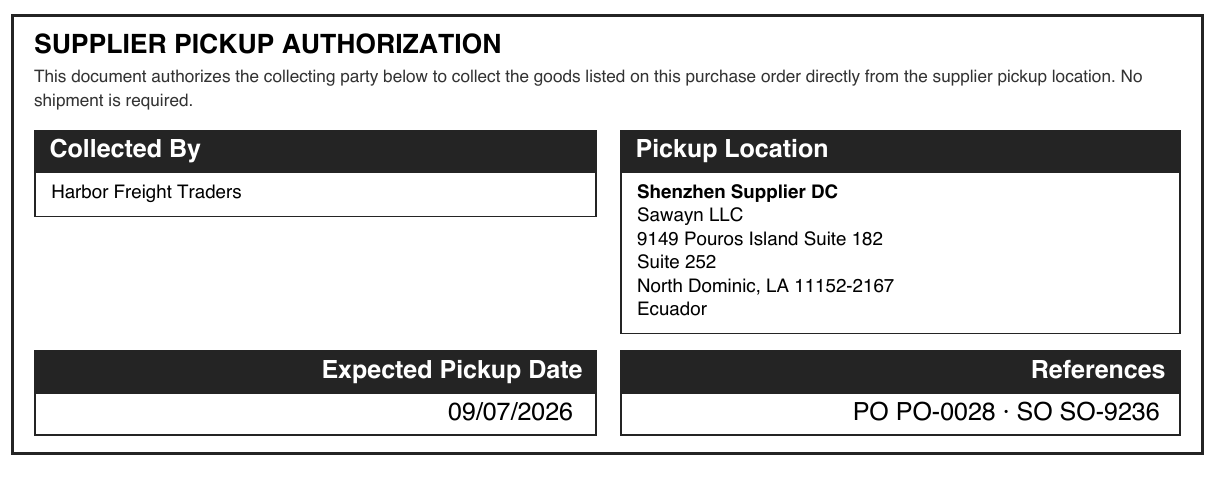
Hand the customer the pickup authorization: Export → PDF on the purchase order includes a Supplier Pickup Authorization block — the collecting party, the supplier pickup location, the expected pickup date, and the PO/SO references.
-
When the customer collects the goods, click Mark as Picked Up on the purchase order (there's no tracking number to enter). This fulfills the linked sales order, records the cost from the PO and the revenue from the sales order, and moves the PO to Picked up at supplier.
Track your supplier pickup orders
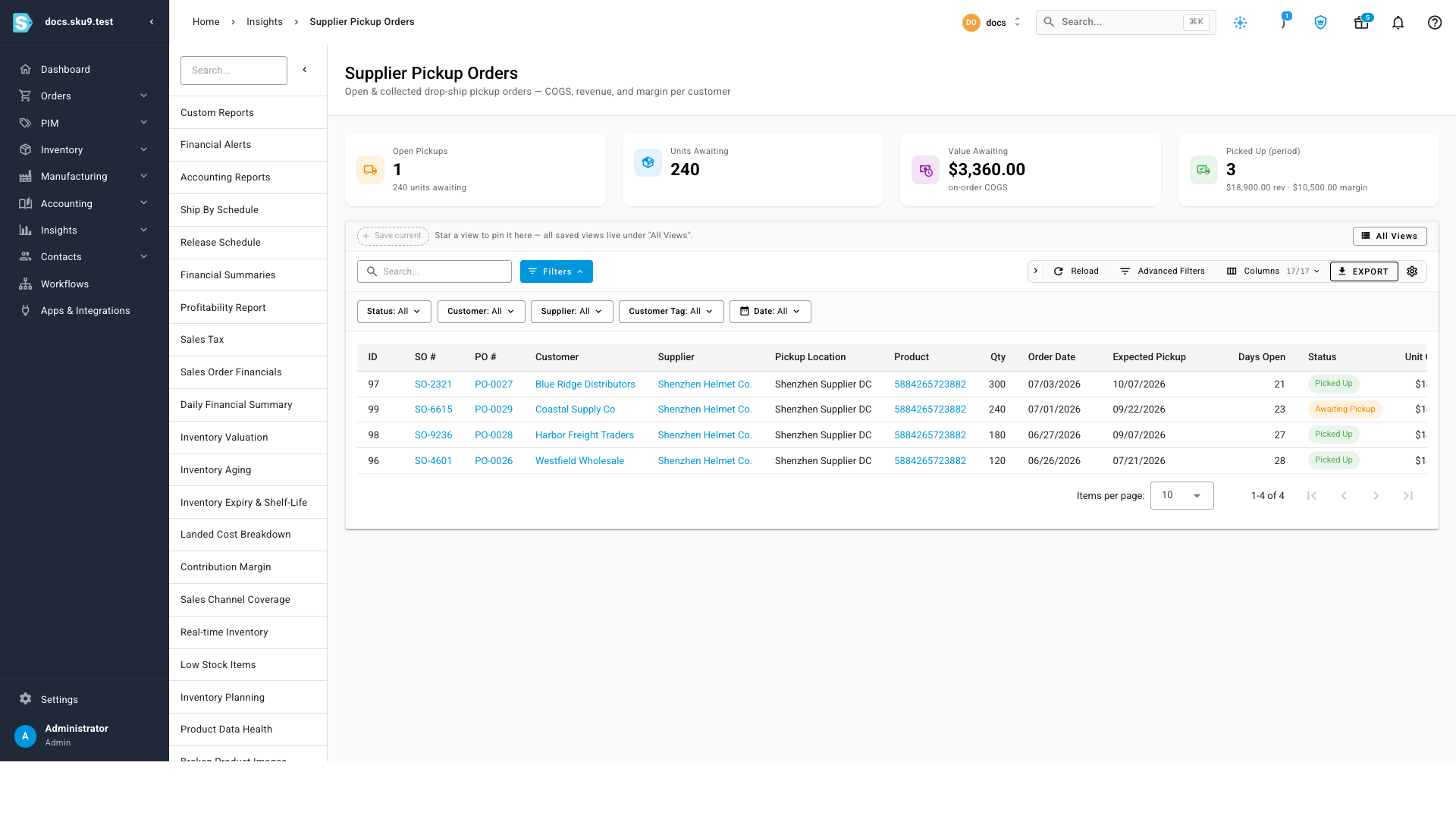
Go to Insights → Reports → Supplier Pickup Orders for one view of every pickup order — open and collected. The header cards show Open Pickups, Units Awaiting, Value Awaiting (your on-order cost commitment), and what's been Picked Up this period with its revenue and margin. Each row links to its sales order, purchase order, customer, and supplier, with the expected pickup date and how many days it's been open — so nothing future-dated slips out of sight. Filter by customer, supplier, customer tag, or status, and export the view.
Next steps
- Tag customers (e.g. a Distributor tag) to filter the report to a single account.
- Configure a supplier to auto-generate the pickup PO when a dropship line can't be filled from stock (Contacts → Suppliers → Dropship settings).
Video transcript
Some of your customers collect their orders directly from your supplier. In SKU, that's a supplier pickup order. Here's one — a purchase order raised to your supplier, linked to the sales order, and awaiting pickup. It's a dropship line, so no stock leaves your warehouse and nothing hits your balance sheet — but cost and revenue are still captured.
So how is this different from a regular drop-ship order? Both are drop-ship — your supplier fulfills, and stock never touches your warehouse. The difference is the last mile. A regular drop-ship ships to your customer, with a tracking number. A supplier pickup is collected by your customer — no shipment, and no tracking. One setting decides it: a pickup shipping method.
To send the customer to collect, export the purchase order to PDF. It includes a supplier pickup authorization with the collecting party, the pickup location, and the expected date.
When the customer picks up, click Mark as Picked Up. There's no tracking number to enter. That fulfills the sales order and marks the purchase order picked up at the supplier.
Finally, open Insights, Reports, Supplier Pickup Orders to see every pickup order in one place: open value, units awaiting, and what's been picked up, with cost and margin, per customer.