Add landed costs to a purchase order
Landed cost is the true cost of getting stock onto your shelf — the supplier's price plus the freight, customs, duty, and brokerage you pay third parties to import it. In SKU.io you record each of those third-party invoices as a landed cost bill against the purchase order (PO) and choose how to spread it across the PO's lines.
SKU.io then lifts each product's per-unit cost so that:
- the FIFO layers (First In, First Out — the dated cost buckets SKU.io stacks up as stock arrives, and draws down oldest-first when you sell) created at receipt, and
- the COGS (Cost of Goods Sold — the cost you report against a sale) you record when you sell
both reflect what the goods actually cost you, not just the sticker price.
This guide covers adding a landed cost manually, extracting one from a PDF, choosing how the cost is spread across lines, and where these costs surface.
The supplier's price already sits on the PO. A landed cost is the extra import spend billed separately by someone else — a freight forwarder, a customs broker, a carrier. Adding it here is what turns "$8.00 a unit from the supplier" into "$9.20 a unit on my shelf."
Before you begin
- You need the Update purchase orders permission. The Landed Cost and Upload Invoice (OCR) buttons appear on a saved PO.
- Landed costs attach to a PO that already exists — you add them from the PO detail page, not while first creating the PO. You can add them at any status, including after the PO is received or closed, because freight and customs invoices usually arrive later.
- The vendor on a landed cost invoice must be a service-type supplier (a freight forwarder, customs broker, carrier, and the like). A goods supplier can't be billed this way — SKU.io rejects it with the message "Landed cost bills can only be billed by service providers. For goods suppliers, add the charge as a cost line on the purchase order." If the carrier isn't in your supplier list yet, the editor lets you create it inline.
- The examples below use PO-DOCS-0001 (supplier Acme Supplies, destination Main Warehouse).
Where landed costs live
Open the purchase order from Orders → Purchase Orders, then open the Lines tab. Above the grid, a Jump to: row gives you three in-page anchors:
| Anchor | What it holds |
|---|---|
| Product Lines | The products you ordered. |
| Cost Lines | Charges the goods supplier itself puts on the order (added as PO lines, not landed cost bills). |
| Landed Costs | The third-party freight, customs, and duty bills covered in this guide. |
Click Landed Costs to scroll to the section. Its header reads "Landed Costs — Third-party costs (freight, customs, duties) allocated to PO line items" and carries a count chip once bills exist.
A delivery charge printed on the goods supplier's own invoice belongs on the PO as a cost line (edited in the grid — see Edit a PO and its line items). A separate invoice from a freight forwarder or customs agent belongs here as a landed cost bill. Same money, different source — and SKU.io keeps them apart so you always know who you owe.
Add a landed cost manually
Use this when you have the freight or customs figures and want to key them in.
-
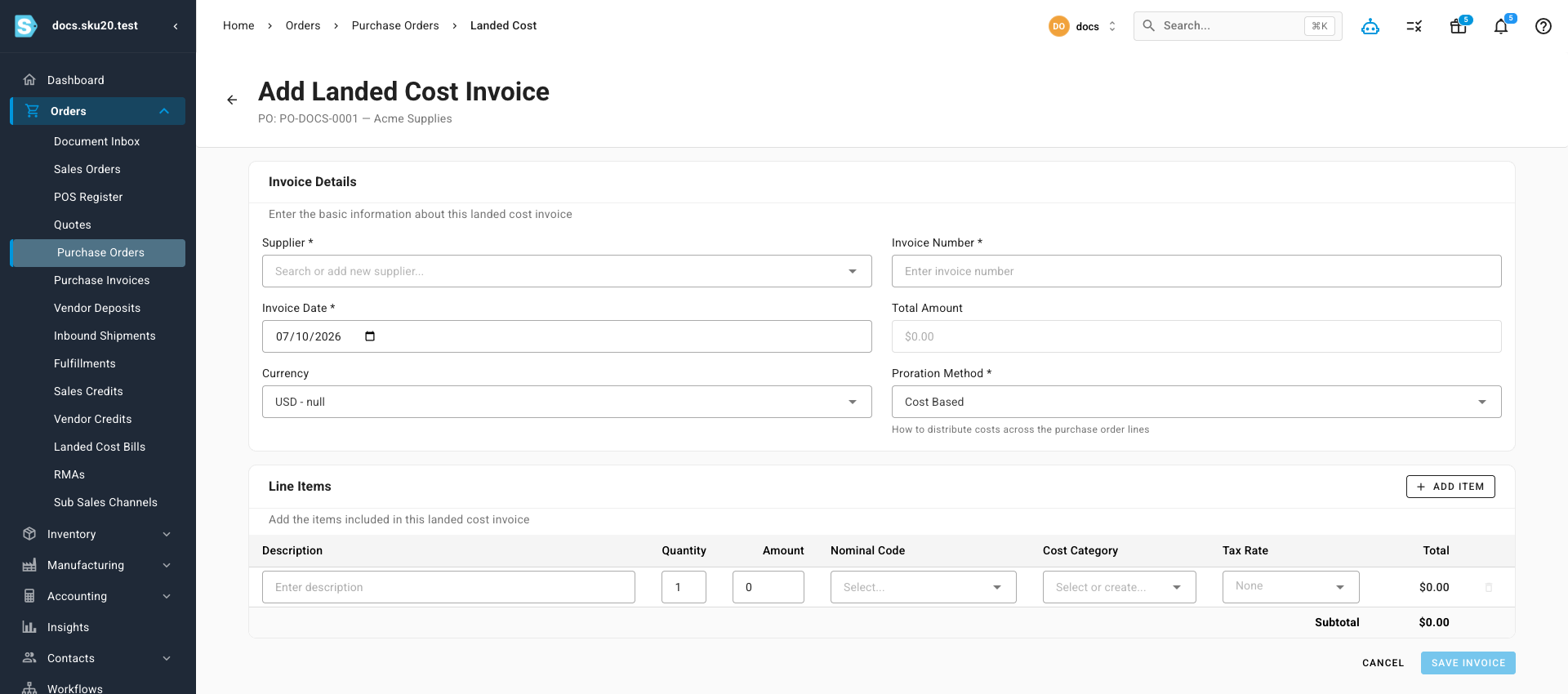
In the Landed Costs section, click Landed Cost (or Add Landed Cost from the empty state). The Add Landed Cost Invoice editor opens, with the PO number and supplier shown in the header (for example, "PO: PO-DOCS-0001 — Acme Supplies").
-
Under Invoice Details, set the Supplier. Search your service suppliers, or type a new name and pick New: … to create the carrier inline.
-
Enter the Invoice Number and Invoice Date (both required). Total Amount is calculated for you from the line items below and can't be typed.
-
Set the Currency if the invoice isn't in your base currency. When you pick a non-base currency, a Rate field appears so you can record the exchange rate.
-
Choose a Proration Method — how the invoice total is spread across the PO's product lines. See Choose how the cost is spread.
-
Under Line Items, describe what the invoice charges you for. Each row has:
Field Notes Description What the charge is (for example, "Ocean freight"). Quantity How many of this charge. Amount The unit amount for the charge. Nominal Code (optional) The accounting ledger code this cost posts to (also called a GL / general-ledger account code) — the label your finance team uses to bucket spend, for example, 5000 – Freight In. Cost Category (optional) A grouping you can create inline (for example, "Freight", "Customs"). Tax Rate (optional) Applied to the line. Total Computed for you. Click Add Item for more rows; the Subtotal and the header's Total Amount update as you type. At least one line is required.
-
If you picked Manual proration, complete the Manual Allocation table (see Split a cost by hand).
-
Click Save Invoice.
What you'll see: SKU.io creates the bill, links it to this PO, spreads the cost across the lines by your chosen method, and returns you to the purchase order. The new bill appears in the Landed Costs table, and its amount rolls into Total Landed at the top of the section.
…the invoice has a supplier, an invoice number, a date, and at least one valid line — and, for Manual proration, until the whole total is allocated. If the button won't enable, one of those is missing.
Upload a landed cost invoice with OCR
If you have the freight or customs invoice as a PDF, let SKU.io read it for you instead of keying it in. OCR (Optical Character Recognition) is the technology that turns the text in a scanned or PDF document into data SKU.io can fill the form with.
- In the Landed Costs section, click Upload Invoice (OCR).
- In the Upload Landed Cost Invoice dialog, select the PDF (freight, customs, brokerage, or any other ancillary import bill). PDF only, up to 10 MB.
- Click Upload. SKU.io reads the document in the background — you'll see "Invoice uploaded — extraction is processing," and you can follow it in the job tray.
- When reading finishes, SKU.io opens the review screen for the draft it created, with this purchase order already pre-selected as the target and its line items matched to cost categories by keyword where it can. Check the extracted lines and amounts, then confirm to create the bill against the PO.
What you'll see: because the bill is created against the PO you started from, the resulting landed cost appears in the same Landed Costs section once you finish the review. The draft is also visible in your document inbox, alongside scanned supplier invoices and credit memos.
Choose how the cost is spread
Proration (also shown as allocation) means dividing one invoice total across several PO lines so each line carries a fair share of the cost. The Proration Method decides how that split is calculated. Pick the basis that best reflects what actually drives the cost:
| Method | How it splits the total | Best for |
|---|---|---|
| Cost Based (default) | In proportion to each line's extended value (unit cost × quantity). Higher-value lines absorb more. | A catch-all when higher-value goods should carry more cost. |
| Quantity Based | By units — every unit carries the same share, regardless of price. | Charges that scale with piece count. |
| Weight Based | By each line's total weight (product weight × quantity). | Freight billed by weight. Products need a weight on file. |
| Volume Based | By each line's total volume (length × width × height × quantity). | Freight billed by cube. Products need dimensions on file. |
| Revenue Based | By each line's expected revenue. | Spreading cost toward your best-selling stock. |
| Equal Distribution | Split evenly across the lines. | A quick, even share when nothing else fits. |
| Manual | You type the exact amount for each line yourself. | An invoice that names specific lines or amounts. |
Whatever you choose, SKU.io divides the total across the PO lines and uses each line's share to lift its landed unit cost. For how that uplift flows into FIFO layers and COGS at receipt, see How a PO becomes inventory.
A worked proration example
Say PO-DOCS-0001 has two product lines, and a freight forwarder bills you $300 for ocean freight. You pick Cost Based proration (the default), so the freight splits in proportion to each line's value.
| Line | Units | Unit cost | Line value | Share of $300 value | Freight allocated |
|---|---|---|---|---|---|
| Line A | 100 | $7.00 | $700 (70%) | 70% × $300 | +$210.00 |
| Line B | 100 | $3.00 | $300 (30%) | 30% × $300 | +$90.00 |
| Total | $1,000 | 100% | $300.00 |
Now watch the freight lift each landed unit cost:
- Line A: $210 ÷ 100 units = +$2.10 per unit → landed unit cost rises from $7.00 to $9.10.
- Line B: $90 ÷ 100 units = +$0.90 per unit → landed unit cost rises from $3.00 to $3.90.
The higher-value line absorbed the larger share ($210 vs $90) because Cost Based splits by line value, not by units. Had you chosen Quantity Based instead, both lines carry 100 of the 200 units — so each would take exactly $150, lifting every unit by $1.50 regardless of price.
The landed unit cost is what gets baked into your FIFO layers when you receive stock against the PO — and that's the figure your COGS reports at sale. Add or fix a landed cost bill before receiving whenever you can; correcting cost after stock is received and sold is far messier than getting it right up front.
Split a cost by hand
When you pick Manual, a Manual Allocation table lists the PO's lines with their product, SKU, quantity, and line amount, plus an Allocation field per line. Type the amount each line should absorb. Two shortcuts help:
- Distribute Evenly spreads the invoice total equally across the lines.
- Clear All resets every allocation to zero.
A banner tracks your progress:
| Banner state | Meaning |
|---|---|
| Remaining to allocate | Your allocations fall short of the invoice total. |
| Over-allocated by | Your allocations exceed the total. |
| "All amounts allocated correctly!" | The allocations match the total — you can save. |
If the banner still reads Remaining to allocate or Over-allocated by, Save Invoice stays disabled. Use Distribute Evenly as a starting point, then adjust individual lines until the banner turns green.
Review and manage landed costs
Once a PO has landed costs, the Landed Costs section shows a table with one row per bill:
| Column | What it shows |
|---|---|
| Invoice # | The bill's invoice number — click it to open the editor. |
| Vendor | The service supplier you're paying. |
| Date | The invoice date. |
| Line Items | A short summary of the bill's line descriptions. |
| Allocation | The proration method used (for example, Cost Based). |
| % Allocated | How much of the bill has been spread onto PO lines. |
| Total | The bill's total amount. |
Above the table, Total Landed sums every landed cost bill on the PO, alongside the invoice count.
- Edit a bill — click its Invoice # (or the row) to reopen it as Edit Landed Cost Invoice. Change the header, lines, proration method, or manual allocations, then Save Invoice. A bill can only be opened from the PO it belongs to; a bill that isn't linked to this PO returns "not found."
- Delete a bill — click the delete icon on its row.
The confirmation dialog names the invoice — "Are you sure you want to delete …? This action cannot be undone." Confirming removes the bill and backs its cost out of the landed total. There is no recycle bin; you'd have to re-enter the invoice from scratch.
When no landed costs exist yet, the section shows an empty state — "No landed cost invoices" — that prompts you to upload a freight or customs invoice for OCR extraction or add one manually.
Landed costs on an inbound shipment
A PO's goods can arrive in more than one shipment, and freight is often billed per shipment. For that reason SKU.io also lets you attach a landed cost bill to an inbound shipment, not only to the PO as a whole — which is why a landed cost can appear in two places. The mechanics are the same (a service supplier, line items, a proration method, allocations onto the underlying PO lines), but the entry point is the shipment.
A shipment-level bill still spreads onto the same purchase order lines, so the two approaches don't double-count as long as each invoice is entered once.
Before you receive, the shipment offers a per-line landed-cost preview that sums every bill attached to it and projects the resulting per-unit cost uplift — a handy way to sanity-check your numbers before the receipt locks the cost into inventory. See Receive stock against a PO.