Edit a purchase order and its line items
After a purchase order (PO) exists, you can adjust both parts of it right from the order page:
- The header — the details that apply to the whole order: supplier, dates, currency, tax defaults, and more.
- The line items — the individual products you're buying, each with its own quantity, unit cost, tax, and discount.
This guide covers editing an order that already exists. For a brand-new order, start with Create a purchase order.
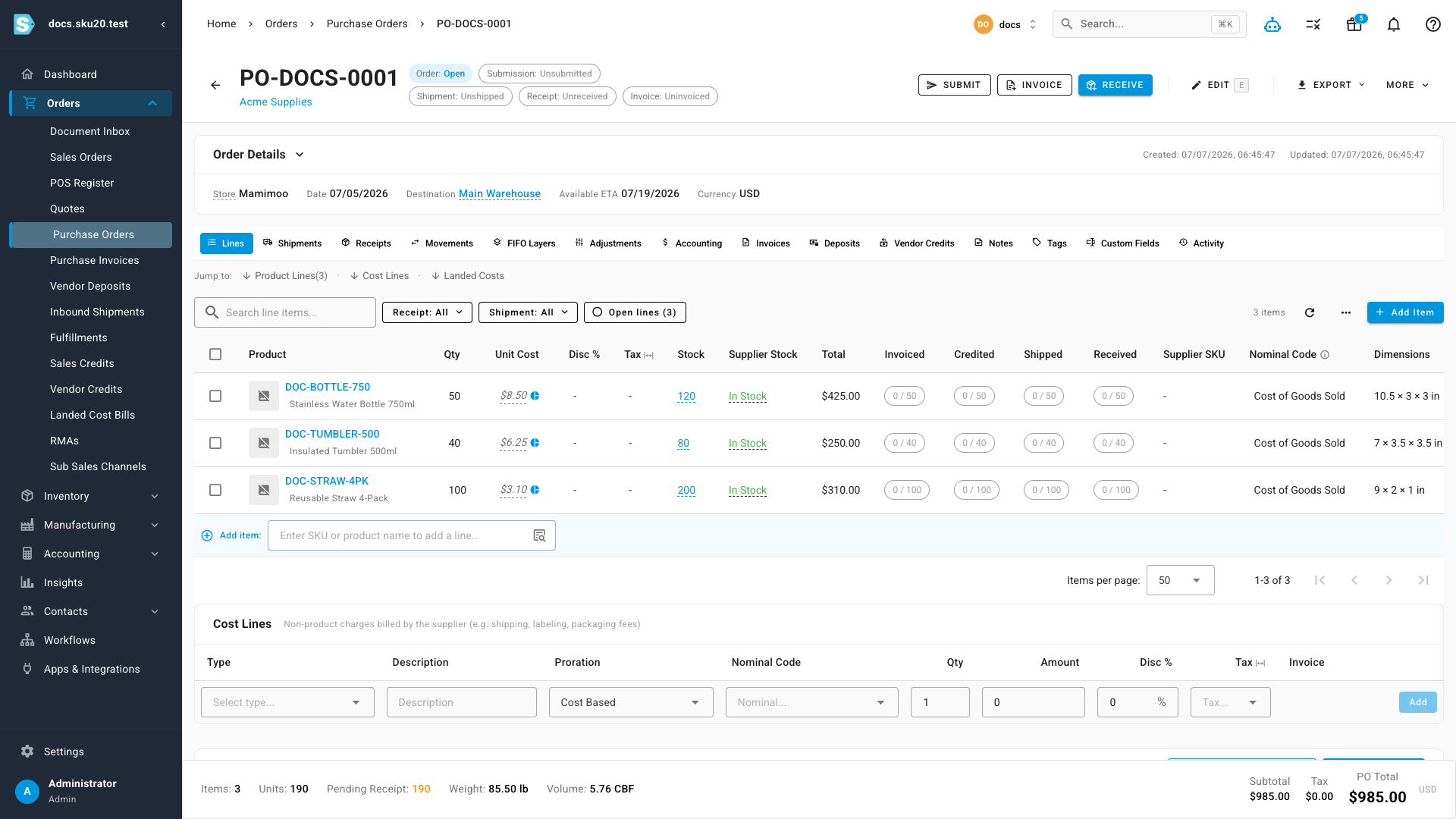
The examples below use the demo order PO-DOCS-0001 — supplier Acme Supplies, destination Main Warehouse, three lines.
Before you begin
You can only edit a PO when all of these are true:
| Requirement | If it isn't met |
|---|---|
| You have the Update purchase orders permission. | The Edit button and the line-editing controls don't appear at all. |
| The PO isn't Closed. | Editing is hidden entirely. Reopen the PO first. |
| No one else is editing it. | You see the order read-only with a "[Name] is editing this purchase order" banner, plus Request edit or Take over buttons. |
Editing a PO takes an edit lock — a hold that lets only one person change the order at a time, so two people can't overwrite each other. When you're done and save (or cancel), the lock releases for the next person. The purchase orders overview explains this collaboration flow in full.
FBA (Fulfillment by Amazon) and AWD (Amazon Warehousing & Distribution) are Amazon's warehousing and shipping services. If an FBA or AWD PO has an associated Amazon inbound shipment, editing is turned off to keep the order and the shipment in agreement. You'll see an information banner reading "Editing is restricted because this FBA purchase order has an associated Amazon shipment," and the Edit button is disabled. See Amazon and dropship POs.
Edit the header details
- Go to Orders → Purchase Orders and open the PO (for example, PO-DOCS-0001).
- Click Edit in the order header, or press E. The details card becomes editable in place.
- Change any header field:
- Supplier, store, currency and exchange rate
- Destination warehouse
- Order date, expected delivery date
- Payment term, incoterm (the shipping-terms code that says who pays freight and who owns the goods at each stage — for example FOB or DDP)
- Tax rate, PO number
- Requested shipping method, submission format, supplier notes
- Click Save, or press Cmd/Ctrl+S. To discard your changes, click Cancel or press Esc.
Right from these fields you can add a new Supplier, Payment Term, Warehouse, or Currency on the spot — no need to open a separate page first.
A few things happen automatically when you save:
- Only the fields you actually changed are sent — untouched fields are left exactly as they were.
- Any pending custom-field and logistics-tracking-date edits are saved in the same action.
- If you changed the supplier, the destination warehouse is refreshed to that supplier's default.
- The PO re-checks its invoice status so the header status chips stay accurate.
The header Tax Rate sets the default for new lines you add later — it does not change lines that are already on the PO. To re-tag existing lines, use Apply a tax rate under Apply pricing, tax, or a discount to many lines at once.
Edit a line item
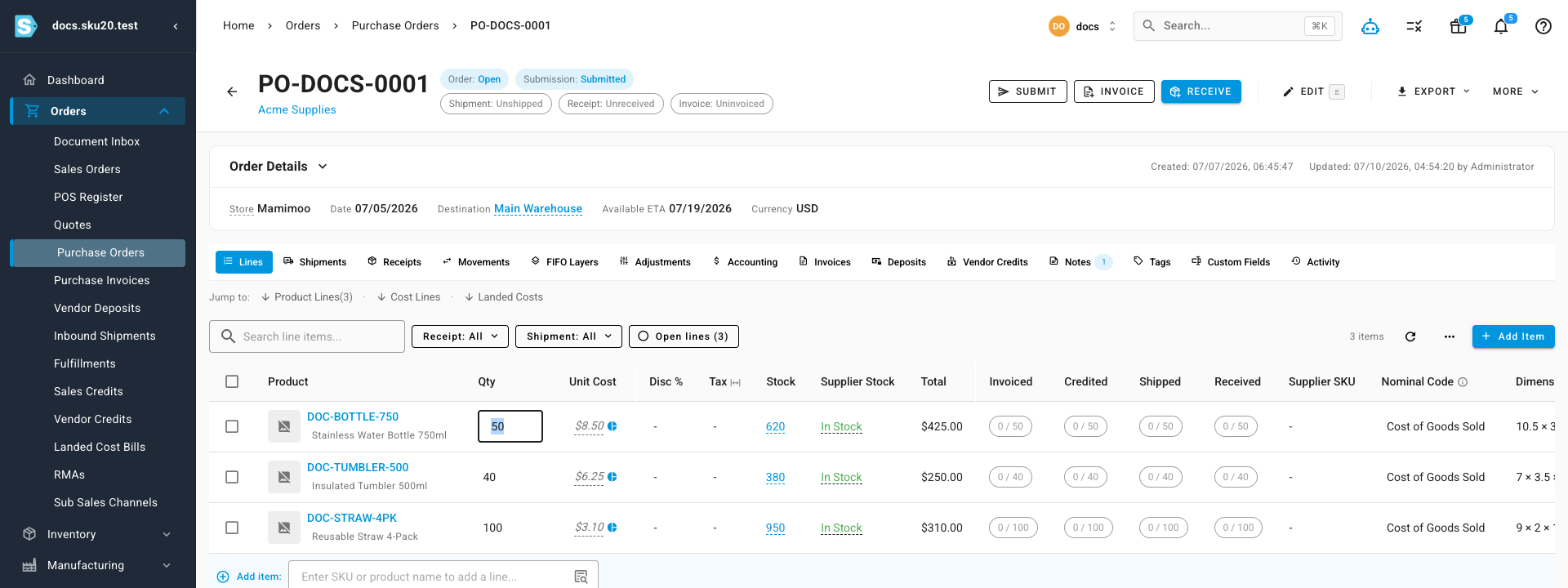
Open the PO's Lines tab. Every field is editable directly in the grid, and each edit saves that one line on its own.
- Click a cell and edit any of these fields: Quantity, Unit Cost, Discount %, Description, Tax Rate, or Nominal Code (the accounting code the purchase posts to in your books).
- Click away from the cell to save.
The values you enter must stay within these limits:
| Field | Allowed range |
|---|---|
| Discount % | 0 to 100 |
| Quantity | Under 10,000,000 |
| Unit Cost | Under 10,000,000 |
If you change several cells quickly, the saves are handled one after another behind the same edit lock, so they can't collide. See When editing is limited if a save is briefly held.
Add a line
- Click Add Item and search for the product.
- Set the quantity and unit cost. SKU.io suggests a unit cost from the supplier's tiered pricing (see How the default unit cost is chosen) and shows the last price you paid for that product as a guide.
Only standard and kit products can go on a PO. Bundle, assembly, and service products are rejected with "Only standard/kit products can be purchased." If you add a product that has never been linked to this supplier before, SKU.io creates that link automatically so the item is purchasable and its pricing resolves next time.
Mark a line as free of charge
Toggle a line to Free of Charge for no-cost stock such as samples or warranty replacements. You must pick a reason:
- Sample
- Warranty Replacement
- Promotional
- Vendor Concession
- Other
A reason is required, and the unit cost must be $0. SKU.io won't let you mark a line free of charge while it still carries a price.
Delete a line
Remove a line with its delete action.
A line can't be deleted if it already has a supplier invoice or any received stock, and you can't delete the last remaining line on a PO. (To delete a whole PO instead, see Browse and manage the list.)
Filter and search the lines
The Lines grid has its own toolbar so you can narrow a long PO down to the lines you care about. All of these controls work together with the grid's paging.
- Search. Type in the Search line items box to match on SKU or description. Results narrow as you type.
- Receipt status. Open the Receipt dropdown to show only lines that are Not Fully Received, Not Received, Partially Received, or Fully Received — or All. On a dropship PO this control reads Shipment instead and uses the matching shipped labels.
- Shipment status. On a standard (non-dropship) PO, the Shipment dropdown filters by Not Shipped, Partially Shipped, Fully Shipped, or All — independently of receipt status.
- Open lines. Click Open lines to show only the lines still holding the order open — those where the received quantity is below the ordered quantity and the line hasn't been short-closed (a short-close tells SKU.io to stop expecting the rest of a line). This includes lines where nothing has arrived yet. The button shows the count; click it again to clear the filter.
A line that a vendor has credited shows a teal ⓒ indicator next to its Invoiced count. Hover it to see the credited quantity and the vendor credit number; click it to open that vendor credit. If a line has several credits, clicking opens a list of them instead.
Apply pricing, tax, or a discount to many lines at once
Select line items to reveal the bulk-action bar, then apply a change to the selected lines — or to every line when nothing is selected. The bar shows how many items are selected and a Clear button to deselect them.
Select all across pages. When you check every line on the current page and the PO has more lines than fit on that page, a Select all N items link appears. Click it to extend the action to every line on the PO, not just the visible page; an All pages chip then confirms the wider scope. Each bulk button also labels its scope — for example Discount (12) for the selected lines, or Discount (All 40) when every line is targeted.
The bulk actions available:
| Action | What it does |
|---|---|
| Reprice | Pick a tier in the Pricing Tier selector, then click Reprice. Each product line takes that tier's price. You can reprice while the PO is draft or open, before receiving locks in costs. |
| Discount | Enter a percentage from 0 to 100 and confirm. It's applied to the selected lines. |
| Tax | Choose a rate and confirm. An option lets you include or exclude non-product cost lines, and you can also clear the tax rate from lines here. |
| Delete | Removes the selected lines after a confirmation. |
Changing the header's tax rate or the tax-included flag automatically re-spreads the tax across all lines — you don't have to touch each line by hand.
A line that already has received stock can't be selected for deletion — its checkbox is disabled with a "Cannot delete: has receipts" note. The Delete button's count reflects only the lines that can safely be removed.
How the default unit cost is chosen
When you add a line, SKU.io fills the unit cost from the supplier product's tiered pricing — the set of agreed prices a supplier offers, often at different price breaks. Each tier carries its own currency, and SKU.io picks the price in the PO's currency rather than converting a price that was set in a different one.
It searches in this order and uses the first match:
- A pricing tier priced in the same currency as the PO.
- The product's default tier.
- The product's base cost.
- Zero, if none of the above exist.
The amount is stored in the PO's own currency, with no conversion at entry.
Worked example. You raise PO-DOCS-0001 in GBP. Product Acme Widget has two supplier tiers — one priced at $9.00 USD and one at £7.20 GBP. Because the PO is in GBP, SKU.io fills the unit cost as £7.20, not a converted version of the $9.00 tier. If only the USD tier existed, it would fall back to that tier's amount, then to the product's base cost, then to $0.
Supplier products and their pricing tiers are managed under the supplier's record.
Cost lines (non-product supplier charges)
Below the product lines sits a separate Cost Lines grid for the non-product charges a supplier bills on the order itself — shipping, labeling, packaging fees, and similar.
These are distinct from two other things:
- They're not product lines — they don't buy stock.
- They're not landed costs — freight, duties, and customs that come in on a separate bill and get spread across your inventory value. A cost line rides directly on the PO instead.
Editing cost lines follows the same rules as product lines: you need the Update purchase orders permission and the PO must not be Closed.
Each cost line has these fields, all editable in place:
| Field | What it means |
|---|---|
| Type | The kind of charge (for example Freight or Labeling). Pick an existing type, or type a new name and choose Create "…" to add it. Only cost types appear here. Selecting a type pre-fills the description, proration, and nominal code from that type's defaults. |
| Description | Free text; defaults to the type's name. |
| Proration | How SKU.io spreads the charge across the product lines. (See below.) |
| Nominal Code | The accounting code the charge posts to in your books; searchable and clearable. |
| Qty | A whole-number quantity (defaults to 1). |
| Amount | The charge amount in the PO's currency. Must be greater than 0 before you can add the line. |
| Disc % | An optional discount from 0 to 100. |
| Tax | A tax rate for the charge. Search existing rates, or create a new one from the picker. Use the expand toggle in the Tax column header to show tax rate names alongside the percentage. |
Proration means splitting one charge fairly across several product lines. The basis you choose decides how the split is weighted:
| Proration basis | Charge is split in proportion to each line's… |
|---|---|
| Cost Based | Total cost |
| Quantity Based | Quantity |
| Weight Based | Weight |
| Volume Based | Volume |
| Specific Line | Assigned entirely to one chosen line |
| Manual | Amounts you enter yourself |
(Revenue-based proration isn't offered for cost lines on a PO.)
Worked example — quantity-based proration. A supplier adds a $60 freight cost line to a PO with two product lines: Line A for 20 units and Line B for 10 units (30 units total). On a Quantity Based basis, the $60 splits by share of units:
- Line A: 20 ÷ 30 × $60 = $40
- Line B: 10 ÷ 30 × $60 = $20
To add a cost line, fill in the row at the bottom of the grid and click Add. Remove a line with its delete action, which opens a Delete Financial Line confirmation.
Each cost line has its own invoice status. Once a cost line is linked to a supplier invoice, the Invoice column shows a lock icon and the invoice number, the line becomes read-only, and you can't delete it. Its tooltip reads "Locked — linked to invoice … . Edits must be made on the invoice." Make those changes on the invoice instead.
When editing is limited
A few guardrails protect your stock, cost, and billing figures from being pulled out of agreement.
Reducing a line's quantity below the amount already received or already invoiced is rejected, with a message explaining the shortfall. Receive fewer, then adjust — you can't erase history that already exists.
As noted under Delete a line, a line with received stock or an invoice line can't be removed.
Once a PO has any receipt — or once it's closed — you can no longer send it back to draft. See Approve and submit a PO for approving and reverting.
If your previous change is still saving when the next one arrives, SKU.io holds the new one briefly. If it still can't proceed, you'll see "Your previous change is still saving — please try again in a moment." Wait a moment and retry.
Approving or reverting a PO happens through this same edit flow (setting the approval status, or moving it back to draft) and is covered in Approve and submit a PO.
Preview and export line items from the list
You don't always need to open a PO to see its lines.
- Preview inline. On the Purchase Orders list, expand a row to preview its line items right there. SKU.io loads them on demand and color-codes received-versus-ordered quantities, with a Collapse All toggle in the Lines column. A single-line PO shows its SKU directly in the cell.
- Export to a spreadsheet. Use Export on the list and choose the PO with Line Items content mode (one row per line) instead of PO Summary (one row per PO). You can scope the export to the selected rows, the filtered set, or all POs, and choose CSV or XLSX. Only the currently visible columns are included.
Full list workflows — filtering, bulk actions, and per-PO line export — live in Browse and manage the list.
Where an edited PO shows up in accounting
If your account syncs to Xero or QuickBooks Online, the PO is mirrored on the accounting side once it syncs. Those mirrored records are read-only reflections of the SKU.io PO — edits you make here flow out through the sync, never the other way around. See How a PO becomes inventory for the accounting side of a PO.
Next steps
- Approve and submit a PO — move a draft to Open and email the supplier.
- Add landed costs to a PO — allocate freight, duties, and customs across lines.
- Close, reopen, and short-close a PO — handle lines the supplier won't fully ship.
- Fields reference — every header and line field explained.