Set up return disposition policies
A disposition policy is a rule that decides the default disposition for an incoming return line — what happens to the unit when it's received. The three dispositions are Add to Stock (restock the original SKU), Discard (scrap it, nothing goes back to inventory), and New Blemished SKU (land it on a separate blemished SKU you name, so it never ships as new). Instead of making a receiver judge every unit at the station, you write the rules once and each return line arrives pre-defaulted to the disposition you intended.
Policies are an ordered list evaluated top to bottom. When a return line is received, the first active policy whose match criteria all fit that line wins — so the order of the list is the logic. This guide covers writing a policy, ordering it by precedence, and where the default takes effect.
Before you begin
- You need access to Settings → General to manage policies.
- Decide your condition grades convention with your receiving team first. Grades (A / B / C / Unsellable) are what most policies match on — see How grades drive dispositions below.
- If any policy will use the New Blemished SKU action, know what condition label you want (for example B-Stock) — the blemished units land on a separate SKU tagged with that label.
1. Open Disposition Policies
Go to Settings → General → Disposition Policies (route /v2/settings/return-disposition-policies). You can also reach it from the Disposition Policies tab in the Returns navigation — note that tab opens the settings page in a new browser tab.
The list shows every policy in precedence order. The blue banner at the top states the rule plainly: policies are evaluated top to bottom, and the first active policy whose match criteria fit the line determines its disposition.
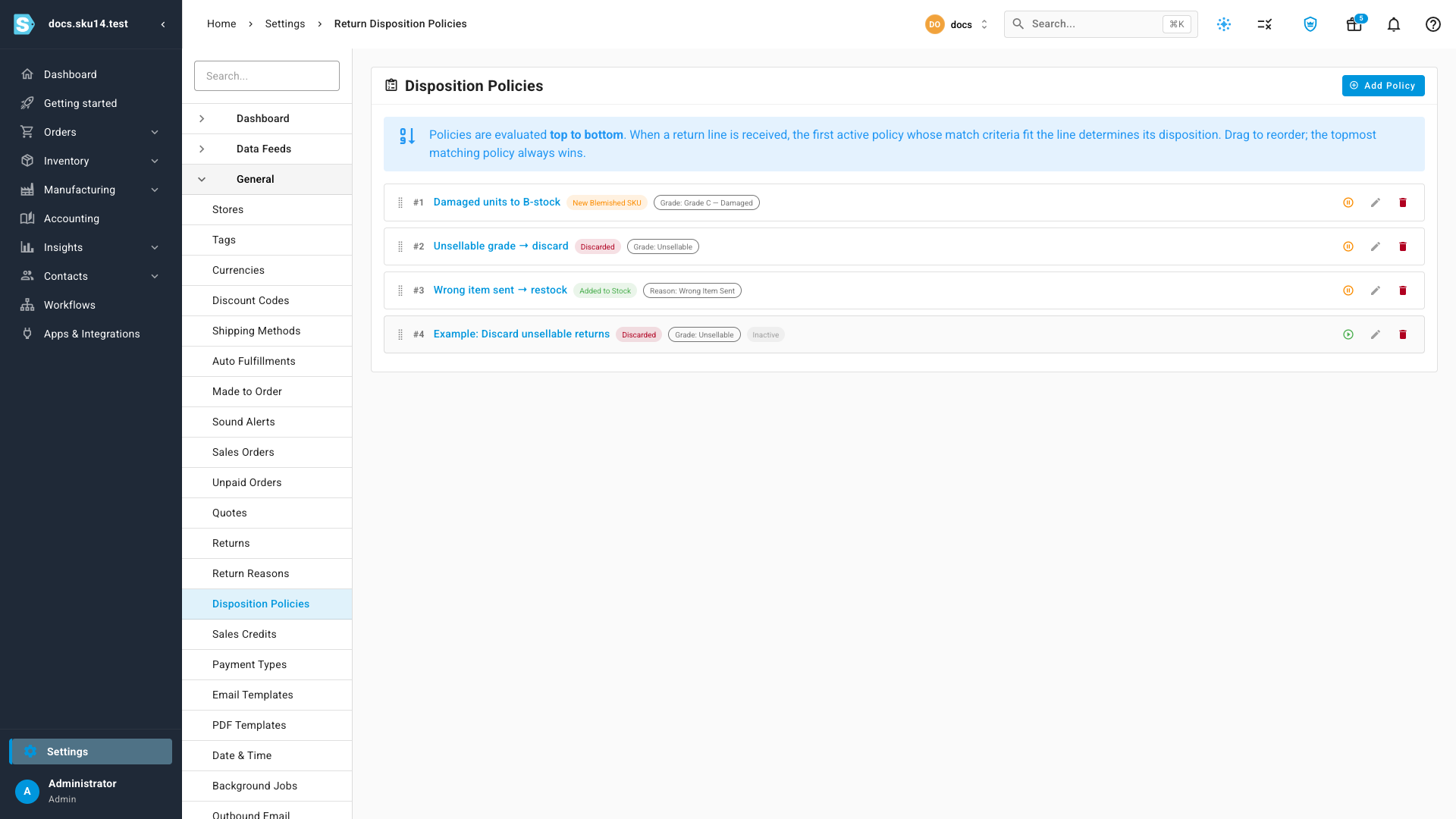
Each row shows its precedence number, the policy name, an action chip (Added to Stock, Discarded, or New Blemished SKU), the match-criteria chips it fires on (or Catch-all when it has none), and an Inactive marker if it's been deactivated.
2. Add a policy
Click Add Policy (top right) to open the policy dialog. The same dialog opens from the pencil (edit) icon on any row. Fill in:
| Field | What it does |
|---|---|
| Name | A label you'll recognize in the list and on the receiving screen (for example Damaged units to B-stock). |
| Disposition Action | The default this policy applies: Add to Stock, Discard, or New Blemished SKU. |
| Blemished Condition Label | Only shown when the action is New Blemished SKU. The condition label the blemished units land under — for example B-Stock. |
| Active | Toggle the policy on or off. Inactive policies are skipped during matching (see step 4). |
Then set any of the five match criteria. Every criterion is optional — a policy with none is a catch-all that matches every line:
| Criterion | Matches when… |
|---|---|
| Product | The return line is for that specific product. |
| Product Category | The line's product is in that category or any of its descendants — setting a parent category also matches its sub-categories' products. |
| Return Reason | The line's return reason equals the one you pick (for example Wrong Item Sent). |
| Warehouse | The return is being received at that warehouse. |
| Condition Grade | The line's grade equals A, B, C, or Unsellable. |
A policy only matches a line when every one of its non-empty criteria is satisfied (they combine with AND). Leave a criterion blank and it's simply not considered. Save the policy and it appears at the bottom of the list, ready to be ordered.
3. Order them by precedence
The list is evaluated top to bottom, and the first active policy that matches wins — so put your most specific rules first and your broadest rules last. Drag the handle on the left of any row to reorder; the precedence numbers (#1, #2, …) update to match, and the topmost matching policy always wins.
A worked example, matching the four policies above:
| # | Policy | Action | Matches on |
|---|---|---|---|
| #1 | Damaged units to B-stock | New Blemished SKU | Grade C — Damaged |
| #2 | Unsellable grade → discard | Discarded | Grade Unsellable |
| #3 | Wrong item sent → restock | Added to Stock | Return reason Wrong Item Sent |
| #4 | Example: Discard unsellable returns | Discarded | Grade Unsellable — Inactive |
Reading top to bottom: a Grade C unit hits #1 and routes to a blemished SKU; an Unsellable unit skips #1 and matches #2, so it's discarded; a good unit sent back because the wrong item shipped matches #3 and restocks. Policy #4 is deactivated, so it's skipped entirely — a handy way to keep a draft rule around without it firing.
If you want a guaranteed default for lines that match nothing else, add a policy with no criteria (it shows a Catch-all chip) and drag it to the bottom of the list. If no policy matches a line at all, the fallback disposition is Add to Stock.
4. Activate, deactivate, or delete a policy
Each row carries three controls on the right:
- Activate / deactivate — the pause/play icon toggles the policy's Active state. An inactive policy stays in the list (marked Inactive) but is skipped during matching, so you can retire a rule without losing it.
- Edit — the pencil reopens the policy dialog from step 2.
- Delete — the trash icon removes the policy. Deleting nulls the policy reference on any receipt lines that had used it — the historical receipts keep their disposition, they just no longer point at a policy that's gone.
How grades drive dispositions
Most policies match on Condition Grade, so grading is what makes them fire. When a return line is graded, the grade routes it to the matching policy:
| Grade | Meaning | Typical policy |
|---|---|---|
| A | Like New | Add to Stock (back to the original SKU) |
| B | Good | Add to Stock, or a blemished SKU if you sell B-stock separately |
| C | Damaged | New Blemished SKU (for example a B-Stock label) |
| Unsellable | — | Discard |
Set the grade on the return line and a grade-specific policy takes it from there — Grade C to a blemished SKU, Unsellable to the bin — without the receiver choosing the disposition themselves.
Where policies apply
Policies take effect when goods are received. In the Receive Station and the Receive Items flow, SKU.io auto-applies the matching policy to each staged line and shows a Policy chip on that line, so the receiver can see the default came from a rule rather than a guess.
The default is still just a default: a receiver can override the disposition per line. Doing so clears the policy default for that line — the override wins, and the Policy chip no longer applies. This lets you automate the common case while leaving room for the judgment call on the exceptions.
Related
- Receive returns at the Receive Station — where policies auto-apply to each staged line.
- Configure returns settings — default returns warehouse, blind receiving, and return reasons that policies match on.
- Process a customer return (RMA) — the full return lifecycle these dispositions settle.
Video transcript
A disposition policy defaults each returned unit to restock, discard, or a blemished SKU. Open Settings, General, Disposition Policies, and add a policy with a name, an action, and match criteria. Criteria — product, category, return reason, warehouse, or condition grade — are all optional and combine together. Policies run top to bottom, so drag them into order: the first active match wins. At the Receive Station each line arrives pre-defaulted, and a receiver can still override any one.