Link unmatched (blind) returns
Sometimes a parcel shows up at the dock with no RMA — the customer skipped the return process, or the paperwork is missing. Your clerk can still receive it at the Receive Station as a blind receipt: the units go straight back into stock, but the receipt isn't tied to any RMA or sales order yet.
Those blind receipts collect in the Unmatched Returns report — "Blind receipts awaiting linkage to an RMA or sales order." This is where a returns clerk clears the backlog, connecting each parcel to the return it actually belongs to.
Linking is bookkeeping, not restocking. A blind receipt already added its stock when it was received. Linking it here does not add the stock a second time — it only records which RMA or order the parcel came from, so the two halves of the return line up (see how returns reconciliation works).
Before you begin
- You need the returns.update permission — linking edits the receipt record.
- The parcel must already be received as a blind receipt. If it hasn't been received yet, start at the Receive Station.
1. Open the Unmatched Returns report
Go to Orders → RMAs and open the Unmatched tab (route /v2/rma/unmatched).
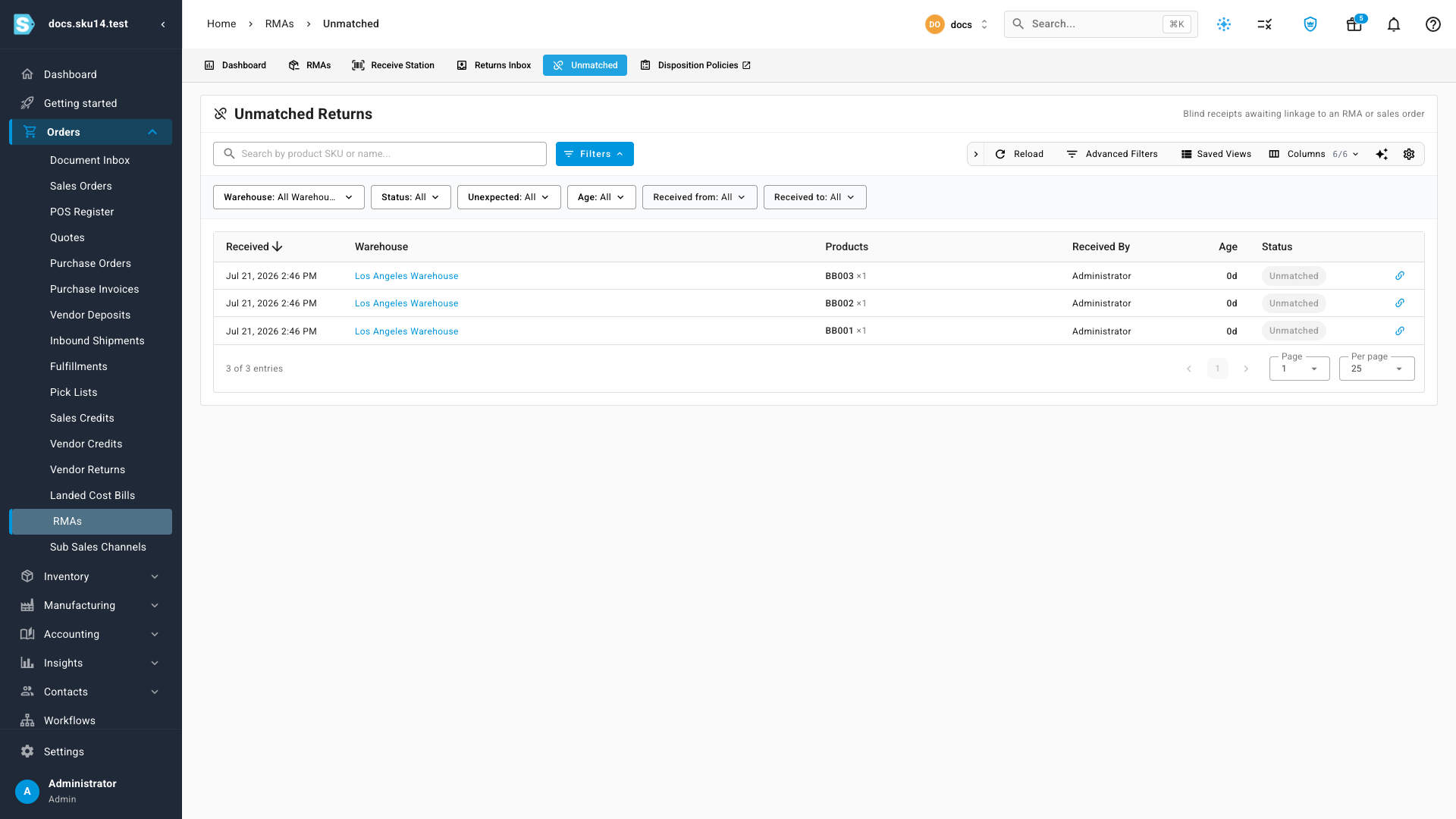
The report lists every blind receipt (a receipt with no RMA) plus any receipt the system has flagged Needs Review. Each row carries:
| Column | What it shows |
|---|---|
| Received | Date and time the parcel was received. Sortable — newest first by default. |
| Warehouse | The warehouse that took the receipt (a link to that warehouse). |
| Products | The SKUs and quantities in the parcel (SKU × qty). A Not on RMA chip marks an item that wasn't expected on the return it's being matched to. |
| Received By | The user who received the parcel. |
| Age | Days since receipt. Highlighted once a receipt passes 30 days. |
| Status | A grey Unmatched chip, or a warning Needs Review chip when the system couldn't safely auto-link. |
| (link icon) | The link action — tooltip "Link to an RMA or sales order". |
When the queue is empty you'll see No unmatched returns 🎉.
2. Find the receipt
Use the filters above the table to narrow the backlog to the parcel in front of you:
| Filter | Options | Use it to… |
|---|---|---|
| Warehouse | All / any warehouse | Focus on the dock you're clearing. |
| Status | All / Unmatched / Needs Review | Split the clean queue from the ones needing a decision. |
| Unexpected | All / Unexpected only | Surface receipts holding items that weren't on the return. |
| Age | All / >30 days / >60 days | Find the old parcels auto-matching has given up on. |
| Received from / Received to | Date range | Bracket receipts to a window. |
You can also search by product SKU or name, save a filter combination as a Saved View, or open Advanced Filters for finer conditions.
3. Link it to an RMA or sales order
Click the link icon on the receipt's row to open the Link Blind Receipt dialog.
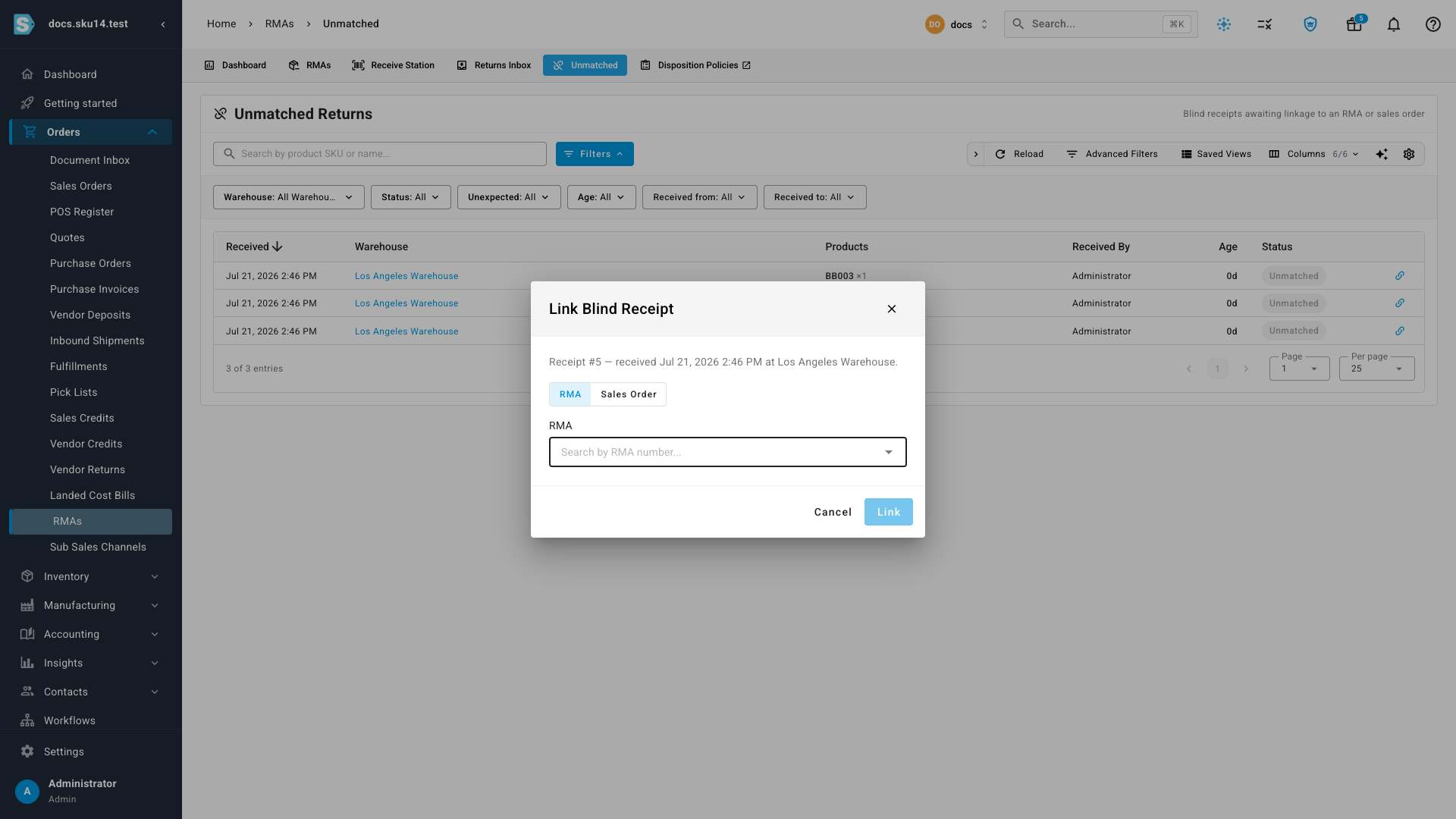
The dialog opens with the receipt's context — for example "Receipt #5 — received Jul 21, 2026 2:46 PM at Los Angeles Warehouse." — so you can confirm you have the right parcel.
- Choose what you're linking to with the RMA / Sales Order toggle.
- Search the autocomplete — "Search by RMA number…" for an RMA, or by order number / customer for a sales order.
- Pick the match and click Link.
Linking to a sales order resolves the single open, receipt-less RMA on that order — handy when you know the order but not the RMA number.
When the link is refused
SKU checks each link and blocks it with a clear error rather than double-counting stock or attaching a parcel to the wrong return. The link is refused when:
| Guardrail | Why it's blocked |
|---|---|
| The receipt is already linked | It's no longer a blind receipt. |
| The RMA isn't receivable | It must be Approved, In Transit, or Partially Received — never Draft. |
| The warehouse doesn't match | The receipt's warehouse must equal the RMA's return warehouse. |
| The RMA already has receipts | Linking would double-count the return. |
| The RMA has no lines | There's nothing to receive against. |
| The order has zero or more than one open RMA | A sales-order link only works when exactly one open RMA is waiting. |
When a return needs review
A Needs Review chip means auto-matching found more than one plausible answer and refused to guess — for example two receipts that both fit one RMA, or one receipt that fits two different RMAs. Rather than pick wrong, SKU leaves it for a person.
Filter Status → Needs Review, open the receipt, and use the Link dialog to pick the correct RMA or order yourself. A human decision here is safer than an automatic one.
Aged returns and write-offs
Auto-matching only looks back 30 days. A parcel that arrives long after its order — or one that never had an RMA — won't auto-link and lands here instead. That's by design: old, unmatchable returns belong in a monthly write-off pass, not an automatic match.
Use the Age filter (>30 days, >60 days) to pull the aged backlog into view, then link what you can identify and write off the rest. The Age column highlights once a receipt crosses 30 days so stragglers are easy to spot.
Related
- How returns reconciliation works — why a blind receipt already holds its stock, and how linking squares the books.
- Receive returns at the Receive Station — where blind receipts are created in the first place.
- Match marketplace returns — the Returns Inbox counterpart for channel-driven returns.
Video transcript
When a parcel arrives with no RMA, your clerk receives it blind — the stock is already back on the shelf. Those blind receipts wait in the Unmatched Returns report. Filter by warehouse, age, or status to find the one you need. Click the link icon, choose an RMA or sales order, search for it, and click Link. Linking only records where the parcel belongs — it never adds the stock twice.