Get an email reminder about unsubmitted purchase orders
Purchase orders that are drafted but never sent to the supplier hold up stock without anyone noticing. This workflow checks for them on a schedule and emails you a summary — so nothing sits Unsubmitted without you knowing. You choose how often it runs: daily, every Monday morning, once a month, whatever fits.
You'll build four steps: Schedule → Find Purchase Orders → IF → Send Email.
Before you begin
- Skim Build a workflow from scratch — this guide uses the same moves (add a trigger, chain nodes, publish).
- Decide the cadence (for example, every weekday at 8 AM) and the recipient email address for the reminder.
- The Find Purchase Orders node reads your own purchase orders — no credential or integration is needed.
Add the Schedule trigger
- Go to Workflows, click New Workflow, then Add first step….
- In the Node Palette, open Triggers and choose Schedule.
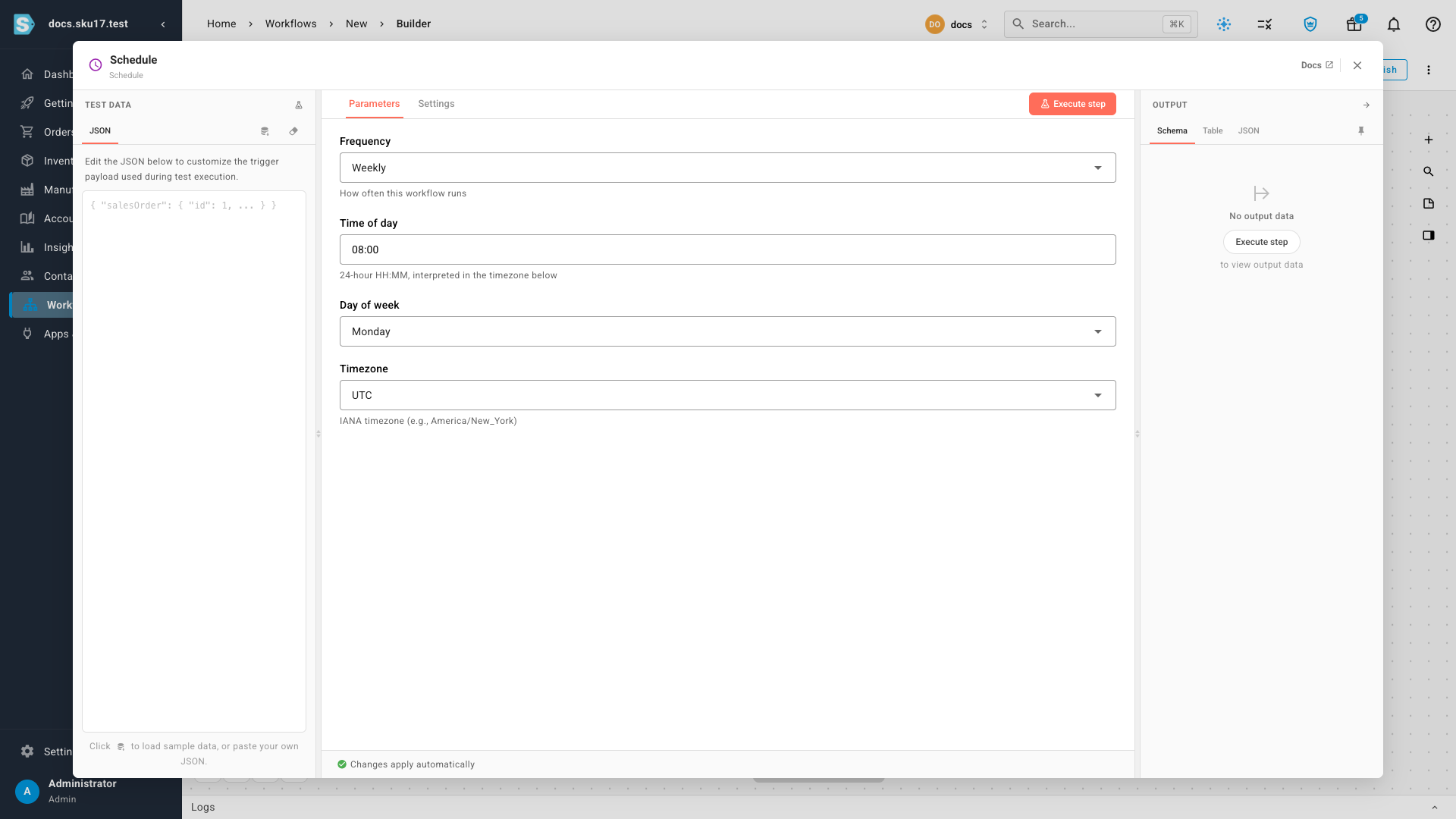
- Click the node and set its schedule:
- Frequency — pick Every hour, Daily, Weekly, Monthly, or Custom (cron expression).
- Time of day — for daily/weekly/monthly, the 24-hour time to run (for
example,
08:00). - Day of week / Day of month — shown for Weekly / Monthly.
- Timezone — the Time of day is interpreted in this timezone, so the reminder lands at the right local hour.
Add Find Purchase Orders
- Click the + on the Schedule node and pick Find Purchase Orders from the Actions group. It connects automatically.
- Click the node and set:
- Submission status — leave it on Unsubmitted ("Drafted but not yet sent to the supplier"). The dropdown mirrors the statuses used across purchase orders, each with a short description.
- Only include POs older than (days) (optional) — set, say,
3to be nagged only about POs that have been sitting for a few days. Leave0to include all. - Destination warehouse (optional) — limit to specific warehouses.
- Max POs to list — how many to list in the email body. The count always reflects the true total, even if more exist than are listed.
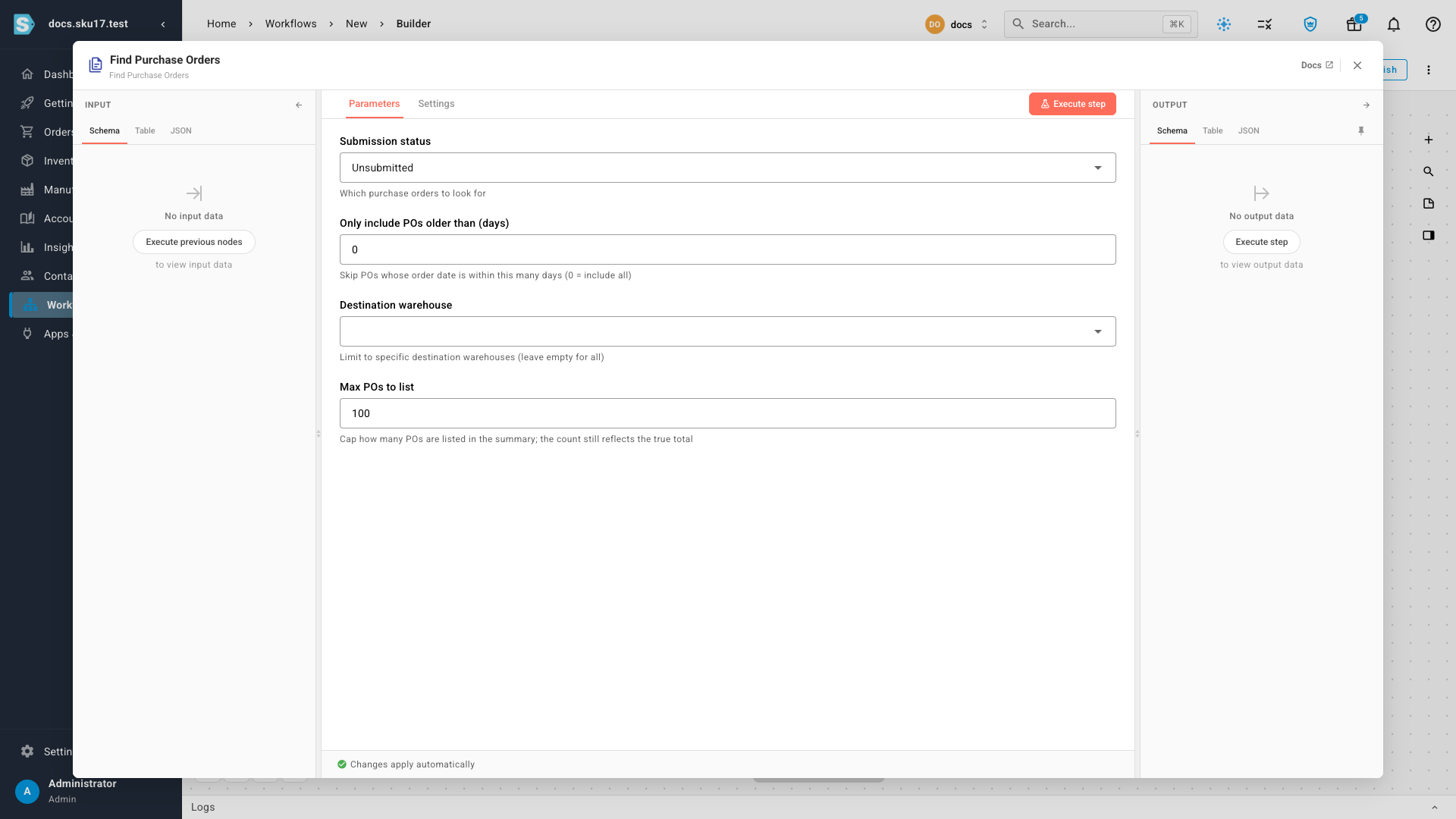
This node emits a ready-to-send count, a subject line, and a formatted summary — each PO's number, supplier, total, and age, with a direct link to open and submit it, plus a link to the filtered list. So the email step needs almost no wording of its own.
Only email when there's something to report
Add an IF node so the reminder is skipped when there are no unsubmitted POs.
- Click the + on Find Purchase Orders and pick IF from the Logic group.
- In Conditions, compare the count to zero:
- Value:
{{ $nodes.find-purchase-orders.count }} - Operator: greater than
- Compare to:
0
- Value:
- Leave Combine Conditions on AND.
The True branch runs only when at least one PO matches.
Send the reminder email
- Click the + on the IF node's True handle and pick Send Email from the Integrations group.
- Click the node and fill in:
- To — the recipient address.
- Subject —
{{ $nodes.find-purchase-orders.subjectLine }}(renders as, for example, "You have 3 unsubmitted purchase orders"). - Template — Custom Body.
- Email Body —
{{ $nodes.find-purchase-orders.summary }}. This drops in the full list — each PO with a direct link to open and submit it — plus a View them link to the filtered purchase orders.
Customize what the email says
The ready-made summary already lists every PO with its number, supplier, value, age, and a direct link — enough for most reminders. To write your own layout instead, reference the node's fields yourself in the Email Body. Click Insert field above the body to pick from every output of an earlier step, or type the references in.
To show one line per purchase order — say, the number, the supplier, and a link the
buyer can click to submit — loop the list with {{#each }} and reference each PO with
{{ this.<field> }}:
Hi Wes, please submit these {{ $nodes.find-purchase-orders.count }} purchase orders:
{{#each $nodes.find-purchase-orders.purchaseOrders }}
• {{ this.purchaseOrderNumber }} — {{ this.supplierName }}
  Submit: {{ this.url }}
{{/each}}
Each purchase order exposes purchaseOrderNumber, supplierName, warehouseName,
orderDate, ageDays, formattedTotalCost, and url (a direct link to that PO).
See Reference an earlier step's data
for the full expression syntax.
Name it and publish
- Click the workflow name in the header and enter something like Unsubmitted PO reminder.
- Click Publish. The workflow flips from Draft to Active and runs on your schedule from now on.
Each run appears under the Executions tab. When it finds unsubmitted POs, the matching email goes out; when it finds none, the IF step stops the run and no email is sent.
Change how often it runs
Open the workflow, click the Schedule node, adjust the Frequency (or the Time of day / Day of week / Timezone), and Publish again. The new cadence takes effect immediately — no need to rebuild the rest.
Next steps
- Build a workflow from scratch — the general canvas moves.
- How workflows work — triggers, nodes, and the lifecycle.
Video transcript
Purchase orders that are drafted but never sent to the supplier can quietly hold up stock. Let's build a workflow that emails you about them, on a schedule. In Workflows, click New Workflow, then add a Schedule trigger. Open the Schedule step to set the cadence — how often it runs, and the timezone it runs in. Click the plus, and add Find Purchase Orders. Leave the submission status on Unsubmitted — drafted, but not yet sent to the supplier. Add an IF step, so the reminder is skipped when there's nothing to report — it checks that the count is greater than zero. On the True branch, add Send Email. Use the node's ready-made subject and summary, which already list every purchase order with a link. Finally, name your workflow and click Publish. It's now active, and emails you on your schedule.